EAP docs: Managing ticket statuses | Community
Skip to main content

EAP docs: Managing ticket statuses

  • January 10, 2022
  • 21 replies
  • 0 views

Amy34

Quick Look:  Admin Center > Objects and rules > Tickets > Ticket statuses

When you enable Ticket Statuses, you can edit ticket statuses, change a category’s default ticket status, and activate and deactivate ticket statuses.

You must be an admin or agent in a custom role with permission to manage ticket statuses.

This article includes these sections:

  • Editing ticket statuses
  • Changing the default ticket status of a category
  • Activating and deactivating ticket statuses

Related articles:

Editing ticket statuses

You can edit any ticket status, including system ticket statuses and ticket statuses you’ve created.

You must be an admin or agent in a custom role with permission to edit ticket statuses.

To edit a ticket status
  1. In Admin Center, click the Objects and rules icon () in the sidebar, then select Tickets > Ticket statuses.
  2. (Optional) Use the search bar or filter controls to find the ticket statuses you want to edit.
  3. Move the cursor over the ticket status, click the options menu icon ( ) on the right side.
  4. Click Edit.
    Note: You can edit nearly all of the configuration options on this page; however, you cannot move an existing ticket status to a different status category.
  5. Configure the options for the status.

    For information about the options that appear on this page, see Configuration options for ticket statuses.

  6. click Save.

Changing the default ticket status of a category

Once you’ve created at least one ticket status in a category, you can change the default ticket status of a status category, if needed. Each status category includes a default ticket status.

You must be an admin or agent in a custom role with permission can change the default status of a category.

To view the default ticket status of a category
  1. In Admin Center, click the Objects and rules icon () in the sidebar, then select Tickets > Ticket statuses.
  2. Click the options menu icon () on the right side and select Default.

The Default column appears. Default appears in the row of each category’s default ticket status.
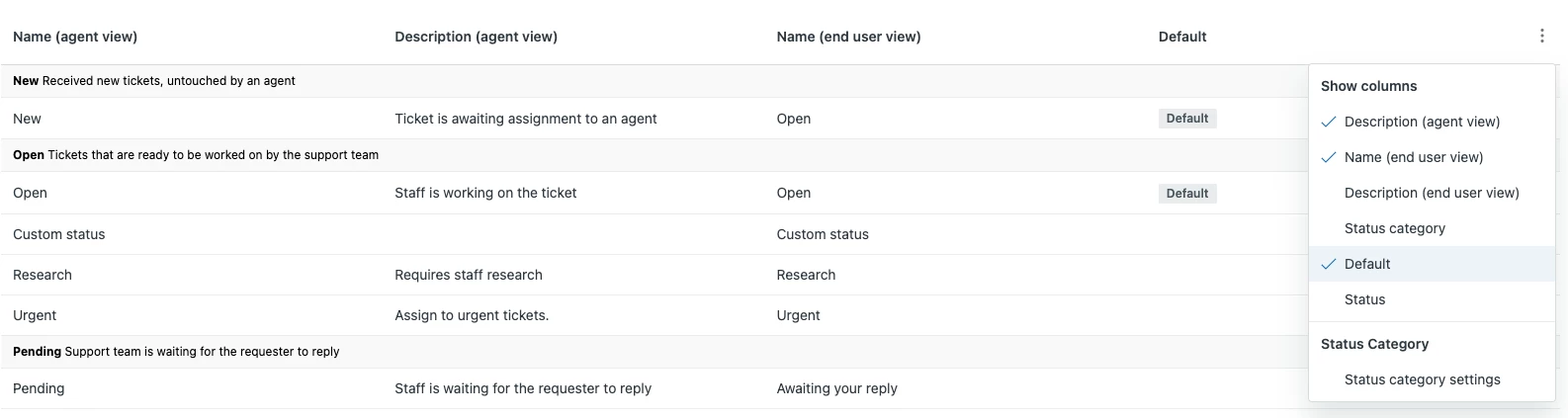
To change the default ticket status of a category
  1. In Admin Center, click the Objects and rules icon () in the sidebar, then select Tickets > Ticket statuses.

    The Ticket statuses page displays.

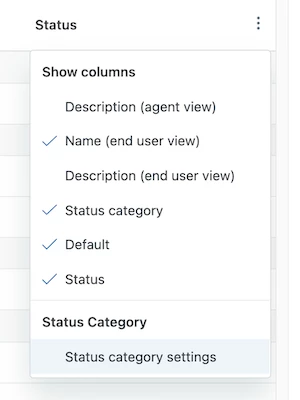
  2. In the table, in the (first) heading row, click the options icon () on the right side and select Status category settings
  3. Under the default ticket status of a category that you want to change, use the drop-down list to select the new default ticket status.
  4. Click Save.

Activating and deactivating ticket statuses

Your account can have up to 100 ticket statuses, but we recommend that you limit the number of active ticket statuses in your account to keep things manageable. All active ticket statuses appear in the status picker, in the ticket interface.

Note: Deactivating a ticket status is not the same as disabling the entire ticket statuses experience. To disable ticket statuses, see Enabling and disabling ticket statuses.

If you have more than 10 active ticket statuses, the status picker will display the first 10 active ticket statuses. Agents will need to scroll down to see the rest.

When a ticket status is deactivated, agents will no longer be able to assign that status to tickets. However, deactivating a ticket status doesn’t delete it and you can reactivate it at any time.

Admins and agents in custom roles with permission can activate and deactivate ticket statuses.

To activate or deactivate a ticket status

  1. In Admin Center, click the Objects and rules icon () in the sidebar, then select Tickets > Ticket statuses.

    The Ticket statuses page displays.

  2. Move the cursor over the ticket status, click the options icon () on the right side, and then click Activate or Deactivate.
  3. If you’re deactivating a ticket status, confirm that you want to deactivate the status by clicking Deactivate in the dialog box.

    Note: Alternatively, you can activate or deactivate a ticket status by opening it for editing and selecting or deselecting the Set as active check box.
 

21 replies

  • July 20, 2022

Hi Team,

Is it possible to add a delete option or add another tab in managing the Custom status to be called "Inactive"? Then we can just revisit the inactive tab if we want to reactivate the ticket status.

That way, it will be easy to manage all custom ticket status specially that there is no limit to how many custom status we can create.

Thank you


Gaurav12
  • August 18, 2022

Hey Arthur,

The ability to delete statuses will be available at GA. 

Thanks,

Gaurav Parbat


John87
  • September 26, 2022

Any idea when these will be available for reporting.   I have added a few ticket statuses, however reporting still only shows New, Open, Pending, Hold, Solved, Closed


Gaurav12
  • September 26, 2022

Hi John,


Explore and CTS integration will be available at GA closer to November.

Thanks,

Gaurav Parbat


Julia16
  • September 26, 2022

@gaurav12 thanks for the update.   Can someone please add this to the article above?  It is a great feature but without reporting, it isn't something we can use at this time


Colleen13
  • September 26, 2022

Hi @julia16,

Thank you for your feedback! I've updated our Feature limitations post with more information about Explore integrations. That post is also now linked in this article and in the Enabling ticket statuses article as well. 


Budke,
  • September 28, 2022

Will there be the capability to change the status background color?  


Jon62
  • September 29, 2022

Will there be the option to limit a custom status to a particular brand?

Example: 
Custom status 1 - available for brand A
Custom status 2 - available for brand A and B
Custom status 3 - available for brand B


Gaurav12
  • September 29, 2022

Hi Jon,

We are working on that capability. Can you please help us by sharing your use case in a short survey shared on this post?
Assigning Ticket Statuses to a group, organization, ticket from or a brand


  • October 4, 2022

New ticket statuses are great, but there should be an option to be able to sort them alphabetically. Right now they appear in the order that they are created and there is no option to change that.


Serge13
  • October 7, 2022

@Julia DiGregorio
Waiting for this feature and with triggers, you may apply Tags depending Custom Status, and get this information into Explore.

Regards
Serge.


Gizelle
  • October 13, 2022

Testing the Ticket statuses and noticed the sorting thing as well but more evenly odd is the custom ticket statuses on the Help Center icon colors do not match Support icon colors.  Help Center shows New and Inprogress as both Red and Pending in Green.  Support shows New as amber/yellow, Inprogress as Red and Pending as Blue?


Chad16
  • October 20, 2022

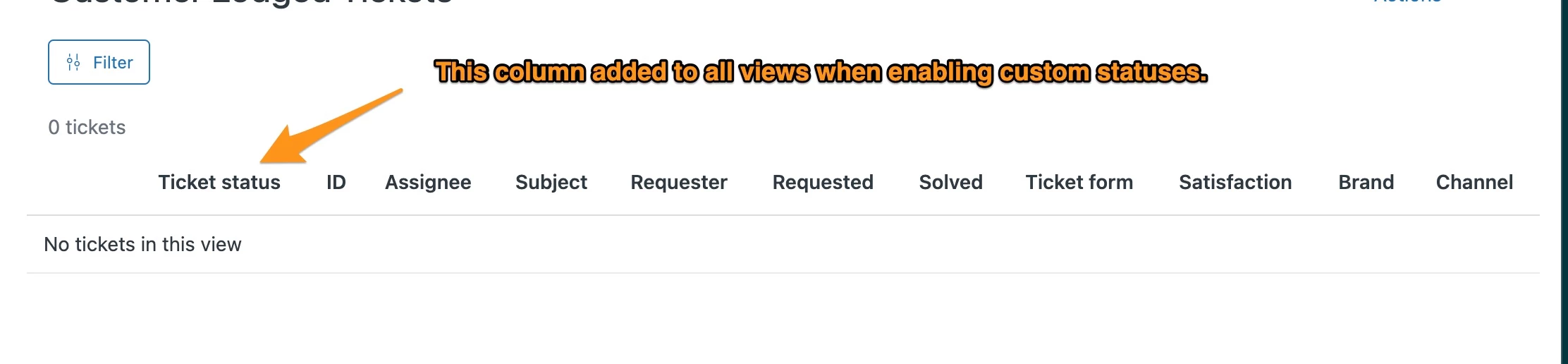
Not sure if this is correct but when enabling Custom Statuses, all views will automatically set the first column to 'Ticket Status'.

This behaviour looks like it happens to EVERY view including personal views but that column doesn't seem to take up one of the allowed ten columns in a view. (See below - has 11 columns)

There doesn't appear to be a way to change this (at least I can't find it and can't find any reference in documentation).


Yoram11
  • October 22, 2022

Hi,


Will ticket statuses be added as exit conditions in automation?

Currently, this is not possible and I would prefer using it instead of adding more conditions to my automation such as tags and actions as the exit condition.

Thanks

Yoram 


John87
  • December 14, 2022

@Gaurav Parbat  you mentioned a few months ago the custom statuses would be availbe in reports sometime around Novemer - do you have any update on this


John87
  • December 14, 2022

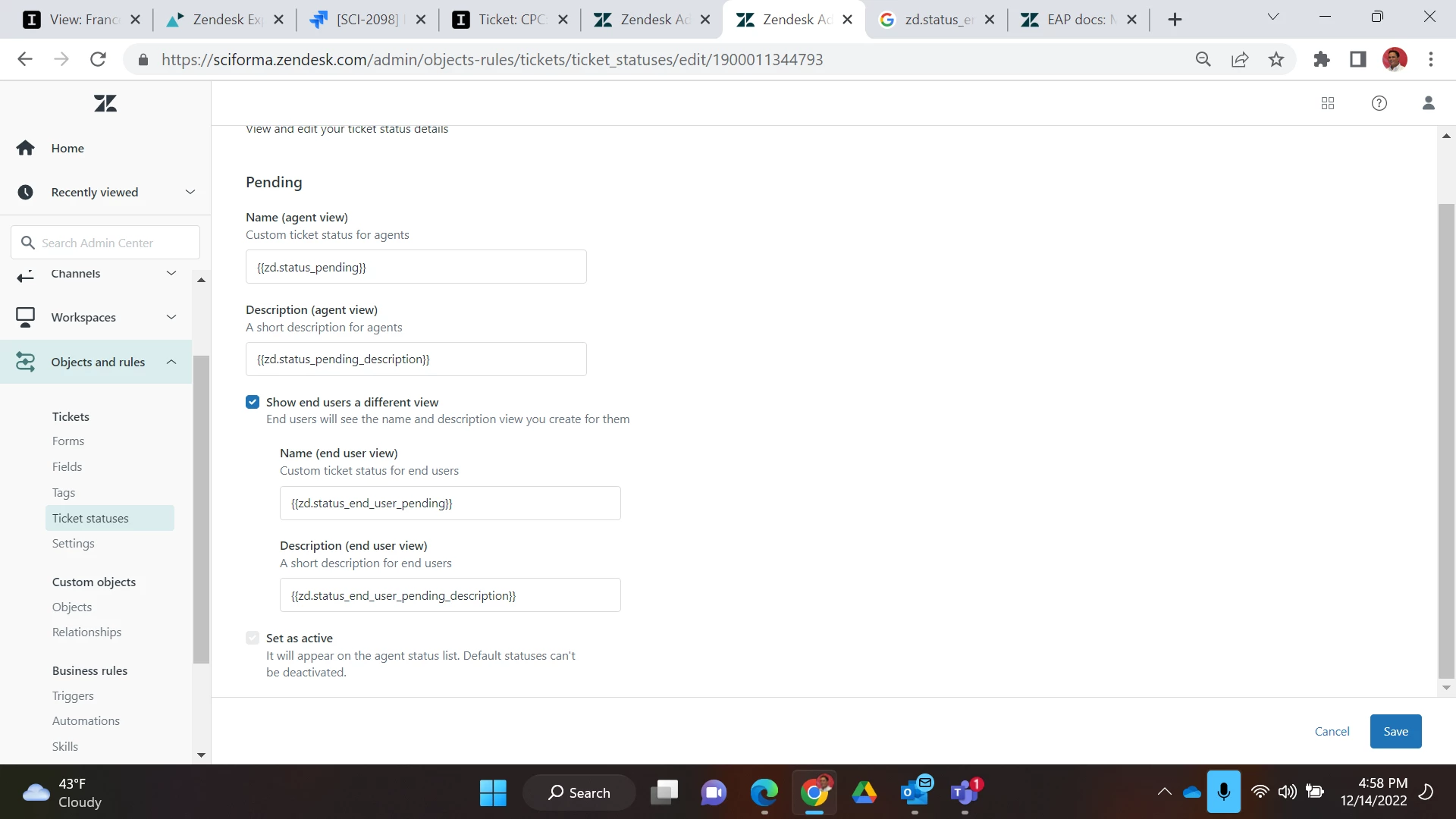
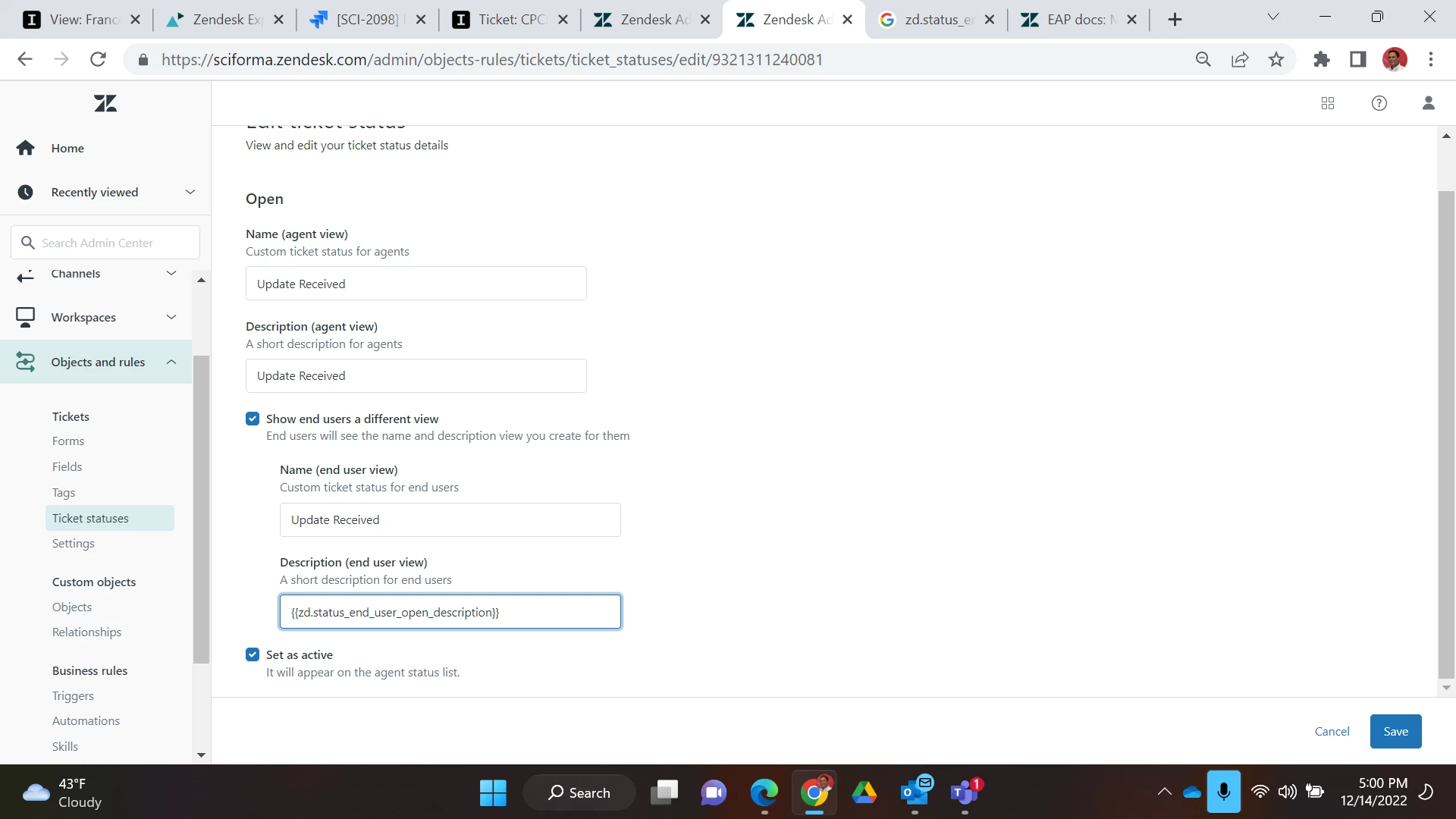
It appears the custom status show on the reports.  However, I can I get them to display on the main requests page?   If I go into the ticket itself it shows correctly.    We have an out of the box field for Pending that works find but for the custom one it doesn't show the value.  Below is the example of the out of the box one for Pending.    The second screenshot is for the one I added called update received


John87
  • December 19, 2022

Any ideas on how to get these new statuses to show up correctly on the community?


Jeferson12
  • January 12, 2023

Hello,

About to sort the ticket statuses inside the category (@jp15 commented on October 4). Do you have any update on this?


Filipe12
  • January 17, 2023

Hello, 

why the statuses: closed, not show? I will need to insert how new status ? 


John87
  • January 17, 2023

@filipe12 - they consider solved and closed on the community pages as the same thing - very confusing when it is labeled one way in the agent view and something different in the customer view


  • January 18, 2023
Hi Filipe! 
 
This is expected at first glance when viewing the tickets. However, the status category 'Closed' is still available for the business rules.
You can also manage your views with this condition if you'd like to make a separation. 
We have more information related to this behaviour explained under this post.
 
I hope this helps!