The Help center search crawler lets you easily surface great self service content that is not hosted in Help center when your end users and agents search for answers to their issues.
Important: You are responsible for using the Help Center search crawler in compliance with all applicable laws and the terms and conditions of the relevant websites. You should only add Sitemaps where you own the domain associated with such Sitemaps. By using the Help Center search crawler, you confirm that you own the domains for all Sitemaps added to the crawler and that you have the right to crawl such websites.
When we first launched Federated search we made it possible to take all that great content that can be helpful to your customers, but is not native help center content (articles, posts and comments) and weave it into help center search results when it is relevant to the users query.
This has until now only been possible by ingesting records of that content via the External content API and have thus required you to build and maintain a middleware to integrate the service, website, LMS, blog, etc. that host the external content and Help Center.
Now you can just setup a crawler in a few clicks, with no coding necessary.
How does it work?
To use the crawler to get federated search results to show up on the SERP on your help center you will need to do the following 3 things:
- Setup your theme for federated search
- Setup your crawlers. See below.
- Configure federated search in your help centers
You can set up multiple crawlers to crawl and index different content in the same or different web properties.
When created, the crawlers will run once every 24 hours, where they will visit the pages in the sitemap you have specified for the crawler ((See Configuring your sitemap below) then scrape the content and metadata and ingest it into your Help Center’s search index.
Note that this means that the crawler, despite its name, does not crawl links on the pages it visits, follow them and scrape and index the linked pages, but only visits the pages in the sitemap it is configured to use (See Configuring your sitemap).
What does it index?
The crawler indexes content that is in the page source on the initial page load, even if it's hidden by something like an accordion. The crawler does not crawl content that is dynamically rendered after the initial page load or rendered by JavaScript since the crawler does not execute JavaScript.
Setting up your crawlers
To add a crawler go to Guide > Settings > Search Settings > Federated search > Crawler and click “add crawler.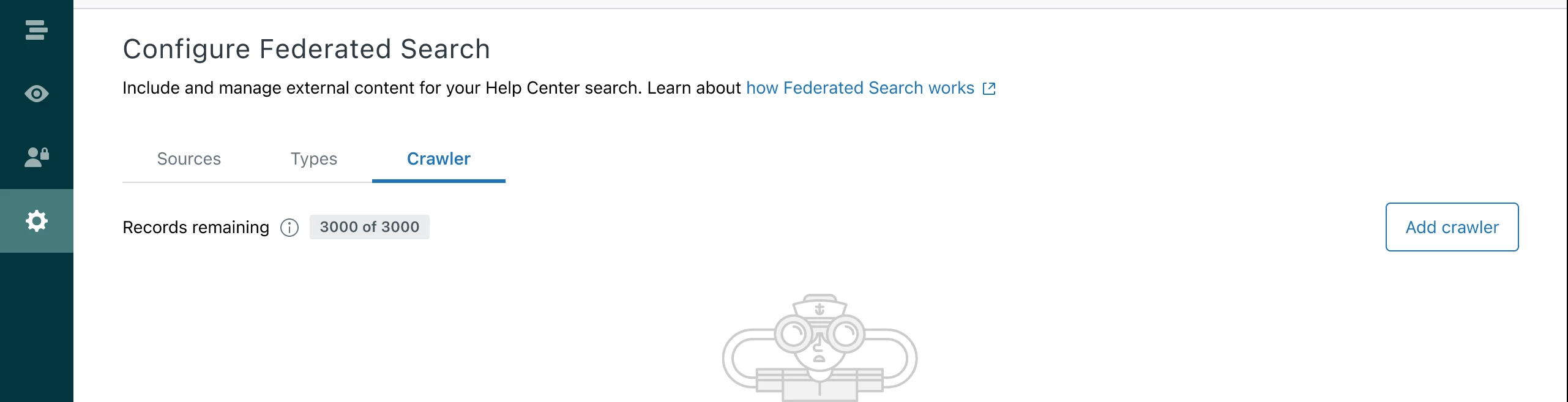
Here you will be be guided through 4 steps to setting up your crawler:
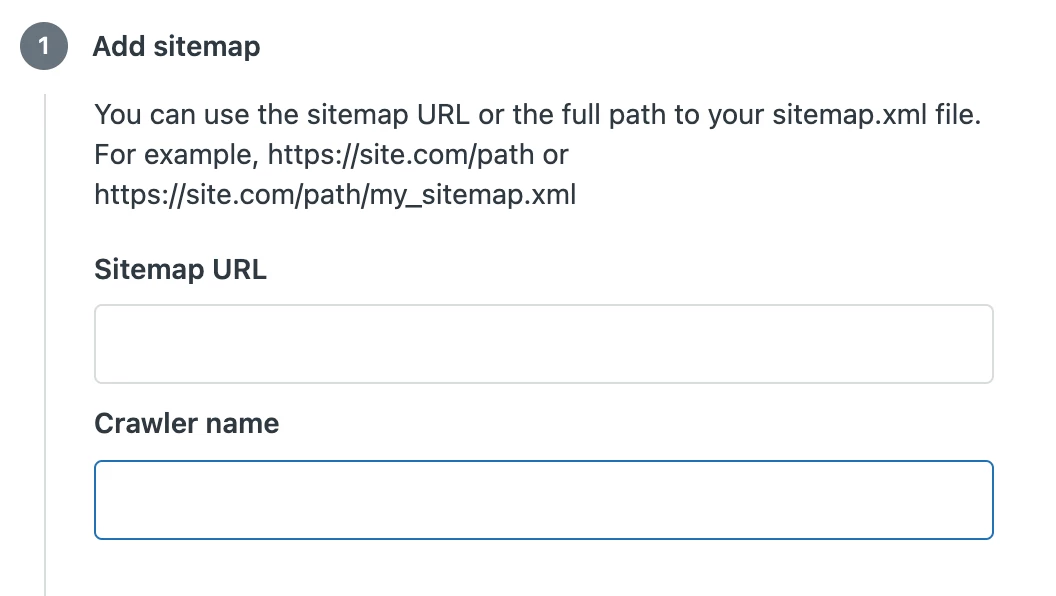
1) Add sitemap
In the Sitemap URL field you can input either a domain address or a specific URL path to your desired sitemap XML file.
If you enter a domain address the crawler will try to identify the sitemap location by trying common sitemap paths.
If you enter a specific url for your sitemap file the crawler will try to fetch the sitemap from that location. This means that if you do not want the crawler to crawl all pages on your site you can create a dedicated sitemap that you point the crawler to.
If you set up multiple crawlers on the same site, they can each use different sitemaps to scope what they index.
The sitemap has to follow the Sitemaps XML protocol and it only visits the pages in the sitemap that it is configured to use.
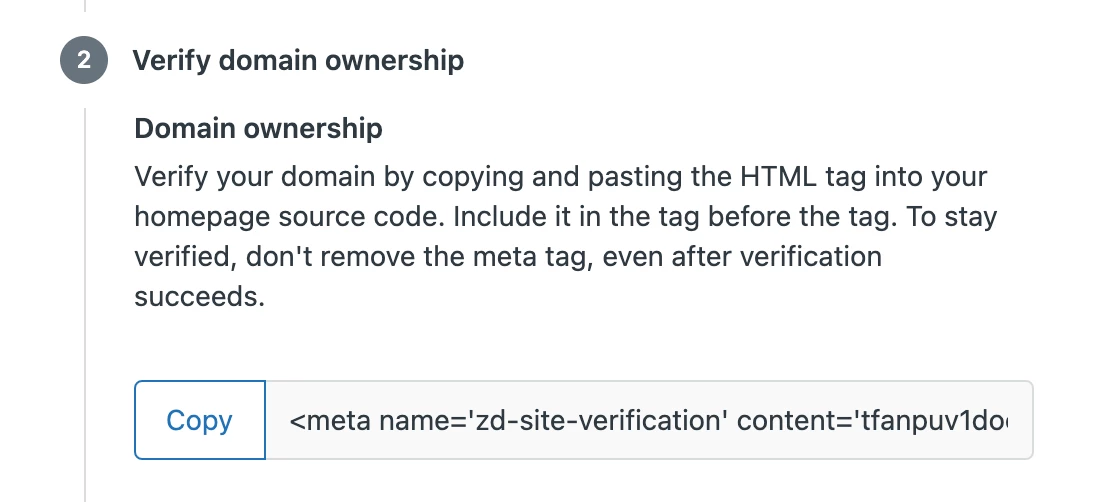
2) Verifying your domain ownership
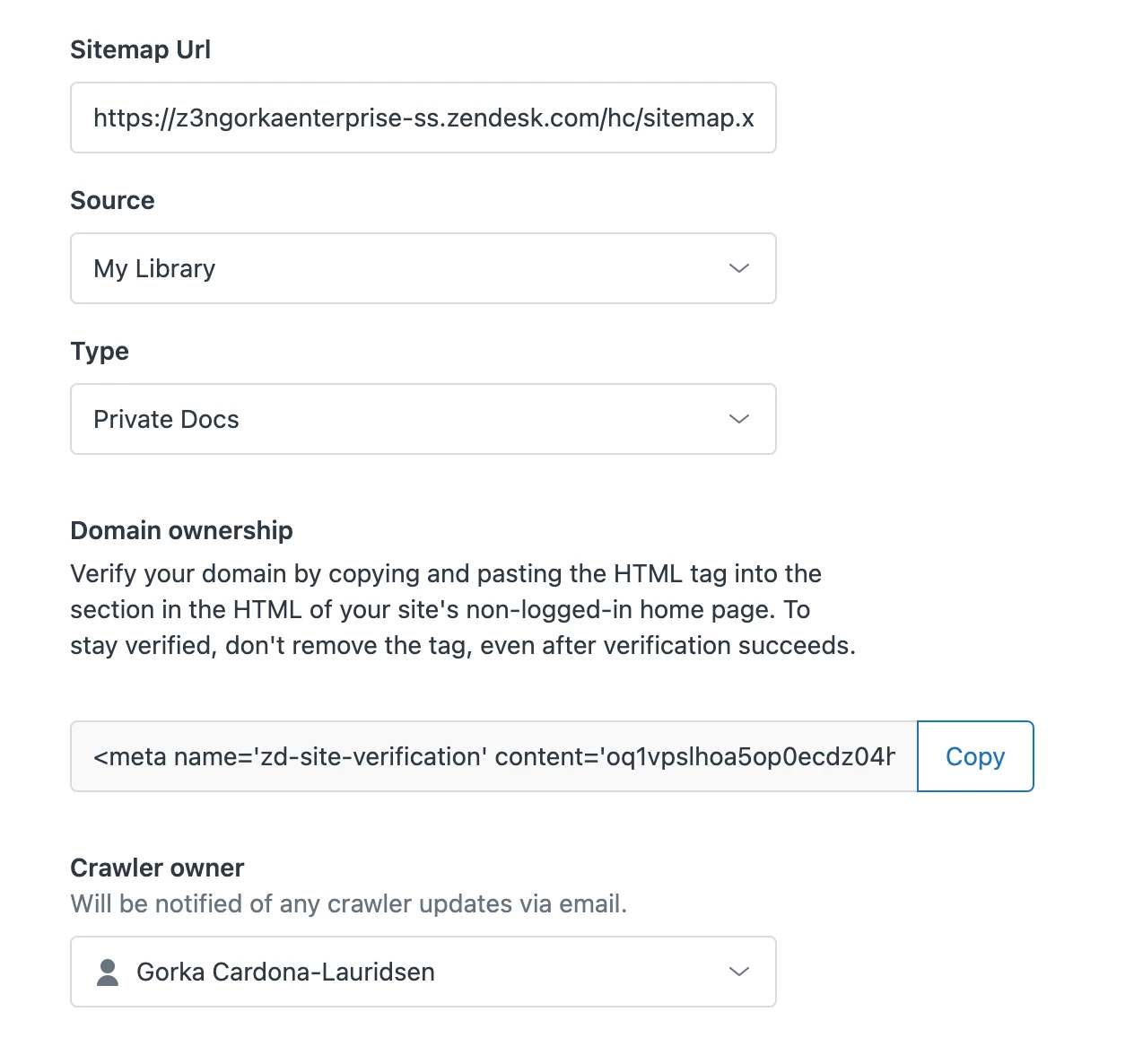
For security and abuse reasons the crawler has to be able to verify ownership of your domain. To enable that you need to copy and paste the HTML tag into the <head> section in the HTML of your site's non-logged-in home page.
The crawler will try to verify the domain ownership everytime it tries to crawl, by looking for the HTML tag, so to stay verified don't remove it.
3) Add search properties
The content crawled by each crawler needs to have an associated Source and Type. These are used for users to filter search results.
Sources will appear as values in the Source filter, alongside other external sources and if you use multi-help center search other Help Centers in your instance.
Types will appear as values in the Types filter together with the native types “Articles” and “Community”.
You can either choose a source or type you have created previously or you can create a new one by typing the source or type name and clicking “Add as new source/type”, as long as you haven’t hit the sources and types product limit.
When you click a source or a type the search results list will only include results of that source or type. Source and type filtering can be combined.
4) Get email notifications
As the last step you can set an owner of the crawler. The owner is by default the user creating the crawler, but you can set any other Guide Admin as crawler owner. The crawler owner will be the one that receives email notifications to let you know that the crawler has succeeded or if there are issues with domain verification, processing your sitemap or crawling pages.
To set up more than one crawler you just repeat the steps described.
What happens when the crawler is added?
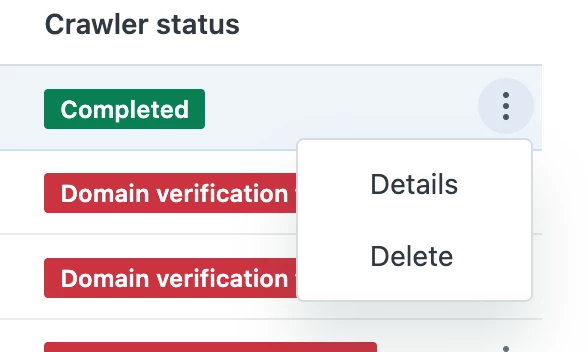
Once you hit “Finish” your crawler is created and pending. Within 24 hours the crawler will first try to verify ownership of you domain. If it fails the crawler owner will receive a notification by email with troubleshooting tips and the crawler will try again in 24 hours and so on.
When the crawler succeeds in verifying your domain it immediately proceeds to attempt to fetch and parse (process) the sitemap you have specified. If this fails the crawler owner will again receive a notification by email with troubleshooting tips and the crawler will try again in 24 hours and so on. Note that the crawler fetches the current sitemap each time it tries to crawl, so if the sitemap changes, the scope of which pages are crawled will also change and previously indexed pages that no longer appears in the sitemap will no longer appear in search results.
When sitemap processing succeeds the crawler immediately proceeds to crawl the pages and index its content. Once that’s done the crawler owner will receive an email with a CSV report of all the pages that were attempted to be crawled and indexed and whether they succeeded or failed. Each failed page will have an error message to help troubleshoot.
Remember that for search federated restults to appear you also need to:
Can I use the external content API and the crawler simultaneously?
You can absolutely use the external content API and the crawler simultaneously. You should just be aware that if you delete a source or a type via the API, then any crawler that is creating or updating records for the deleted source or type will stop working.
Current limitations
- The content to crawl has to be publicly available. This limitation we are not planning to solve in v1.
- You can't delete and edit sources and types though the GUI.
- Dedicated custom sitemaps are necessary if you want to have several crawlers crawl the same domain or scope crawling.
- Email notifications are text only.
- The content to crawl has to be UTF-8 encoded. The crawler does not support other encodings.
Product limits
- General Federated search limit of 50000 external records.
- Record max title length - 255 characters
- Record max body length - 10000 characters