using tags in email templates with liquid markup | Community
Skip to main content

using tags in email templates with liquid markup

  • September 21, 2018
  • 11 replies
  • 0 views

I want to include different logos in email template, depending on the tickets tag.

I've set up triggers that add the corrosponding tags fx "tag.name" - but when i use liquid markup to check for this tag, it doesn't output the logo like it should.


I've tried two different ways:

 <div>
{% assign tags = ticket.tags | split: " " %}{% for tag in tags %}{% case tag %}
{% when 'tag.name' %}
<img src="https://domain.com/file.jpg" />
{% endcase %}{% endfor %}
</div>


I've also tried this version:

 {% assign tags = {ticket.tags} | split: " " %}
{% if tags contains 'tag.name' %}
<img src="https://domain.com/file.jpg" />
{% endif %}


What am i doing wrong?
Can a tag not include a period or where is the error?

When i check the ticket, i can see the tag is assigned as it should be. And the trigger that assigns the tag, is before the email trigger.


This topic has been closed for replies.

11 replies

Heather13
  • September 21, 2018

Hi Michael,

I've never used a tag with a period. Would you kindly try using an underscore or dash and see if that resolves it?


  • Author
  • September 21, 2018

I have now changed it to dashes instead.

It doesn't change anything though - it still doesn't work :-(


I can see the div in the email source, but none of the condional images are pulling through


Heather13
  • September 21, 2018

Interesting. I am sorry, I don't have an example for using tags but we do use the user's Organization name and fields to send out customized emails.  In this snippet, we're displaying a different phone number based on that logic:

<div id="contactInfo" style="color: #696a6c; line-height: 1.38; padding-left: 10px; text-align: center;"> <br> Toll-Free (United States): {% if ticket.organization.custom_fields.seller_name == 'Solutions - C' or ticket.organization.name == 'Solutions - C' %} +1.800.555-5555 {% elsif ticket.organization.custom_fields.seller_name == 'G Solutions U' or ticket.organization.name == 'G Solutions U' %} +1.800.444-4444 {% elsif ticket.organization.custom_fields.seller_name == 'Dseller' or ticket.organization.name == 'Dseller' %} (800) 333-3333  {% elsif ticket.organization.custom_fields.seller_name == 'Satics' or ticket.organization.name == 'Satics' %} +1.800.222-2222 {% endif %} <br> 


  • Author
  • September 21, 2018

I've tried using custom ticket field instead of tags, kinda like you do.

111 is of course substituted with the real custom_field id, and value with correct value.


Neither "Works" or the field value gets outputted in the template.


<pre>{{ticket.ticket_field_option_title_111}}</pre>
{%if ticket.ticket_field_option_title_111 == 'value' %}
Works
{% endif %}


I've taken the syntax from https://support.zendesk.com/hc/en-us/articles/203662116-Using-placeholders#topic_nfp_nja_vb


Heather13
  • September 21, 2018

That's strange.... Are you trying to resolve it by double clicking the file or are you looking at it from a customer point of view as in a copy of the email as it actually comes out of zendesk? I've noticed I have to test it in Zendesk and not rely on opening the file on my browser n such.


  • Author
  • September 21, 2018

I'm sending a new email to our support address, to get a clean new ticket.

From a users point of view (non-registered / non-admin email address).

Checking the automatic email reply i get from Zendesk, where the email template changes should appear.


Heather13
  • September 26, 2018

That should be working from the looks of it! 

I'm tapped out. Do you want to try support@zendesk.com and see if they have an idea? I know it's not traditionally supported because it's custom but I wonder if you'll get lucky? Or hopefully someone else sees this string that can set us straight.


  • Author
  • September 27, 2018

Unfortunately, they we're the ones who sent me here, after contacting support.


ZZ55
  • October 1, 2018

Michael

You can do this using Markdown if that is your preferred ticket format. Admin>Settings>Tickets 

Refresh your browser for the change to take effect (CTR F5) 

Create your macro but use the plain text fallback section to define your code. You can leave the Rich Content blank.

{% if {ticket.tags} contains 'tag1' %}
![](https://XXXXX.zendesk.com/hc/article_attachments/360000813037/Image.jpg)
{% endif %}

{% if {ticket.tags} contains 'tag2' %}
![](https://XXXXX.zendesk.com/hc/article_attachments/360000813037/Image.jpg)
{% endif %}

{% if {ticket.tags} contains 'tag3' %}
![](https://XXXXX.zendesk.com/hc/article_attachments/360000813037/Image.jpg)
{% endif %}

Unfortunately, if you are using the Rich Content setting for your ticket format, I do not know how to get this to work.


Heather13
  • October 1, 2018

Fantastic, Graeme! 


ZZ55
  • October 1, 2018

Michael

For this to work with Rich Content tickets, is a little weird and no Graeme Guarantee.

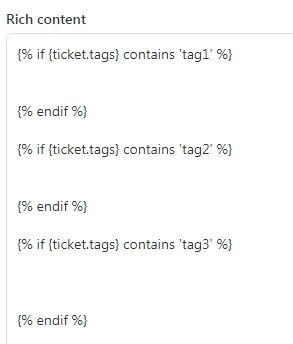
First create a shell of a macro to hold your images:

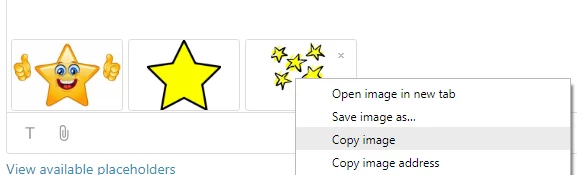
Now in your macro upload the images for each or your tags using the paperclip attachment button.

Then copy each image and paste into the corresponding section of your macro.


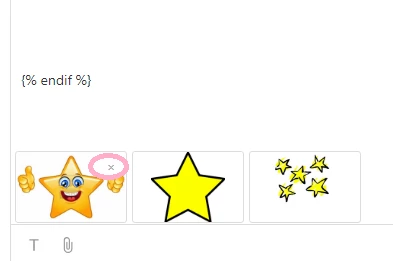
To make thinks pretty, you can then delete each image at the bottom of the macro so that only the version under the tag will appear in your final result.


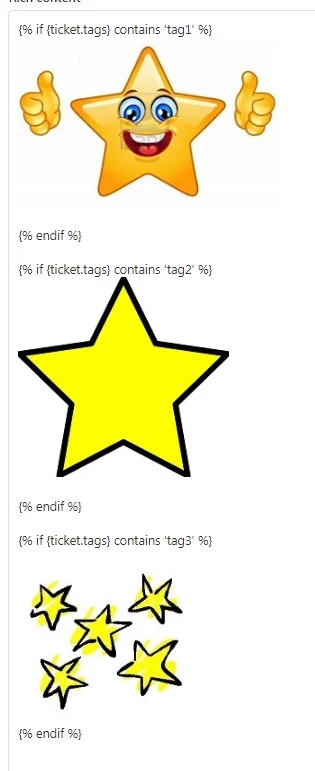
And you should be sorted with something like this: