Extract date from subject and pass it to a custom field | Community
Skip to main content

Extract date from subject and pass it to a custom field

  • November 1, 2023
  • 9 replies
  • 0 views

Karan12

Hello,

We have given our customers a standard subject line that they can use to raise tickets. Something like this: Booking No. // Request Type// MM-DD-YYYY

I want to extract the MM-DD-YYYY and pass that value to a custom field so that we can run SLA based on this field and prioritize case accordingly.

Please point me in the right direction on how to do this, thanks!

9 replies

Jacob20
  • November 1, 2023

Hey @karan12

You may be able to use a trigger and webhook to update a ticket date field using some Liquid Markup like the below:

{% assign parts = ticket.title | split: "//" %}
{% assign date_parts = parts[2] | strip | split: "-" %}
{% assign formatted_date = date_parts[2] | append: "-" | append: date_parts[0] | append: "-" | append: date_parts[1] %}
{{formatted_date}}

I haven't tested the above, but if your subject line always follows the structure you indicated and that date format, it should be able to output the date format that a ticket date-type field accepts "YYYY-MM-DD".


Karan12
  • Author
  • November 2, 2023

Thanks @jacob20. This liquid markup gives me the date output that i'd want.

I have a custom date field called "booking-date' where I want to fill this data.  Can you help me with the final step of appending the date in this date field.


Jacob20
  • November 2, 2023

Hey @karan12

If you don't already have a webhook set up, you can follow steps 1 and 2 in this article: https://support.zendesk.com/hc/en-us/community/posts/5721747041434-Prevent-Thank-you-replies-from-reopening-tickets

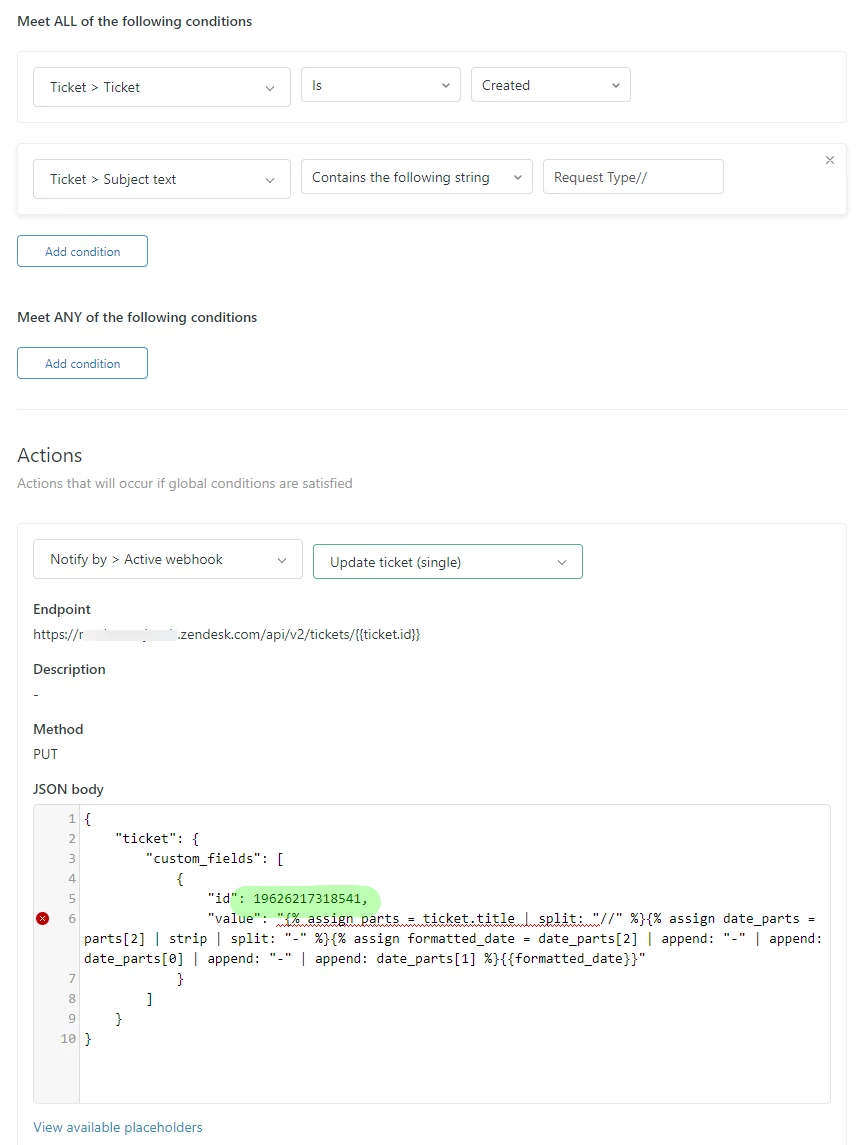
When setting the URL, the article 👆 says to use "https://domain.zendesk.com/api/v2/tickets/update_many.json?ids={{ticket.id}}", but you could use "https://domain.zendesk.com/api/v2/tickets/{{ticket.id}}" for this use case.

For your trigger, I would use the ticket is created condition, along with other conditions to make sure that it only fires for the relevant tickets you want to do this for.
While testing, you may also want a condition in there where "current user" is you, so it only fires for your test tickets.

In the Action section, select Notify Webhook and select the webhook you have created for this.

Please find the ID for the date field you want to fill out in the example mine is 19626217318541, update the ID in the below payload for yours.

{
    "ticket": {
        "custom_fields": [
            {
                "id": 19626217318541,
                "value": "{% assign parts = ticket.title | split: "//" %}{% assign date_parts = parts[2] | strip | split: "-" %}{% assign formatted_date = date_parts[2] | append: "-" | append: date_parts[0] | append: "-" | append: date_parts[1] %}{{formatted_date}}"
            }
        ]
    }
}

You can find a field's ID in your admin center: Objects and rules > Tickets > Fields.

I hope that helps you out.


  • October 18, 2024

I have a perhaps much simpler question related to this that I suspect will help many other people. What if we wanted to not assign a date value per se, but just a string immediately before/after a delimiter (say ‘|’). Ideally, I would like to be able to populate two custom fields one with the ‘ABC’ value and another with the ‘123’ value, but If I could get the syntax for just populating ‘ABC’ to a custom field that would be very helpful. Below is a sample subject and part of the code.


Thanks.


Subject - Onboarding Request ABC|123


{
   "ticket": {
       "custom_fields": [
           {
               "id": 19626217318541,
               "value": "{% assign parts = ticket.title | split: "|" %}<NEED TO KNOW WHAT GOES HERE TO ASSIGN VALUE ABC>"
           }
       ]
   }
}


Herbert,
  • February 26, 2025

Hi @jacob20 and @alan26

Was there ever any resolution to this as I have the same exact use case and would love to be able to automate this. 

Subject - Onboarding Request ABC|123


{
   "ticket": {
       "custom_fields": [
           {
               "id": 19626217318541,
               "value": "{% assign parts = ticket.title | split: "|" %}<NEED TO KNOW WHAT GOES HERE TO ASSIGN VALUE ABC>"
           }
       ]
   }
}

Thanks!

Rich


  • February 26, 2025

Sadly not @herbert, .


Jacob20
  • February 27, 2025

Hi @alan26 and @herbert, 


I have not tested this, but using liquid markup to parse the subject line text should allow you to extract the two values you want and update the text fields with them.


For a subject line “Onboarding Request ABC|123”, the below webhook payload should extract the “ABC”  value and set it to the field with the ID 19626217318ABC, and for “123” set it on the field with ID 19626217318123.

{
    "ticket": {
        "custom_fields": [
            {
                "id": 19626217318ABC,
                "value": "{% assign parts = ticket.title | split: '|' %}{% assign value1 = parts[0] | split: ' ' | last %}{{ value1 }}"
            },
            {
                "id": 19626217318123,
                "value": "{% assign parts = ticket.title | split: '|' %}{% assign value2 = parts[1] | strip %}{{ value2 }}"
            }
        ]
    }
}

Herbert,
  • February 27, 2025

Amazing! Thank you @jacob20  and @alan26.  Very helpful!!


One quick follow up, if i wanted to extract an 8-digit number from the subject line (which is really exactly my use case), could I use this? how would it be different? Any help is greatly appreciated! 


Thank you!


Elaine14
  • May 28, 2025
Hi Rich and everyone following this thread,
 
Great discussion so far! To extract an 8-digit number from the subject line using Liquid markup, you can apply a bit of filtering since Liquid doesn’t have full regex support but you can work around it.
 
Assuming your subject contains an 8-digit number somewhere (e.g., "Onboarding Request 12345678 ABC|123"), you could try something like this:
 
{% assign parts = ticket.title | split: ' ' %}
{% for part in parts %}
{% if part.size == 8 and part contains '0123456789' %}
{% assign eight_digit_number = part %}
{% endif %}
{% endfor %}
{{ eight_digit_number }}
This loops through the subject split by spaces and picks the one with 8 characters, which hopefully matches your number. You might need to tweak the condition if your subject format varies.
 
Once you've assigned eight_digit_number, you can map it to a custom field like in previous examples.
 
If you need more precise pattern matching, exploring Zendesk Triggers with external webhooks and using regex there might be a better fit.
 
Feel free to share an example subject line, and I or others can help tailor the snippet further!
 
Hope this helps!