Close all tabs function | Community
Skip to main content

Close all tabs function

  • February 20, 2014
  • 9 replies
  • 0 views

I often end up with a load of tabs open and although the Ctrl Alt W will close  a tab it would be great to have a short cut to close all tabs

 

This topic has been closed for replies.

9 replies

  • May 13, 2015

I ran into this and created a bookmarklet to do this. It will close all tabs that do not have changes

javascript:(function(){$('#branding_header ul li').each(function(){ if(!$(this).hasClass('activity')){$(this).find('.close').click();}});})();


  • October 14, 2015

Worked a treat Andrew. I'd never used a bookmarklet till now so thank you. As I'm a noob to javascript would you mind explaining how the function works?


  • September 30, 2016

Hi, could anyone explain how to create this 'bookmarklet' please?


  • October 6, 2016

heres an explanation for anyone that's curious


Highlight the code then left click on it and slid your mouse up to your bookmark bar and drop it. Once you drag the code up there you can edit it to give it a easy name (i.e. Close ZD tabs). Then when you're within your ZD and have many tabs open simply click on the bookmark.

Works great, thanks Andrew!


  • August 23, 2017

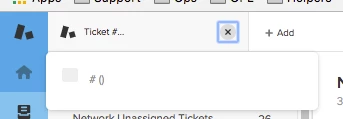
I like it, but it creates an empty tab like this one here that cannot be closed:

When I click the bookmarklet a second time, I get a two of these tabs. Reloading Zendesk gets rid of them.

I use Chrome Version 60.0.3112.101 (Official Build) (64-bit)


  • August 30, 2018

This should work in Chrome (probably any other modern browser too) and prevents the issue Olaf describes.

javascript:(function () {[...document.querySelectorAll('li.tab .close')].reverse().forEach(btn => btn.click())})()
 
and if you want to close all but the selected tab:
 
javascript:(function () {[...document.querySelectorAll('li.tab:not(.selected) .close')].reverse().forEach(btn => btn.click())})()
 
And if you want to use it with a keyboard shortcut, you can use this user script I created:
 
 
Thanks Andrew for the inspiration

Andriy12
  • November 13, 2018

Jonathan Coleman

thanks for your shortcut version. Could you please advise how do I add it? As I understood this should be a part of the url address?


  • November 13, 2018

@Andriy

You will need to install an extension which allows user scripts. For example Tampermonkey for Chrome. From the extension, add a new script and copy/paste in the code.

The shortcut key combo I assigned in the script is CTRL + SHIFT + Z.


  • December 14, 2018

@Andrew - you just became my favorite person of the week. Please take two days off. Thank-You very much!! :D