

Does Your Zendesk Customer or Prospect Use Salesforce's Sales Cloud? This Article is for You!
If you have a Zendesk customer or prospect who uses Salesforce's Sales Cloud, this article will help you understand the Zendesk-Salesforce integration, how it works, and provide you with all the resources needed to configure and troubleshoot the Salesforce/Zendesk integration. Let's dive in!
Please Note:
- For this article, any references to Salesforce would imply Sales Cloud.
- There is no native integration between Zendesk and Service Cloud, Commerce Cloud, or Marketing Cloud.
- Shared objects like Cases, Accounts, and Contacts that work across all Salesforce products will work with the integration.
What is This App?
Zendesk’s Salesforce integration pulls CRM data from Salesforce into Zendesk by syncing primary Sales Cloud objects and standard Zendesk objects. Agents can view CRM data from a customer’s profile while working on tickets. This ensures customers are maximizing their existing tech investments, enhancing the agent experience, optimizing agent productivity, and improving their customer experiences. Popularity of this app is can be gauged by the fact that it is already used by over 3500+ customers.
The integration is made up of three main components:
- Ticket View in Salesforce: Sales reps and other Salesforce users can view and create tickets from within Salesforce. These tickets show up under Accounts, Contacts, Leads, and Opportunities. Everyone can view tickets, but only those with a Zendesk license can edit and create tickets.
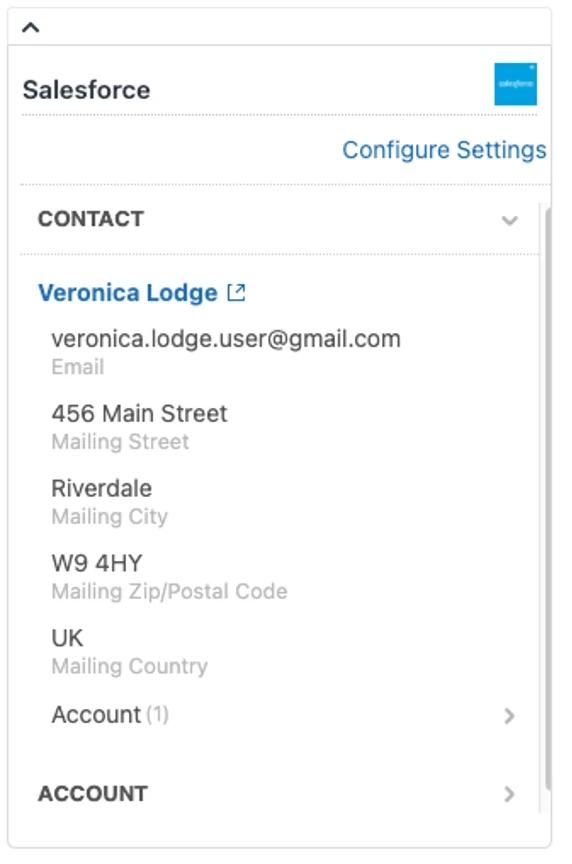
- Sidebar App within Zendesk Support: Support agents can view Salesforce object data within a sidebar app in the agent workspace. Admins can configure what objects are retrieved (limited to a total of 5 objects). The app refreshes data every 60 minutes to avoid hitting API rate limits.
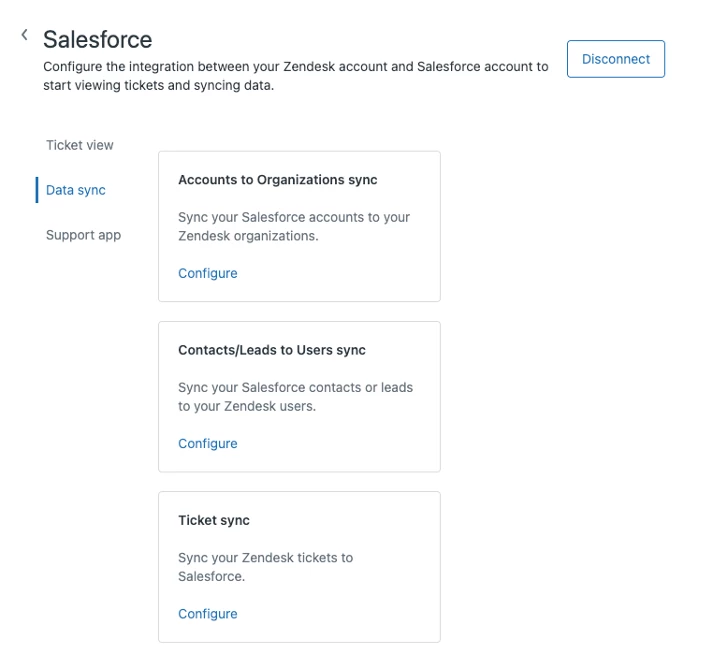
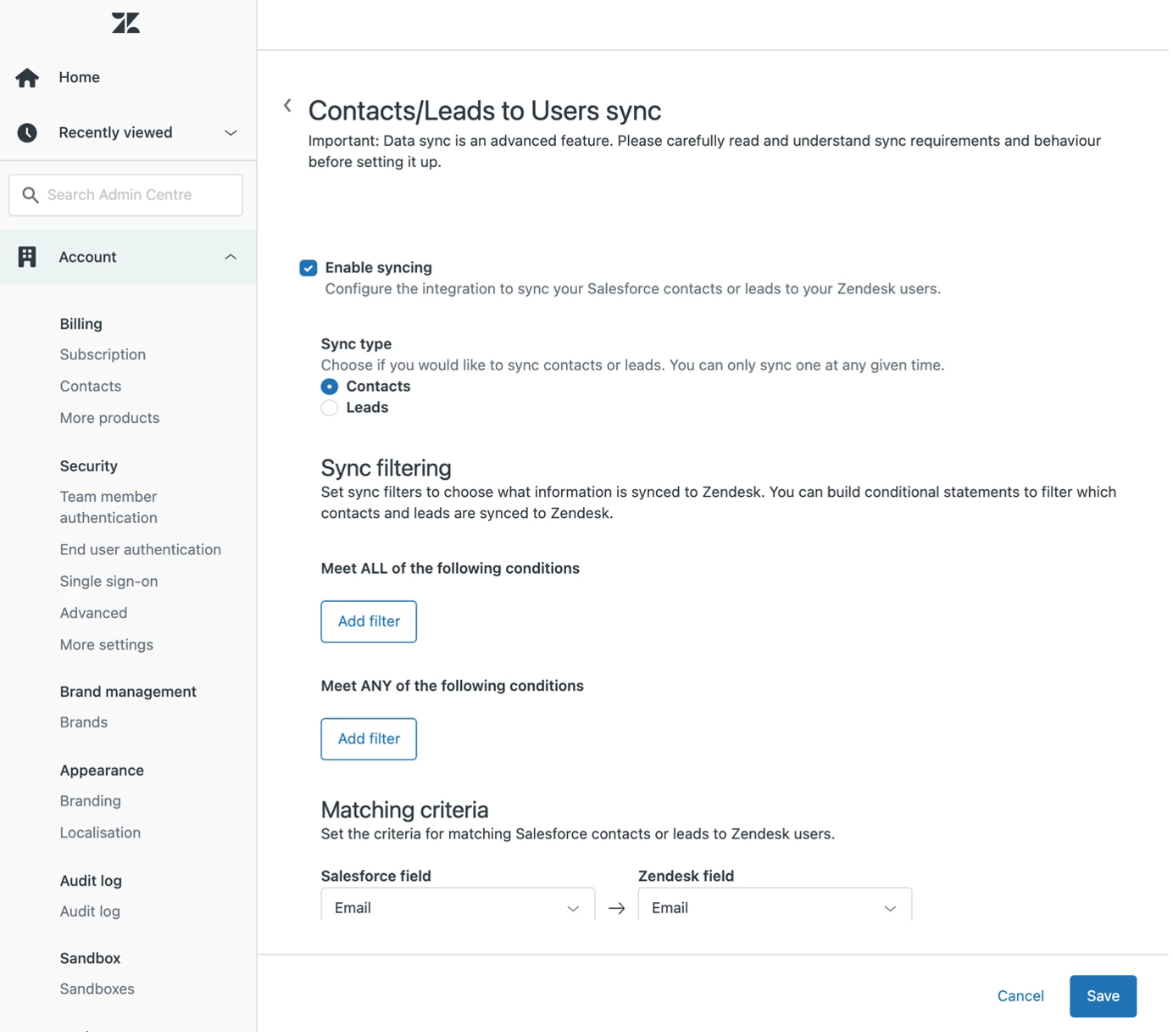
- Data Syncs: There are one-way syncs of Salesforce Contacts/Leads to Zendesk Users, Salesforce Companies to Zendesk Organizations, and Zendesk Tickets to Salesforce Cases. Customers can define which syncs are active, what the matching criteria are, what filters are applied, and how fields are mapped.
Key Features of the Integration/App
- Easy to Set Up: This can be done very quickly.
- Expanded Automations: Improve productivity by automating Zendesk tasks based on Salesforce data.
- Native Configurations: The majority of the integration configuration is done in Zendesk. This includes data syncing and the Ticket Sidebar app.
Key Limitations Being Worked Upon by Our Engineers in 2024
- Custom Object Mapping: Users can map data to standard Zendesk objects (e.g., tickets, users, organizations), not custom objects. However, there’s continued investment in making this possible.
- Bi-directional Syncing: There are three one-way syncs between Salesforce and Zendesk: Accounts → Orgs, Contacts/Leads → Users, and Cases → Tickets.
Foundation of Leveraging the Integration works in the following ways.
Step 1 : Installation: Head to the Zendesk Marketplace and search for "Salesforce." Click on the "Salesforce" app and hit "Install."
Step 2 : Configuration: After installation, you'll need to configure the integration. This involves connecting your Salesforce account to Zendesk, setting up data synchronization, and mapping fields between the two platforms.
Step 3: Integration Usage: Once set up, you can start leveraging the power of this integration. View and update Salesforce records directly from Zendesk, and vice versa. This allows for a seamless flow of information and a more comprehensive view of your customers.
Let us deep dive into the Configuration nuisances.
When you set up the Zendesk for Salesforce integration, you’re going to be configuring the integration and sidebar app in both software. You’ll need your Zendesk instance and your Salesforce instance admin credentials.
Customers may have Zendesk configured to their live Production Salesforce instance as well as Zendesk Sandbox to their Salesforce sandbox for testing.
1) Configuring the Zendesk Side
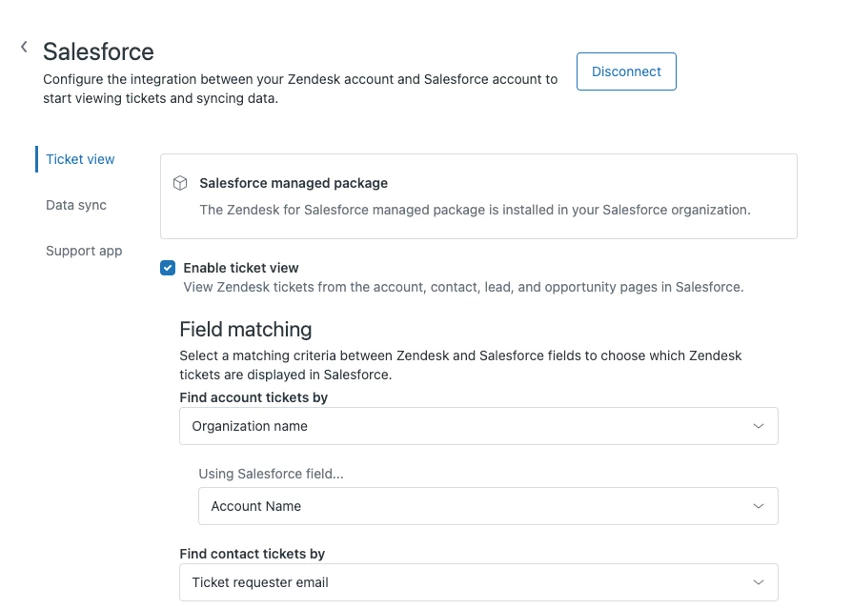
On the Zendesk side, you’ll configure the Salesforce integration in the Salesforce area of the Admin Center. On the Zendesk side, the integration natively facilitates sharing ticket data to Salesforce, syncing data from Salesforce fields to Zendesk fields, and using a ticket-sidebar app to display Salesforce data to customers.
When you configure in Admin Center, you’ll configure settings across ticket sync, data sync, and the sidebar app. This is where you’ll tell Zendesk which Salesforce fields to sync to Zendesk ones, how to filter and sort tickets, which user and ticket data to sync between systems, and how often the app should refresh, among others.
If you’re using the ticket sidebar app to display Salesforce data to Zendesk agents (which you likely are), you’ll configure the Objects and fields you want displayed. Here we see the Contact Object with fields like email, mailing street, and mailing city.
Most configuration in Zendesk is done in Admin Center
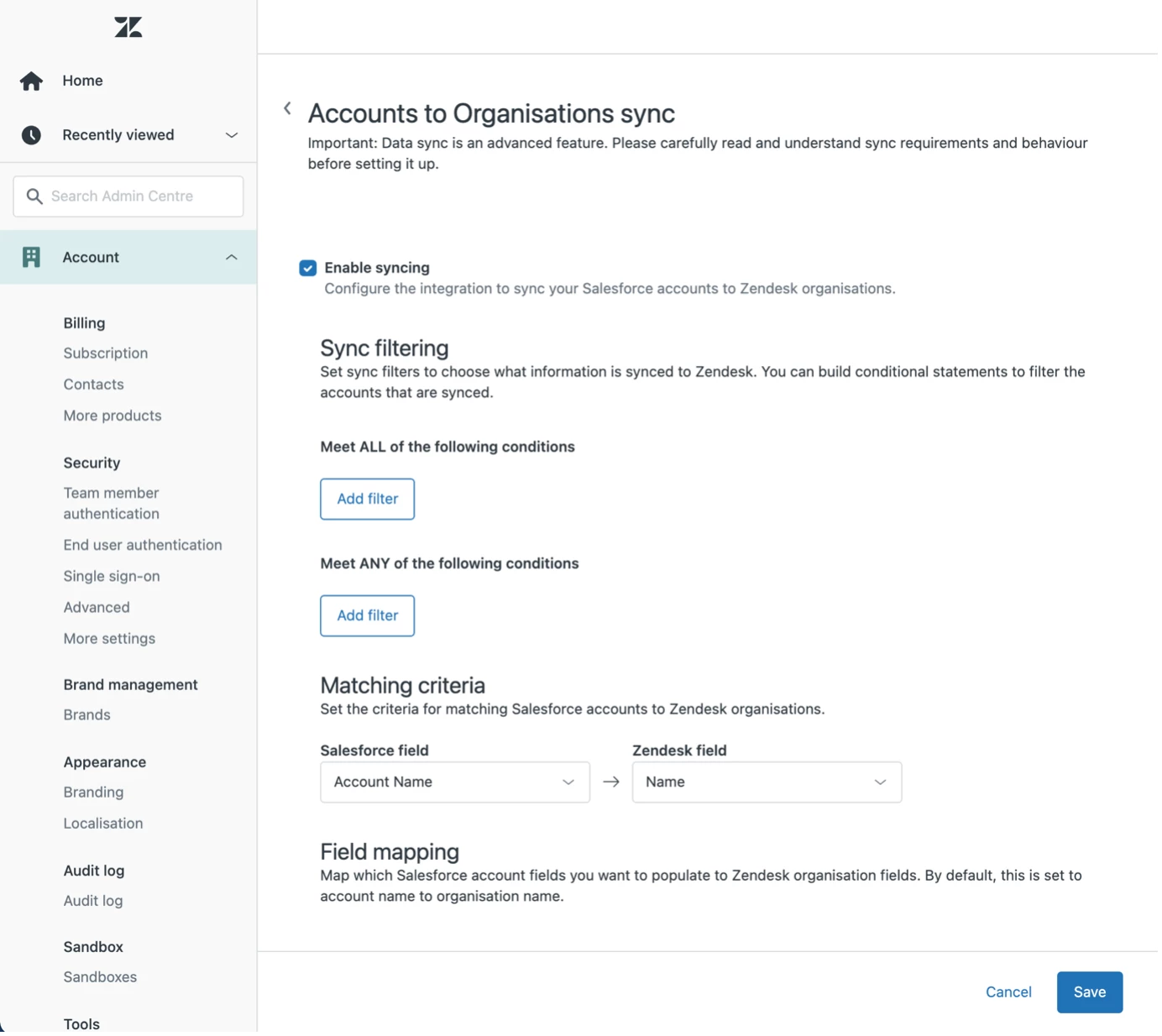
Data syncing is also done in the Admin Center
The Zendesk Ticket Sidebar App
2) On the Salesforce Side
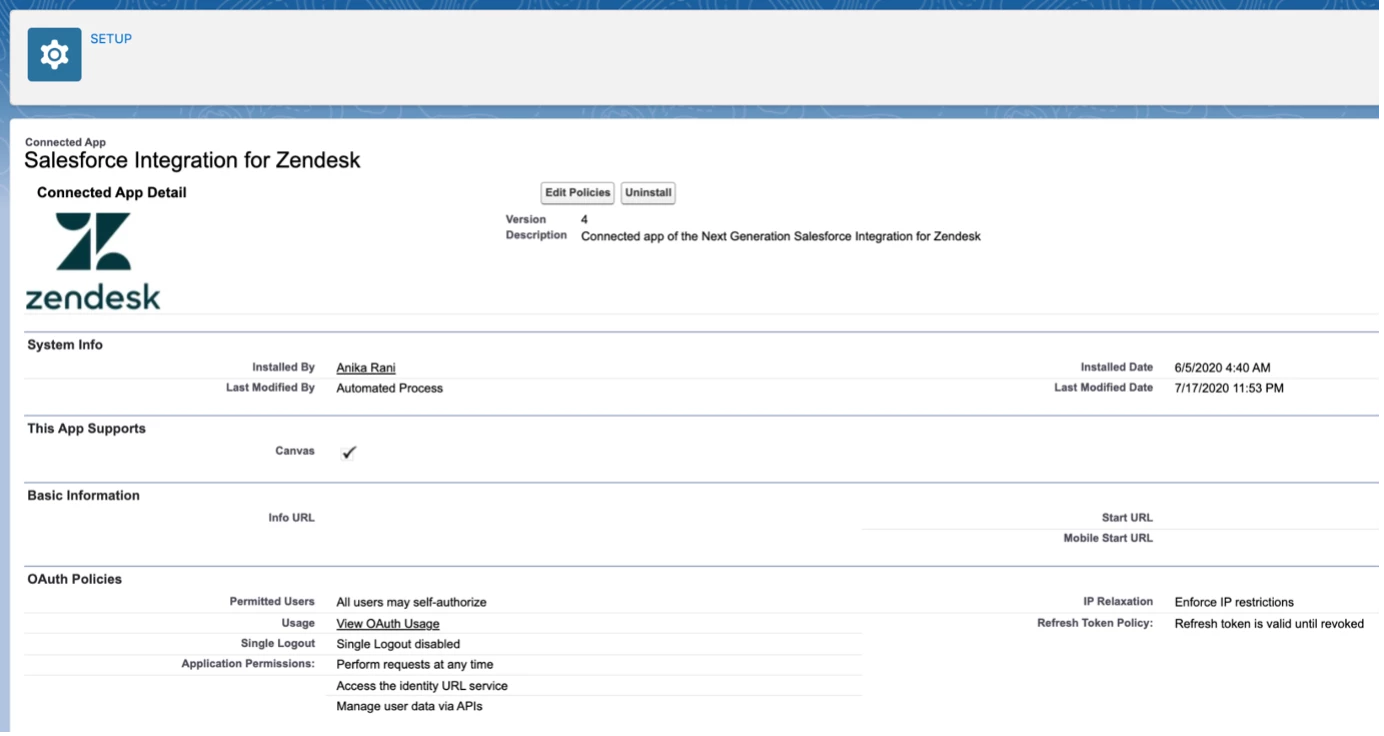
When you first start the configuration, you’ll start in Salesforce, going through a number of steps to authenticate a connection to Zendesk and set the right API permissions to allow the two systems to integrate.
Once you’re set up, you can decide on the best approach for integration - whether you want to view information in both systems or sync tickets and or data between the two.
Depending on which integration approach you go with, in Salesforce you’ll configure either a Lightning Component or Visualforce page of Zendesk’s tickets. Lightning Components and Visualforce pages are both UI elements that are added to a Salesforce page to display information. In this case, this is what you add to a Salesforce instance to display Zendesk ticket information
The Lightning Component or Visualforce page will be where you’ll see Zendesk ticket information which is configured in two options: Ticket View or Ticket Sync.
Lightning Component
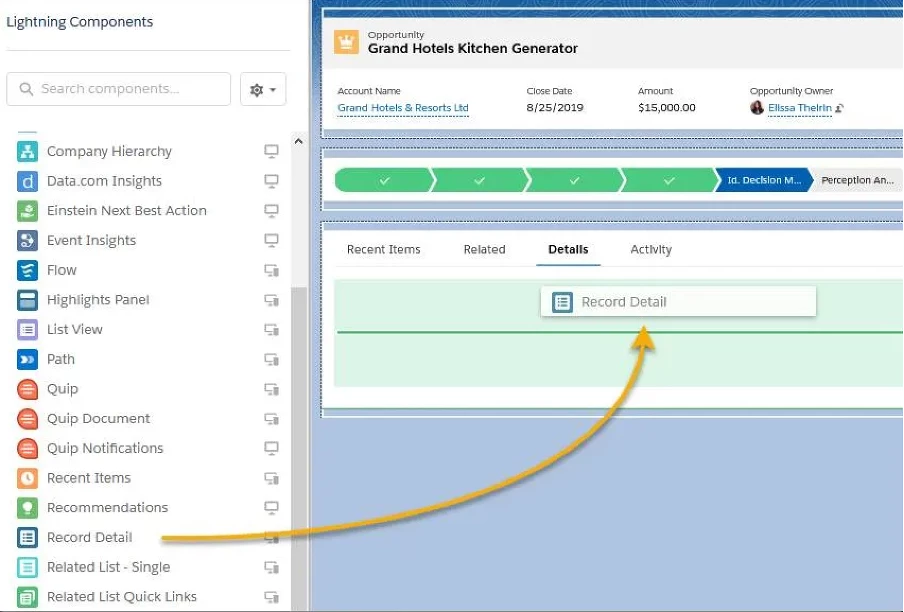
Establishing connections and setting permissions
Ticket view setup
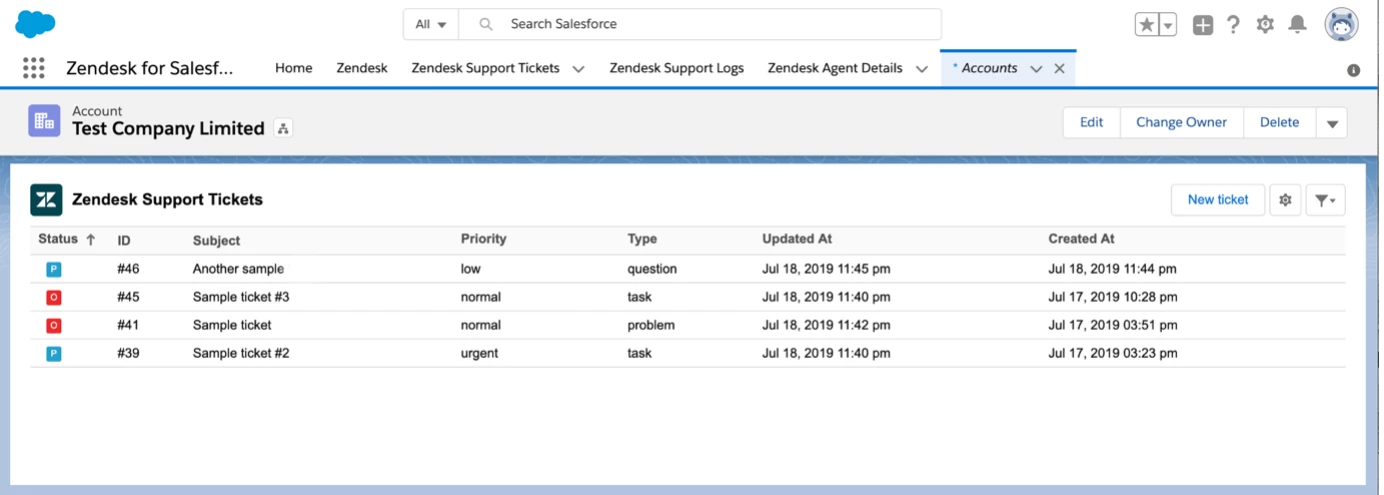
Ticket view and Ticket Sync
Once you’ve configured connection between the two web applications, it’s time to determine which approach you want to take to sharing data between Zendesk and Salesforce. There are two options, and you can use both or either or. Ticket View and Ticket Sync.
Ticket View
What it does : The Ticket View option allows you to integrate the two systems via API to display information. Uses the Zendesk Search API to query Zendesk in real-time from the Salesforce Account, Contact, Lead, Opportunity and Case pages
No Zendesk data is stored in Salesforce, or vice versa. You configure how tickets are searched and displayed between the two systems, and the Lightning Component in Salesforce displays the information sent from Zendesk via the API while in Zendesk the Ticket Sidebar App displays info from Salesforce.
Data Sync : No Zendesk data stored in Salesforce; only queried and displayed via API
Nuances
- Matching field values between the Salesforce field & Zendesk field for a given object e. Salesforce Account Name exactly matches Zendesk Organisation name
- Editing, commenting, & creating tickets requires connecting to a Zendesk agent seat
- Rate Limits : Customer have an API limit per their Zendesk subscription which limits the number of API calls they can make per minute. Since the Ticket View option uses Zendesk and Salesforce APIs heavily to display the data, you’ll want to ensure that your customer is configuring how long the data will be cached before an API call is made to refresh it again.
View, create and edit tickets
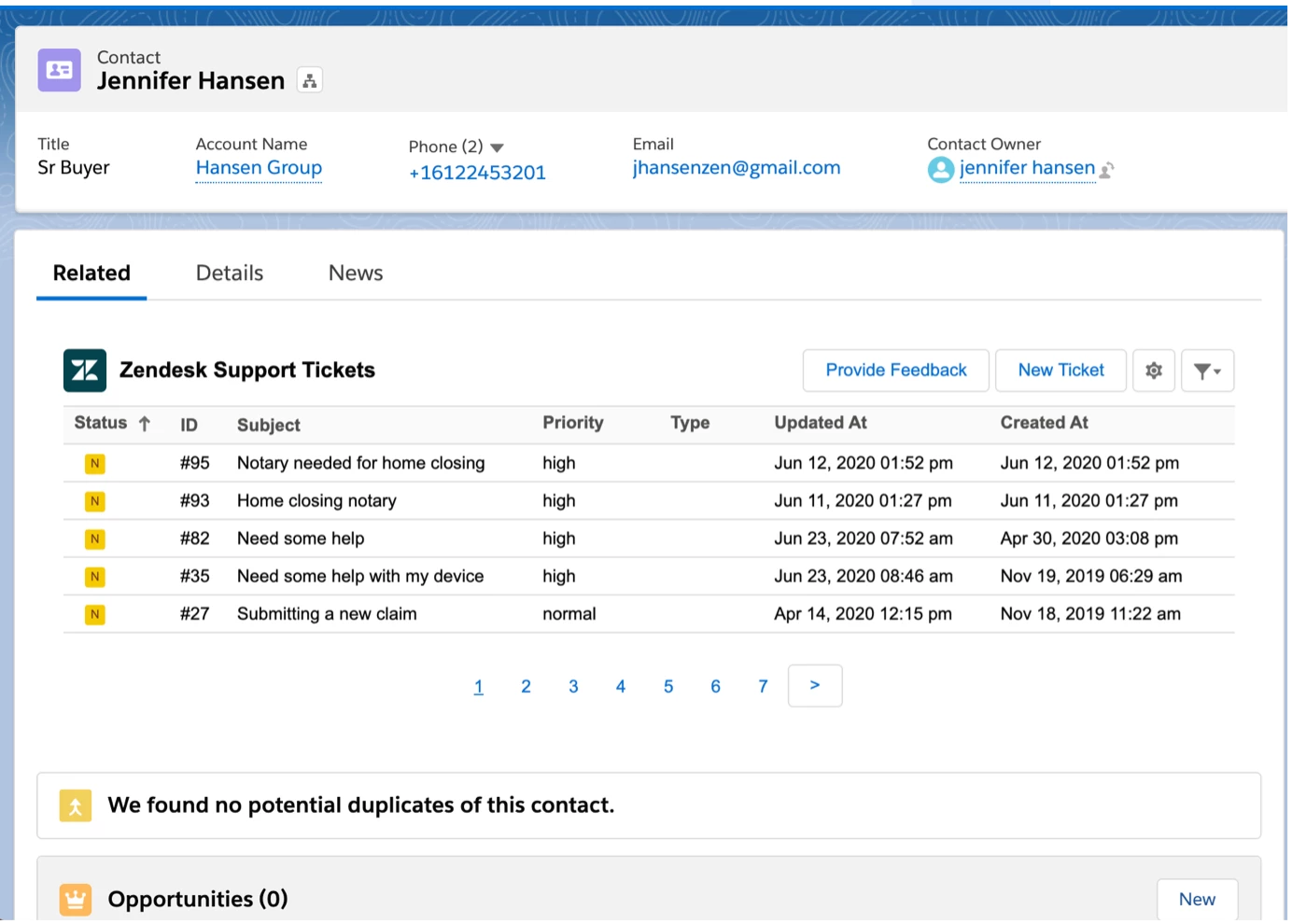
Who can comment on tickets in Ticket View?
Zendesk-licensed agents
Support agents can comment on tickets per their permissions in Zendesk Support. Light Agents in Zendesk can make internal comments only on tickets.
Salesforce-licensed users who are also Zendesk-licensed agents
Ticket View setup: Salesforce Admin can choose to give Salesforce users the ability to edit and comment on Zendesk tickets from within Salesforce by linking to a Zendesk agent.
- Salesforce user <> Zendesk Light agent → internal notes on the Zendesk ticket from w/in Salesforce.
- Salesforce user <> full Zendesk agent → public comments back to the Zendesk ticket from within Salesforce and edit all ticket fields.
Ticket Sync
Some Salesforce customers want to store as much data as possible in Salesforce so that they can have all their data in one place to report on or push to another BI tool. In this option, Zendesk ticket information is synced to Salesforce on the Case object and is stored in Salesforce.
Ticket Sync does not allow for users to comment on tickets and have those comments appear back on the Zendesk ticket. Customers use this option more for storing data then allowing Salesforce users like AEs to manage customer conversations on a Zendesk ticket from within Salesforce.
What it does
- True sync of Ticket → Case
- A Zendesk ticket creates a corresponding Salesforce Case, Contact, and Account
- Uses Salesforce Case Object + Zendesk triggers
Data Store
- Stores Zendesk data in Salesforce and thus goes up against Salesforce account storage limits
Nuances to Ticket Sync
- Only ticket fields are synced to the Case
- Comments are displayed in a Ticket View form
- Updates to the case are not synced back to Zendesk ticket
- Zendesk Users and Orgs are synced to Salesforce only when there is a Ticket (not independently)
Data Sync : Sync Salesforce data in real time to Zendesk .When it comes to Data Sync, there are two flows of Data.
- Zendesk → Salesforce
- Zendesk ← Salesforce
System of truth for Support : Tickets
System of truth for Sales : Accounts, Contacts, Sales information in SFDC
Sync from Salesforce to Zendesk
What it does
- Salesforce as the system of truth
- Salesforce Accounts → Zendesk Organizations Salesforce Contacts or Leads → Zendesk Users (end-users)
Nuances
- Data is synced between fields in real-time
- Only mapped fields are synced
- Requires a unique identifier field between the systems to know how to update the right records
- Salesforce contact email = Zendesk user email
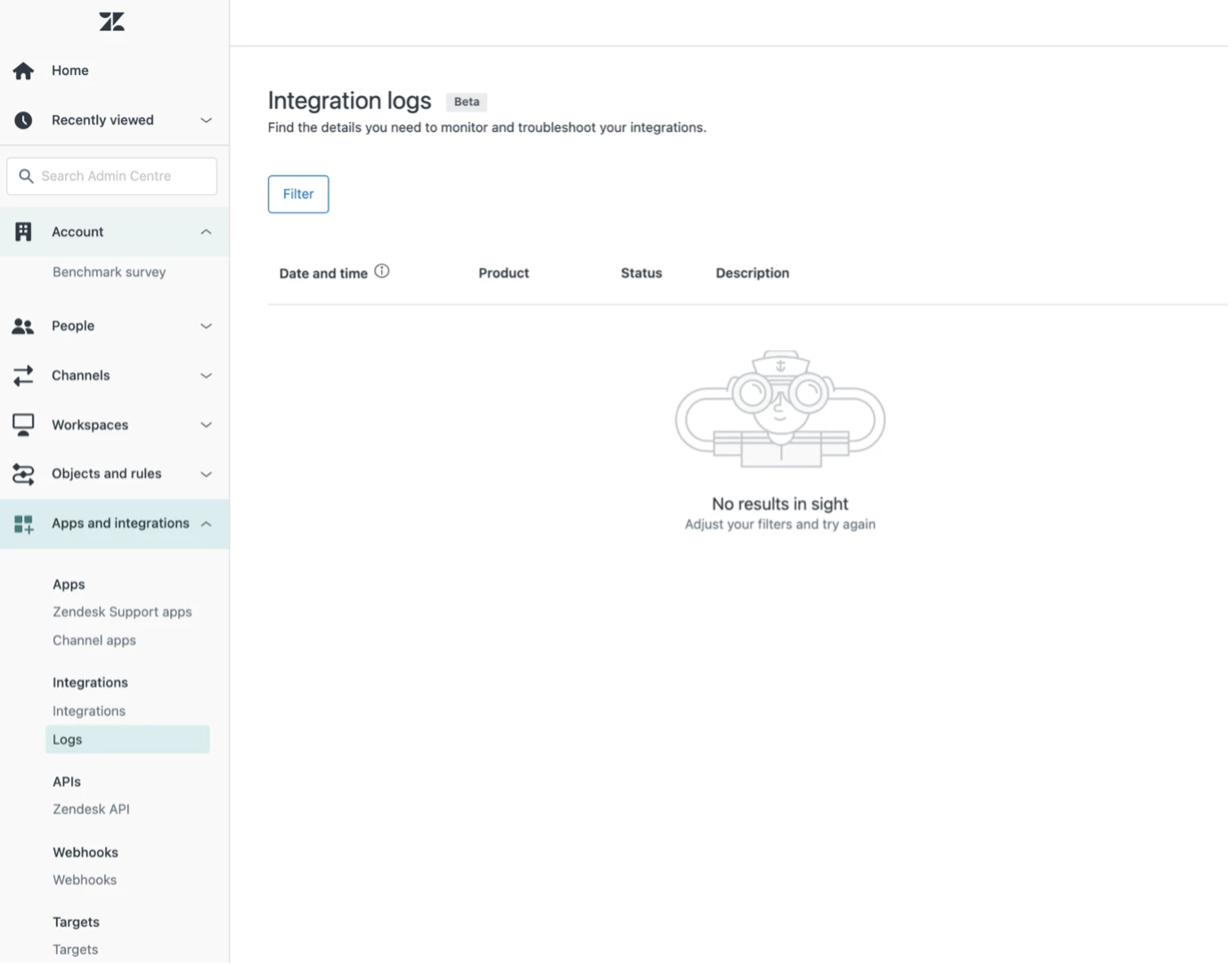
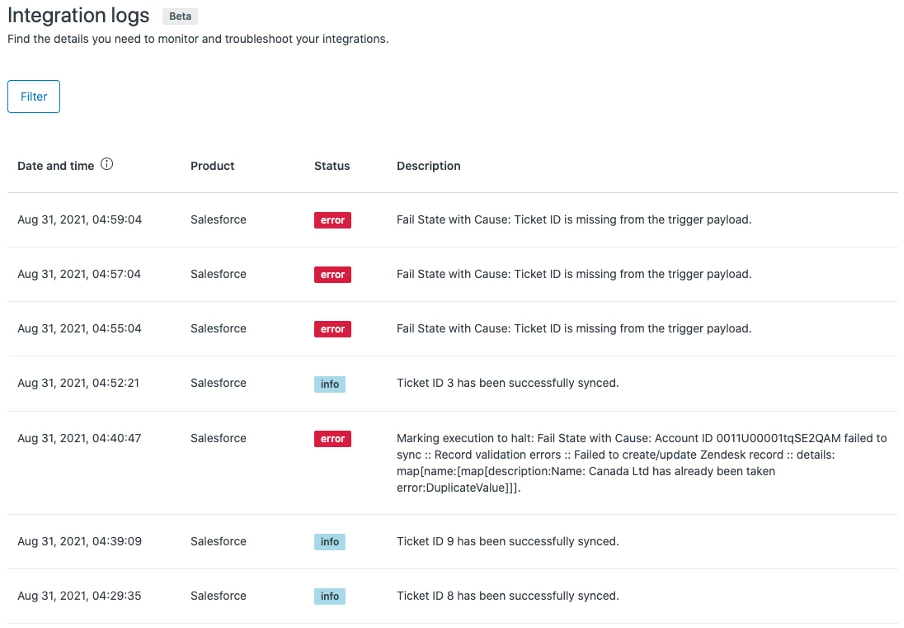
Troubleshooting and self-service help – As an implementer, knowing how to troubleshoot any issue is a critical activity in the process. In the case of the Integration app, it is achieved through Integration logs as shown below
What it does
- Shows the status of records sync between Zendesk and Salesforce
- Error messages include API responses directly from Salesforce to indicate why a sync may have failed
Nuances to logs
- Logs are only for data sync and ticket sync (background jobs)
- Export and keyword search not supported
- Error messages can be hard to interpret sometimes due to Salesforce API responses
Knowledge Check Questions
- Which option stores ticket data in Salesforce?
- What are the options for data caching in the ticket sidebar app?
- When a new user is created in Zendesk, can a contact be created in SFDC natively?
- What Salesforce data can you see in the sidebar app?
- In what direction can you sync data between Salesforce and Zendesk?
- Can you sync users/orgs to Salesforce?
Please respond to your answers to the above to Partnerservices@zendesk.com Sub – Salesforce Integration. There will be Prize for all correct answers ( Lucky Draw in case of many entries) and winner will be announced in the Partner Tech Cafe.
For any questions, suggestions, or comments regarding this topic of Salesforce Integration, or if you found this article helpful, please respond by leaving a comment on this post.