


Zendesk on Zendesk is a day-long discussion about a specific topic and how Zendesk Support uses Zendesk. Each session is hosted by a member of our Support team.
This session is about business rules we use at Zendesk to gently remind customers about tickets, and automatically close them if the customer is ready. It's something we like to call Bump Bump Solve. This session covers:
- Overview of Bump Bump Solve and how it works
- Configuration of Bump Bump Solve so you can set it up too
- Benefits and modifications of Bump Bump Solve over time
This session is hosted by Matt M, who is a member of our Support Ops team in Melbourne.
See all of the Zendesk on Zendesk series discussions.
Part 1: Overview
At Zendesk we are always trying to think of new ways that we can make life easier for our Support Team.
Like many other support teams we love to use Zendesk, (it would be wrong if we didn’t right?) so our workflow revolves around the following ticket status':
- New - untouched tickets that customers are waiting for an answer on
- Open - tickets that the customer and and advocate are actively communicating
- Pending - where the advocate is waiting for the customers response back.
- Solved - yay!
Sounds familiar I’m sure. And it works really well. Though we wanted something even better, something that would make our Advocates lives even easier.
Over the course of an advocate’s day, there would usually end up being around 15-20 pending tickets in an agent’s workload. If a customer does not respond after a few days the advocates would manually have to go back and prompt the customer for an answer--usually more than once. We felt this was holding the advocate back, and taking up time that could be spent with new inquiries. This generated a discussion whereby we felt that agents would start their day by going back through all the pending tickets to update them in an effort to get something back from the customer as to whether it could be solved or they needed assistance.
Naturally we turned to Zendesk for answers, and an idea was born. What if we could take all the advocates pending tickets and auto prompt the customer after a certain amount of days? What if we could actually solve those tickets if we didn’t get a response back from the customer?
Enter Bump Bump Solve.
A series of automations and triggers designed to help advocates move forward. The idea was simple:
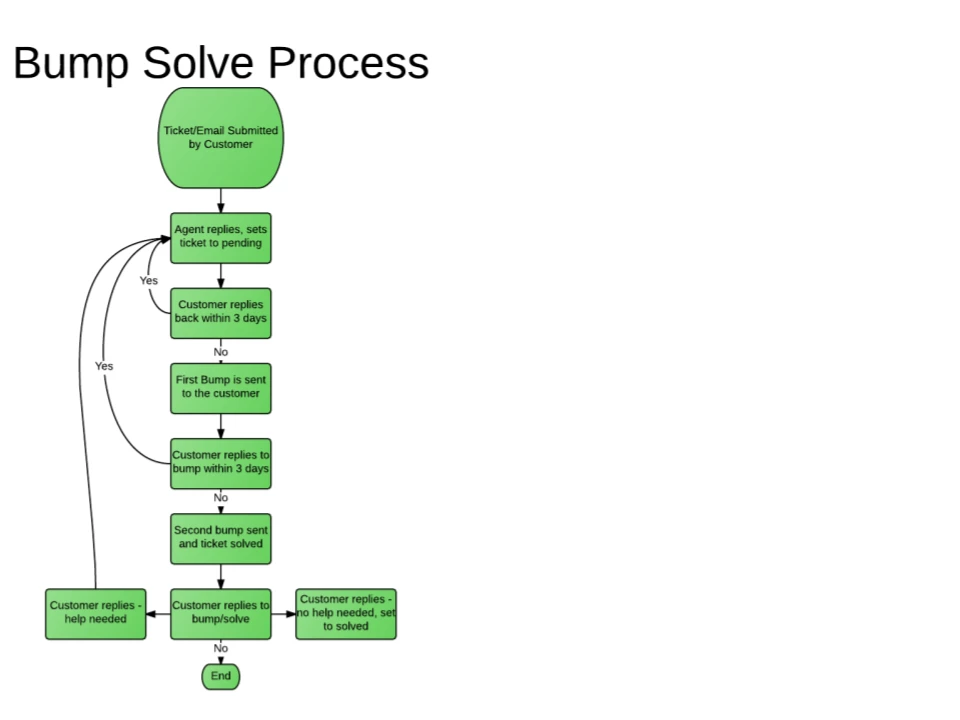
Part 2: Configuration
While the process sounds quite simple in theory, there is little more to it on the back-end. Let’s take a look first at the automations, then we’ll look at the triggers.
Setting up the automations
They do the heavy lifting, and are the rules that send the notification to the customer. (Note that using the tag no_bump can be used to exclude particular tickets from being bump-bump-solved.)
Depending on your Zendesk configuration and business needs, you can change the times and also change the conditions to reflect calendar hours instead of business hours.
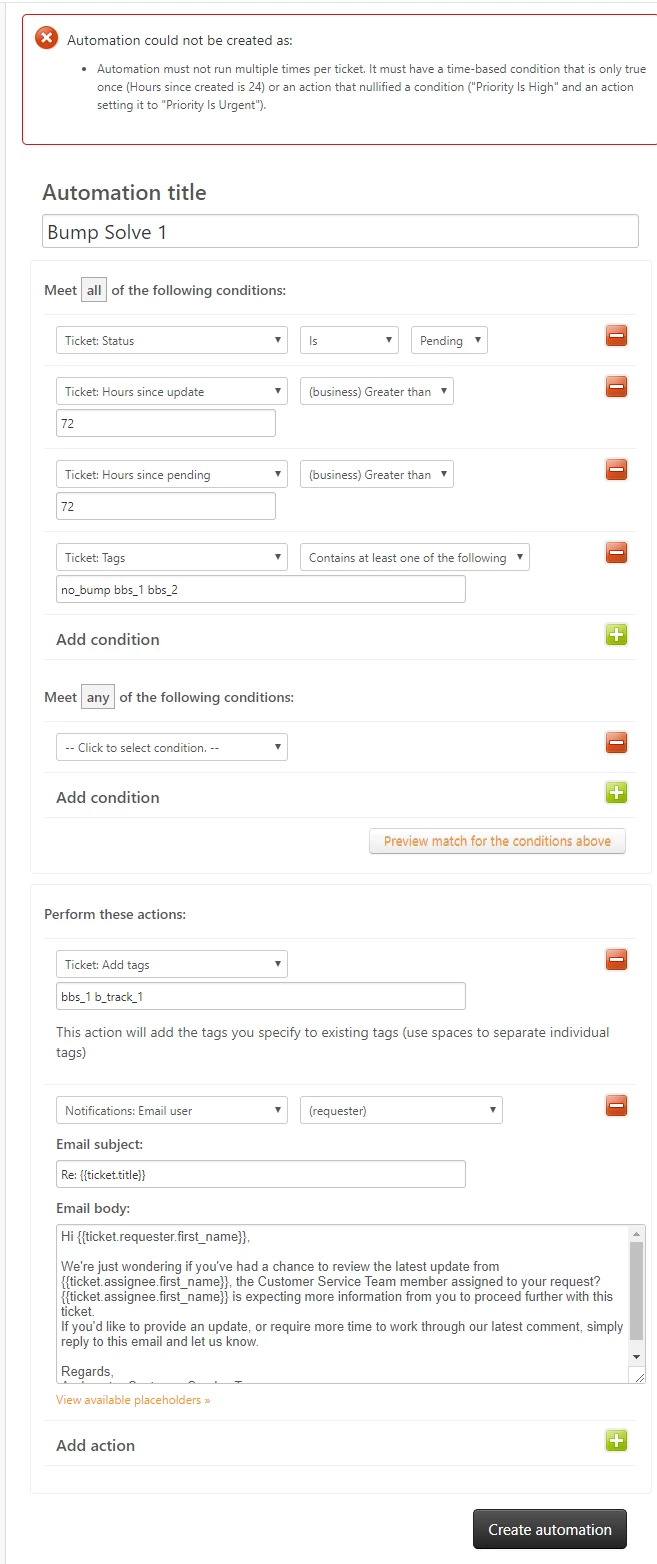
Conditions for our first Bump Bump Solve automation: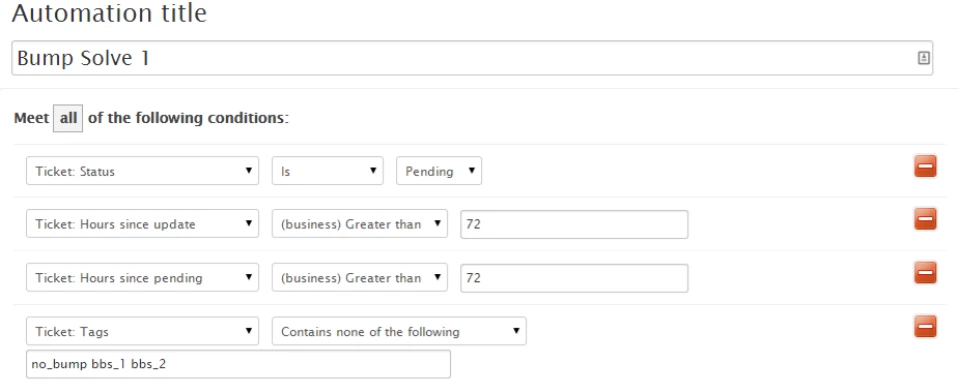
Actions for our first Bump Bump Solve automation:
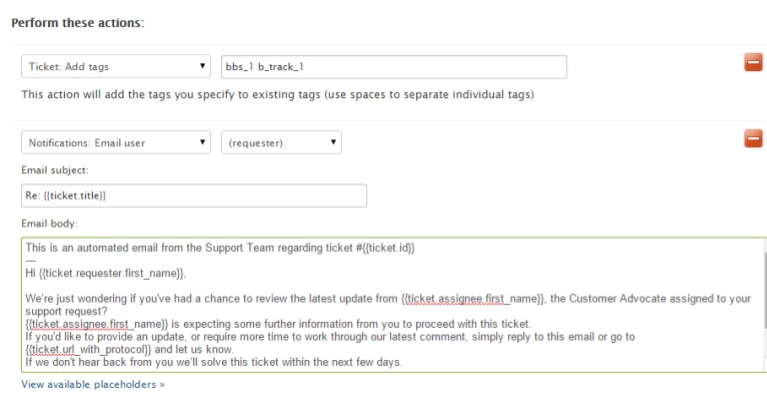
The conditions are slightly similar on our second automation, as we need to take into consideration the amount of time that has passed, and also allow for the time which the last bump happened - as this counts as a ticket update.
Conditions for our second Bump Bump Solve automation:
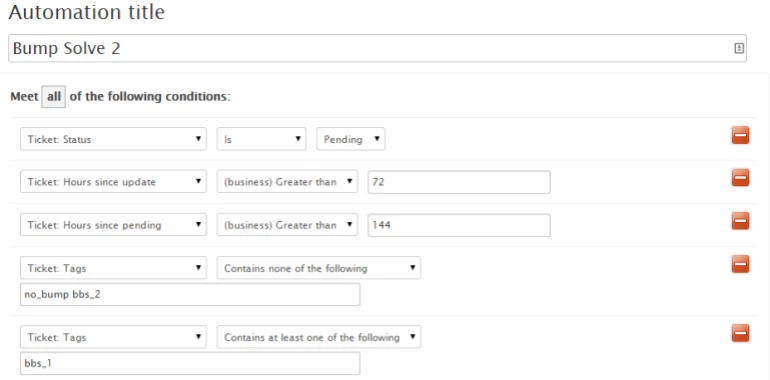
And our actions will also be a little different from the first automation.
Actions for our second Bump Bump Solve automation:
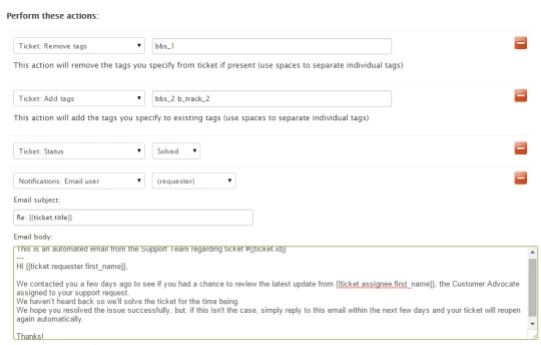
As you can see there are various tags being used, which will make a bit more sense when we go through the triggers. (Also, note that we used to actually bump the customer twice so the tags are bbs_1 etc. Now we've moved to just one bump, but it would be a bit weird if we used “bs” since... you know…)
This is also a fairly flexible automation, and if you have different groups that you want to add or exclude, you can do so in the ANY conditions part of the automation.
Setting up the triggers
Let’s take some time now to go through triggers, which act as the engine - watching, controlling, every time a ticket is updated.
Remove BBS tags upon reassign:
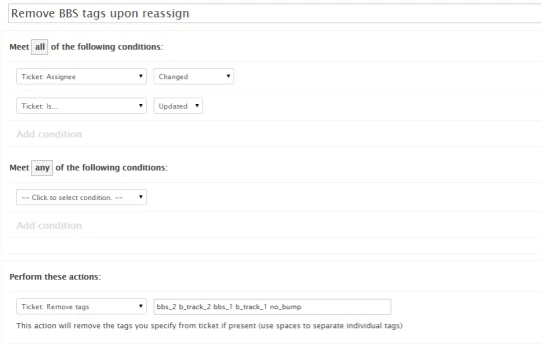
This will ensure that if the ticket is transferred to another employee that the Bump Bump Solve process will restart when it gets to that agent. The idea of reassigning the ticket would suggest that some work needs to be done by someone else.
Removing tags for open tickets:
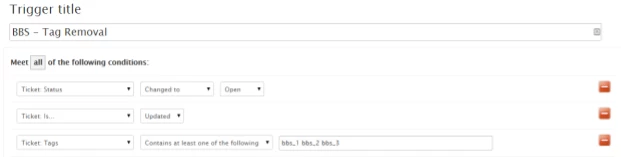
This trigger takes into consideration the customer replying. If the customer replies (depending on your business rules) it will set the ticket back to open. If this happens, we certainly don’t want Bump Bump Solve to carry on, so we remove all the tags again and wait for it to go back to pending, where the automation will start the process again.
You also want to add the same actions with a different set of settings to allow for closed tickets reopening as new tickets, as they will inherit the tags from the closed ticket.
Removing tags for closed tickets:
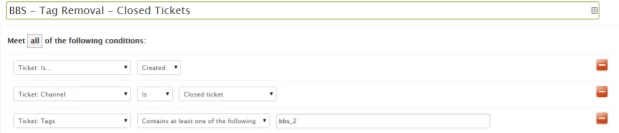
That’s really the bulk of the setup. From the screenshots, you can also see a couple of b_track tags which are used for internal reporting. Things like this are completely optional, and you can make any additions that you need. It really just shows how a basic setup would look.
Part 3: Solved :)
Originally we actually ran with Bump Bump Solve, so we would bump the customer twice, and then the third time would be the solved message. This would take about 9 business days, before the ticket was solved. With the weekends in there as well, it would be around the 2 week period before it was solved.
We decided to remove one of the bumps, and thus reduce the amount of time the ticket was sitting in a pending state. Remember though, if you use calendar hours, your bumps will be inclusive of weekends.
We like to think of Bump Solve as a win-win. It makes the advocates lives and days easier, and also, we don’t have to constantly hassle the customer (or solve their ticket too early).
To give a small insight into some numbers, for Q1 this year we had over 8000 tickets that were solved by Bump Solve alone. This represents around 15-20% of ticket volumes over the course of a normal working day.
By implementing this kind of workflow, we are able to keep our advocates focused on their new and open tickets. For tickets that don’t get updated, it’s no longer a matter of going through a manual process. The advocates can confidently work forward, knowing that their pending tickets will take care of themselves. We found it saves the advocate a small but considerable amount of time.
Do you think this would be something that would save your team time? Let us know in the comments below.



 Cheers,
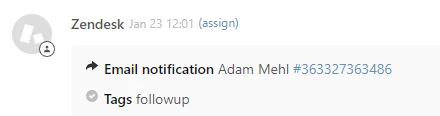
 However we no longer see these entries, we assume that the emails are still going out because we see the following in the ticket event log.
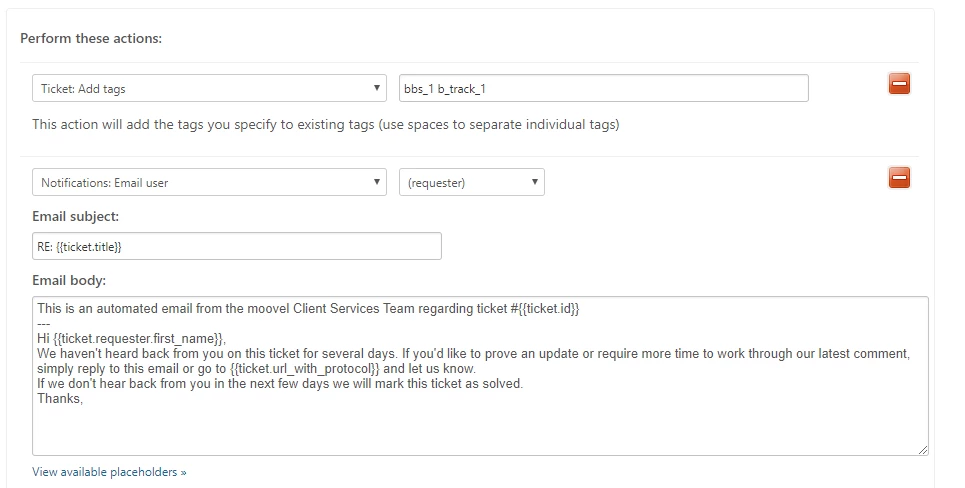
  Any suggestions on what might be causing this change or how we can address it? Our automation is below.
  Thanks!