What are Lookup Relationship Fields?
Zendesk is adding a new custom field type that allows you to define custom relationships between tickets, users, and organizations in Zendesk Support. This new custom field type enables admins to build custom relationships between these Support objects that are unique to their business.
Common Use Cases
1) Associating multiple defined parties to a ticket - Let's say you are a trucking company you might want to associate a Ticket with your Shipper (Organization), Driver (User), Third Party (Organization) etc. This field type enables you to build these associations
2) Defining Organization relationships : Let's say you are in the B2B business and work with multiple organizations, who have relationships built between each other (it could be like an organization hierarchy), you can use Lookup fields to define those relationships
3) Defining Org to User relationships or User to User relationships: Let's say you have a key stakeholder who is associated with that Organization(Org->User). And let's say, you have a Relationship manager in your company associated with the Key stakeholder(User->User). You can build these relationships using Lookup fields.
What can I do with Lookup Relationship Fields?
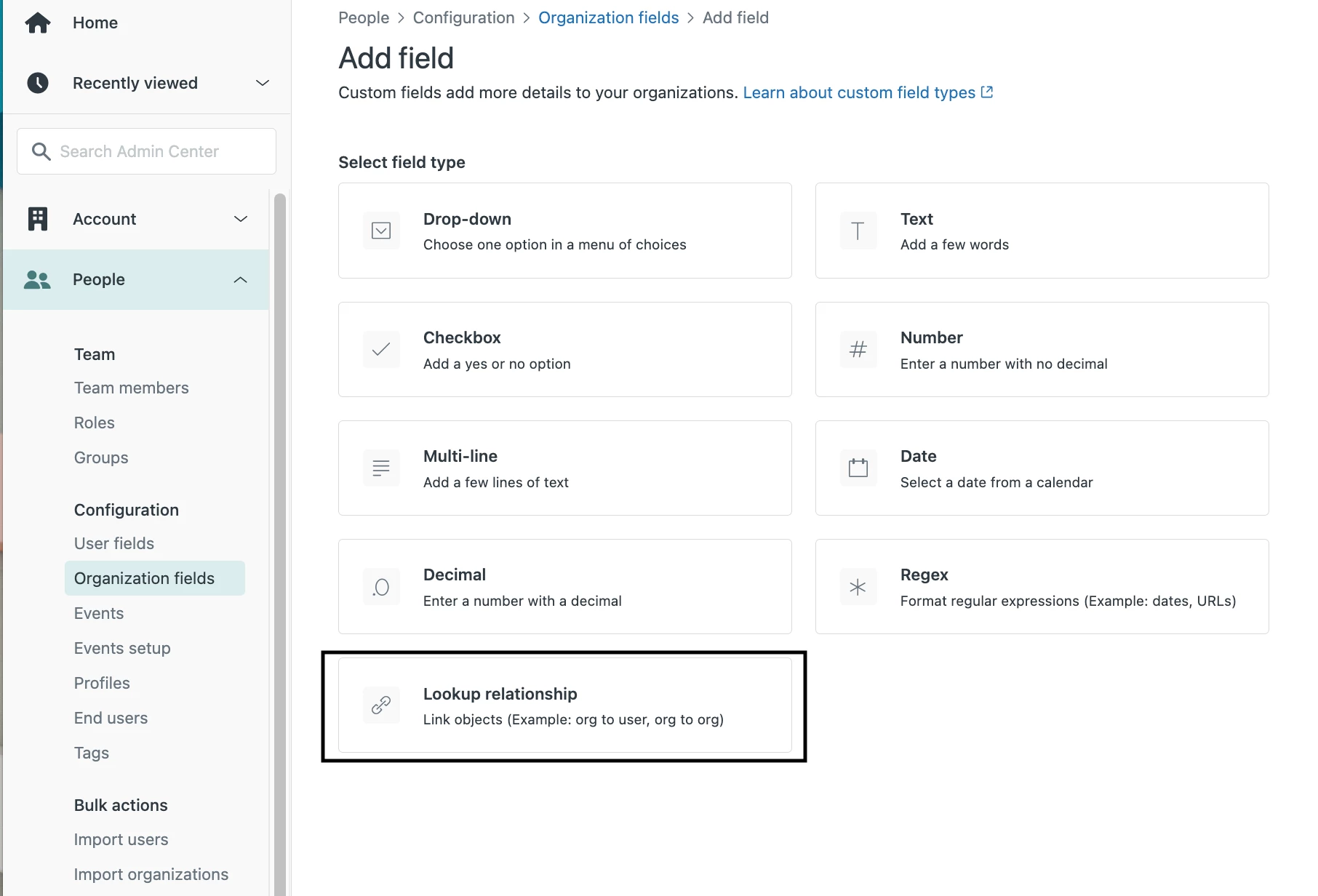
Create a Lookup Field
Admins can now create this new field type in Tickets, Users, Org fields. You will see a new field type called Lookup Relationship. Using this field type, you can define the field and associate it to any of users, tickets or organizations. For example: you want to create a Relationship manager(a user) for each of your organizations. All you need to do is to go to Organization Fields, create a Lookup Relationship field, name it as Relationship Manager, select User from the “Select a related object” dropdown and hit Save.
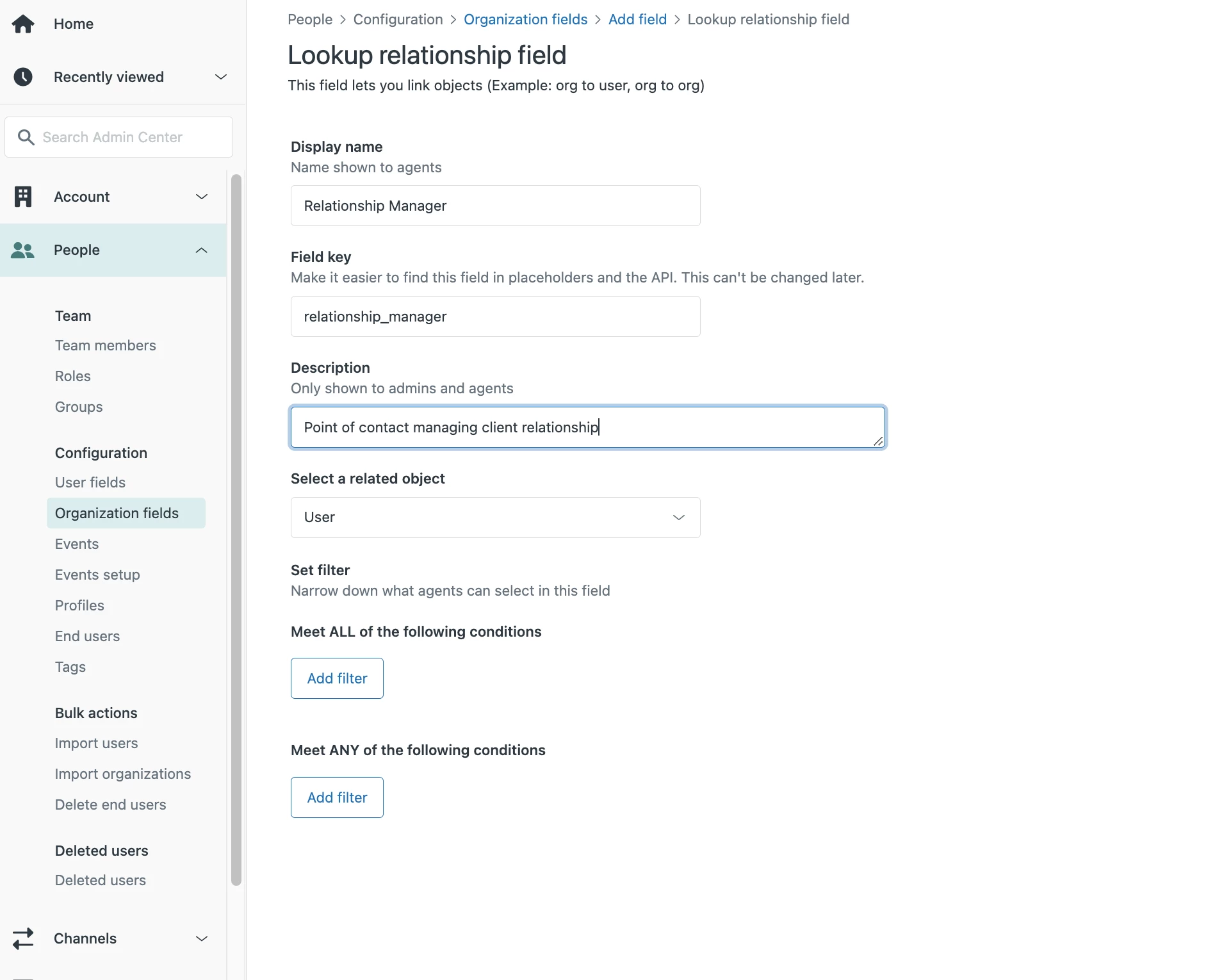
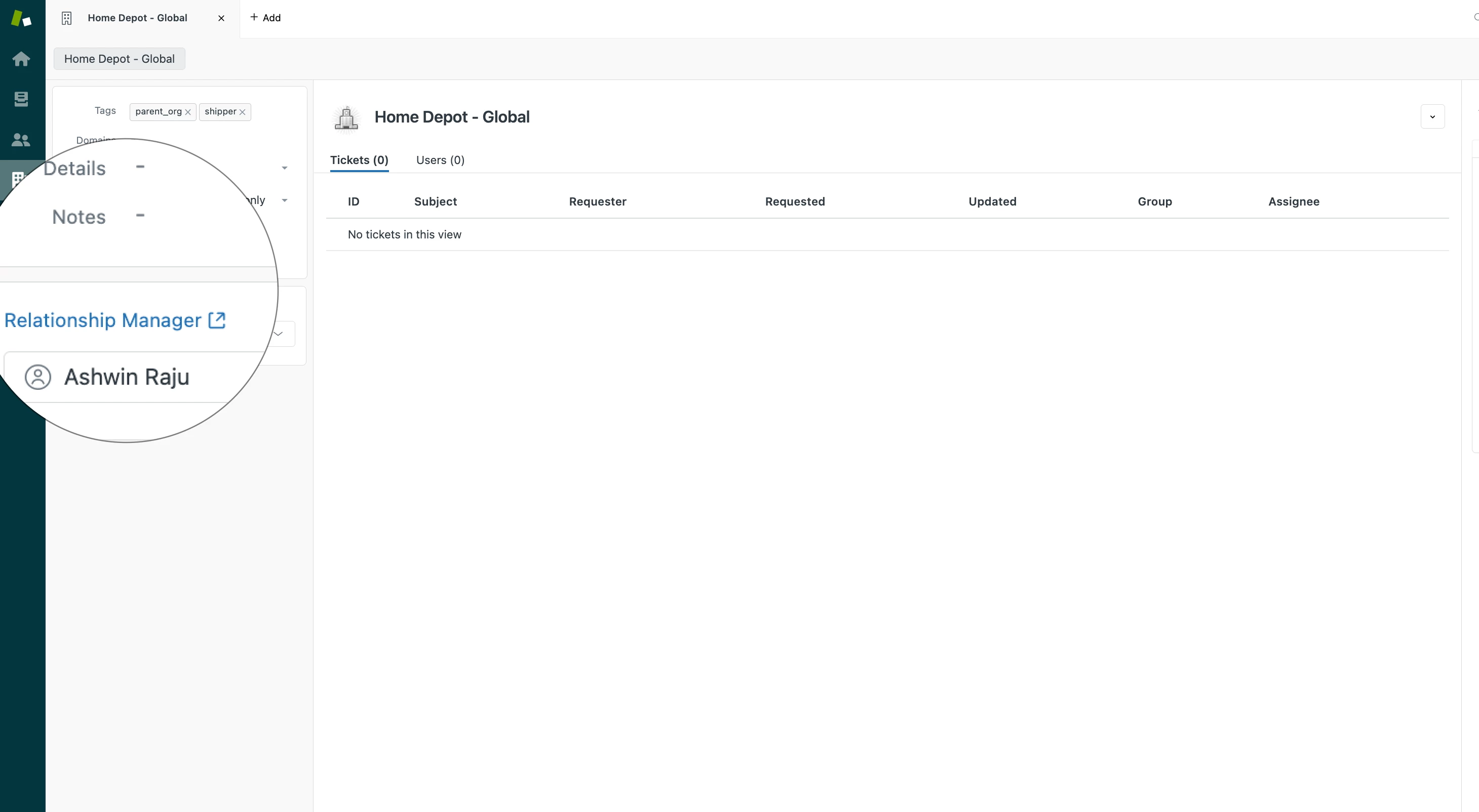
You will now see a new field called Relationship Manager in your Organizations, where you can add any User record. You will have the same capability with Ticket and User Fields as well.
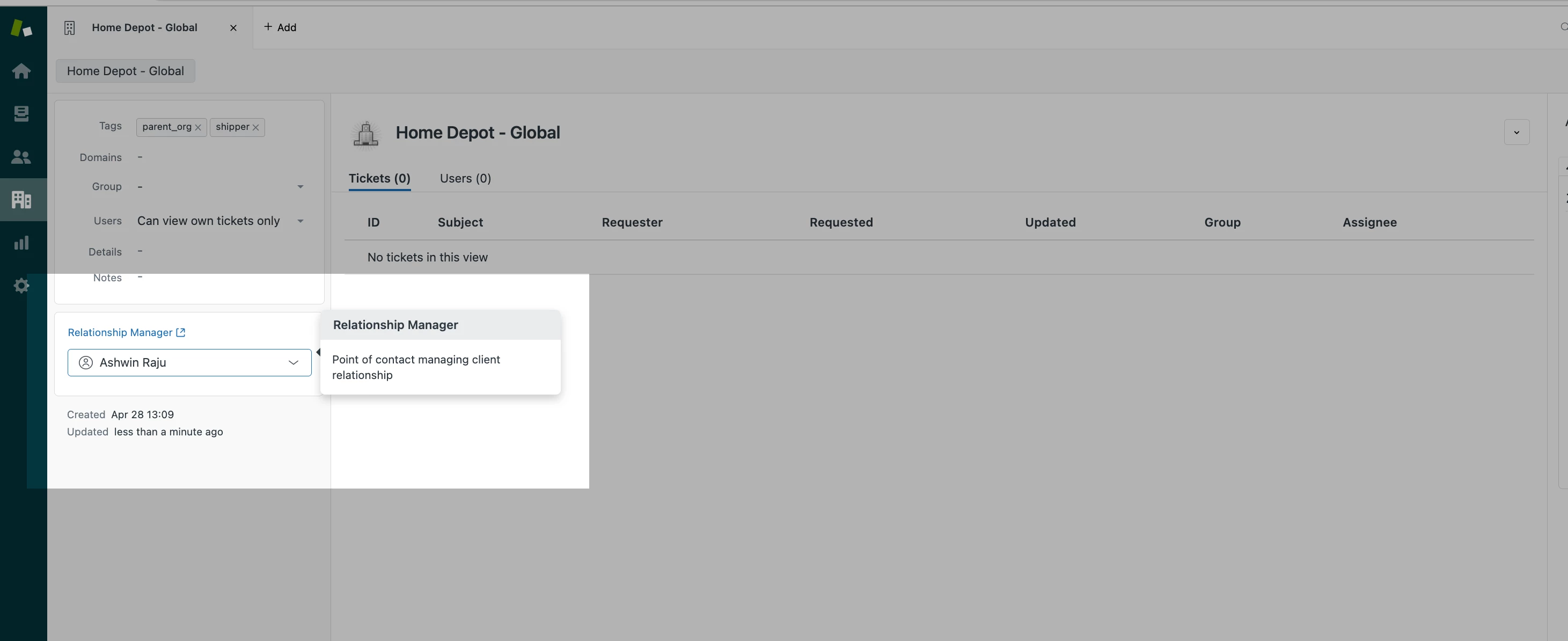
You can easily get to the Relationship Manager’s profile by clicking on the Field name
Filter Lookup Field Value
Admins can narrow down what values the agent can select in this field. For example, Let’s say you want the Relationship Manager to only be an Agent User with either the Type as Manager or having a Tag of Relationship Manager. You can define your filters when creating a Lookup Field
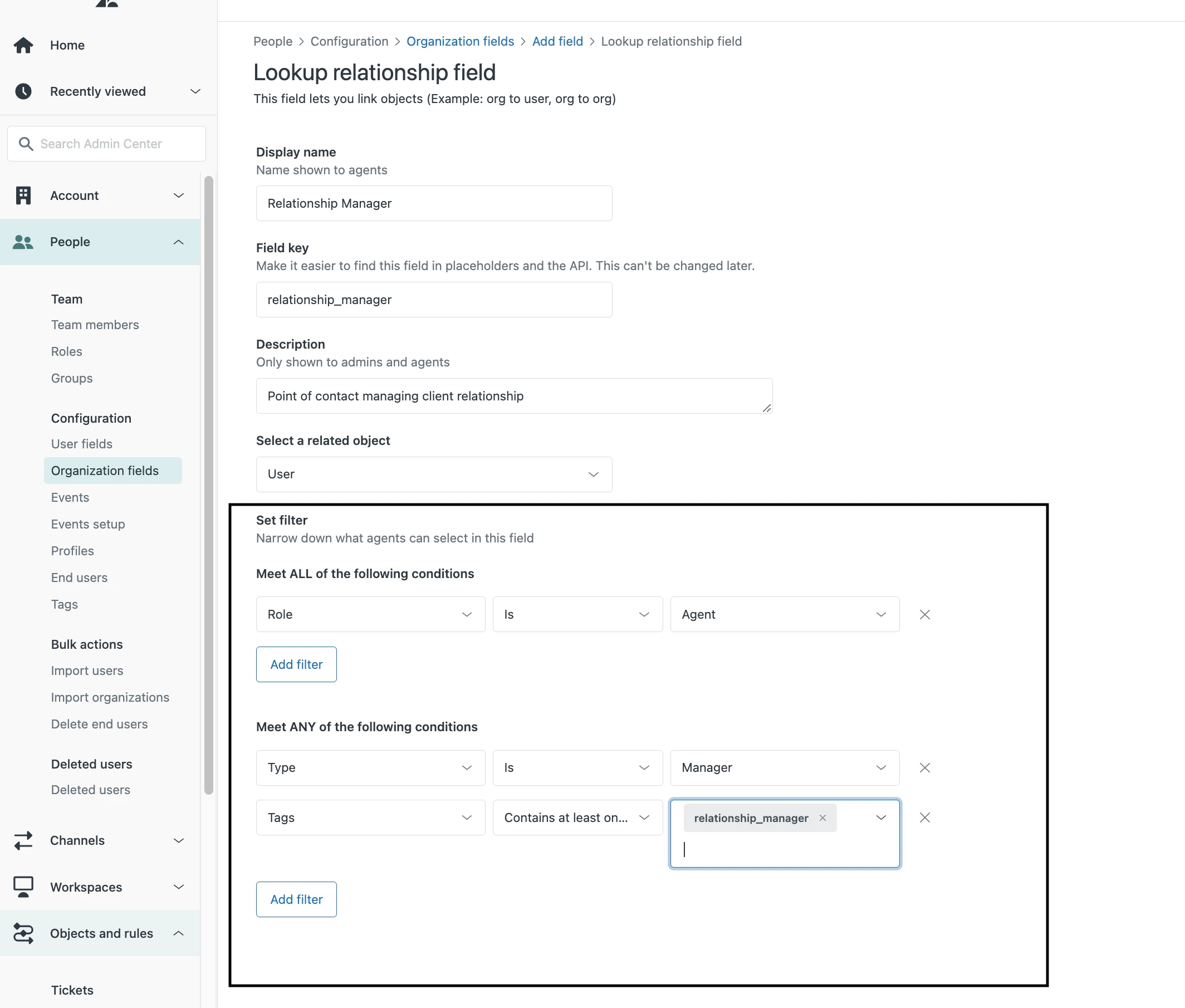
Once you have created this filter, the Agent can only add/update a user to the Relationship Manager field who fulfills the above filter. This will however not impact any of the values which were previously entered for the Relationship manager.
Add Lookup Fields to Forms
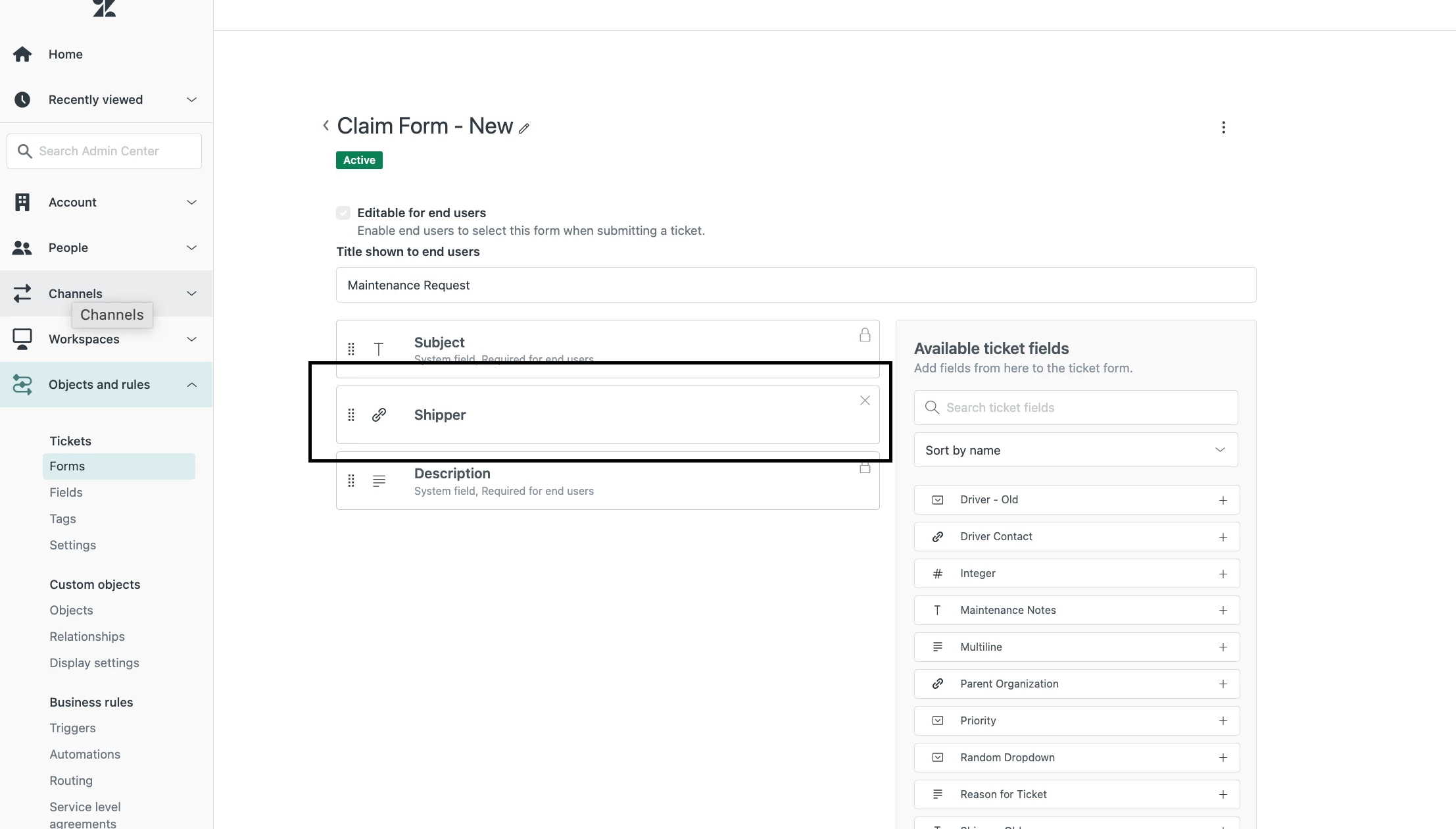
For the customers who have Ticket forms enabled, you will be able to drag and drop the Lookup field created in Ticket fields to any of your forms.
Add Lookup fields to Views
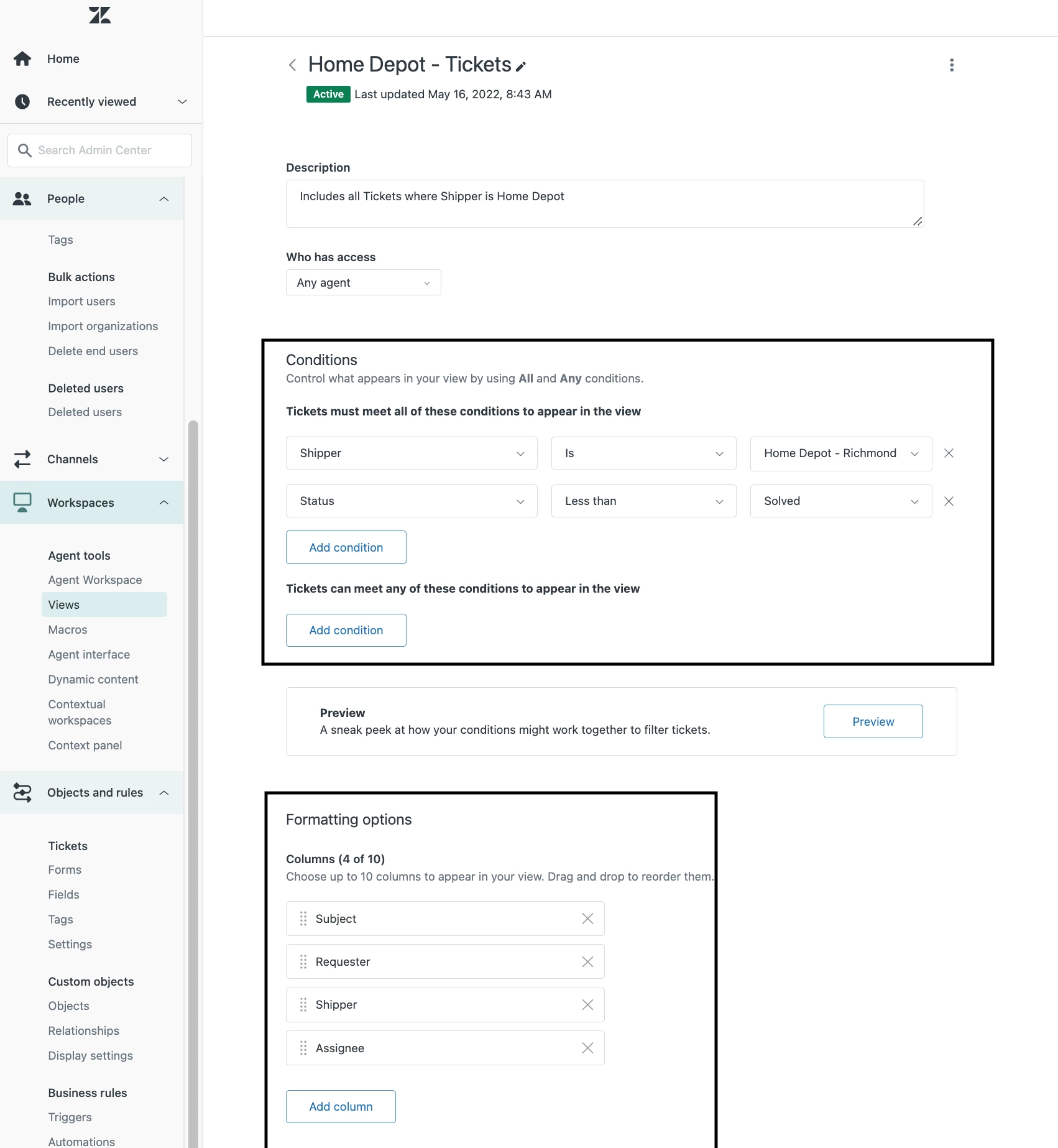
Once created, lookup fields in Ticket fields can be added to Views. They can also be added to conditions.
Let’s switch examples for a bit. Let’s say you have a field in a Ticket called Shipper, pointing to the organization that is shipping an order initiated by a customer. Let’s say you want to create a view of all Tickets where the Shipper is Home Depot. You can do that with Views.
Add Lookup fields to Triggers
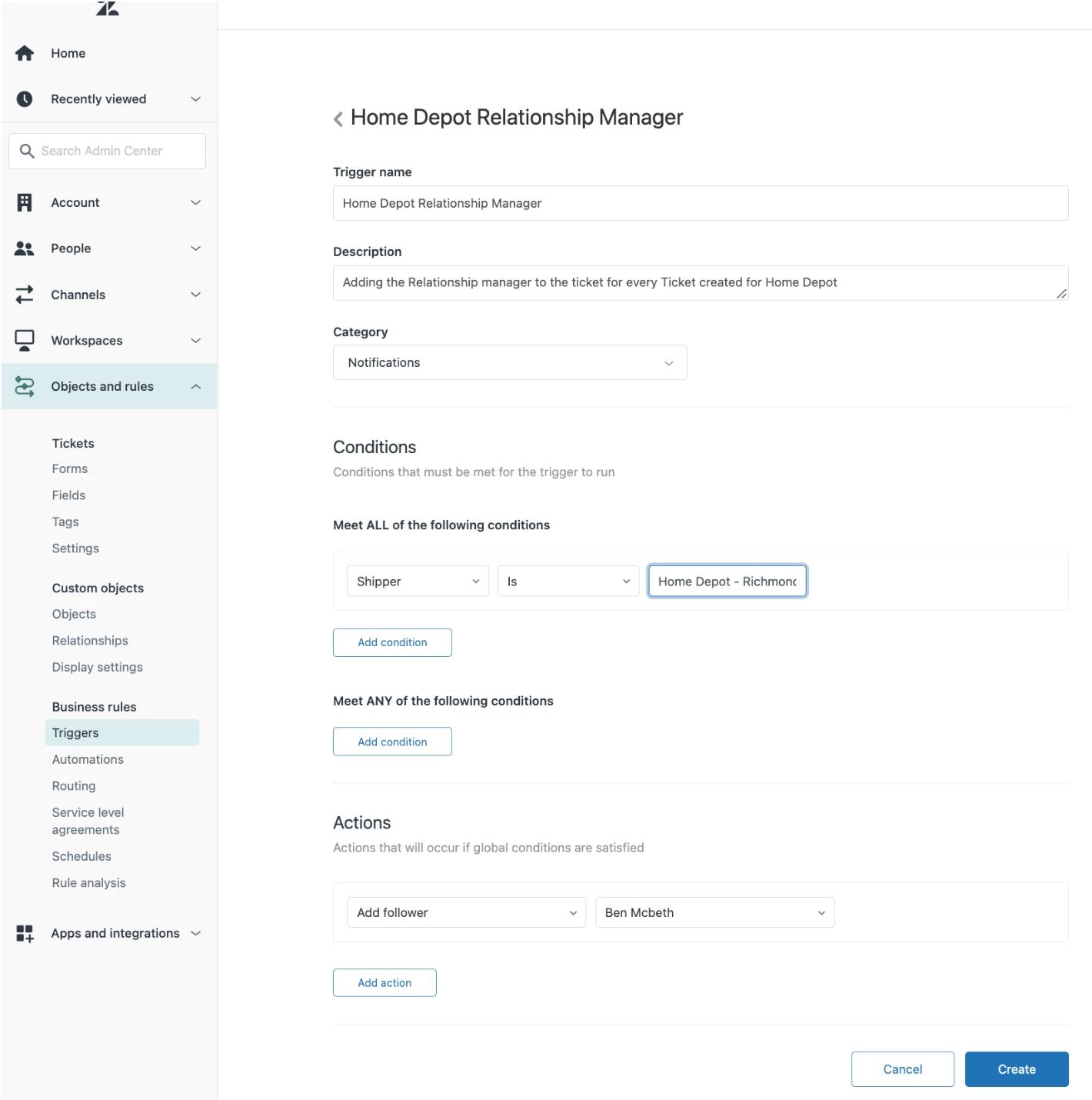
You can add Lookup fields as Conditions to a Trigger. For eg: I want to add Ben as a follower every time a ticket is created with the Shipper as Home Depot.