

Note: The Sunshine Guide Events app is currently in an Early Access Program (EAP), but that will be ending eventually. Guide event information is now available natively in Customer Context. For more information see Adding Sunshine user profiles and events to customer context in a ticket.
With the Sunshine Guide Events app for Zendesk Support, agents can see which Guide articles a customer has read before they filed a ticket, preventing agents from recommending articles that customers have already seen. For instructions on installing the Sunshine Guide Events app, see Introducing the Sunshine Guide Events app (EAP). This article describes how you can include Guide events in the Sunshine Guide Events app.
For information about setting up Guide, see Getting started with Guide: Setting up.
The article includes the following sections:
- Adding the Sunshine Guide Events app in Admin Center
- Selecting the event types to include
- Viewing the Guide events for the ticket requester in the app
Related articles and announcements
- Introducing the Sunshine Guide Events app (EAP)
- Adding Sunshine user profiles and events to customer context in a ticket (EAP)
Adding the Sunshine Guide Events app in Admin Center
To add the Guide Events app to your Zendesk Support instance, request access to the EAP and follow the provided instructions to install the app. Then you can select which events to include in the app.
Selecting the event types to include
After you’ve added the Sunshine Guide Events app, select which types of events to include.
The Sunshine Guide Events app includes the following Guide events:
|
Guide event type |
Description |
|
answers_suggested |
The articles automatically suggested to the user when they filed a request. |
|
article_instant_search_result_clicked |
An article link in the Help Center that the user clicked in the dropdown search results. |
|
article_search_result_clicked |
An article link in the Help Center that the user clicked in the search results. |
|
article_viewed |
The title of an article that the user viewed via the Help Center or Mobile SDK. |
|
help_center_searched |
An article search entered by the user using the search bar in the Help Center or Mobile SDK. |
|
suggested_article_clicked |
The title of a suggested article the user clicked while submitting a Support request. |
To select the event types to include
- In any product, click the Zendesk Products icon (
 ) in the top bar, then select Admin Center.
 - Click the Sunshine icon (
 ) in the left sidebar, then click Events.
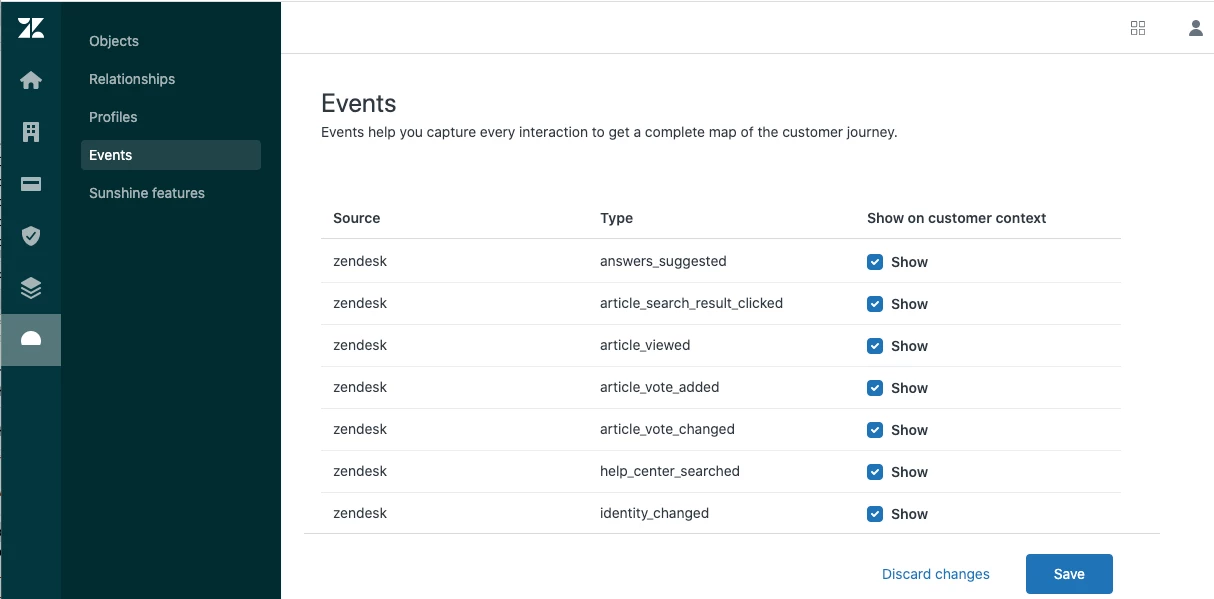
A list of events you’ve added to Admin Center appears.
- Click the Show checkbox for each of the Guide events you want to include in the Sunshine Guide Events app.
The example image shows adding a number of the Guide events.
- When you are finished, click Save.
When a Guide event occurs, it appears in the Sunshine Guide Events app under the Apps section of a ticket.
Viewing the Guide events for the ticket requester in the app
After you’ve selected the events to include, you can view the events within a ticket. The ticket shows which guide events are associated with the ticket requester.
To view the events
- In the ticket, select Apps from the upper-right toolbar.
- Expand Sunshine Guide events and review the events displayed.
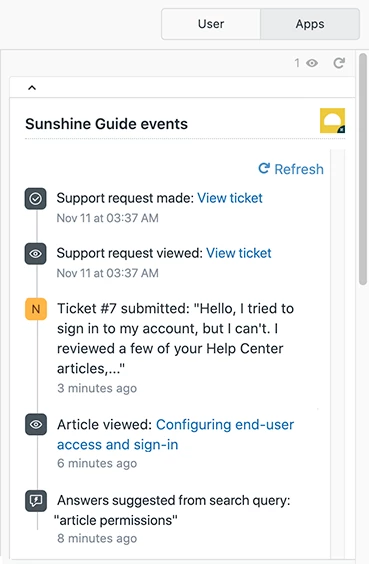
Events are displayed chronologically with the most recent events at top.
Click the refresh icon ( ). in the Sunshine Guide events panel to display the latest Guide events in the app.
