
What is multi-conversation?
Multi-conversation is the ability for end users to have multiple concurrent conversations with a business. Currently in messaging, end users can only have one conversation at a time making it difficult for them to raise multiple problems at the same time. With multi-conversations, end users will be able to start new conversations with a business, even when they have existing active conversations.
Benefits of using multi-conversations
The feature will remove an important bottleneck for end users who have multiple issues they need support with, allowing them to get faster resolutions and have a more satisfying customer experience.
It will also make it easier for agents to support end users with multiple issues as there will be a separate ticket created in the Agent Workspace for each conversation. This will avoid multiple issues being raised in one ticket.
Who can participate in the beta
The beta program is available to a limited number of mobile-only customers who use the Zendesk mobile SDKs. Customers using the messaging Web Widget won’t be able to use the feature at this stage. We are also planning to launch the capability in our Web Widget at a later date and make it available to all messaging customers.
In addition, the program is limited to customers in Zendesk Suite for Professional, Enterprise and Enterprise Plus plans.
There are also some other eligibility criteria for participation in the beta program due to the current limitations of the feature.
- Participating customers must authenticate all their end users up front (i.e. before they interact with the Zendesk SDK and start a conversation). Customers who don't authenticate their users up front will not be able to participate in the beta.
- Our V1 Sunshine Conversations APIs don’t support multi-conversations feature, and they shouldn’t be used by Multi-conversation Beta participants as it would cause unexpected results. Customers who use the v1 APIs will not be able to participate in the beta.
- Participating customers should not merge users, as the multi-conversations feature currently doesn’t support user merging. Customers who need to make use of the user merge functionality will not be able to participate in the beta.
- Our Unity SDK for messaging doesn't support multi-conversations feature. Customers who use the Unity SDK for messaging will not be able to participate in the beta.
Why we have a beta program
While our teams are continuing the work to make the multi-conversation experience available to all native channels, we would like to make the mobile experience available to our mobile-only customers, so that we can start gathering feedback from our customers to fine-tune the feature and make it just right.
Despite the fact that this is a beta program, we take the quality of our beta programs with the utmost seriousness. Every component of our code is fully tested and vetted through the same process used for our General Availability production software. Although there's no way of guaranteeing that you won't face issues (as it happens with any type of software), we're very confident about the quality of this beta release.
The main objective of this beta program is not to validate the quality of the software, but to validate the integration steps, documentation, and the functionalities of the feature.
How it works
End User Experience
New screen: List of conversations
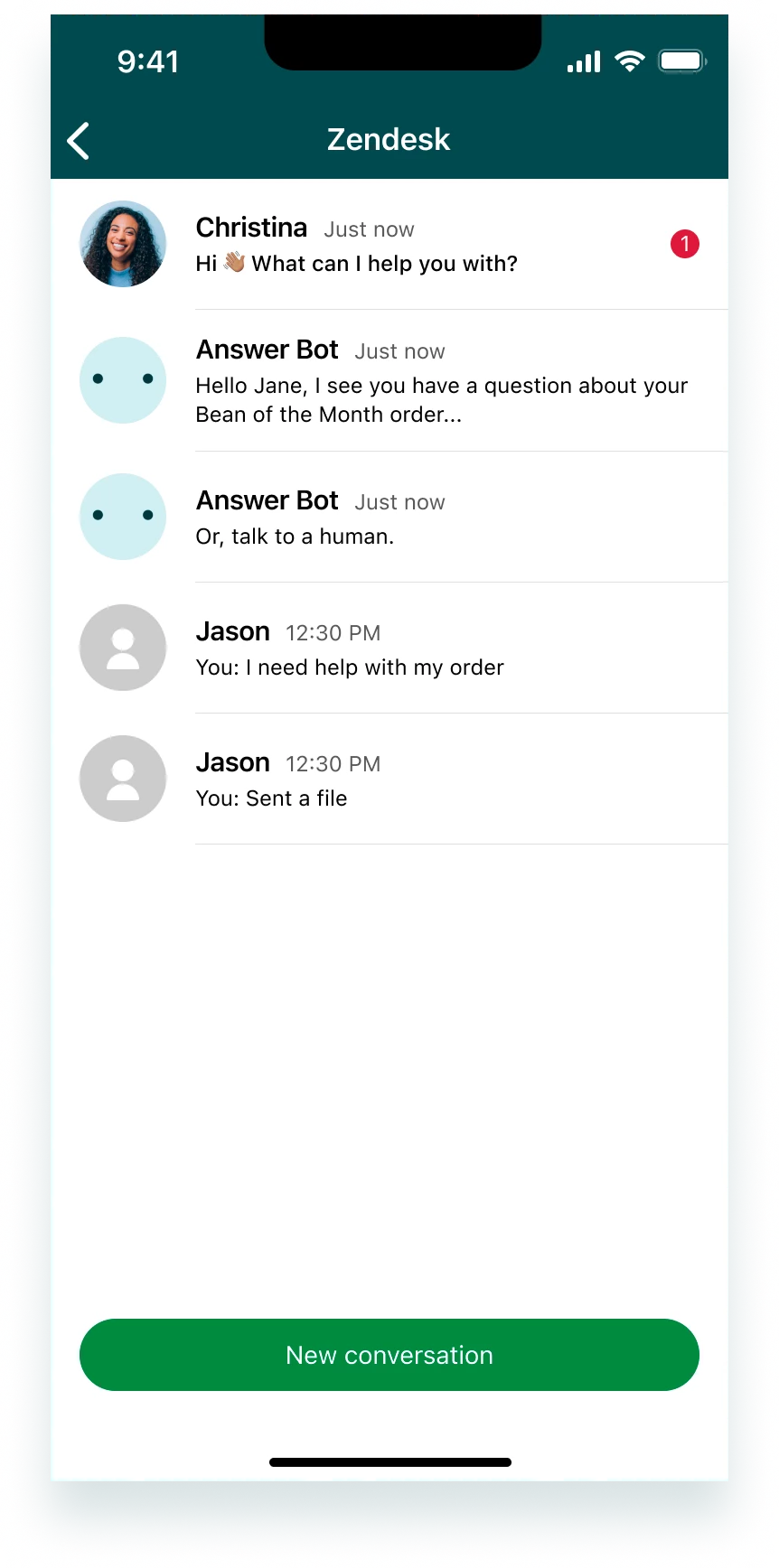
We are providing end users with a new screen to display a list of all their existing conversations. Below is a description of the components on this screen.
The Header
The header displays the business name and a back button to navigate to the previous screen.
The List of Conversations
The list of conversations is ordered based on the time of the latest message in each conversation, with the most recent one at the top of the list. The order of the list is updated as new messages come in.
Conversation List Items
Each conversation is represented by:
- Name and avatar of the agent who has sent the latest message in the conversation. This can also be the answer bot. If the agent doesn’t have an avatar set up for them, the default avatar image will be used.
- The content of the latest message in the conversation. This can also be the message from the end user, in which case it will have an indicator “You:”. If the latest message has not been read by the user yet, the content of the message will be in bold characters.
- The time stamp of the latest message in the conversation.
- A badge counter for unread messages.
“New conversation” button
This button creates a new conversation and navigates to the conversation screen.
Updates to the conversation screen
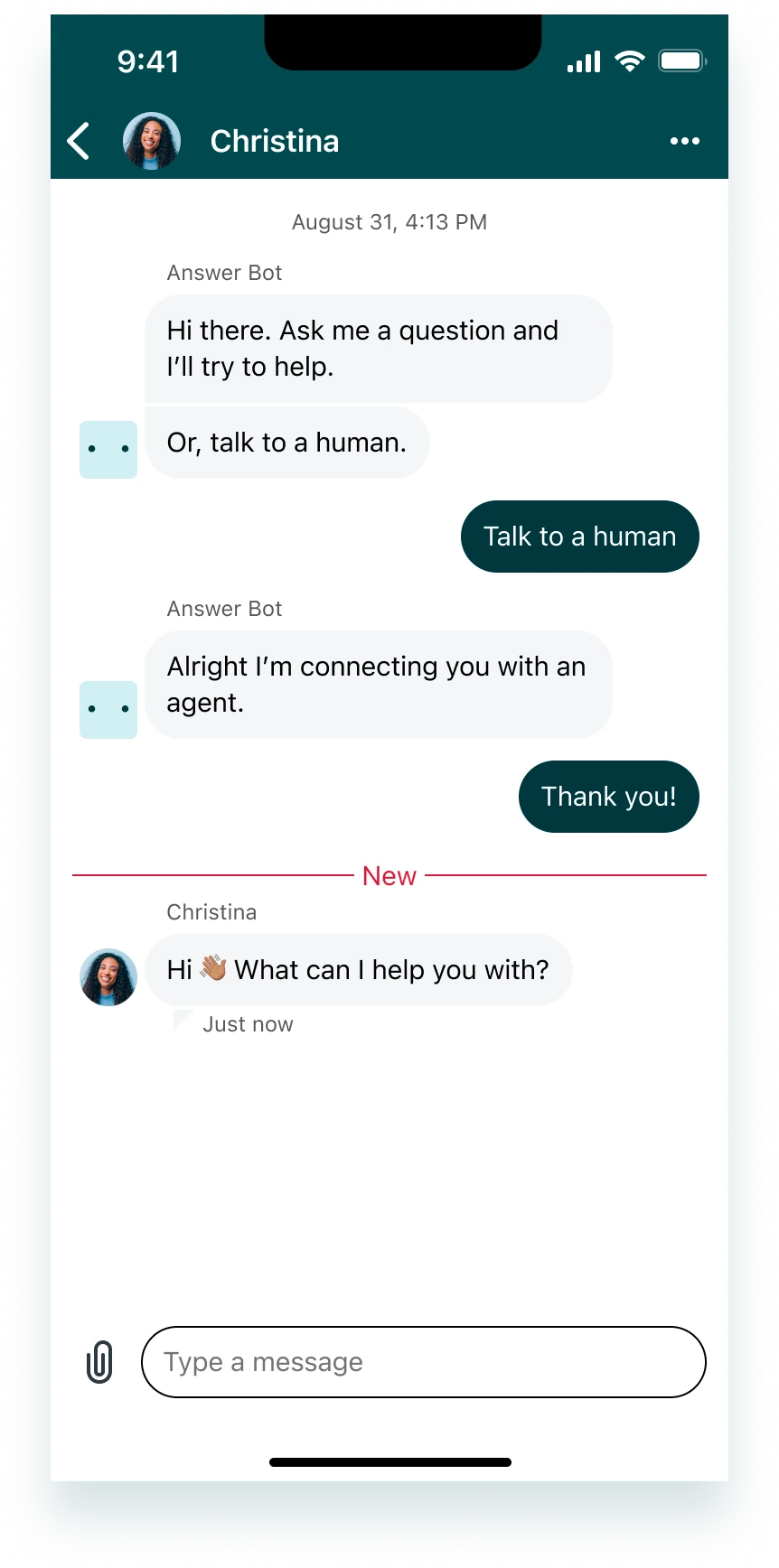
There is a minor change to the existing conversation screen in messaging for multi-conversation customers. The header of the conversation screen displays the name and avatar of the agent who has sent the latest message in the conversation. The back button on the screen navigates back to the previous screen.
No changes to your existing conversation flow
Once an end user starts a new conversation, your existing flow will be applied to the conversation which can be adjusted via the Flow Builder settings on the Admin Center.
When a ticket is resolved and closed in a conversation, similar to your current single-conversation experience, end users will be able to send new messages and raise a new ticket.
Messaging Entry Point - The launcher button
When an end user launches the Zendesk mobile SDK for the very first time, there won’t be any previous conversations at this point. So, in this case, a new conversation will automatically be created for the user when the SDK is launched and they will directly navigate to the new conversation screen.
The next time the user launches the SDK, since there is already an existing conversation, the user will navigate to the list of conversations, so they can either tap to view the existing conversation or create a new conversation by tapping the “New conversation” button.
Any following visits to the Zendesk mobile SDK will navigate the user to the conversations screen.
Push Notifications
When there is a new message in a conversation, the user will receive a push notification. Tapping the notification will navigate to the related conversation screen.
Note that the user will also receive a notification when they are viewing a conversation screen and there is a new message in another conversation. However, when the user is on the new screen for the list of conversations, they will not receive notifications for new messages as the new messages will be highlighted on the screen.
Agent Experience
The agent experience we offer via the Agent workspace already supports multi-conversation capability. Every new conversation created by an end user will create a new ticket in the Agent Workspace. As all tickets will be linked to the same user profile, your agents will be able to view and take action on all tickets that belong to the user.
Technical Requirements
In order to use the multi-conversations feature, customers must upgrade to the v2.10.0 or a later version of the Zendesk SDKs. Note that end users with older versions of the Zendesk SDK will not be able to use the multi-conversation feature. These customers will continue to have the existing single conversation experience in messaging.
You can find here our developer documentation for the multi-conversations feature.
How to participate in the beta
In order to participate in the beta program, you will need to fill out this form. We will then reach out to you to plan your participation.
Since the feature is only available to a limited number of participants, we don’t currently have admin center settings to enable the feature. We will run an internal process to onboard you to the program, and once onboarded, the feature will be enabled on your account.
Note that your development team will need to ensure that your mobile app has the latest version of the Zendesk SDKs implemented.
Enabling and disabling the multi-conversations
As part of your onboarding to the program we will enable the feature for your account. Throughout the program, you will have the control to disable it and enable again anytime by using our Sunshine Conversations API.
End user experience once the feature is disabled
Disabling the feature will remove the “New conversation” button from the conversations list screen, and so your users will no longer be able to create new conversations. However, your users will still have access to their existing conversations on your mobile app, and they can continue to send and receive messages in those conversations.
Agent experience once the feature is disabled
After the feature is disabled, your agents will still be able to access all existing tickets from your users and continue to work on them. They can still send messages to users in those existing conversations.
Using Sunshine Conversations API to enable/disable the feature
See this article for more information on how to use the Conversations API to enable/disable the feature. Note that using the API requires a Conversations API key which can be created inside the Admin Center. (Visit this help centre article for more information on creating a Conversations API key.)
Testing the feature before rolling it out to your customer base
Beta participants can test the feature via their Sandbox test accounts.
How to share feedback and get support
Throughout your participation in the beta program, we are keen to hear any feedback from you. You can always reach out to your account team at Zendesk for this. You will also be able to directly contact one of our PMs who is responsible for the mobile SDKs.
In addition, for any problems you might have related to the feature, you can contact us directly via your account team or your PM contact. Please also see here for our guidelines for raising issues on Zendesk mobile SDKs. It is important to provide all details highlighted on this page as part of your support queries in order to get the best level of support.
Limitations of the feature
User authentication
Currently our systems don’t fully support multi-conversations experience for unauthenticated users. Hence, the beta program is only available to customers who authenticate all their users before they interact with the Zendesk SDK and start a conversation.
Once you sign up to participate in the program, we will reach out to you to ask some questions around your user authentication process and confirm you can participate in the program.
Disabling Multi-conversations
Once enabled, disabling the multi-conversation feature will hide the “New conversation” button from the UI. Hence, this will only remove the capability for end users to start new conversations. All existing conversations of a user still remain, so that the users and agents will still be able to access and respond to them.
It is good to note that users can restart previous conversations by sending a new message in them and so they can continue to raise multiple issues concurrently after removing the “New conversation” button.
Usage of Sunshine Conversations APIs
There are some limitations for customers who use Sunshine Conversations APIs.
- Our V1 Sunshine Conversations APIs don’t support multi-conversations feature, and they shouldn’t be used by Multi-conversation Beta participants as it would cause unexpected results.
- Customers should not merge users, as the multi-conversations feature currently doesn’t support user merging. Merging users will cause unexpected results.
Proactive Messaging
Multi-conversations feature currently doesn’t support proactive messaging. Beta participants are advised not to use proactive messages as it will have unpredictable results for the end users.
Brand title, description and icon on the conversation screen
Via the Admin Center, customers can normally set the brand title, description and icon that is displayed on the header of the conversation screen. However, when a customer enables the multi-conversations feature, the header of the conversation screen will display the name and avatar of the agent in the conversation, instead of the business title and icon. (See the “Updates to the conversation screen” section above.) This is an improvement made to the conversation screen to compliment the multi-conversations experience, so that end users will be able to differentiate between different conversations they have. As part of this improvement, the brand title, description and icon settings in the admin center will not be applied to the conversation screen header for customers who enable multi-conversations.
