
In this article, you'll learn about using Explore date functions that help you to focus your calculations on the first or the last event in a series. Typically, when you report on specific events or the time between them, some of the events are not unique, for example, one ticket can have multiple resolution events. The Explore earliest and latest date functions will help you to find unique first and last events. If you used Insights, you’ll recognize this as similar functionality to the MIN and MAX keywords.
This post contains the following sections:
- Definitions for earliest and latest date functions
- Using the DATE_LAST function to find tickets solved on the last day of the month for a group
- Using the DATE_FIRST function to find the earliest daily ticket assignment
- Using the DATE_LAST_FIX function to find the final ticket resolution date
- Using the DATE_LAST_FIX function to find the latest agent comment time
- Using the DATE_FIRST_FIX function to find the first internal comment time
Definitions for earliest and latest date functions
In this table, you'll find a list of each earliest and latest date function and how to use it:
| Function | Description |
| DATE_FIRST(time attribute) |
Returns the earliest date or timestamp according to attributes added to the query and is affected by all applied filters. Example: DATE_FIRST([Update - Timestamp]) Returns the earliest update timestamp taking into account all attributes you added to the query. |
| DATE_LAST(time attribute) |
Returns the latest date or timestamp according to attributes added to the query and is affected by all applied filters. Example: DATE_LAST([Update - Timestamp]) Returns the earliest update timestamp taking into account all attributes you added to the query. |
| DATE_FIRST_FIX(time attribute, attribute1, attribute2, ...) |
Returns the earliest date or timestamp according to the attributes specified in the function. Attributes added to the query will not affect the calculation but any filters applied will be taken into account. Example: DATE_FIRST_FIX([Update - Timestamp], [Update ticket ID]) Returns the earliest update timestamp per ticket, regardless of the attributes from the query. |
| DATE_LAST_FIX(time attribute, attribute1, attribute2, ...) |
Returns the latest date or timestamp according to the attributes specified in the function. Attributes added to the query will not affect the calculation but any filters applied will be taken into account. Example: DATE_LAST_FIX([Update - Timestamp], [Update ticket ID]) Returns the latest update timestamp per ticket, regardless of the attributes from the query. |
Using the DATE_LAST function to find tickets solved on the last day of the month for a group
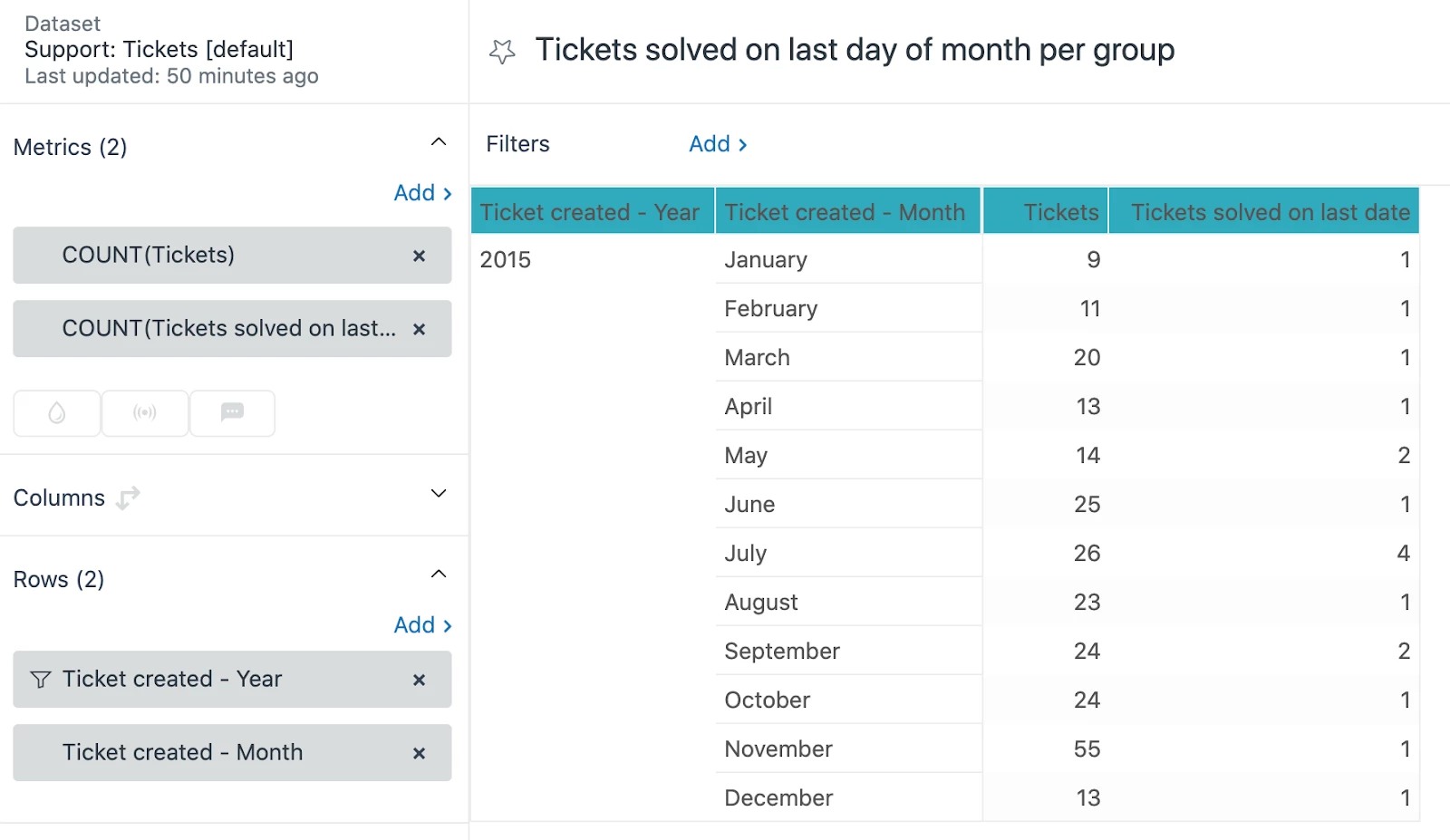
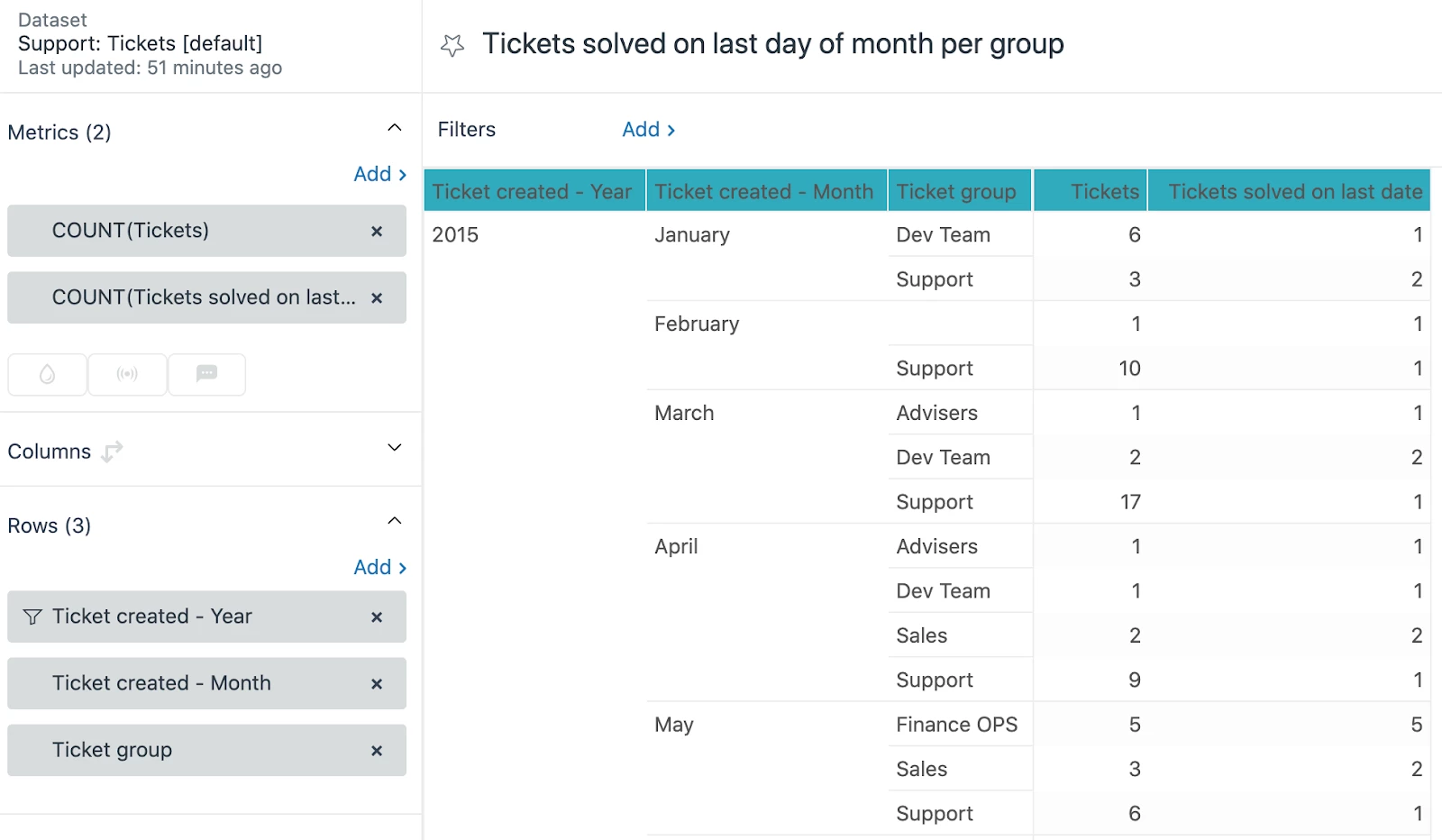
In this example you'll use the DATE_LAST function to create a query that returns tickets solved on the last date, then by adding year, month and group attributes to the query you will get resolutions for the last date of the month for each group.
To create the query
- Create a new query using the Support: Tickets dataset.
- Create a standard calculated metric named Tickets solved on last date with the following formula:
IF DATE_LAST([Ticket solved - Date])=[Ticket solved - Date] THEN [Ticket ID] ENDIF - Edit the metric you just created and set its default aggregator to COUNT you can also remove other aggregators.
- Add the Tickets and Tickets solved on last date metric to the Metrics panel of query builder.
- In the Rows panel, add the Ticket solved - Year and Ticket solved - Month attributes. You’ll see total number of solved tickets and tickets solved on the last day of the month, for example:
- In the Rows panel, add the Ticket group attribute. You’ll see that the tickets solved on the last date are determined per group in addition to year and month:
Using the DATE_FIRST function to find the earliest daily ticket assignment
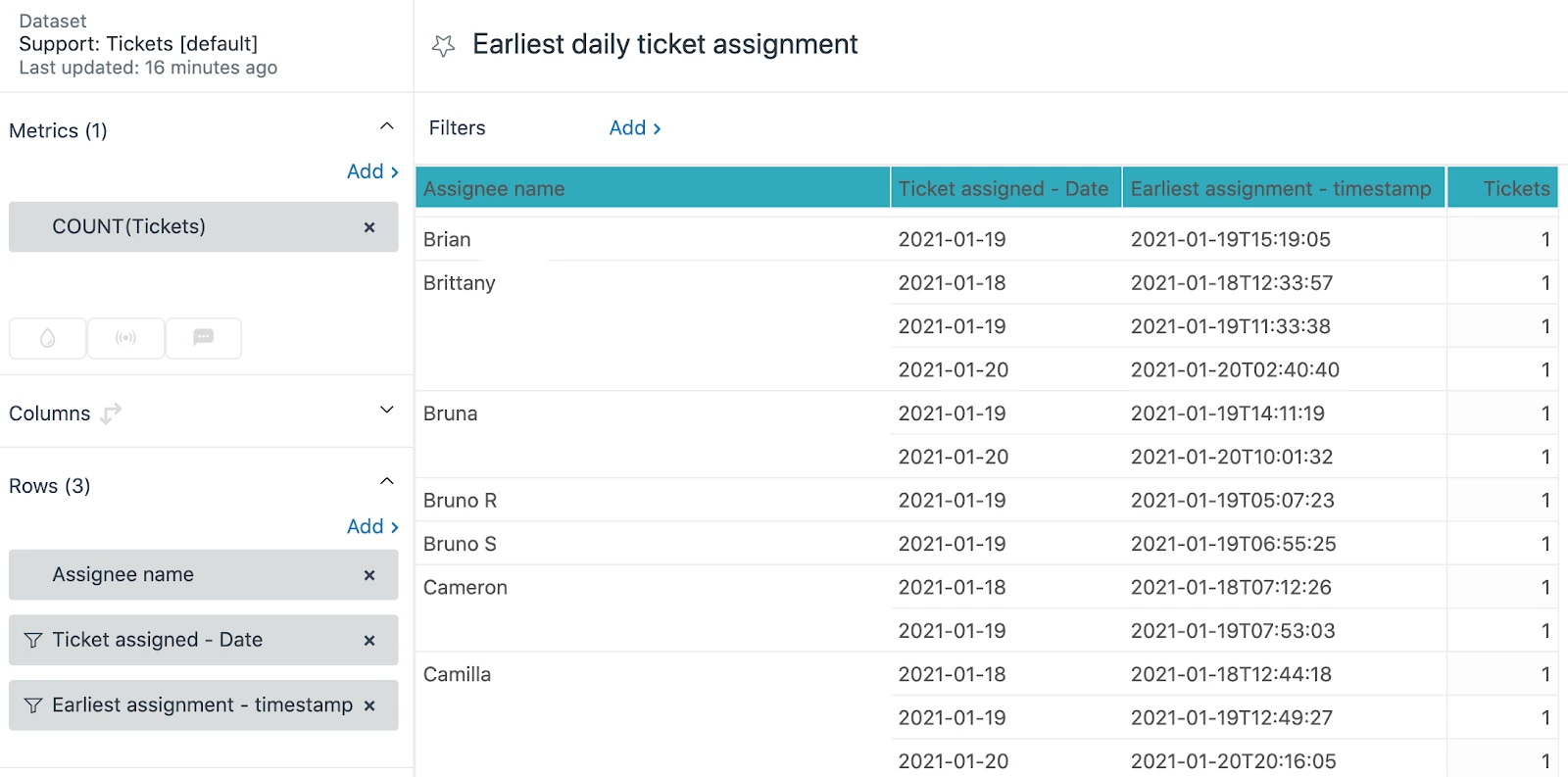
In this example you'll use the DATE_FIRST function to create a query that returns the earliest ticket assignment timestamp. Then, you'll add the assignee and date attributes to get the earliest timestamp per date and assignee.
To create the query
- Create a new query using the Support: Tickets dataset.
- Create a standard calculated attribute named Earliest assignment - timestamp with the following formula:
IF DATE_FIRST([Ticket assigned - Timestamp])=[Ticket assigned - Timestamp] THEN [Ticket assigned - Timestamp] ENDIF - Add the Tickets metric to the Metrics panel of query builder.
- In the Rows panel, add the Assignee name and Ticket assigned - Date attributes. Configure the second attribute to show tickets created this week.
- In the Rows panel, add the Earliest assignment - timestamp attribute, then filter it by excluding NULL values. You’ll see the earliest daily ticket assignments by assignee and date, for example:
Using the DATE_LAST_FIX function to find the final ticket resolution date
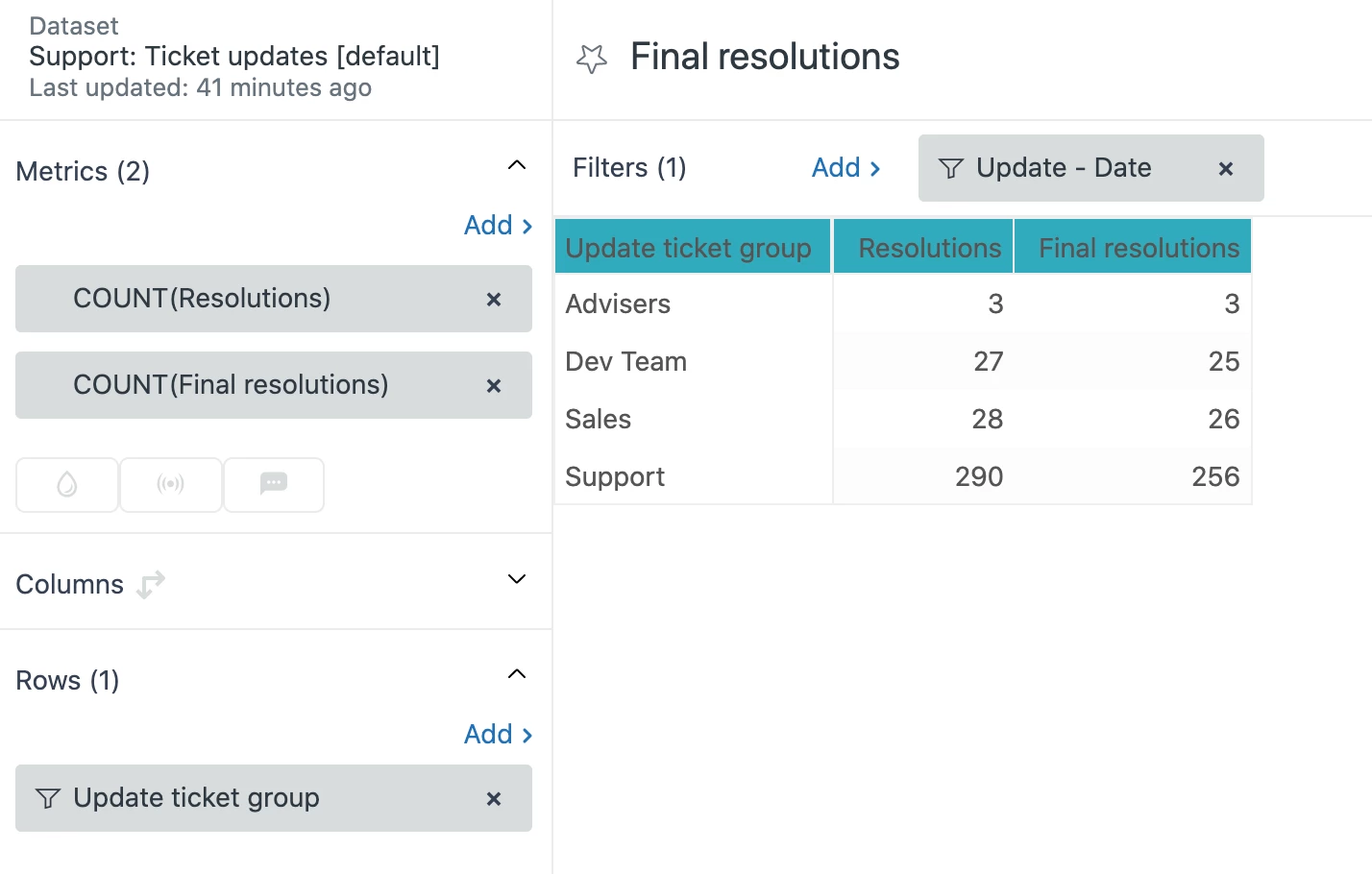
Tickets can be resolved and reopened multiple times so in some cases it is useful to look only at the latest resolutions. In this example you'll use the DATE_LAST_FIX function to produce a metric that will return the number of final ticket resolutions.
To create the query
- Create a new query using the Support: Ticket updates dataset.
- Create a standard calculated metric named Final resolutions with the following formula:
IF ([Changes - Field name]="status" AND [Changes - Previous value]!="solved" AND ([Changes - New value]="solved" OR [Changes - New value]="closed") AND DATE_LAST_FIX([Update - Timestamp], [Update ticket ID], [Changes - Field name], [Changes - New value])=[Update - Timestamp]) THEN [Update ID] ENDIF - Edit the metric you just have created and set its default aggregator to COUNT. You can also remove other aggregators.
- Add the Resolutions and Final resolutions metrics to the Metrics panel of query builder.
- In the Filters panel, add the Update - Date attribute and configure this to show updates in the last 30 days. Your query will return the total number of resolutions and number of final resolutions. You can slice these metrics using any attributes, for example Update ticket group.
Using the DATE_LAST_FIX function to find the latest agent comment time
In this example you'll use the DATE_LAST_FIX function to create an attribute that will return the latest agent comment timestamps that will not be sliced by the attributes from the query. This query can help you detect agent seats that were not used for a long time.
To create the query
- Create a new query using the Support: Ticket updates dataset.
- Create a standard calculated attribute named Latest agent comment - timestamp with the following formula and enable the Sort like time attribute setting:
IF ([Comment present]=TRUE AND [Updater role]!="End-user" AND DATE_LAST_FIX([Update - Timestamp],[Updater name],[Updater role],[Comment present])=[Update - Timestamp]) THEN [Update - Timestamp] ENDIF - Add the Comments metric to the Metrics panel of query builder.
- In the Filters panel, add the Update - Date attribute and configure this to show updates in the last year.
- In the Filters panel, add the Updater role attribute and configure this to show Agents and Admins.
- In the Rows panel, add the Updater name attribute.
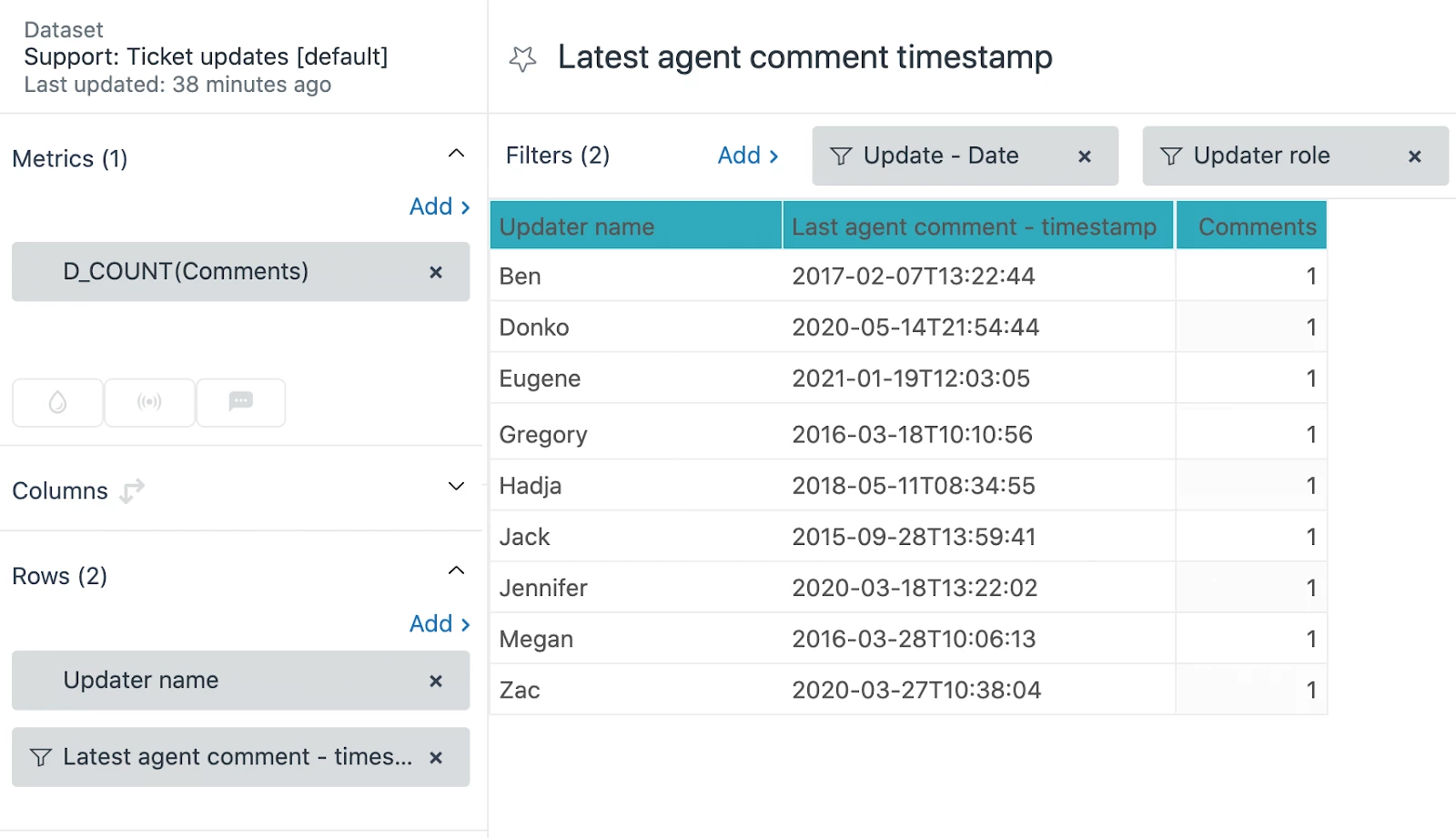
- Finally, in the Rows panel, add the Latest agent comment - timestamp attribute, then filter it to exclude NULL values. You’ll see the list of agents and their latest comment timestamps:
Using the DATE_FIRST_FIX function to find the first internal comment time
One of the default metrics available in the Tickets dataset is First reply time. It gives you insight on how long it took for an agent to respond to the end user. Some customers have internal processes where an internal comment is added to the ticket before a public reply. In this example you'll use the DATE_LAST_FIX function to create a query that will return the average first internal comment time by month.
To create the query
- Create a new query using the Support: Ticket updates dataset.
- Create a standard calculated attribute named First internal comment - Timestamp with the following formula and enable the Sort like time attribute setting:
IF ([Comment present]=TRUE AND [Comment public]=FALSE AND DATE_FIRST_FIX([Update - Timestamp],[Update ticket ID],[Comment present],[Comment public])=[Update - Timestamp]) THEN [Update - Timestamp] ENDIF - Create a standard calculated metric named First internal comment time (hrs) with the following formula:
DATE_DIFF([First internal comment - Timestamp], [Ticket created - Timestamp], "nb_of_hours") - Edit the metric you just created, set it's default aggregator to AVG, display format to Custom, and set Decimal points to 1 and Suffix to hrs
- Add the First internal comment time (hrs) metric to the Metrics panel of query builder.
- In the Columns panel, add the Ticket created - Month attribute and configure this to show updates in the last 6 months.
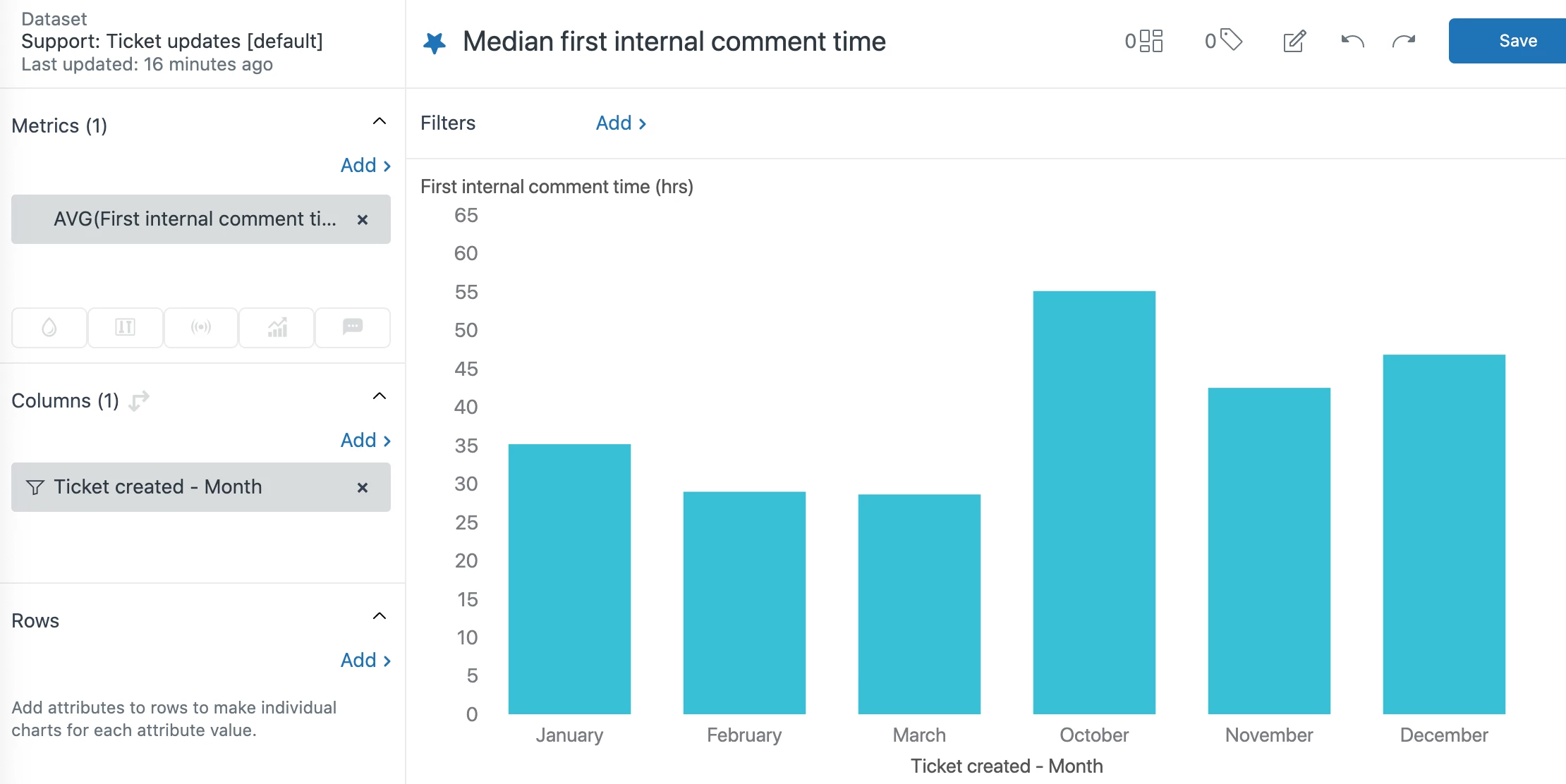
- Finally, in the Visualization types menu, select the Column chart. You’ll see the first internal comment time by month:
More information
For more information, see the following resources: