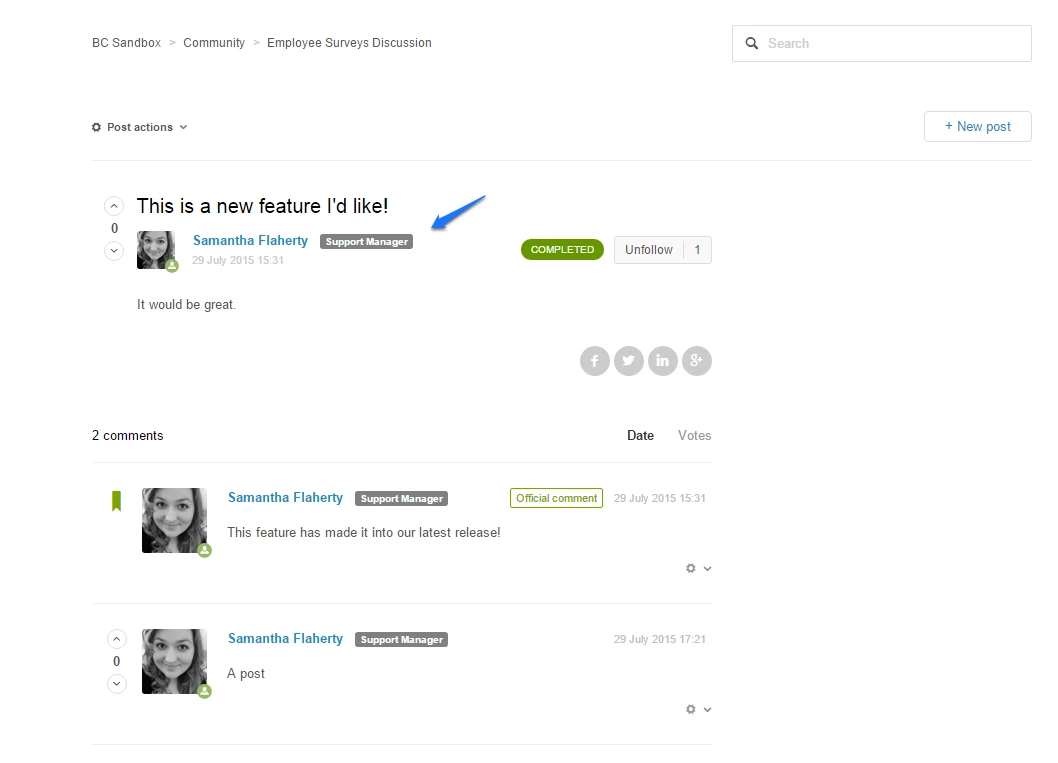
It's something that has caused lots of discussion in other posts here - how we can get the same cool little badges Zendesk use, on our own Community forums.
Thanks to the help of a few Zendesk people, we now have the code snippets available to do this ourselves.
Note: whilst this is currently a workaround, it means there are some flaws (although minor). Because you need to input specific names into the code, it means that anyone on the Community with the same name is likely to have the same 'moderator' style badge appear too. So if you have agents called John Smith and lots of clients with the same name, it might get a little confusing.
To start off, add the following JavaScript snippet onto the end of your code:
$(document).ready(function() {

var moderators = ["Username 1", "Username 2", "Adam Pepper", "Another Person"];

var supportManagers = ["Samantha Flaherty", "Christian Colding", "Jesper Petersson"];

$('.comment-author').each(function(index) {

if ($.inArray($.trim($(this).text()), moderators) > -1) {

$(this).addClass('moderator');

}

else if ($.inArray($.trim($(this).text()), supportManagers) > -1) {

$(this).addClass('support-manager');

}

});

if ($.inArray($.trim($('.post-author').text()), moderators) > -1 ) {

$('.post-author').addClass('moderator');

}

else if ($.inArray($.trim($('.post-author').text()), supportManagers) > -1 ) {

$('.post-author').addClass('support-manager');

}

});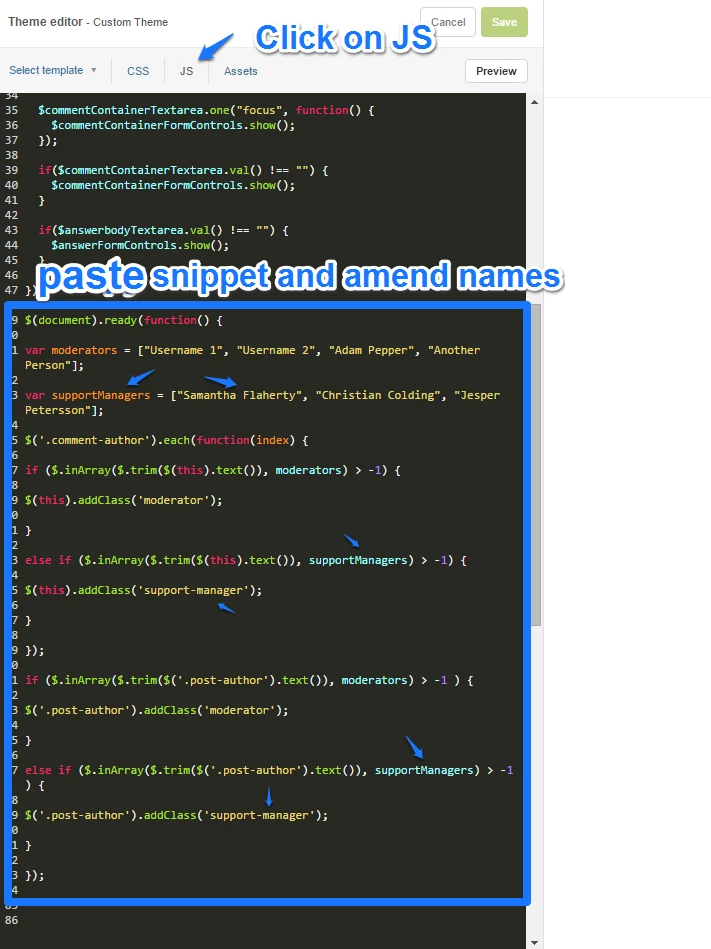
You can edit the code to have the titles you prefer (in my example, I've changed Product Manager to Support Manager) and you will need to add in the names of your agents too.
Note: if you update any titles in the JS snippet you'll also have to update the related code in the CSS snippet below.
Then, add the following code snippet onto the end of your Communities CSS:
.moderator:after, .support-manager:after {

content: "Community Moderator";

background-color: grey;

border-radius: 3px;

color: white;

margin-left: 8px;

padding: 2px 5px;

font-size: 10px;

}

.support-manager:after {

content: "Support Manager";

}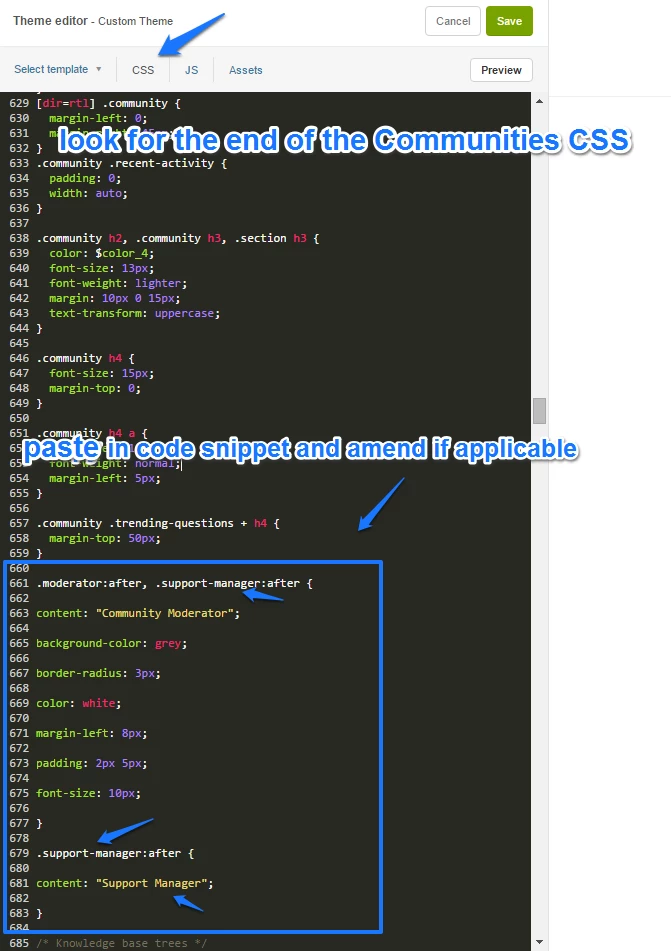
You can edit this so your badge has different colours and fonts, to fit your brand.
Finally, you should be able to see the badge:
If you find you have any difficulties adding this code, it's worth checking:
- If you're using the new theming infrastructure (I've completed this by using a standard theme on our sandbox help centre)
- You're not trying to add this to Communitiesv1 (this code won't work with the old code)
- Your code definitely has the right handles - without those crucial handles ({ }) your code can break and cause silly things to happen.
Hope this helps - thanks so much Zendesk for providing this code :)