Verifying with Google Search Console | Community
Skip to main content

Verifying with Google Search Console

  • July 25, 2018
  • 13 replies
  • 0 views

Hi,

How can I verify my knowledgebase site with Google Search Console (formally Webmaster Tools)?

13 replies

  • July 27, 2018

Hi David! 

We don't have any documentation on this, but I was able to find this: What is Search Console? That should get you started!


  • Author
  • August 5, 2018

Hi Jessie. Thank you for your reply. I'm aware of what Search Console is. The issue is that we cannot verify it using the methods required.

HTML File Method:

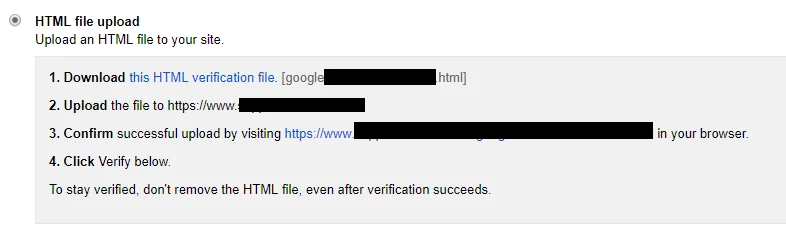
We tried the HTML file method by uploading the file to our assets, but it didn't work.


Meta Tag Method:


We tried the meta tag method by adding the meta tag to our home_page.hbs file and the header.hbs file, but it didn't work.


  • August 9, 2018

Hi David!

I know that it's not currently possible to customize the meta tags in your Help Center, but beyond that I'm afraid I don't have any additional insight to share with you on this. I do see that you're getting assistance with this in a ticket as well, so we'll get you taken care of there. Maybe some other members of the Community will have some additional info to share!


  • September 24, 2018

I'm running into the same issue. How do you verify the Zendesk Guide with Google Search Console?


Nicole17
  • September 27, 2018

Hi Aswin -

I apologize that it took a couple of days for me to find the answer to this for you, but here's the info from Google on how to verify your site ownership And the Guide team recommends using theHTML Tag verification method.


  • September 27, 2018

Thank you, Nicole. That worked like a charm! :)

For other fellow members: You need to go to Guide Admin > Customize Design (eye icon) > click on your current theme > Edit code and then paste the meta tag in document_head.hbs


Nicole17
  • September 27, 2018

I'm so glad to hear, Aswin! :) 


ignacio.delallave

Hello,

Is there a way to verify separately different areas of help center? For example, we would like to separate Support languages in our help center but if we use document_head.hbs it seems that this will verify all of our guide.


Ryan24
  • November 14, 2019

Hey 389858500893,


When you go to Verify, you are able to type in/section off the specific pathway you would want to look at, so you could add, for instance: https://SUBDOMAIN.zendesk.com/hc/ja/ and you should be able to verify just for that.

As for verifying in general, you can also link your Google Analytics account, to avoid customizing the theme in anyway, you just have to enable analytics from your settings, and link it.

Here is a Quick run down:

  1. Go to analytics.google.com and create a new property within your Google Analytics account for your subdomain
  2. Copy the UA-XXXXXXXX-X number from the settings
  3. Go to your Guide settings (after publishing your Help Center) and Enable Google Analytics
  4. Go Back to Google Search Console and add a new property. As you are only able to add prefixes, I recommend adding http://YOURSUBDOMAIN.zendesk.com and https://YOURSUBDOMAIN.zendesk.com (plus any segmenting you'd like to do beyond that for languages)
  5. Verify by your Google Analytics Account and follow the prompts (You do not need to add the code as it is automatically done through the steps in step 3)
  6. Success! 


Hopefully that helps! 


ignacio.delallave

Thanks Ryan for such a complete answer. We tried the second way and worked perfectly.


Regards,


Ryan24
  • April 9, 2020

There is now an article on this particular question, named Can I verify my subdomain to be used in Google Search Console?
This should provide a straight forward option on being able to use your account within the Search console!


Scott12
  • April 28, 2025

@david59  I am having the exact same problem for both Bing and Google. The Meta TAG just does not show (publish) even though it is in the code. If I view my page using developer tools there is no sign of it. And as such the two systems can not verify the domain. 

HTML Files is never found ( suspect the assets folder is not the root directory) 

DNS CNAME constantly says the record isn't present, yet it most definitely is, as visible from other tools. 


Elaine14
  • August 13, 2025
Hi Scott,
 
Thanks for sharing your experience. It sounds frustrating when the Meta Tag verification and HTML file methods aren’t working as expected. One common issue with subdomains is that the verification files or tags need to be properly placed in the root directory of the subdomain you're trying to verify, which can differ from your main domain.
 
If the assets folder isn’t the root, that could explain why the HTML verification method is failing. Also, DNS CNAME propagation sometimes takes longer, even if it appears set correctly in other tools.
 
I recommend trying the Google Search Console's DNS TXT record verification method if you haven’t yet, as it tends to be more reliable for subdomains.
 
Additionally, here's the Zendesk article Ryan mentioned that might help with verifying your subdomain:
Can I verify my subdomain to be used in Google Search Console?
 
If the issue persists, you might want to reach out to your domain registrar or hosting provider to double-check the DNS settings.
 
Hope this helps!