Trying to Hide the H1 tag in Articles | Community
Skip to main content

Trying to Hide the H1 tag in Articles

  • May 9, 2024
  • 8 replies
  • 0 views

Sharlyn

I am publishing content to Zendesk Guide via MadCap Flare's Zendesk Connect plugin.  When I do my articles all now have a Title and an H1 heading that are the same.  I don't want to have to edit all of the articles to remove the H1 heading.  MadCap suggested adding this css snippet to the document_head.hbs file of the active Theme.


<style>.article-body h1 { display: none; }</style>


However, I am still seeing the duplicate heading.  I tried moving it to the css file as well (without the <style></stlye> tags, but that didn't work either.


Does anyone have any other ideas?


Thanks!


8 replies

Brandon12

Hey @sharlyn 

Try This:

.article-body h1:first-of-type {
    display: none !important;
}


This should give priority over this styling in case of conflicts.  Hope this helps!


Brandon


Sharlyn
  • Author
  • May 9, 2024

Thanks Brandon Tidd!
I tried that and it didn't work:(
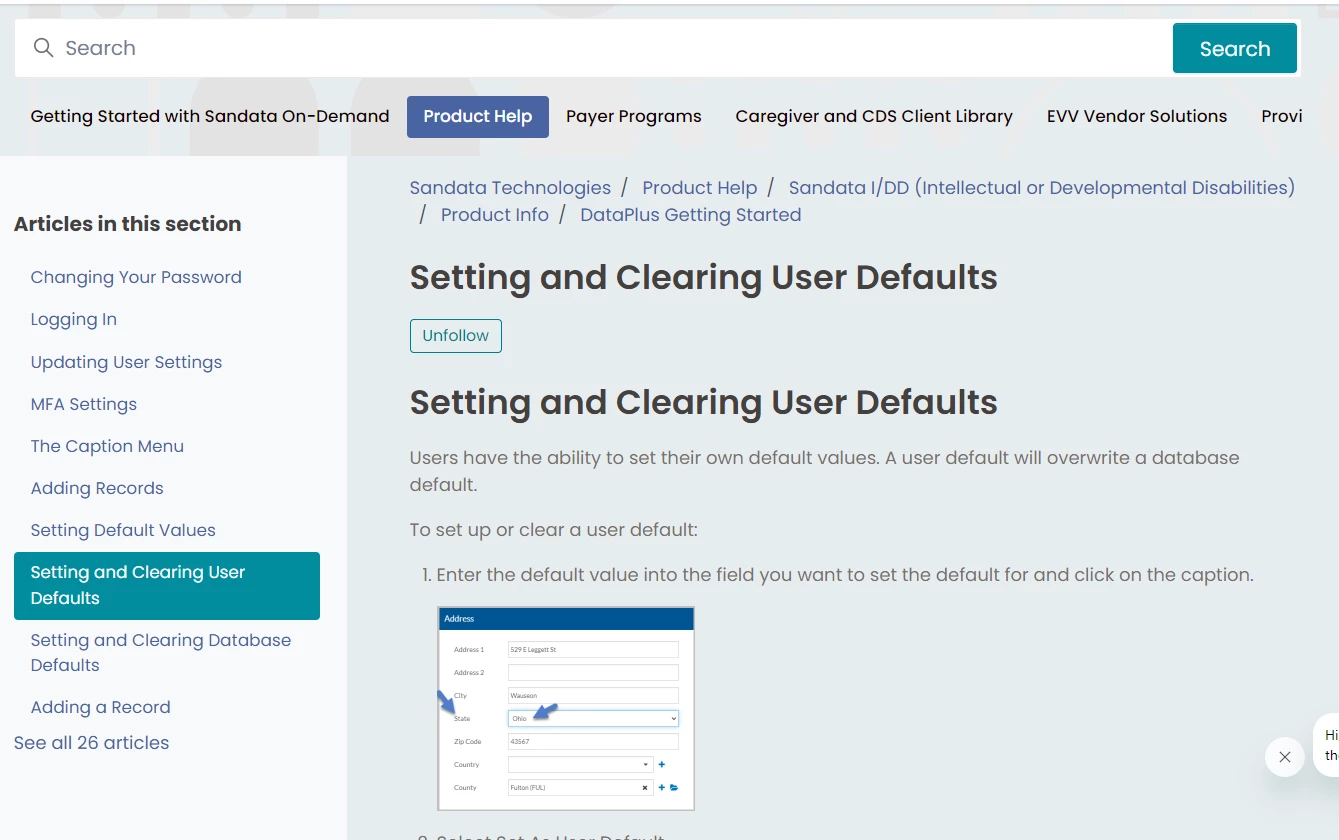
Here is a snippet of the source code - is it possible the “.article-Body” part is wrong?  I bolded the piece that I am trying to hide of them.  I also uploaded a screen shot of what the page looks like.


<style> .article-body h1:first-of-type { display: none !important; }</style>
<header class="mb-5">
<h1 title="Setting and Clearing User Defaults" itemprop="name">Setting and Clearing User Defaults</h1>
<div class="flex">
<div class="media">
<div class="subscribe-article">
<div data-helper="subscribe" data-json="{&quot;item&quot;:&quot;article&quot;,&quot;url&quot;:&quot;/hc/en-us/articles/29199939893523-Setting-and-Clearing-User Defaults/subscription.json&quot;,&quot;follow_label&quot;:&quot;Follow&quot;,&quot;unfollow_label&quot;:&quot;Unfollow&quot;,&quot;following_label&quot;:&quot;Following&quot;,&quot;can_subscribe&quot;:true,&quot;is_subscribed&quot;:true}"></div></div></div></div></header><section class="content article-content mb-6" itemprop="articleBody">

<h1>Setting and Clearing User Defaults</h1><p>Users have the ability to set their own default values. A user default will overwrite a database default.</p><p>To set up or clear a user default:</p><ol><li><p>Enter the default value into the field you want to set the default for and click on the caption.</p><p><img src="/hc/article_attachments/29199872509843" title="u" /></p></li><li><p>Select <span class="uicontrol">Set As User Default</span>.</p><p><img src="/hc/article_attachments/29199887357075" /></p></li><li><p>Select <span class="uicontrol">Yes</span> to confirm you want to set the value as the user default.</p><p><img src="/hc/article_attachments/29199903727379" /></p></li><li><p>Click on the caption of the field you just set the user default for again.</p><p><img src="/hc/article_attachments/29199861638675" /></p><p>You will see the value set as the <span class="uicontrol">User Default</span> for the field. If you were to add a new record that value would prefill and could be changed if desired.</p><p>If you no longer want that value as the user default, select <span class="uicontrol">Clear User Default</span> and</p><p> then select <span class="uicontrol">Yes</span> in the confirmation window.</p><p><img src="/hc/article_attachments/29199872922643" /></p></li></ol></section>


Pulkit12
  • May 15, 2024

Hi Sharlyn Katzner


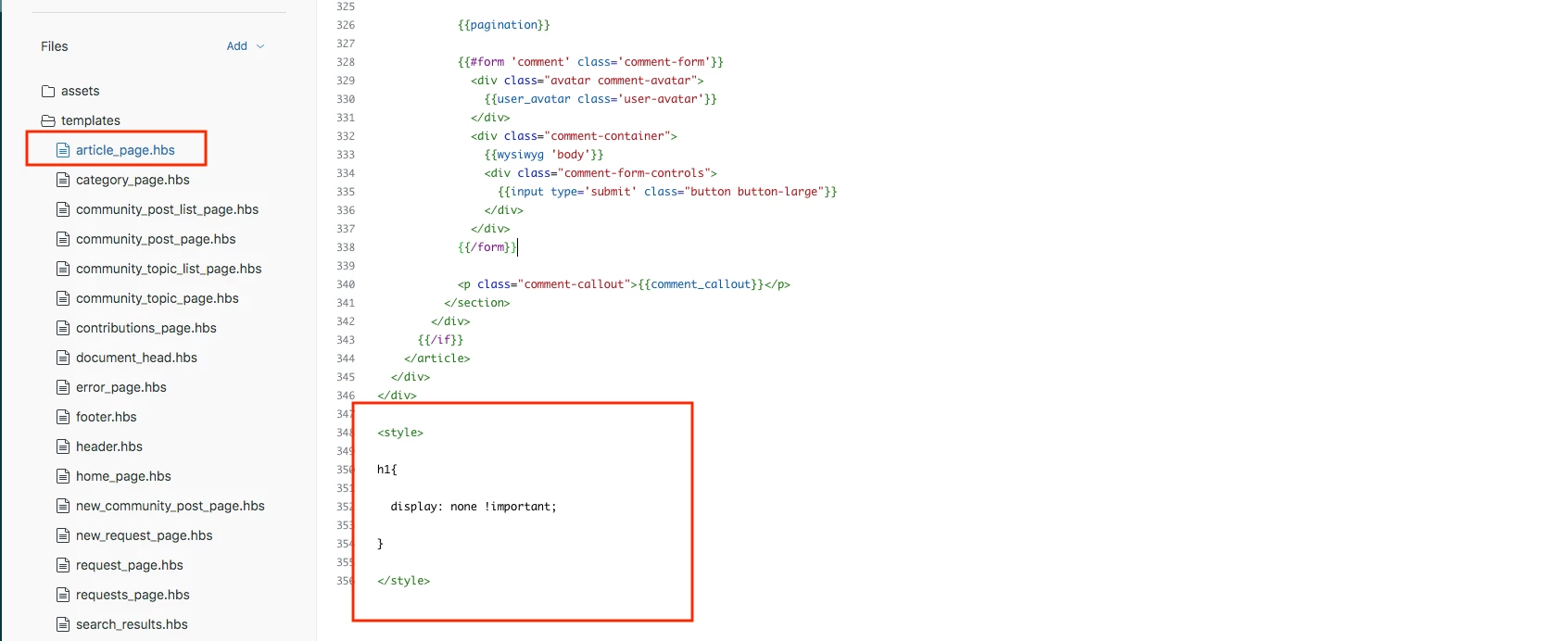
Please go to the "article_page.hbs" file and, at the bottom of the page, add the given CSS code to hide the h1, as there is no “.article-body” class on your article template.


<style>

h1{

  display: none !important;

}

</style>


Below is the screenshot 


Let me know if it solves your issue


Thanks

Pulkit

Team Diziana


Sharlyn
  • Author
  • May 15, 2024

That did the trick!! Thank you!!!!!


Pulkit12
  • May 16, 2024

Hi Sharlyn Katzner


Happy to hear that :)


Brandon12
  • May 17, 2024

@pulkit12 beat me to it - glad to hear it's working for you!


  • March 5, 2025

Sorry for resurrecting an old thread but I'm trying to sort this issue out as well. 


I've tried both suggestions above and neither have worked. The first suggestion eliminated both instances of H1 at the top of the article page. But I want to keep one, ideally the one in the article header, while removing the one from the main article. Is that possible? 


Elaine14
  • August 31, 2025
Hi Jason,
 
Thanks for revisiting this topic! What you’re aiming to do—keep the H1 tag in the article header while removing the one from the main article content—is definitely possible, but it usually requires a bit of custom CSS or template modification.
 
Typically, the duplicated H1 issue happens because the article title is rendered both in the header and within the article body content. You can try targeting the CSS selector for the H1 inside the article body and hide just that one, leaving the header H1 visible.
 
For example, adding something like this to your Help Center’s CSS might work:
 
.article-body h1 {
display: none;
}
 
Make sure to inspect your page’s HTML structure using browser developer tools to identify the exact class or ID wrapping the H1 you want to hide.
 
If you’re comfortable editing your Help Center theme’s templates, another approach is to remove or comment out the H1 tag inside the article body in the article template, so only the header H1 remains.
 
Hope this helps you get the desired effect! Let us know if you want any more guidance with the CSS or theme files.