Style custom HTML with CSS in a Help Center article. | Community
Skip to main content

Style custom HTML with CSS in a Help Center article.

  • July 23, 2025
  • 2 replies
  • 0 views

I'm sure this must be common knowledge and fairly simple to do. But for the life of me, I can't figure out how to style the HTML I added to an article with CSS I reated for it. I've created some custom tables with HTML. And since these tables will not appear in every article in our Help Center, I only want to apply the CSS to the specific articles where they appear. I don't want to do anything with changing a global theme. 


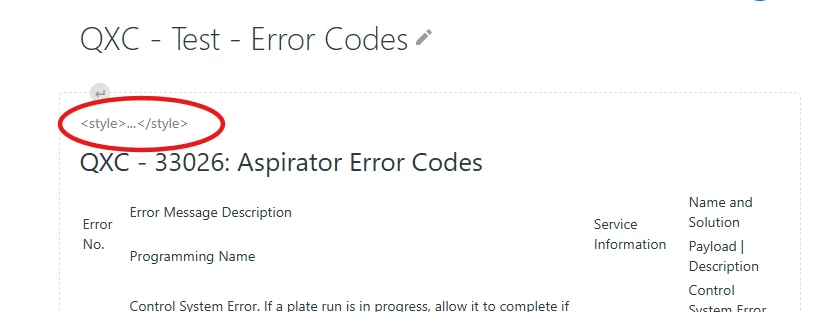
I added the tables using the source code “HTML” feature. There are no inline styles. I have the CSS in a <style> tag within the <head>. Do I have to put the CSS elsewhere? Is there another location in Knowledge admin where you store a CSS file and refer to it in the HTML head? When I just throw it in above the HTML, I get the empty <style> </style> tags above the unformatted table content in the article.

By the way, the code renders properly in browsers.
2 replies

Rj22
  • August 2, 2025

Hi @christopher29 <Christopher>,

As per checking,  I see that the HTML source code in article editor relies on inline CSS styles applied directly to elements like <table>, <tr>, and <td>. Because it uses only inline styles, I believe that the <style>…<style> placeholder tag you see while on the edit mode of the article is expected behavior. As per my testing, this <style>…</style> placeholder won’t appear when you view the article directly on your help center.
 

To ensure your table styles are applied correctly, you should use inline CSS, for example: <table style="width: 100%; border-collapse: collapse; background-color: #f2f2f2;">


For more detailed guidance on fixing table CSS styling, you can refer to this helpful article:  Fixing table styling when transitioning to the new article editor
 

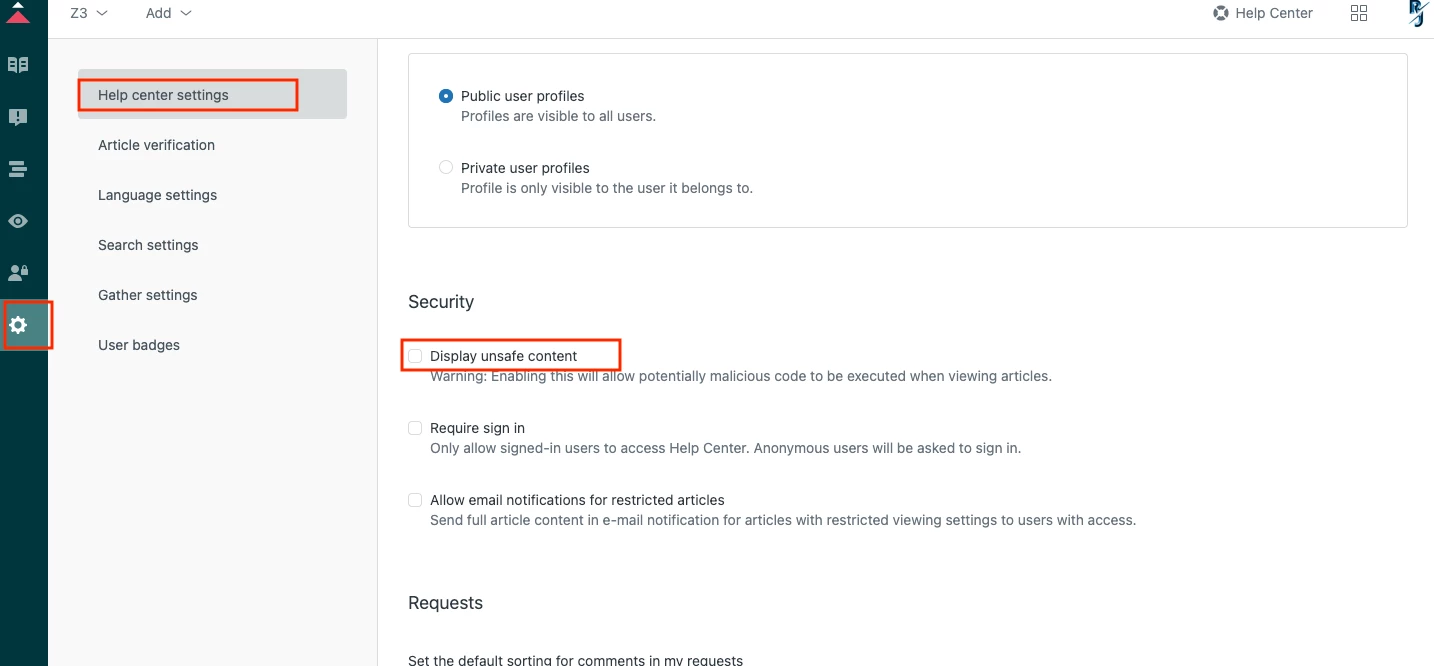
If you prefer to use the <style> tag within the HTML source, you’ll need to enable “Display Unsafe Content” in the Knowledge Admin Settings under Security. 

This lets unsafe HTML override default settings, including your custom CSS styles added directly in the articles. Please be aware that enabling this option may allow potentially harmful code to run when users view articles in their browsers.
 

I hope this helps. Thank you.


That's very helpful, RJ Caridaoan. Thanks for the reply. It clears things up, and I appreciate it. 


Unfortunately, I was hoping to use the <colgroup> tag with a series of tables and apply classes to set a mix of percentages and set minimum width values across several columns (to make the table collapse according to expectations when viewing with both typical computer screens and mobile devices). And in my situation, at least, it would become fairly tedious to apply inline styles to all of the tables I have at the <td> and <tr> levels. 


As the ZenDesk Help article Editing the source code of help center articles points out, “Inline styling is difficult to maintain and can result in inconsistent styling.” I wonder whether this rule about inline styles will eventually change for the new style editor.


In any case, thanks again for your reply. It's just what I needed to know.