
Modifying the Search box on Help Center | Community
Skip to main content

Modifying the Search box on Help Center

  • June 29, 2023
  • 2 replies
  • 0 views

kyle.kowalsky

I am trying to make changes to the search box on the homepage in the help center in Copenhagen. Specifically, I wanted to add some text above and below similar to GoSpotCheck that was linked elsewhere.

The problem I'm having is that the little magnifying glass icon seems to stay in place on the page, even as the search box moves around, resulting in a very broken looking search. I feel like if I can get that icon to stick, I can do what I want without too much trouble. I tried Inspecting the GoSpotCheck page, but its hierarchy is quite different.

I know I can make something an icon in CSS(thanks collapsible article headers) so I tried to swap the SVG to use a fontawesome icon and tie it to the actual search box, but all that seems to happen is a disappearing icon, so I know I'm not doing it right.

While I've picked up quite a bit in making tweaks to Copenhagen over the past few weeks, I'm still new at webdev, and the CSS for the search box has proven to be quite confusing to me.

2 replies

Pulkit12
  • June 30, 2023

Hi Kyle Kowalsky

Please, follow the below steps to add the text above and below the search bar on your Copenhagen theme

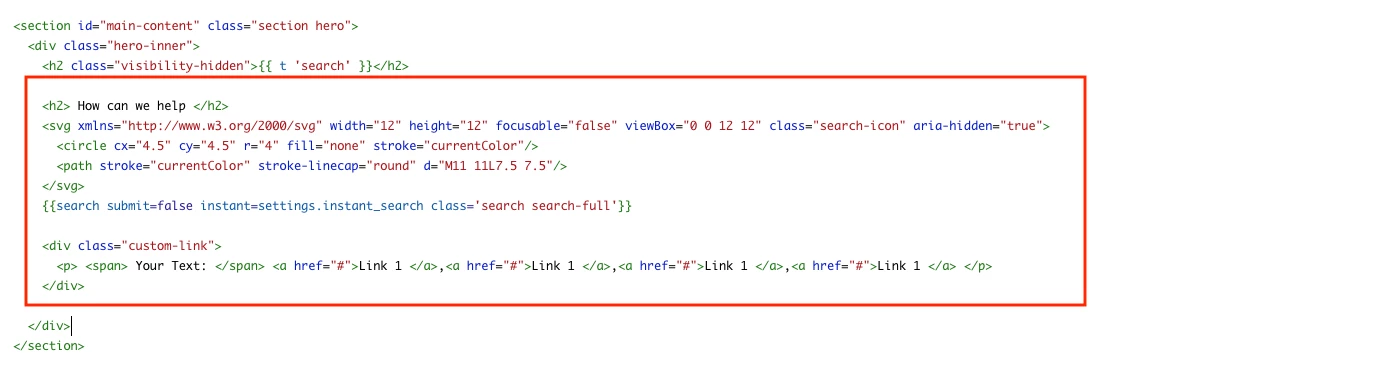
1. Go to the homepage.hbs file and add the below code inside the ".hero-inner" class 

<h2> How can we help </h2>
    <svg xmlns="http://www.w3.org/2000/svg" width="12" height="12" focusable="false" viewBox="0 0 12 12" class="search-icon" aria-hidden="true">
      <circle cx="4.5" cy="4.5" r="4" fill="none" stroke="currentColor"/>
      <path stroke="currentColor" stroke-linecap="round" d="M11 11L7.5 7.5"/>
    </svg>
    {{search submit=false instant=settings.instant_search class='search search-full'}}
    
    <div class="custom-link"> 
      <p> <span> Your Text: </span> <a href="#">Link 1 </a>,<a href="#">Link 1 </a>,<a href="#">Link 1 </a>,<a href="#">Link 1 </a> </p>
    </div>

Here is the screenshot for the same 


2. Add the below CSS at the bottom of your style.css file, You can update this value according to your need whenever search icon is not in the right place 

.hero-inner .search-icon {
  top: 55%;
}

Thank You

Pulkit

Team Diziana


kyle.kowalsky

Thank you so much! That CSS bit is definitely what I've been missing.