iFrame Content | Community
Skip to main content

iFrame Content

  • January 6, 2023
  • 8 replies
  • 0 views

Hi,

How can I have a modal or on the form side as iframe (for documentation PDF) display on the "New request page" when a specific "Form/Category" is selected and open on a new page when clicked?

8 replies

Tipene
  • January 9, 2023

Hey @johnny11,

Thanks for reaching out! 

It's definitely possible to add a modal to your help center that is triggered under certain circumstances. This isn't available as an option out of the box though; you will need to add some custom code to your help center instance. Here's an example from a previous question that demonstrates one way of achieving this. The content of the modal and the new page it redirects to will need to be added as custom code, as well:

How can I create a modal in an article that when opened a different webpage will display in the modal

I hope this helps! Feel free to reach out with any questions.

Tipene

--------

Edit: This is available as an out of the box option if you are wanting to have article suggestions appear in a modal once the form has been submitted by the user. You can read more about how to set that up here:

https://support.zendesk.com/hc/en-us/articles/4408820951450-Using-Article-Recommendations-with-your-web-forms


  • Author
  • January 10, 2023

Great, thanks for sharing this @tipene

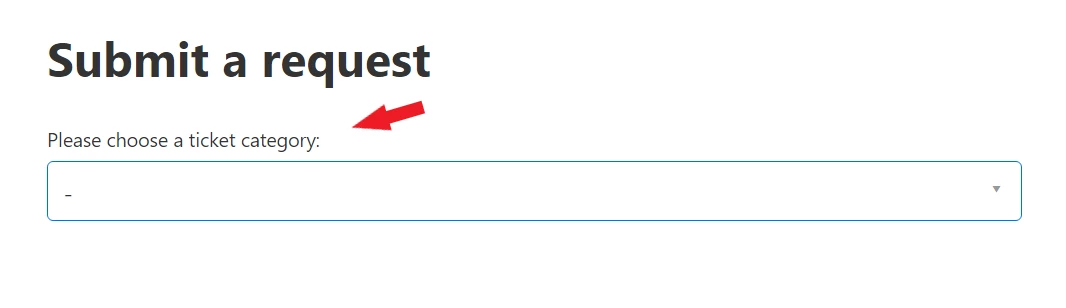
I am unsure of how to make the modal pop up on the new request form display just when users choose a certain category from the "Please choose a ticket category" option. Currently, the pop-up window always appears on the "submit a request" on the form. Any help would be appreciated.


Tipene
  • January 11, 2023
One way you could go about this is evaluating the value of the dropdown option the user selects, and displaying the modal depending on conditions you set. Here's a basic example of one approach you could take to achieve that:
 
// This gets the issue dropdown field
const inputField = document.querySelector('.nesty-input');

// This gets the text of the field selected by the user
const fieldValue = inputField.innerHTML;

// This displays the modal if the "Additional Questions" form is selected, otherwise hides the modal
if(fieldValue === "Additional Questions") {
console.log(fieldValue);
modal.style.display = "block";
} else {
modal.style.display = "none";
}

  • Author
  • January 12, 2023

Hi @tipene,


Sorry, but I can't get it to work. Should I change anything in the following script to limit the use of the modal to a particular form not field?


// This gets the issue dropdown field
const inputField = document.querySelector('.nesty-input');

// This gets the text of the field selected by the user
const fieldValue = inputField.innerHTML;

// This displays the modal if the "Additional Questions" form is selected, otherwise hides the modal
if(fieldValue === "Additional Questions") {
console.log(fieldValue);
modal.style.display = "block";
} else {
modal.style.display = "none";
}


Tipene
  • January 12, 2023

Hey @johnny12,

Sorry, I should have clarified in my previous comment that you will need to update the value you're evaluating in the if statement. It should look like this:

...
if(fieldValue === {your_form_name}) {
 console.log(fieldValue);
  modal.style.display = "block";
}
...

So say for example one of the form options the user can select is "Refunds", and you'd like a modal to appear when they select that form, just replace {your_form_name} with the text "Refunds" in the if statement condition. 

If you've already done that and still running in to issues, let me know!

Tipene


  • Author
  • January 13, 2023

Hey @tipene


Thank you; yes, I have attempted to replace with the name of the form {your_form_name}; but the modal window continues to appear for all form choices.

This is the script I'm using, and I've added below the line that begins "document.addEventListener('DOMContentLoaded', function()."


 // Get the modal
var modal = document.getElementById("myModal");

// Get the button that opens the modal
var btn = document.getElementById("myBtn");

// Get the <span> element that closes the modal
var span = document.getElementsByClassName("close")[0];

// When the user clicks on the button, open the modal
btn.onclick = function() {
modal.style.display = "block";
};

// When the user clicks on <span> (x), close the modal
span.onclick = function() {
modal.style.display = "none";
}

// When the user clicks anywhere outside of the modal, close it
window.onclick = function(event) {
if (event.target == modal) {
modal.style.display = "none";
}
}
  
  // This gets the issue dropdown field
const inputField = document.querySelector('.nesty-input');

// This gets the text of the field selected by the user
const fieldValue = inputField.innerHTML;
  
  // This displays the modal if the "Zendesk Test" form is selected, otherwise hides the modal
if(fieldValue === "Zendesk Test") {
  console.log(fieldValue);
  modal.style.display = "block";
} else {
  modal.style.display = "none";
}


Tipene
  • January 17, 2023

Hi Johnny,

The article and code sample I shared above was intended as an example of one way a modal can be included in the form. The implementation will vary depending on your current set up, for example, the first line that gets the modal requires that a custom modal element has been created in the HTML of your help center before it’ll function correctly.

If you’re not super comfortable working with HTML and Javascript, I’d suggest having a web developer take a look at this for you since it will require a bit of custom code.

Let me know if you have any questions!

Tipene


  • Author
  • January 20, 2023

Ok great, thanks for all your help @tipene