How can I remove the "empty" link? | Community
Skip to main content

How can I remove the "empty" link?

  • April 5, 2020
  • 12 replies
  • 0 views

Carlo12

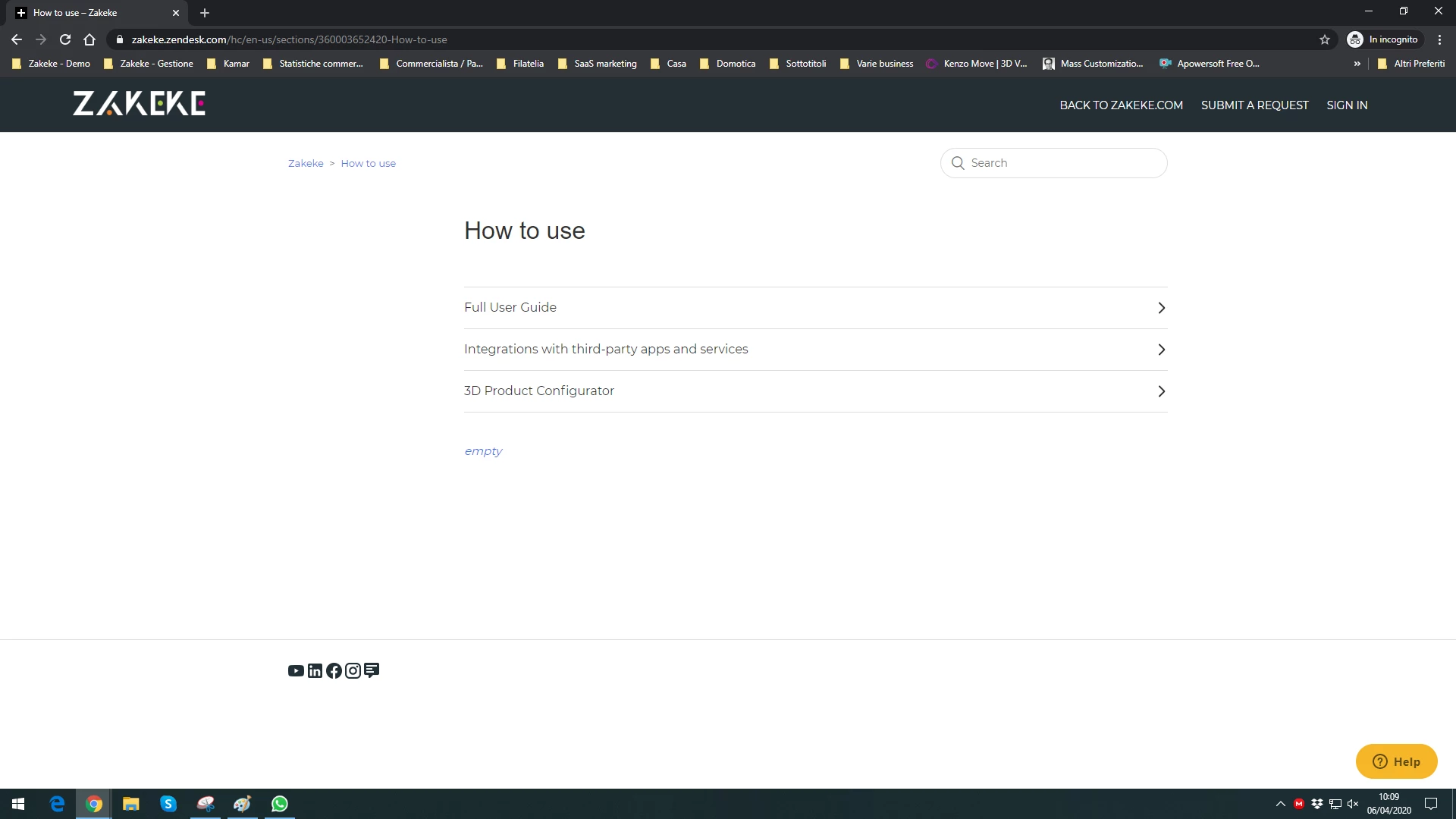
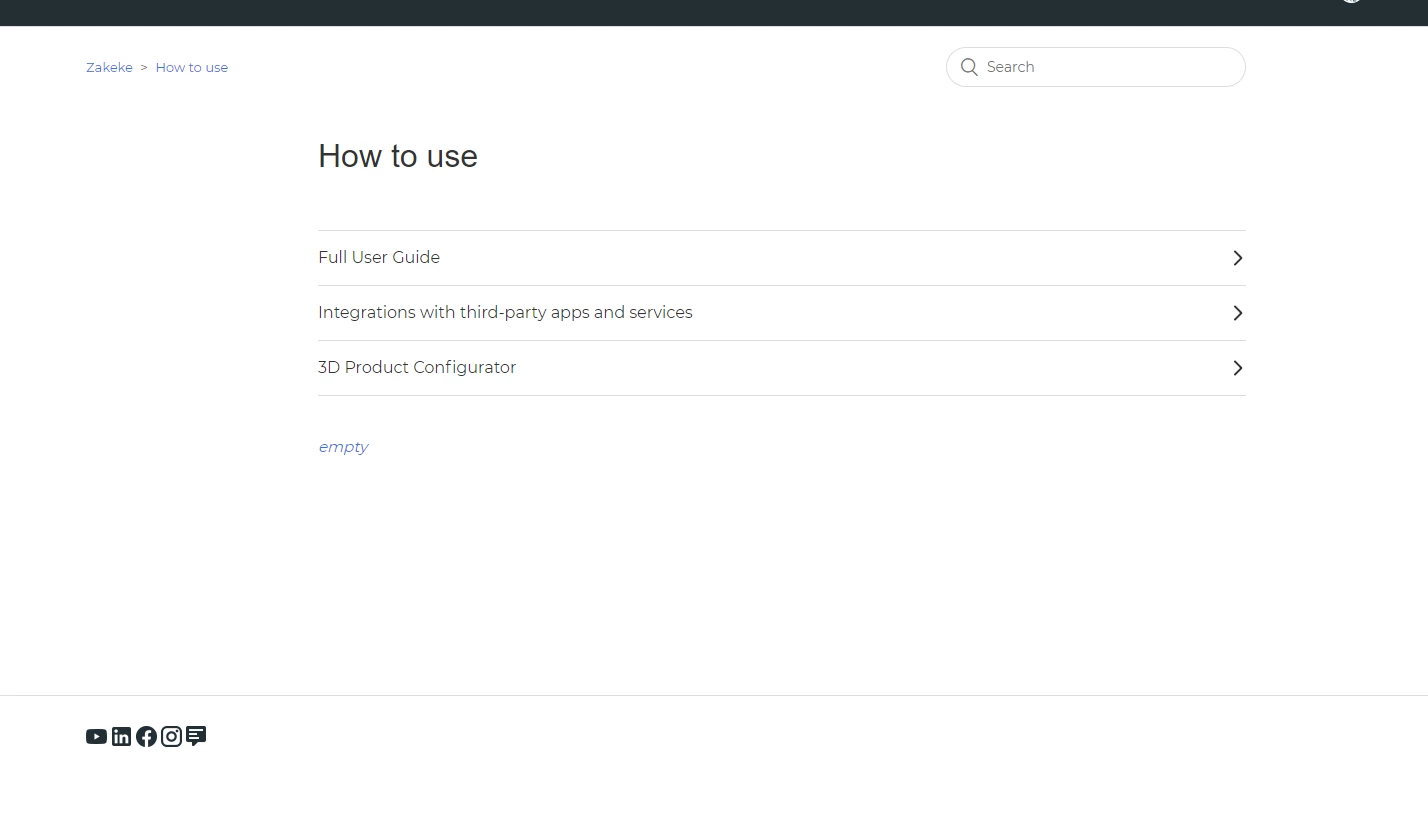
Please see image below. How to remove the "empty" word? what does it mean?

Thanks!
 

12 replies

Amie11
  • April 6, 2020

Hey Carlo,

When you see the word "Empty" in your HC, it generally means that the category or section you've created and are looking at as an agent on the HC, is empty. Meaning there are no articles inside it. 

I believe the empty word only shows up to admins/agents. If the category or section is empty, then it just simply would not appear to the end-user when your HC is public. 

Hope this helps you from here with this one. :)

Best,

Amie


Carlo12
  • Author
  • April 6, 2020

Hi Amine, thanks.

It seems I see it also in the incognito mode:


  • April 7, 2020

Hi Carlo,

This thread and the link Brett points to may be helpful in removing the empty phrase:

https://support.zendesk.com/hc/en-us/community/posts/360029294774-Flexible-hierarchy

Hope that helps!

Thanks,
Maggie


  • December 7, 2020

I have this problem too.

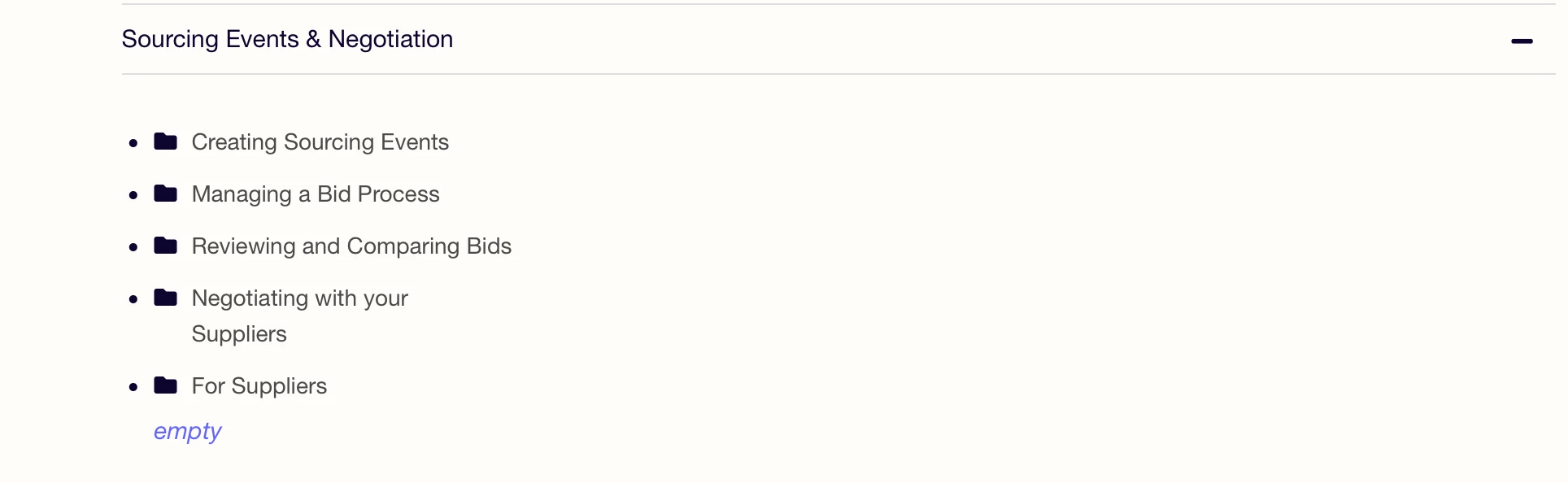
If a section contains subsections but no free-standing articles (that is, if all articles in that section are contained within subsections), then our Help Center lists the subsections but adds a meaningless "Empty" link under them.


I remember reading somewhere in Zendesk's documentation that "Empty" appears when there are no articles directly in a section. If the section is actually empty, that's great, but it makes NO sense and is pretty confusing in this context, when the section is not empty at all but full of many articles divided into subsections. As you can see in Carlo's screen shot and mine, there are subsections in this section. It is not empty.

The link Maggie posted discusses what to do if the subsections are not appearing, but it does not address the problem Carlo and I are experiencing: "Empty" appearing along with the subsection titles.

I've tested this from the End User view as well, and it looks the same.

Anyone found a workaround or have any suggestions?

Thanks!


Chad16
  • February 11, 2021

Same problem here Liz - it really doesn't make sense if we are using multiple section hierarchy.

So it seems we have to have at least one article in each section to remove the empty link...so strange. Pretty sure it's an oversight as I can't think of any reason why this should be an un-editable setting.

Would love to know a workaround too.


Chad16
  • February 11, 2021

It's actually very easy to fix.

  • Go to your Guide template code and open the section_page.hbs
  • Look for a block of code like this (usually line 62 - 66):
 {{else}}
<i class="section-empty">
<a href="{{section.url}}">{{t 'empty'}}</a>
</i>
{{/if}}
  • Remove the word empty leaving the two ' intact but no space between them
  • Save and publish.

Should look like this:

{{else}}
<i class="section-empty">
<a href="{{section.url}}">{{t ''}}</a>
</i>
{{/if}}

Brett13
  • Community Manager
  • February 11, 2021

Thanks for sharing the solution here Chad! This would make an excellent user tip in our User Tips and Tricks topic to help provide visibility to others.

Would you be willing to cross-post this solution there? If you're unsure how to submit a user tip, check out this post: How to write & submit a tip for the community

Thanks again!


  • February 12, 2021

Yes, thanks so much, Chad! That was very helpful.

In case this is useful for anyone else: At first I thought it wasn't working when I tested it, but then I realized I was viewing the list of sections and subsections on a category page. I went back into the theme and made the exact same update in category_page.hbs as well. Now the misleading "empty" is gone in both places.

Perfect!


  • June 9, 2022

Another solution that doesn't involve any changes to the templates is to go to "style.css" and add the following rule:

.section-empty {
  display: none;
}


Brett13
  • Community Manager
  • June 13, 2022
Thanks for sharing this solution Nadav!!

Anna45
  • November 7, 2022

I tried both Chad and Nadav's suggestions but neither worked for me. Perhaps because I'm using a 3rd party theme and the code is a bit different. 

Anyone out there have suggestions?


Amie11
  • November 8, 2022

hey @anna45,

If you're using a third-party theme that someone else has designed for you, it would be best to reach out to them for help with this. You're right that it's quite possible something in the third party theme might be preventing this code from working for you. 

Best,

Amie