How can I change the wording in the "Recent activity" heading? | Community
Skip to main content

How can I change the wording in the "Recent activity" heading?

  • April 26, 2017
  • 30 replies
  • 0 views

I would like to reword the heading. I see that it is represented by the {{recent_activity}} placeholder. How do I change this text, and other text that is brought by these placeholders?

30 replies

  • April 26, 2017

Hi David

You can use some jquery to change it on runtime. That said, please do look at documentation to see if there is a better method.

If you are interested in jquery method, please leave a comment and I would post some code snippet.


Thank you

Team Diziana 

Visit Diziana to download free and premium custom responsive ready-to-use Zendesk theme or Zendesk template or Zendesk plugins for Zendesk Help Center. Brand your Zendesk Help Center, and provide fantastic self-service customer support experience.


o2dis
  • April 26, 2017

Hello David,

Please use this one -

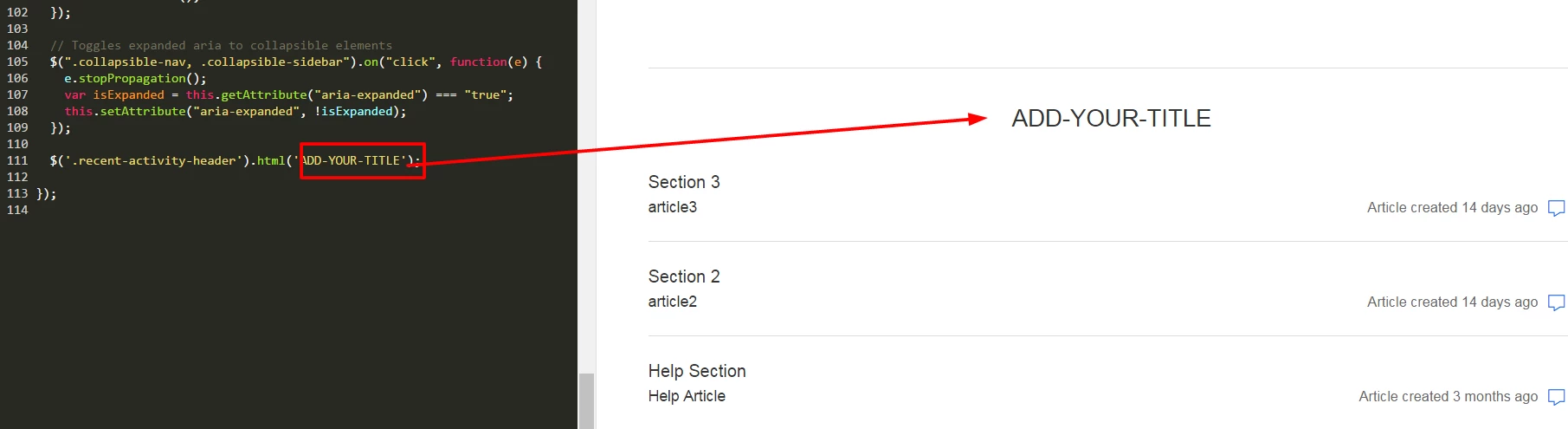
Paste the code on your JS tab  

$(document).ready(function() {
$('.recent-activity-header').html('ADD-YOUR-TITLE');
});

If face any issue feel free to message us at info@customersupporttheme.com

Thanks

Support Team

http://customersupporttheme.com

(Experts in Zendesk Themes, Zendesk Help Center, Plugins, Help Center Branding and Customization.)


  • Author
  • April 30, 2017

Hi Diziana,  it would be great if you could post a code snippet, something I could just copy and paste in.

Thanks!


  • Author
  • April 30, 2017

Hello Customer Support Theme,


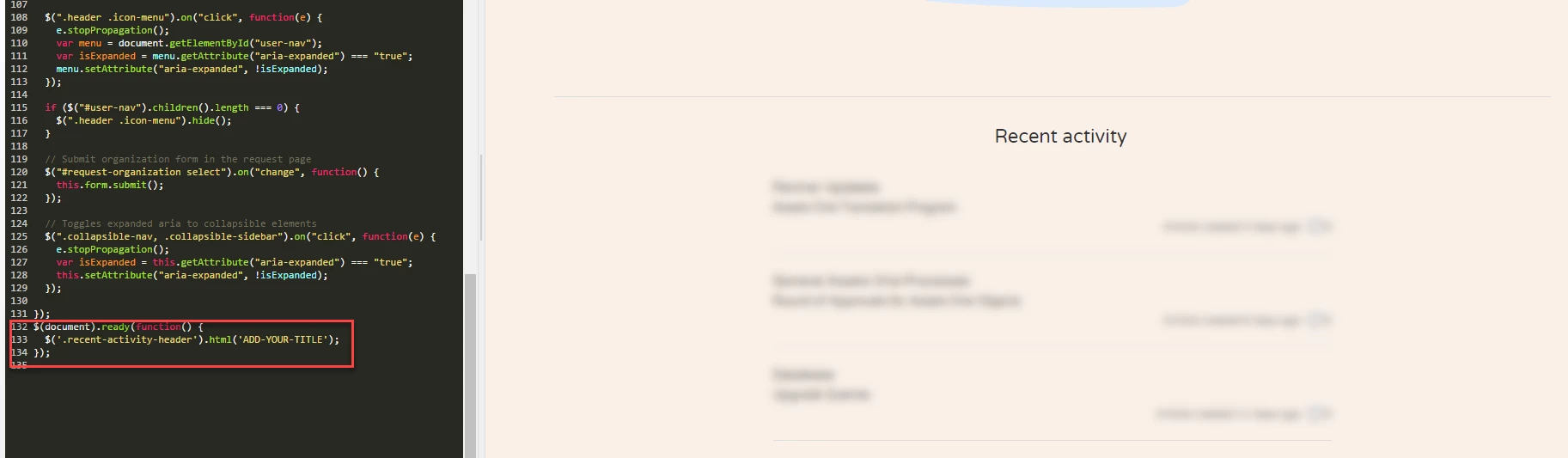
I'm afraid the code you provided is not working for me. I placed it at the end of the code in the JS tab, as you suggested.

Also, I see that the screenshot doesn't contain all the code you provided in the post.


Vladan
  • April 30, 2017

Hello David! Could you please provide us link to your Help Center or Screenshot of code that you've changed? 


  • Author
  • April 30, 2017

This is from after I clicked "Preview"


Vladan
  • April 30, 2017

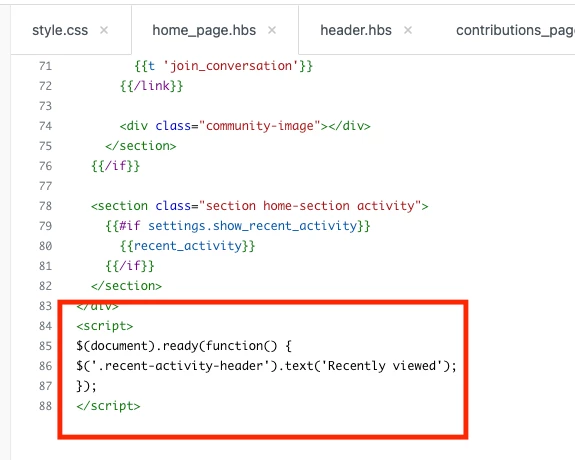
Thanks for the screen. From this point the code looks fine. Please try with this code, paste it on the very bottom of your Home Page code editor (or footer).

<script>
$(document).ready(function() {
$('.recent-activity-header').text('Here is new title');
});
</script>

  • Author
  • April 30, 2017

works great, thanks! and it's also a better solution for me because I have 2 languages, and this enables me to use Dynamic Content


Vladan
  • April 30, 2017

Glad that it works, and even better for Dynamic content!

Feel free to ping us if there is any issue more.


o2dis
  • April 30, 2017

Hello @David,

I am totally surprised.How it is possible because at my end its working fine.

Both code snippet is working proper on my side - 


$(document).ready(function() {
$('.recent-activity-header').html('Your New Title');
});

$(document).ready(function() {
$('.recent-activity-header').text('Your New Title');
});

You can also see the Live Demo.

Thanks

Support Team

http://customersupporttheme.com

(Experts in Zendesk Themes, Zendesk Help Center, Plugins, Help Center Branding and Customization.)


  • May 15, 2017

@Vladan,

Any idea why this isn't working for me? I have also tried @Customer Support Theme's code.

I'm racking my brains here so your advice would be great!

Thanks,

Jess


Vladan
  • May 15, 2017

Hi Jess, just remove this my code from JS tab, and put it (copy/paste) on the very bottom of Home Page code. Please let me know if there is an issue after this change. 

Thanks!


  • May 15, 2017

Thank you Vladan that worked perfectly. 


  • May 21, 2018

This code works great to change "Recent activity" to "Recently viewed":

<script>
$(document).ready(function() {
$('.recent-activity-header').text('Recently viewed');
});
</script>

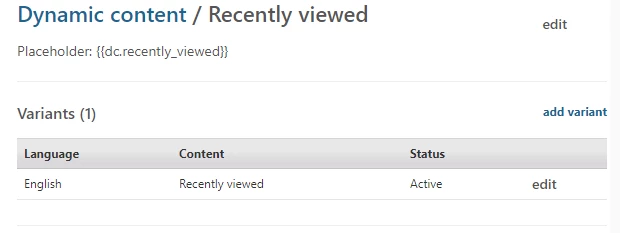
But I can't get the dynamic content function to work. I've defined the content on the Dynamic Content page:


What then is the syntax for using the placeholder in the script? I tried many different syntaxes, including these:

<script>
$(document).ready(function() {
$('.recent-activity-header').text({{dc 'recently_viewed'}});
});
</script>

<script>
$(document).ready(function() {
$('.recent-activity-header').text="{{dc 'recently_viewed'}}";
});
</script>

<script>
$(document).ready(function() {
$('.recent-activity-header').text={{dc 'recently_viewed'}};
});
</script>

But my home page still shows the default text "Recent activity". What am I missing?


Trapta
  • May 22, 2018

Hi @Tami,

Try putting your code at the bottom of home_page.hbs template. 

<script>
$(document).ready(function() {
$('.recent-activity-header').text("{{dc 'recently_viewed'}}");
});
</script>

Let me know if you face any issue.

Team Diziana


  • May 22, 2018

Hi Team Diziana,


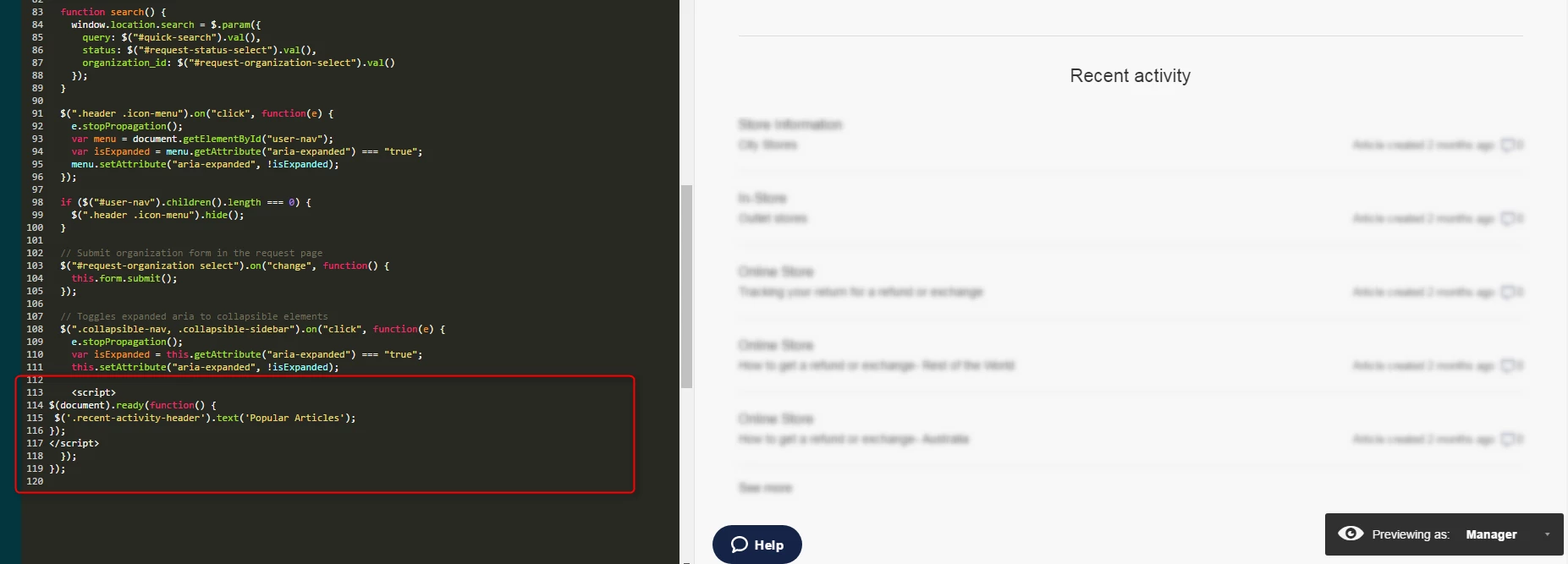
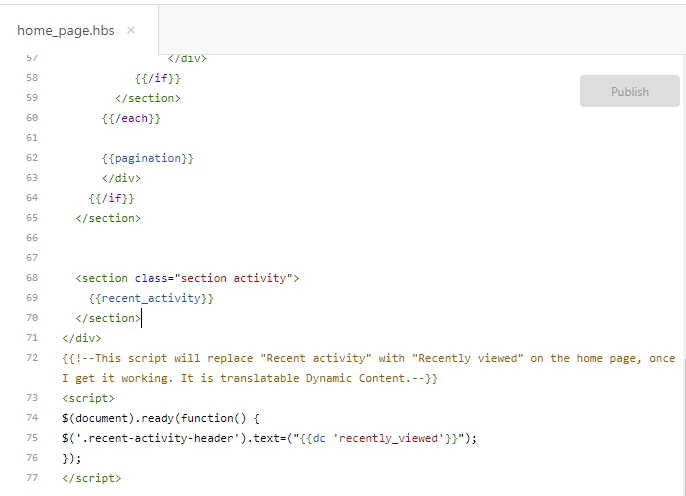
The code is at the bottom of my home page:


It does work to change "Recent activity" to "Recently viewed", but I can't get it to work as Dynamic Content.


Trapta
  • May 23, 2018

@Tami,

All you need to do is remove that '=' in your code at line no. 75 and you will be good to go.

Let me know if you face any issue.

Team Diziana


  • May 23, 2018

Ok, that one worked:

$('.recent-activity-header').text("{{dc 'recently_viewed'}}");

I thought I'd tried that syntax, but must not have --thanks much, Trapta!


  • October 17, 2018

Where can i find $('.recent-activity-header'). in the documentation.  I want to write other stuff but can't find the objects.


Brett23
  • June 10, 2020

Here's the JavaScript solution for themes that don't use jQuery. Just change the "Recent Updates" text to what you want, place it in your theme's script.js file:

document.getElementsByClassName("recent-activity-header")[0].innerHTML="Recent Updates";

Nicole17
  • June 10, 2020

Thanks for sharing that, Brett!


  • February 16, 2021

Is there a way I can limit it to recently added articles? Please suggest.


Brett13
  • Community Manager
  • February 18, 2021

Hey Shweta,

We don't have a placeholder for recently added articles, however, if you create an article you can promote it and then use the promoted_articles placeholder instead. Check out our available Helpers here: Help Center Helpers

I hope this helps!


Jimmy13
  • May 6, 2022

Can't seem to get this down. Any suggestions?


Dave12
  • May 7, 2022
Hi Jimmy -
 
In order to add Javascript, you'll want to add your code to the script.js file, rather that putting in the HTML page templates. See Customizing your help center theme