How Can I Add Specific Text in new_request_page.hbs template based on Ticket Form ID? | Community
Skip to main content

How Can I Add Specific Text in new_request_page.hbs template based on Ticket Form ID?

  • August 6, 2021
  • 19 replies
  • 0 views

Lila11

Hi,

I'm working on adding a new contact form to our help center and routing end users to specific ticket form based on where they clicked the submit a request link (thanks to help from Ifra Saqlain & the community!!). 

Now, I am hoping I can customize text above the request form based on the ticket form id (today we have one from with text above it without special logic). What I want now is:

  • Have Ticket Form A show Text A above the form 
  • Have Ticket Form B to show Text B above the form
  • Have Text C follow both Text A and Text B above the form.

I've tried the code below but it's not working.  Text A appears on both forms, and, it appears UNDER B.  Does anyone know how to do this/what's up with my code?  

{{#each ticket_forms}}
{{#is id 123}}
<p>Text A</p>
{{else}}
<p>Text B</p>
{{/is}}
{{/each}}
<p>Text C</p>
<br>
<div class="new-request-form">
{{request_form}}
</div>

19 replies

Ifra
  • August 7, 2021

Hi Lila Kingsley,

Try the given code on new request page:

<h1 class="ticket_A">
<p>Text A</p>
</h1>

<h1 class="ticket_B">
<p>Text B</p>
</h1>

<h1 class="ticket_C">
<p>Text C</p>
</h1>

<br>
<div class="new-request-form">
{{request_form}}
</div>
 

 The given code for script file:

  function ticketFormTitle(){
document.querySelector('.ticket_A').style.display = 'none';
document.querySelector('.ticket_B').style.display = 'none';
document.querySelector('.ticket_C').style.display = 'none';

if(window.location.href.indexOf('Form_ID_A') > 0){
document.querySelector('.ticket_one').style.display = 'block';
} else if(window.location.href.indexOf('Form_ID_B') > 0){
document.querySelector('.ticket_two').style.display = "block";
}else if(window.location.href.indexOf('Form_ID_C') > 0){
document.querySelector('.ticket_three').style.display = "block";
}
}


ticketFormTitle();


If any confusion let me know :)


Thanks

Team Diziana


Lila11
  • Author
  • August 9, 2021

Awesome, thanks yet again Ifra!   :)

I am a bit leery of using JavaScript though...a script we had on the new_request_page.hbs template for YEARS recently broke (despite not being changed!!) which caused tickets to not be created :( . 

Do you or anyone know if what I am trying to do is possible with just curlybars?

-Lila


Lila11
  • Author
  • August 18, 2021

Hi Ifra,

Thanks again for all your help.  I got the code to work but did get an error at first.  Wanted to share the solution here in case there are other JavaScript newbies like me searching this post in the future.  Also, would love to know if you think there's a better/different solution.

FYI I updated the original JS snippet:  basically I changed the function name and updated it to look for 2 classes/forms (instead of 3)...and added a console.log statement for testing purposes. 

When it initially ran I saw the error Uncaught TypeError: Cannot read property 'style' of null at the first document.querySelector  line in the browser inspect console.  Searching online pointed to the code needing to wrapped in a "document ready handler", such as this one I found in stackoverflow.  

document.addEventListener("DOMContentLoaded", function(event) {
    // Your code to run since DOM is loaded and ready
});

Wrapping the code in that fixed it.  I now see the text I want on each form, and the console.log is logging as I expect.  Here's the code that worked:

document.addEventListener("DOMContentLoaded", function(event) {

function ticketFormText(){
document.querySelector('.form-a-text').style.display = 'none';
document.querySelector('.form-b-text').style.display = 'none';

if(window.location.href.indexOf('Form_ID_A') > 0){
document.querySelector('.form-a-text').style.display = 'block';
console.log("this is the A form");
} else if(window.location.href.indexOf('Form_ID_B') > 0){
document.querySelector('.form-b-text').style.display = "block";
console.log("this is the B form");
}
}

ticketFormText();
});

Ifra
  • August 19, 2021

Hi Lila Kingsley, I know I'm too late to reply but I tried it with the curlybars but nothing happened throughing error so I used the JavaScript and thanks to share the solution for newbies.

If users are using jQuery so they can do like this:


1). Add the jQuery CDN on document_head.hbs file.

<script src="https://ajax.googleapis.com/ajax/libs/jquery/3.5.1/jquery.min.js"></script>


2). Add the script code at the bottom of your script.js file.


$(document).ready(function(){
function ticketFormText(){
$("h1.form-a-text, h1.form-b-text").hide();

if (window.location.href.indexOf("Form_ID_A") > -1){
$("h1.form-a-text").show();
}else if (window.location.href.indexOf("Form_ID_B") > -1){
$("h1.form-b-text").show();
}
}
ticketFormText();
})


3). The title which would be add on new_request_page.hbs

<h1 class="form-a-text">
<p>Text A</p>
</h1>

<h1 class="form-b-text">
<p>Text B</p>
</h1>


Thanks

Ifra


Lila11
  • Author
  • August 19, 2021

Thanks Ifra! :)


Ifra
  • August 19, 2021

:)


Swapnali
  • October 18, 2023

HI,

How to add add text dynamically? 


Ifra
  • October 21, 2023

Hi Swapnail,

You should see this article where I'm adding DC text via JS.

https://support.zendesk.com/hc/en-us/community/posts/4451902570522-Changing-dynamic-text-elements-in-Gather


If any queries, feel free to ask :)

Thanks


Ifra
  • October 31, 2023

@Swapnali Bhadale, it is possible but How many blocks will you add I mean setting the panel has a limit if you have 6 or, 8 or, 12 you can but if you have a list in every col then you should write code to the hbs file instead of the manifest file.


I can guide you to add settings to the panel but first tell me, how many items are in each column and how many settings exist in your setting panel currently?


Swapnali
  • November 1, 2023

Thanks @ifra.


Ifra
  • November 2, 2023

:)


Zach36
  • March 1, 2024

@ifra - I'm trying to simply add a snippet of text below the title but I only want it on a single form. Any chance you could assist :) ????


Ifra
  • March 1, 2024

Hi Zach, 

1). Add the jQuery CDN on document_head.hbs file.

<script src="https://ajax.googleapis.com/ajax/libs/jquery/3.5.1/jquery.min.js"></script>


2). Add the script code at the bottom of your script.js file.

$(document).ready(function(){
function ticketFormText(){
$("h1.form-a-text > span").hide();

if (window.location.href.indexOf("Form_ID_A") > -1){
$("h1.form-a-text > span").show();
}
}
ticketFormText();
})


NOte: Form_ID_A here is you form ID where you want to show the title


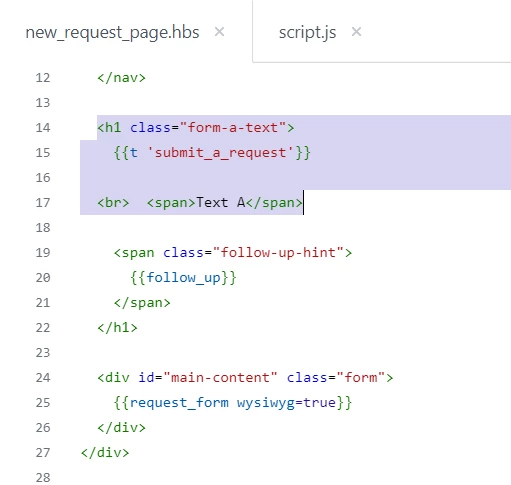
3). The title which would be added on new_request_page.hbs

<h1 class="form-a-text">


 <br>  <span>Text A</span>
</h1>


Note: I added a class-name to <h1> tag and add title in <span> tag.


If any confusion feel free t0 ask :)

Thanks


Zach36
  • March 1, 2024

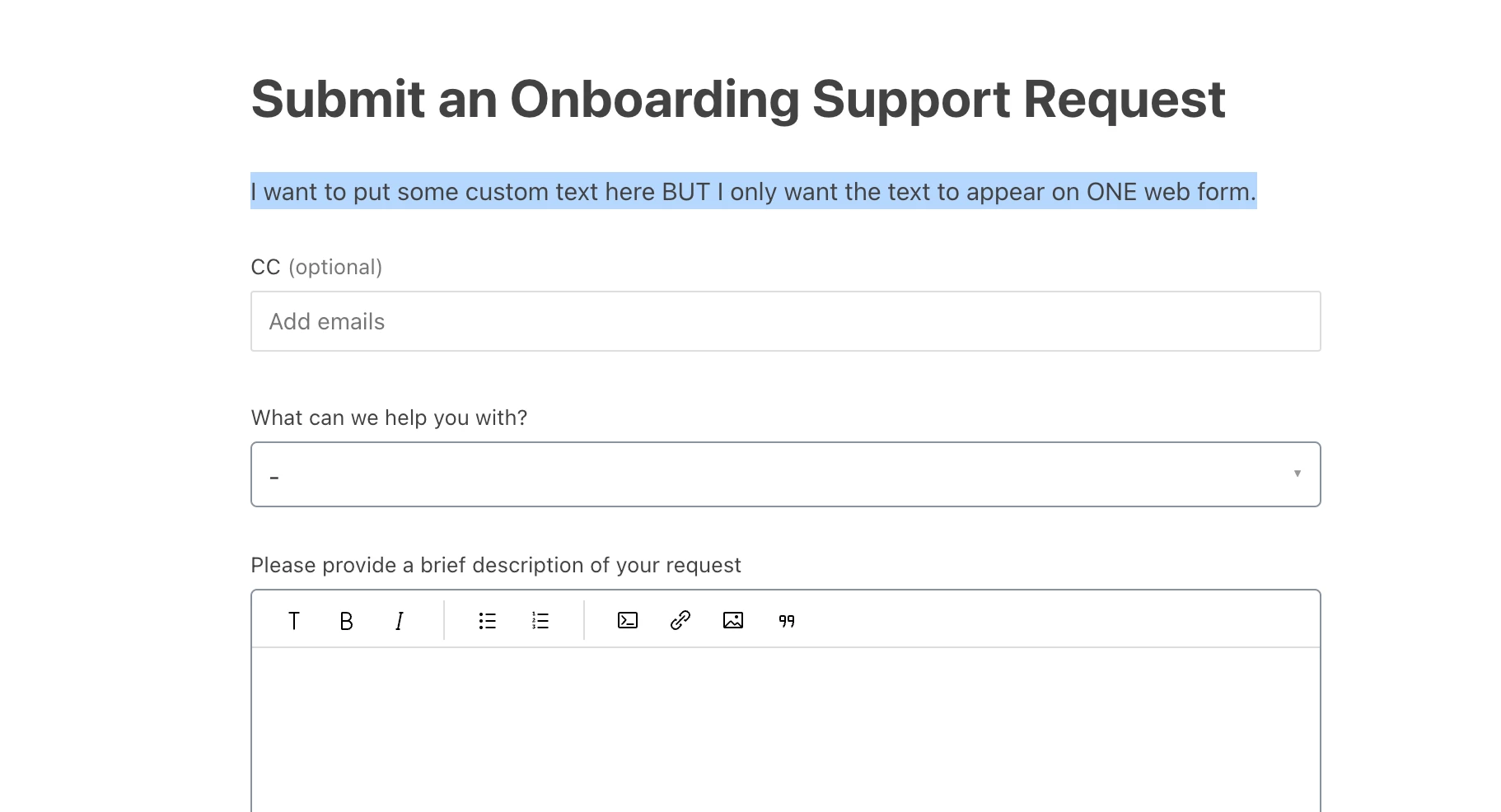
Sorry, @ifra -- I should have been clearer. I'm not looking for this in the Title but as a blurb beneath it. Here's a screenshot:


Ifra
  • March 2, 2024

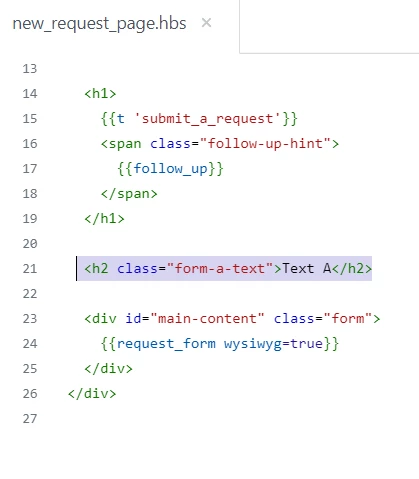
That code is only for the one web form when you add form-id into the script code.

You can change the structure of HTML like the given below.

script code would be:

$(document).ready(function(){
  function ticketFormText(){
    $("h2.form-a-text").hide();
   
    if (window.location.href.indexOf("00000000000000") > -1){
      $("h2.form-a-text").show();
    }
  }
  ticketFormText();
})


Add a <h2> tag like this:


Zach36
  • March 5, 2024

Thank you so much, @ifra.
Would it be possible to do something similar with this new_request_tip_text element?

{{#if settings.show_new_request_tip}}
        <div class="lt-new-request-tip lt-p-4 lt-ps-8 lt-mb-4">
          <i class="fas fa-magic lt-new-request-tip__icon" aria-hidden="true"></i>
          {{settings.new_request_tip_text}}
        </div>
        {{/if}}


This "tip" object was provided in a custom theme. I tried messing around with

$(“.new-request-tip”).text(‘TEST TEST TEST’) 

but this didn't seem to work out well. The text itself never populated and the ticket form title was disappearing for some reason.


Ifra
  • March 6, 2024

Zach,  In this case, you don't need to add JS code, you already have a textbox in your setting panel to edit the text.


Go to your settings panel and find the textbox of New Request Tip Text to edit the text.


Zach36
  • March 11, 2025

Hi, again, @ifra :)

I'm curious if you have any suggestions for accomplishing this but instead of under the title of a form, I want the text to appear underneath a custom field, and ONLY when a specific drop-down value for that field is selected..?

Utilizing a custom field description would suffice but ultimately, I'd like this text to pop out the customer, more like a disclaimer, than a description.


Elaine14
  • August 12, 2025
Hi Zach,
 
Thanks for sharing the additional details!
 
To have text appear beneath a custom field only when a specific drop-down value is selected, some custom JavaScript would be necessary. While the new_request_tip_text element works well for static tip text, showing or hiding text based on the selected option requires listening for field changes and dynamically adjusting the display.
 
This approach typically involves adding an event listener to the drop-down and toggling the visibility of the disclaimer text accordingly within your theme’s JavaScript.
 
Hope this helps clarify how it can be achieved!