Hide Search bar in help Center home page | Community
Skip to main content

Hide Search bar in help Center home page

  • June 23, 2020
  • 23 replies
  • 0 views

HI,

is it possible to hide search bar in Help Center homepage ?

I have no article in Guide, so I'm using only ticket form.

My goal, at the moment, is to use home page only as landing for ticket submission, a thank you page with a link to my website, placing some text and link

Is there a way to achieve it ?

Thanks a lot


23 replies

Ifra
  • June 23, 2020

Hey Andrea,

You can remove this helper from your home_page.hbs :

{{search submit=false instant=settings.instant_search class='search search-full'}}

or may be there is

{{search}}


Now searchbar would be remove from there.


You want to add only Thank You Message  so you can add text on there and add anchor tag ex:

<h1> Thank you message </h1>

<a href="#"> Add link of your website here </a>


It depends on you where would you add these? If you want to use homepage as landing so remove all code from homepage and add this:

<h1> Thank you message </h1>

<a href="#"> Add link of your website here </a>


If any issue let me know :)

Thank you

Team


  • Author
  • June 23, 2020

Yes! With

{{search submit=false instant=settings.instant_search class='search search-full'}}

search box is gone. There is only magnifier icon, can you help me to remove it too ?

with this:

<h1> Thank you message </h1>

I can write in homepage correctly, but is on the left on the screen, I'm trying to write it centered

Weird thing on the link:

<a href="#"> Add link of your website here </a>

inserted my homepage, but hover show HC link, if I click nothing happens...


Thank you very much for help, very appreciated


Ifra
  • June 23, 2020

Okay,
Remove # and add your websites's link in anchor tag.

there would be use some css code for fix text center align.

Magnifier icon comes from css code.

so that need to be remove but not directly , there would be use parent class.


Ifra
  • June 23, 2020

Can you provide your hc link so I can fix it and give you the code.


  • Author
  • June 24, 2020

Hi Ifra,

I Fixed alignement, removing all code and adding a DIV Style did all tricks, magnifier gone and text centered

Thanks for help for link, now everything it's ok

HC Homepage is lost, but it's what I need by now

We'll recover standard HP when Guide will be ready

Thanks for your precious support

Cheers!


  • September 1, 2020

Is there a way to hide the search bar when a user isn't signed in?  We'd like all the articles behind the sign-in but the search bar is still visible when not signed in.  This can cause confusion because someone can search in it but no articles are returned.  

Thanks
Chris


Bruce19
  • September 18, 2020

In the home_page.hbs file in your theme, surround the search with if signed_in statements:

{{#if signed_in}}
{{search submit=false instant=settings.instant_search class='search search-full'}}
{{/if}}


  • September 22, 2020

Thanks, Bruce.  Worked perfectly!


Hi, I'm trying to hide search bar in my Help Center as well since I'm only using this for submission of tickets. There are no articles. I did what was suggested above :

You can remove this helper from your home_page.hbs :
{{search submit=false instant=settings.instant_search class='search search-full'}}

But this didn't work. Am I missing something?


  • March 4, 2021

Hey Chantal, 

I've used the following article in the past: Setting up a requests-only (tickets-only) help center 

Not sure if it is current but there are some tips in there that might help! Good luck!


Ifra
  • July 14, 2021

Hi American Hospital Association, can you share the screenshot so I can suggest you something.


Thanks


  • July 31, 2021

There is not any button. I am damn sure something could be do in this code.

{{search submit=false instant=settings.instant_search class='search search-full'}}


Ifra
  • July 31, 2021

Hi Alam, 

have a look at the screenshot:


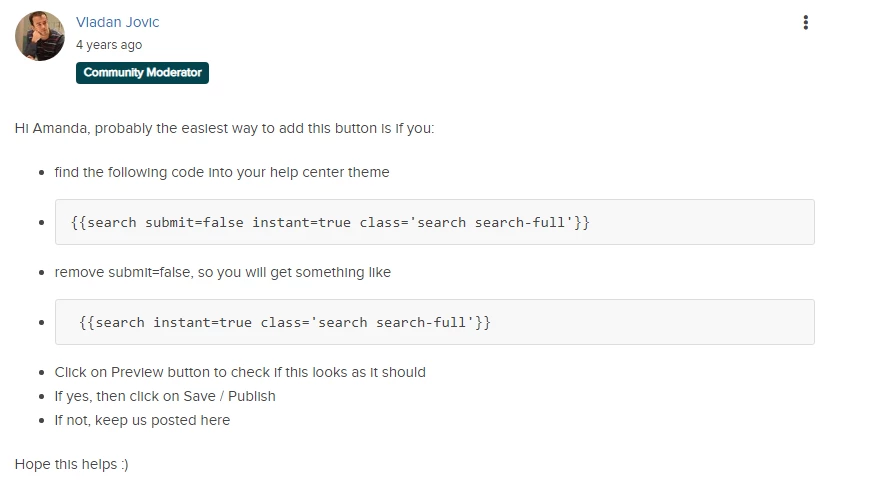
the code you have shared -  {{search submit=false instant=settings.instant_search class='search search-full'}} , it's searchbar code and you are right, you will need to enable the submit button of searchbar from submit=false to submit=true.


Remove your search-bar helper and add the one I'm giving:

{{search submit=true instant=settings.instant_search class='search search-full'}}


Output is:


have any doubt  about it share that here :)


Ifra
  • July 31, 2021

Ask more questions :D


  • July 31, 2021

Thank you Ifra Saqlain. Button is showing. Ofcourse I will ask.


Susann11
  • February 16, 2023

I used the code that hides the search bar from anyone who is not signed in. However, the magnifying glass is still showing. How do I remove (or better yet hide) the magnifying icon?


Ifra
  • February 16, 2023

Hi Susann (Sue) Philbrook, if you are using V2 theme, do the following to remove the searchbar from all who is not signed-in:

Theme: Copenhagen (Latest Version)

Solution 1:

You can wrap your search-bar code inside the condition-  Theme

API V2

For Homepage

{{#if signed_in}}


  <div class="hero-inner">
    <h2 class="visibility-hidden">{{ t 'search' }}</h2>
    <svg xmlns="http://www.w3.org/2000/svg" width="12" height="12" focusable="false" viewBox="0 0 12 12" class="search-icon" aria-hidden="true">
      <circle cx="4.5" cy="4.5" r="4" fill="none" stroke="currentColor"/>
      <path stroke="currentColor" stroke-linecap="round" d="M11 11L7.5 7.5"/>
    </svg>
    {{search submit=false instant=settings.instant_search class='search search-full'}}
  </div>

{{/if}}


For Inner Pages

{{#if signed_in}}


 <div class="search-container">
      <svg xmlns="http://www.w3.org/2000/svg" width="12" height="12" focusable="false" viewBox="0 0 12 12" class="search-icon" aria-hidden="true">
        <circle cx="4.5" cy="4.5" r="4" fill="none" stroke="currentColor"/>
        <path stroke="currentColor" stroke-linecap="round" d="M11 11L7.5 7.5"/>
      </svg>
      {{search scoped=settings.scoped_kb_search submit=false}}
    </div>

{{/if}}


Solution 2:

Add this snippet to your document_head.js file:

<style>
{{#if signed_in}}
  .search-icon {
  display:inline-block
  }
{{else}}
   .search-icon {
  display:none
  }
{{/if}}
</style>


search-icon class is in default theme, may be your theme has something else so check the class name of magnifying glass and replace search-icon class.

Any help, feel free to ask.

Thanks


Susann11
  • February 16, 2023

Solution 1 worked perfect. Thanks!


Ifra
  • February 17, 2023

Great !


  • July 12, 2023

Hi Team,

is it possible that it has changed that customization is not longer possible within plan "Team"?


  • July 13, 2023
Hi Dirk,
 
This hasn’t changed, and Zendesk Guide theme customization is available with Suite Growth or Guide Professional and up. Please view this article as a reference: Customizing your help center theme.
 
I hope that answers your question. Thank you!
 

Aprajita
  • November 18, 2024

Hi Support Team,
I cant find {{search submit=false instant=settings.instant_search class='search search-full'}} in home_page.hbs
Can you please help me locate it.
I also need to remove the maginifying glass icon in top right of header. 


Elaine14
  • May 25, 2025
Hi Aprajita,
 
The helper may not be directly in the home_page.hbs file because it is often included through partials or layouts. Here are a few steps to help you locate it:
 
  1. Check for Partials: Look inside any partial templates that home_page.hbs references, such as or similar includes. The search bar code might be inside one of these partial files.


  2. Inspect Header or Layout Files: Sometimes the search component is placed within the header or main layout template, so check files like header.hbs or default.hbs.


  3. Search Across Theme Files: Use a “search in files” function in your code editor with keywords like search submit=false, search-full, or instant_search to find all occurrences.


To remove the magnifying glass icon in the top right corner, it’s likely part of the header template or added via CSS:
 
  • Search for the magnifying glass icon in your header partial or layout.
  • Alternatively, you can hide it by adding custom CSS like:

    .search-icon-class {
    display: none;
    }

    (Replace .search-icon-class with the actual class or ID of the icon.)

 
I hope that helps!