
Does anyone know how I can use the Category boxes on the home page as hyperlinks to articles rather than jumping to sections? I would like users to go directly to an article or Ticket Form when clicking them.


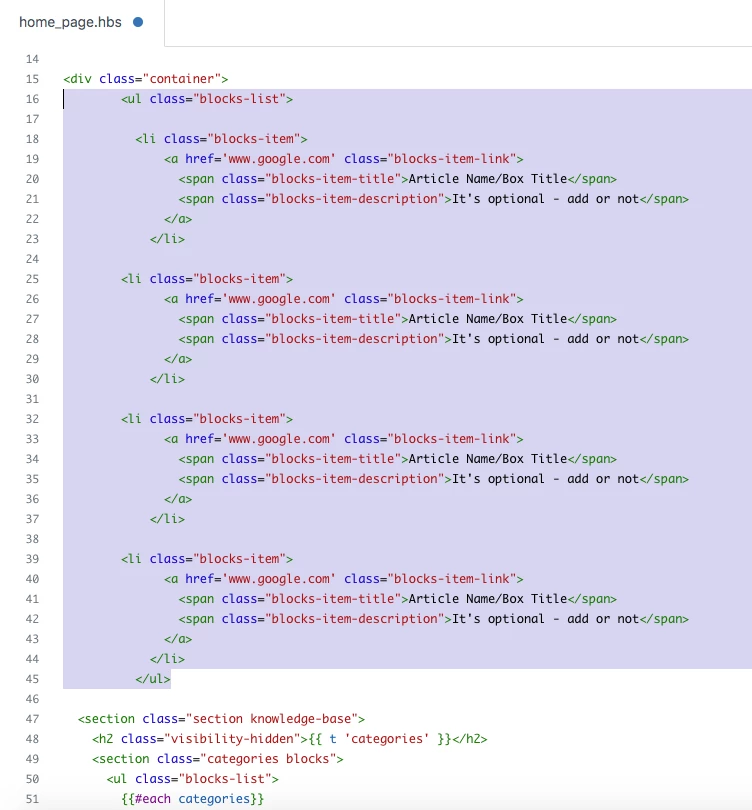
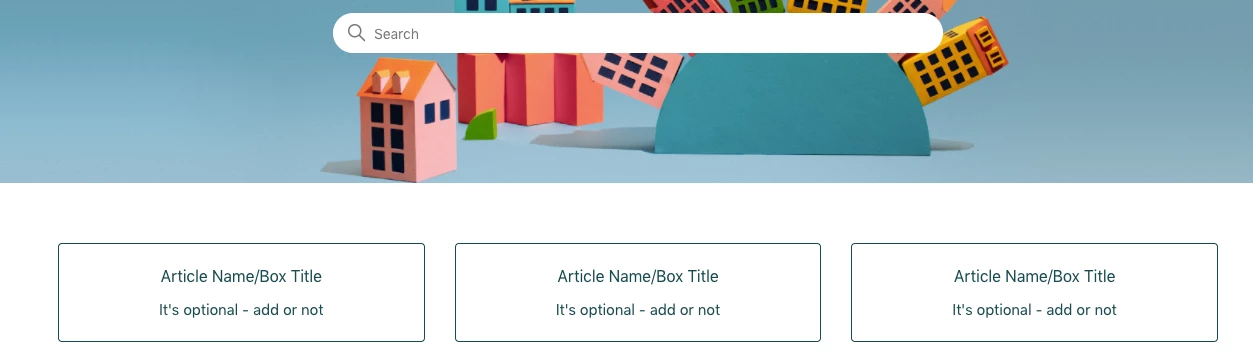
@Morris Coyle, you can add blocks on the homepage and put the classes and HTML structure from category blocks, see below how I did, pick the below code, and paste it at your homepage.
In this code, you can write your box title, box description (Optional), add a custom URL in the anchor tag which redirect the box directly wherever you want.
  <ul class="blocks-list">
          <li class="blocks-item">
              <a href='www.google.com' class="blocks-item-link">
                <span class="blocks-item-title">Article Name/Box Title</span>
                <span class="blocks-item-description">It's optional - add or not</span>
              </a>
            </li>

        <li class="blocks-item">
              <a href='www.google.com' class="blocks-item-link">
                <span class="blocks-item-title">Article Name/Box Title</span>
                <span class="blocks-item-description">It's optional - add or not</span>
              </a>
            </li>

        <li class="blocks-item">
              <a href='www.google.com' class="blocks-item-link">
                <span class="blocks-item-title">Article Name/Box Title</span>
                <span class="blocks-item-description">It's optional - add or not</span>
              </a>
            </li>

        <li class="blocks-item">
              <a href='www.google.com' class="blocks-item-link">
                <span class="blocks-item-title">Article Name/Box Title</span>
                <span class="blocks-item-description">It's optional - add or not</span>
              </a>
            </li>
          </ul>
Screenshot for the same:
Output:
If any confusion do let me know :)
Thanks
Team 

Hi Ifra,
I tried doing the above, and it all worked except I'd like the custom urls to not be added to the help center url. Is that possible? For example, I want a category button to lead to honelearners.zendesk.com but instead it leads to https://help.honehq.com/hc/www.honelearners.zendesk.com. Any thoughts on how I can fix this?
Thanks!
Hey Cara Rebernick :)
Use the code below:
$(document).ready(function(){

if ($('.blocks-item > a > span:contains("CATEGORY NAME ONE")')) {
   $(".blocks-item > a").attr("href", "amazon.com");
}

else  if ($('.blocks-item > a > span:contains("CATEGORY NAME TWO")')) {
   $(".blocks-item > a").attr("href", "google.com");
}
});


Note: Remove CATEGORY NAME ONE and write your category name for which you wanna add custom url.
Remove amazon.com and write your URL.
If any confusion feel free to ask.
Thanks

Hi Ifra!
I'm trying to do this but it doesn't work since we have two languages in our help center. How can I implement the page links in this scenario?
Thank you in advace.
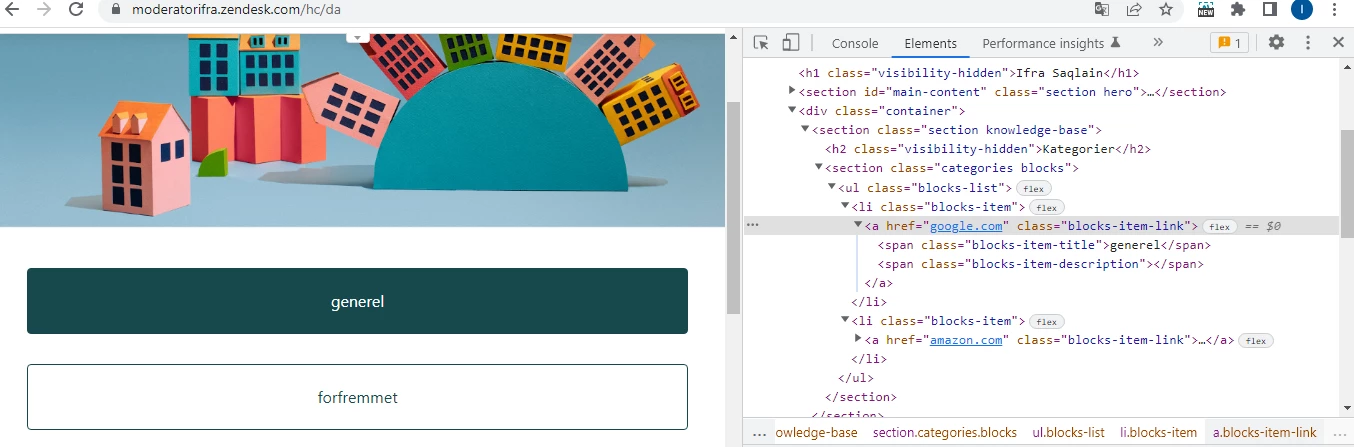
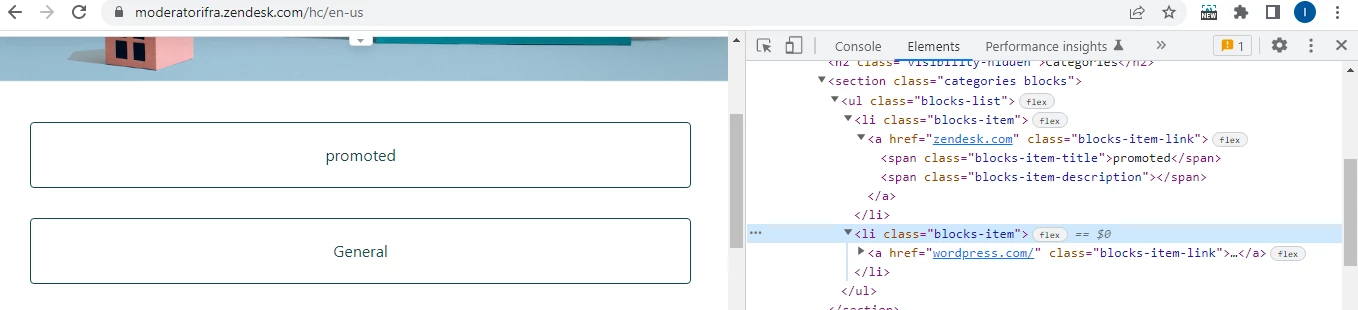
Hey Rocio Andújar, you can check the href value of your blocks via JS code:
Blocks are same, but href values are different for different languages.
For Danish
$('a[href^="/hc/da/categories/11695152081172-generel"]').attr("href", "google.com");
$('a[href^="/hc/da/categories/11695154093332-forfremmet"]').attr("href", "amazon.com");
For English
$('a[href^="/hc/en-us/categories/360002539551-General"]').attr("href", "https://wordpress.com/");
$('a[href^="/hc/en-us/categories/4404022102548-promoted"]').attr("href", "https://www.zendesk.com/in/#georedirect");
Output:
Danish -
English -
There are more ways but I used this. If any issue let me know :)
Thanks
Hey Ifra Saqlain,
Where does the following go? Is it in script.js or in the home_page.hbs? I am having the same issue as Cara:
$(document).ready(function(){

if ($('.blocks-item > a > span:contains("CATEGORY NAME ONE")')) {
   $(".blocks-item > a").attr("href", "amazon.com");
}

else  if ($('.blocks-item > a > span:contains("CATEGORY NAME TWO")')) {
   $(".blocks-item > a").attr("href", "google.com");
}
});


Note: Remove CATEGORY NAME ONE and write your category name for which you wanna add custom url.
Remove amazon.com and write your URL.@Mason Bjerke, that snippet will be add to script.js file at the end of all code of that file.
$(document).ready(function(){

if ($('.blocks-item > a > span:contains("CATEGORY NAME ONE")')) {
   $(".blocks-item > a").attr("href", "amazon.com");
}

else  if ($('.blocks-item > a > span:contains("CATEGORY NAME TWO")')) {
   $(".blocks-item > a").attr("href", "google.com");
}
});
Trying to have our Training Hub category redirect to another website rather than the section in Zendesk, but have been rather unsuccessful. Using the Obscu template and have this in the home_page.hbs file:
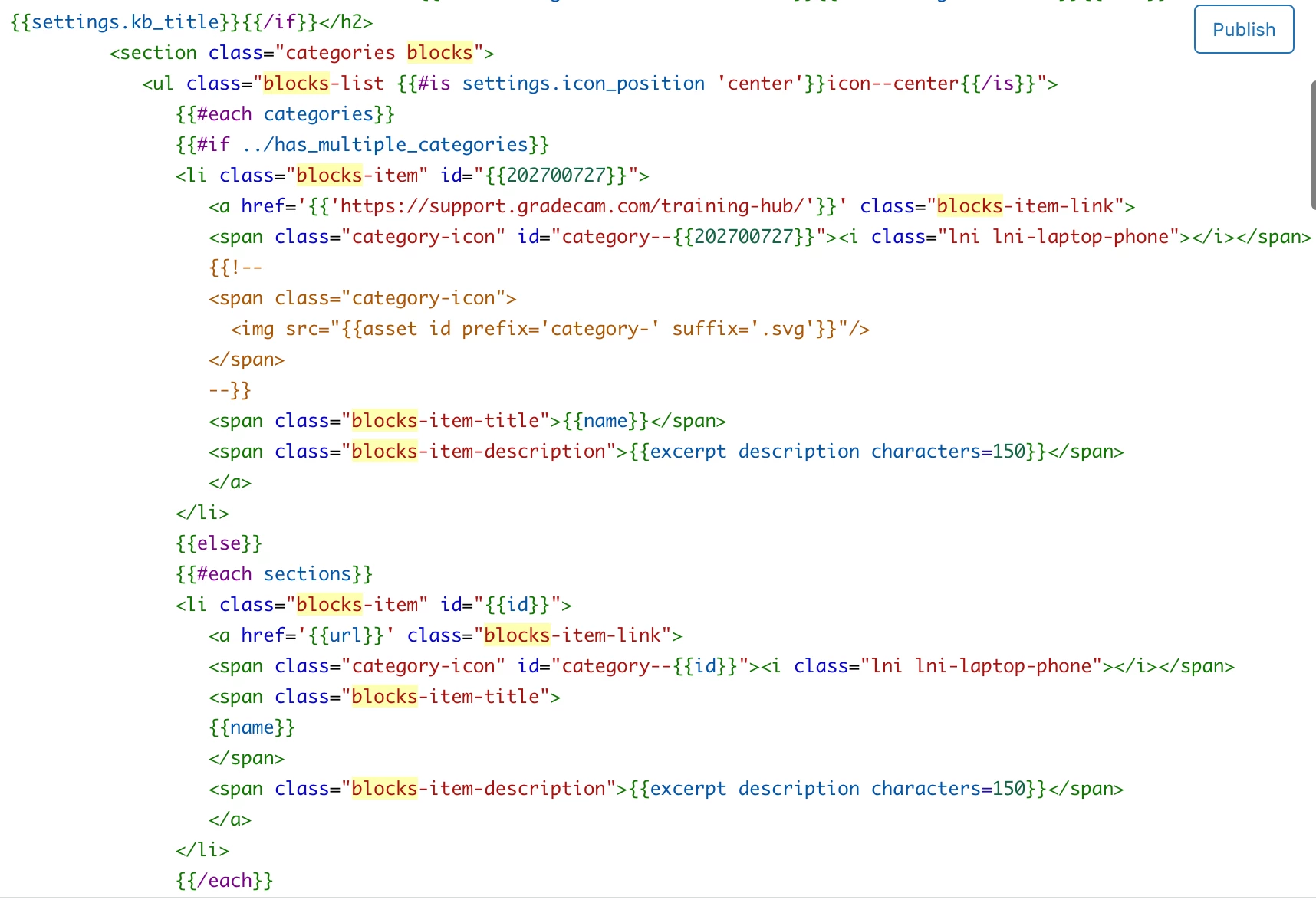
Hi Amanda Barber,
I tried it and it's working, I add {{isnt}} condition in anchor tag, see the screenshot:
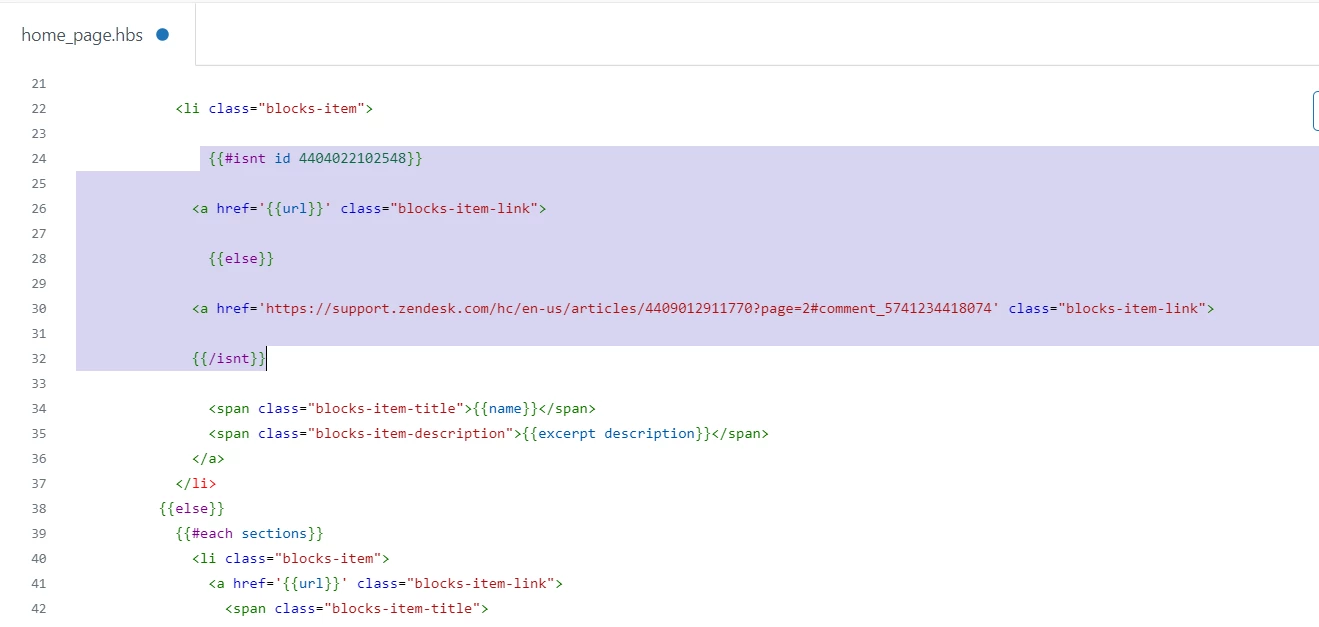
Code:

{{#isnt id 4404022102548}} -- My category ID, which I want to redirect to external website.

  <a href='{{url}}' class="blocks-item-link">

{{else}}

   <a href='https://www.google.com/' class="blocks-item-link">  -- External URL

{{/isnt}}
That's great, @ifra - it worked, but now my icons are not showing on the category blocks. Any ideas?
Hi Product Support,
To show the category block's icon, follow the steps below:
i). Add the script code at the bottom of your home_page.hbs file.
<script>
  $('.icon').each(function (idx, itm){
    var categoryID = $(this).attr('data-title');
    $(itm).attr('src', categoryIcons[categoryID]);
  });
</script>

Screenshot:
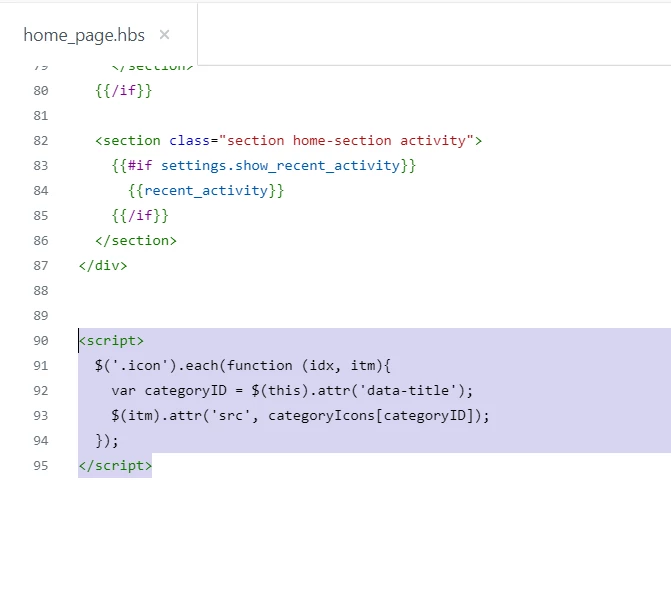
ii). Add the given code inside the blocks item code.
 <img src="{{asset 'spinner.gif'}}" class="icon" data-title="{{id}}">


Screenshot: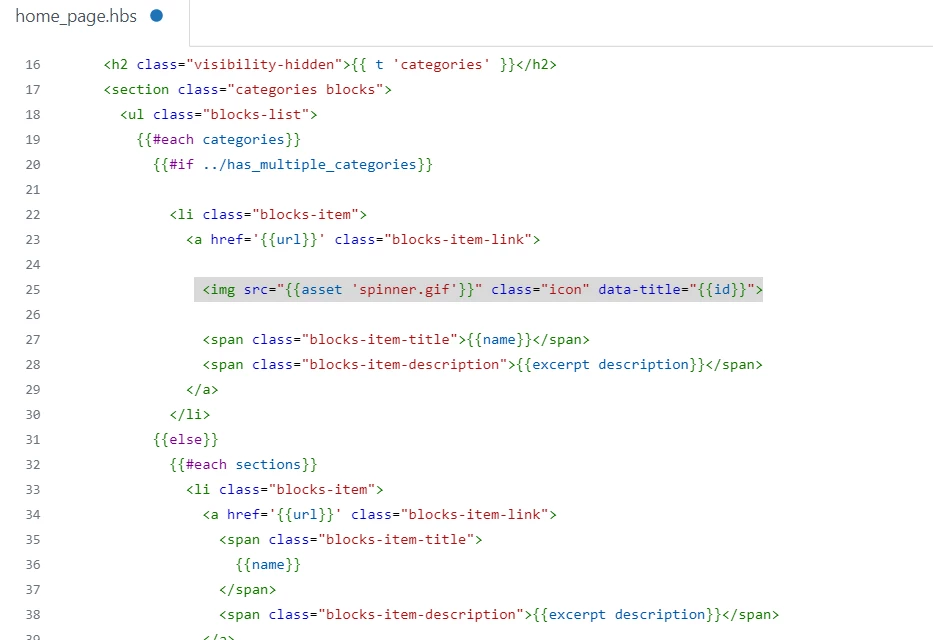
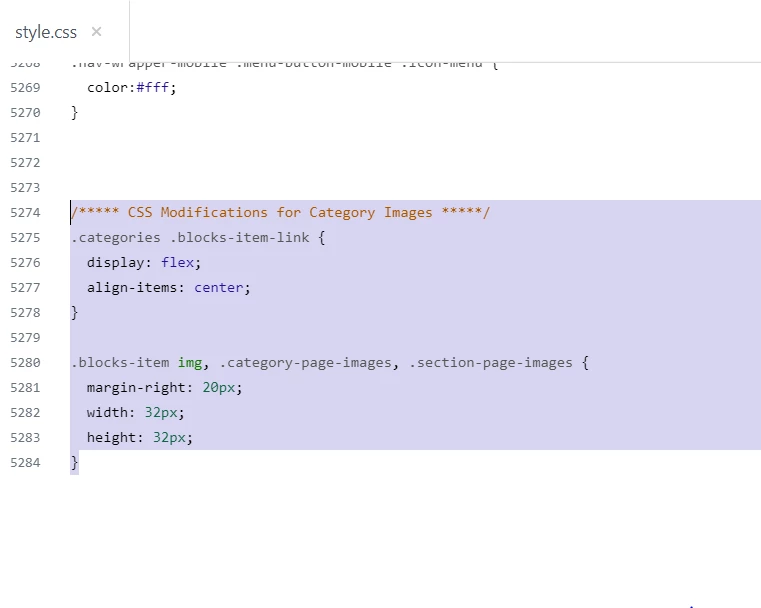
iii). Add CSS to style.css file at the bottom.
/***** CSS Modifications for Category Images *****/
.categories .blocks-item-link {
  display: flex;
  align-items: center;
}

.blocks-item img, .category-page-images, .section-page-images {
  margin-right: 20px;
  width: 32px;
  height: 32px;
}


Screenshot:
iv). Add this code to document_head.hbs file.
<script>
var categoryIcons = {
"4404022102548" : "{{asset 'img_1.png'}}",
"360004039672" : "{{asset 'img_2.png'}}",
"360003781252" : "{{asset 'img_3.png'}}",
"360003781212" : "{{asset 'img_4.png'}}",
}
</script>
Screenshot: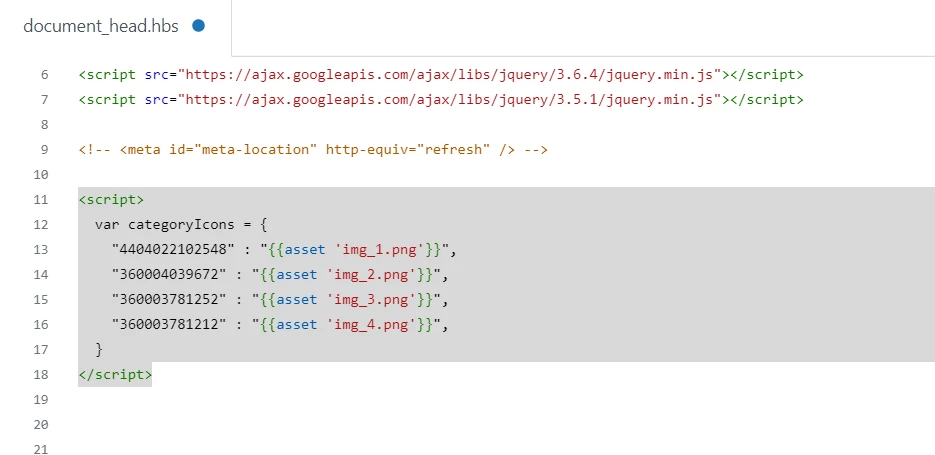
Note: These are category's ID, replace this with yours IDs.
"4404022102548" : "{{asset 'img_1.png'}}",
"360004039672" : "{{asset 'img_2.png'}}",
"360003781252" : "{{asset 'img_3.png'}}",
"360003781212" : "{{asset 'img_4.png'}}",
Category ID - 4404022102548
Image Name - img_1.png
If any query feel free to ask :)
Thanks
I'm using a different template that seems to already have images that should appear?
<h1 class="visibility-hidden">{{ help_center.name }}</h1>
{{!-- Hero block --}}
<section id="main-content" class="hero {{#is settings.hero_show_elements 'background_image'}}hero-image{{/is}} {{#is settings.hero_show_elements 'background_gradiant'}}hero-gradiant{{/is}}">
<div class="container {{#is settings.container_layout 'full'}}full--width{{/is}}">
<div class="hero-inner {{#is settings.search_position 'center'}}search--center{{/is}}">
<h2 class="visibility-hidden">{{ t 'search' }}</h2>
<h1 class="welcome_text">{{#if settings.translations_enable}}{{dc settings.hero_title}}{{else}}{{settings.hero_title}}{{/if}}</h1>
<p class="help-center-details">{{#if settings.translations_enable}}{{dc settings.hero_info}}{{else}}{{settings.hero_info}}{{/if}}</p>
{{search instant=settings.instant_search class='search search-full' placeholder=settings.search_placeholder}}
</div>
</div>
</section>
{{!-- Categories section --}}
{{#if categories}}
<section class="home__categories">
<div class="container {{#is settings.container_layout 'full'}}full--width{{/is}}">
<section class="knowledge-base">
<h2 class="visibility-hidden">{{ t 'categories' }}</h2>
<h2 class="hc--title b-700">{{#if settings.translations_enable}}{{dc settings.kb_title}}{{else}}{{settings.kb_title}}{{/if}}</h2>
<section class="categories blocks">
<ul class="blocks-list {{#is settings.icon_position 'center'}}icon--center{{/is}}">
{{#each categories}}
{{#if ../has_multiple_categories}}
<li class="blocks-item">
{{#isnt id 202700727}}
<a href='{{url}}' class="blocks-item-link">
{{else}}
<a href='https://support.gradecam.com/training-hub/' class="blocks-item-link">
{{/isnt}}
{{!--
<span class="category-icon">
<img src="{{asset id prefix='category-' suffix='.svg'}}"/>
</span>
--}}
<span class="blocks-item-title">{{name}}</span>
<span class="blocks-item-description">{{excerpt description characters=150}}</span>
</a>
</li>
{{else}}
{{#each sections}}
<li class="blocks-item" id="{{id}}">
<a href='{{url}}' class="blocks-item-link">
<span class="category-icon" id="category--{{id}}"><i class="lni lni-laptop-phone"></i></span>
<span class="blocks-item-title">
{{name}}
</span>
<span class="blocks-item-description">{{excerpt description characters=150}}</span>
</a>
</li>
{{/each}}
{{/if}}
{{/each}}
</ul>
{{pagination}}
</section>
</section>
</div>
</section>
{{/if}}
<div class="container {{#is settings.container_layout 'full'}}full--width{{/is}}">
<section class="section knowledge-base">
{{!-- Promoted article block --}}
<section class="quick-articles pt-30">
{{#is settings.toggle_promoted_articles "yes"}}
{{#if promoted_articles}}
<section class="articles">
<h2>{{t 'promoted_articles'}}</h2>
<ul class="promoted-articles">
{{#each promoted_articles}}
<li class="promoted-articles-item">
<a href="{{url}}">
{{title}}
{{#if internal}}
<svg xmlns="http://www.w3.org/2000/svg" width="16" height="16" focusable="false" viewBox="0 0 16 16" class="icon-lock" title="{{t 'internal'}}">
<rect width="12" height="9" x="2" y="7" fill="currentColor" rx="1" ry="1"/>
<path fill="none" stroke="currentColor" d="M4.5 7.5V4a3.5 3.5 0 017 0v3.5"/>
</svg>
{{/if}}
</a>
</li>
{{/each}}
</ul>
</section>
{{/if}}
{{/is}}
{{!-- Recent article block --}}
{{#is settings.toggle_recently_viewed_article "yes"}}
{{recent_articles}}
{{/is}}
{{!-- Recent activity block --}}
{{#is settings.toggle_recent_activity "yes"}}
<section class="home-recent-activity">
{{recent_activity}}
</section>
{{/is}}
</section>
</section>
</div>
{{!-- Get in touch section --}}
{{#is settings.contacts_blocks "yes"}}
<section class="contact--blocks">
<div class="container {{#is settings.container_layout 'full'}}full--width{{/is}}">
<section class="knowledge-base">
<h2 class="hc--title b-700">{{#if settings.translations_enable}}{{dc settings.contacts_title}}{{else}}{{settings.contacts_title}}{{/if}}</h2>
<section class="categories blocks">
<ul class="blocks-list {{#is settings.icon_position 'center'}}icon--center{{/is}}">
{{!-- Custom block 1 --}}
{{#isnt settings.first_block_title '-'}}
<li class="blocks-item">
<a href="{{#if settings.translations_enable}}{{dc settings.first_block_url}}{{else}}{{settings.first_block_url}}{{/if}}" class="blocks-item-link">
<span class="category-icon"><i class="{{settings.first_block_icon}}"></i></span>
<span class="blocks-item-title">{{#if settings.translations_enable}}{{dc settings.first_block_title}}{{else}}{{settings.first_block_title}}{{/if}}</span>
<span class="blocks-item-description">{{#if settings.translations_enable}}{{dc settings.first_block_description}}{{else}}{{settings.first_block_description}}{{/if}}</span>
</a>
</li>
{{/isnt}}
{{!-- Custom block 2 --}}
{{#isnt settings.second_block_title '-'}}
<li class="blocks-item">
<a href="{{#if settings.translations_enable}}{{dc settings.second_block_url}}{{else}}{{settings.second_block_url}}{{/if}}" class="blocks-item-link">
<span class="category-icon"><i class="{{settings.second_block_icon}}"></i></span>
<span class="blocks-item-title">{{#if settings.translations_enable}}{{dc settings.second_block_title}}{{else}}{{settings.second_block_title}}{{/if}}</span>
<span class="blocks-item-description">{{#if settings.translations_enable}}{{dc settings.second_block_description}}{{else}}{{settings.second_block_description}}{{/if}}</span>
</a>
</li>
{{/isnt}}
{{!-- Custom block 3 --}}
{{#isnt settings.third_block_title '-'}}
<li class="blocks-item">
<a href="{{#if settings.translations_enable}}{{dc settings.third_block_url}}{{else}}{{settings.third_block_url}}{{/if}}" class="blocks-item-link">
<span class="category-icon"><i class="{{settings.third_block_icon}}"></i></span>
<span class="blocks-item-title">{{#if settings.translations_enable}}{{dc settings.third_block_title}}{{else}}{{settings.third_block_title}}{{/if}}</span>
<span class="blocks-item-description">{{#if settings.translations_enable}}{{dc settings.third_block_description}}{{else}}{{settings.third_block_description}}{{/if}}</span>
</a>
</li>
{{/isnt}}
</ul>
</section>
</section>
</div>
</section>
{{/is}}
<script type="text/javascript">
$(document).ready(function() {
$('#category--{{settings.category1_id}}').append('<i class="{{settings.category1_icon}}"></i>');
$('#category--{{settings.category2_id}}').append('<i class="{{settings.category2_icon}}"></i>');
$('#category--{{settings.category3_id}}').append('<i class="{{settings.category3_icon}}"></i>');
$('#category--{{settings.category4_id}}').append('<i class="{{settings.category4_icon}}"></i>');
$('#category--{{settings.category5_id}}').append('<i class="{{settings.category5_icon}}"></i>');
$('#category--{{settings.category6_id}}').append('<i class="{{settings.category6_icon}}"></i>');
});
</script>
Add this line of code inside blocks-item:
<span class="category-icon" id="category--{{id}}"><i class="lni lni-laptop-phone"></i></span>


Screenshot:
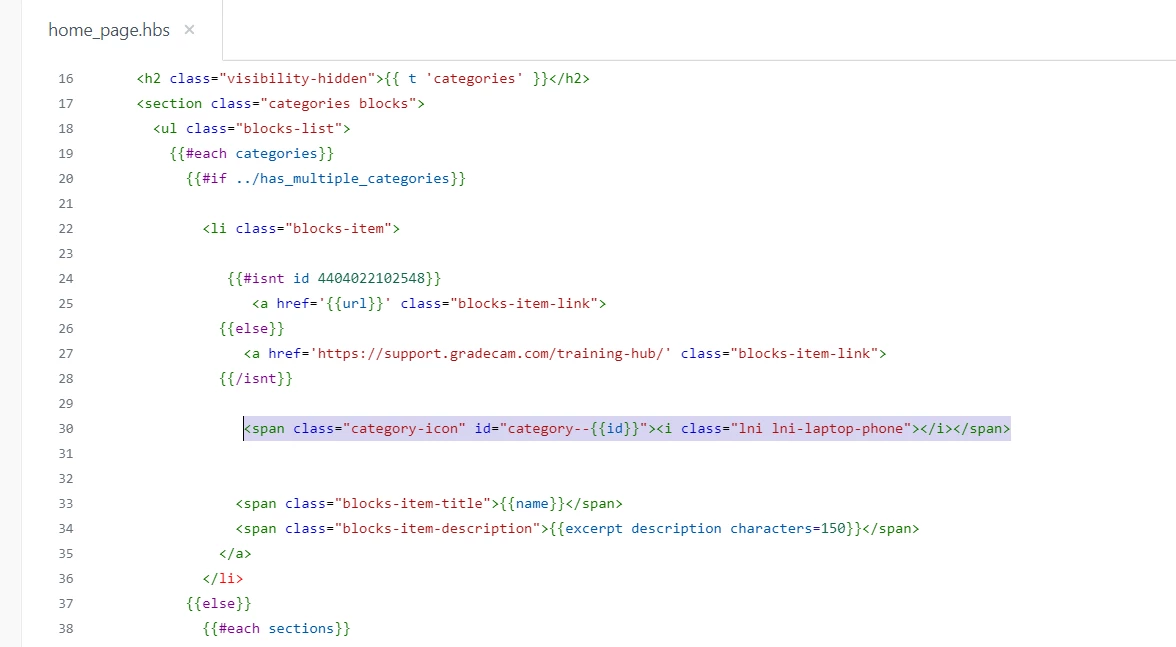
Try this and let me know.
Is there a way to change the color of the box so that it's different than the system boxes? We want the link box to stand out separately from the existing category boxes.
Hi Ifra
I am using the following code to add an external link to a category.
$(document).ready(function(){
if ($('.blocks-item > a > span:contains("CATEGORY NAME ONE")')) {
  $(".blocks-item > a").attr("href", "amazon.com");
}
});
But I want the link to open in a new tab. I tried to add “target_blank” but that is breaking the link. Can you please assist with the above code and let me know what code to add to open link in a new tab?
Thank you.
Cheers
Hetal
Hi Hetal,
Use the given code:
$(document).ready(function() {
if ($('.blocks-item > a > span:contains("promoted")')) {
$(".blocks-item > a").attr("href", "https://www.amazon.com/");
$(".blocks-item > a").attr("target", "_blank");
});
Thanks
Hi Ifra
Thank you for the solution. It works. BUT I only want one category to open in a new tab/window. With adding the new code all categories are opening in a new tab/window.
Thank you.
Cheers
Hetal
Hi Hetal,
Check my another post for specific categories changes then with if condition put that provide code into that if(){…} condition And let me know if you face any issue.
Thank you
Hi @ifra
I tried to look as advised but got nowhere.
$(document).ready(function() {
if ($('.blocks-item > a > span:contains("promoted")')) {
$(".blocks-item > a").attr("href", "https://www.amazon.com/");
$(".blocks-item > a").attr("target", "_blank");
});
What part of the code I can edit such that only this one category opens in a new window?
No account yet? Create an account
Enter your E-mail address. We'll send you an e-mail with instructions to reset your password.
Sorry, we're still checking this file's contents to make sure it's safe to download. Please try again in a few minutes.
OKSorry, our virus scanner detected that this file isn't safe to download.
OK