Custom fieds link to another custom fields answer | Community
Skip to main content

Custom fieds link to another custom fields answer

  • July 13, 2021
  • 8 replies
  • 0 views

Zendesk15

Dear,

I would like to create a custom field that will appear depending on the answer of another custom field, is there a way to do it without using specific ticket form ?

For example: If answer of drop down custom field 1 is Support, a drop down custom field 2 will appear with the following possible answer: SW or HW.
If answer of drop down custom field 1 is Dev, a drop down custom field 3 will appear with the following possible answer: Liste or AS400.


Thank you for you help


8 replies

Pulkit12
  • July 13, 2021

Hi Renaud Croix

Yes, it can be possible you have to write some custom javascript to achieve your desired result 


Thanks

Pulkit

Team Diziana


Trapta
  • July 13, 2021

Hi @Renaud Croix,

Try putting the below code at the bottom of you script.js file.

document.addEventListener('DOMContentLoaded', function() {
// Replace FIELDID with your custom ID (ex: if your field id is 'request_custom_fields_1500007306061_label' then, replace FIELDID with 1500007306061 )
function nestyInputListClick() {
var nestyListSelector = document.querySelectorAll('ul[aria-labelledby="request_custom_fields_FIELDID_label"] > li');

Array.prototype.forEach.call(nestyListSelector, function(listItem) {
listItem.addEventListener('click', function(e) {
var selectedVal = listItem.innerText;
var subjectField = document.querySelector('.request_subject');
if (selectedVal == 'Val_1') {
subjectField.style.display = 'block';
} else {
subjectField.style.display = 'none';
}
});
});
}

var nestyInputSelector = document.querySelector('.request_custom_fields_FIELDID > .nesty-input');
nestyInputSelector.addEventListener('click', function() {
nestyInputListClick();
});
});

You can see the working example here. I am displaying and hiding the subject field on the basis of custom field dropdown.

Let us know how it goes for you.

Thanks


Zendesk15
  • Author
  • July 14, 2021

Thank you very much, 

@Trapta,
I'm quite new with Zendesk.

Could you explain in summary where and how put this code ?


Thank you


Trapta
  • July 14, 2021

Hi @Renaud Croix,

You need to edit the code and put the code at the bottom of your script.js file from the left sidebar. Here's the link for you to guide how to edit the code of HC in Zendesk.

Let us know if this helps you.

Thanks 


Zendesk15
  • Author
  • July 14, 2021

Hi @Trapta,

Thank you.
What about if the needs is for a ticket fields (not ticket form) ?


Kind regards


Trapta
  • July 14, 2021

@Renaud Croix,

the above code is for ticket fields only and not ticket forms. As long as you are using the right FIELD ID it should not be an issue for you.

Thanks


Zendesk15
  • Author
  • July 15, 2021

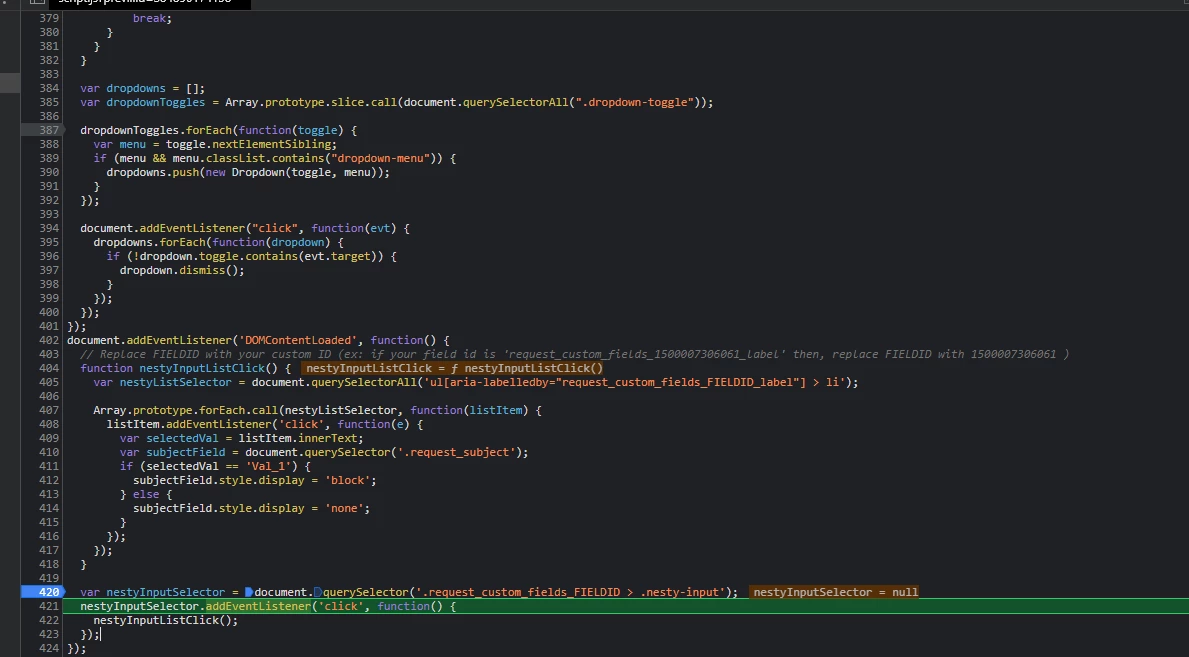
8036642427

It seems that one of the line of your code has an error.
See the screenshot below at the line 421:


Regards


Trapta
  • July 15, 2021

@Renaud Croix,

You need to replace the FIELDID with your field ID using inspect element. then only the code will work. I mentioned it in the comment and in the code. Please replace the code and it will work.

Thanks