Article Templates - Help Needed | Community
Skip to main content

Article Templates - Help Needed

  • February 16, 2024
  • 10 replies
  • 0 views

Hannah12

This is a dumb question, but how do I add a template that has specific body text? For example:

Important Considerations:


Issue:


Action items to resolve:

10 replies

Brandon12
  • February 17, 2024

Your question isn't dumb at all! Setting up a template in Zendesk, especially one that includes specific sections like "Important Considerations," "Issue," and "Action items to resolve," is a common need for streamlining support responses and ensuring consistency in communication. Article templates in Zendesk Guide determine the structure and layout of the knowledge base articles. 

Step 1: Create Custom Templates

  1. Access Your Theme Files:

    • Navigate to Guide Admin and click on Customize design.
    • Next to your theme, click on Customize and then Edit Code.
  2. Add Custom Templates:

    • Based on the Zendesk documentation, you can create custom templates for articles, sections, or categories by adding new files to your theme. For an article template, you would add a new file under the templates folder.
    • Name the file according to the Zendesk convention. For articles, it should start with article-, followed by a custom name, e.g., article-feedback.hbs.
  3. Customize Your Template:

    • In article-feedback.hbs, you can structure your HTML to include the specific sections you mentioned. For example:
 
<article> <h2>Important Considerations</h2> <p><!-- Content here --></p> <h2>Issue</h2> <p><!-- Content here --></p> <h2>Action items to resolve</h2> <p><!-- Content here --></p> </article>

Step 2: Assigning the Custom Template to Articles

After creating your custom template, you need to assign it to specific articles. This is done through the article's settings in the Guide Admin:

  1. Edit the Article: Go to the article you want to apply your custom template to.
  2. Set the Template: In the article settings, look for the option to select the template. Choose the article-feedback template you created.
  3. Publish the Article: Save and publish your article. It will now use the new custom template layout.

More information is available here: https://support.zendesk.com/hc/en-us/articles/4408828878106-Adding-multiple-article-section-and-category-templates-to-your-theme

Hope this helps!

Brandon


Hannah12
  • Author
  • February 20, 2024

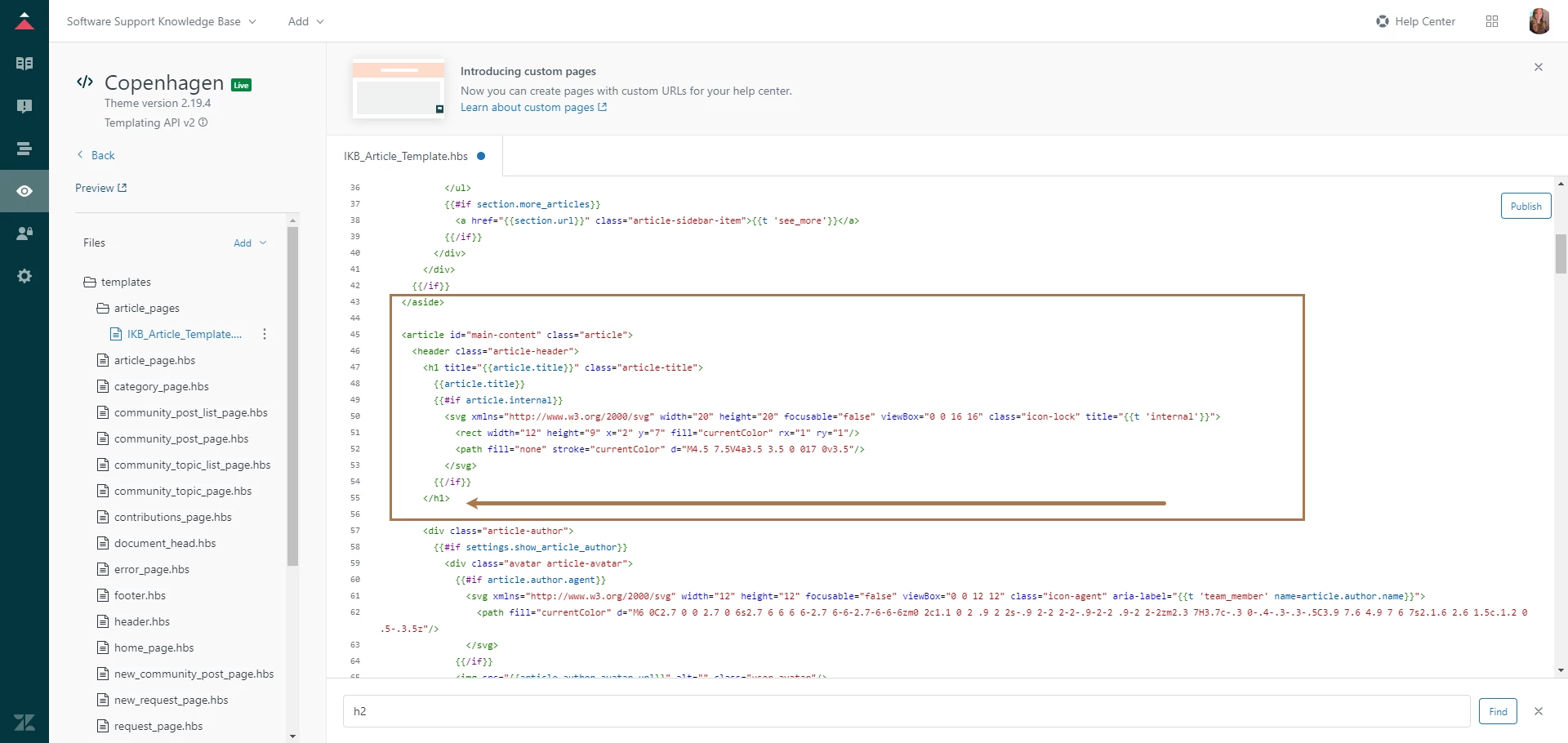
@brandon12 Thank you so much for your response! This was so thoughtful. I tried entering the HTML code into the article template body, but am having trouble getting it to populate in the article when the template is selected. I entered the code above after this section and at the end of the file to try to get it to populate. 


Brandon12
  • February 20, 2024

Hey @hannah12 -

No worries - and you're really close!  From the screenshot, it looks like you put the code in the header.  Here's a snapshot of what the entire code should look like:


<article id="main-content" class="article">
  <header class="article-header">
    <h1 class="article-title">{{article.title}}</h1>
    <!-- ... other header elements ... -->
  </header>

  <!-- ... possibly other elements like author information ... -->

  <!-- Start of custom sections -->
  <section>
    <h2>Important Considerations:</h2>
    <p>[Add considerations here]</p>
  </section>
  <section>
    <h2>Issue:</h2>
    <p>[Describe the issue here]</p>
  </section>
  <section>
    <h2>Action items to resolve:</h2>
    <p>[Outline action items here]</p>
  </section>
  <!-- End of custom sections -->

  <!-- Placeholder for the main article content -->
  {{article.body}}

  <!-- ... possibly other elements ... -->
</article>

Let me know if this works for you!


Hannah12
  • Author
  • February 20, 2024

@brandon12 -

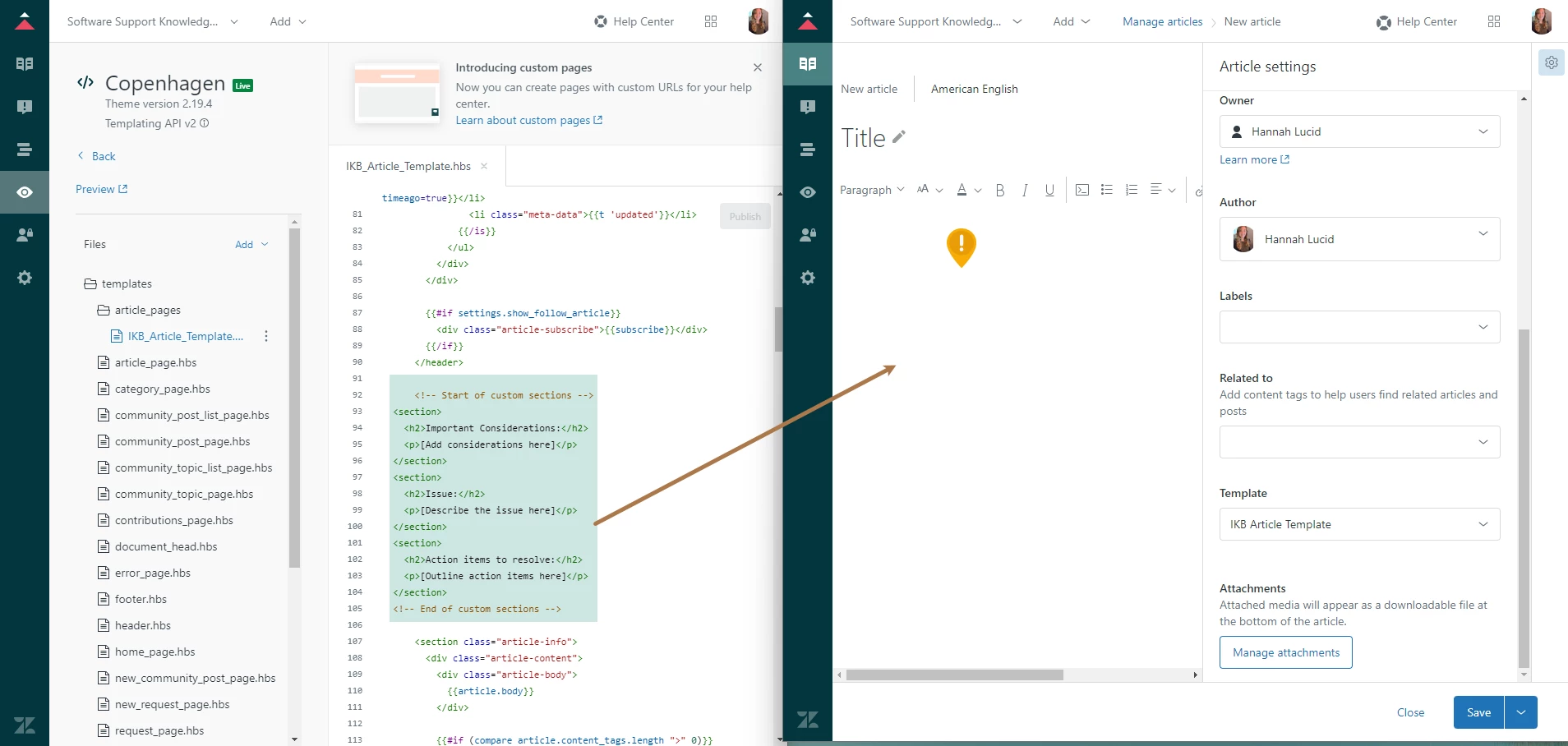
Once again, I appreciate your assistance! I inserted the code between the </header> and <section class-"article-info"> codes and still came up empty. Tried moving around in the article's body area and still nothing. :(


Brandon12
  • February 20, 2024

Hey @hannah12 Very close!  This block of text should go between the <div> tags on lines 109 & 111 in your screenshot.

109 <div class="article body">
<!-- Start of custom sections --><section>
    <h2>Important Considerations:</h2>
    <p>[Add considerations here]</p>
  </section>
  <section>
    <h2>Issue:</h2>
    <p>[Describe the issue here]</p>
  </section>
  <section>
    <h2>Action items to resolve:</h2>
    <p>[Outline action items here]</p>
  </section>
  <!-- End of custom sections -->

  <!-- Placeholder for the main article content -->
110 {{article.body}}
111 </div>

Let me know if that works!


Hannah12
  • Author
  • February 21, 2024

@brandon12 Still nothing. It's being super stubborn :(


Brandon12
  • February 24, 2024

That looks right to be @hannah12 - maybe another community member can step in and provide additional clarity!


Hannah12
  • Author
  • March 1, 2024

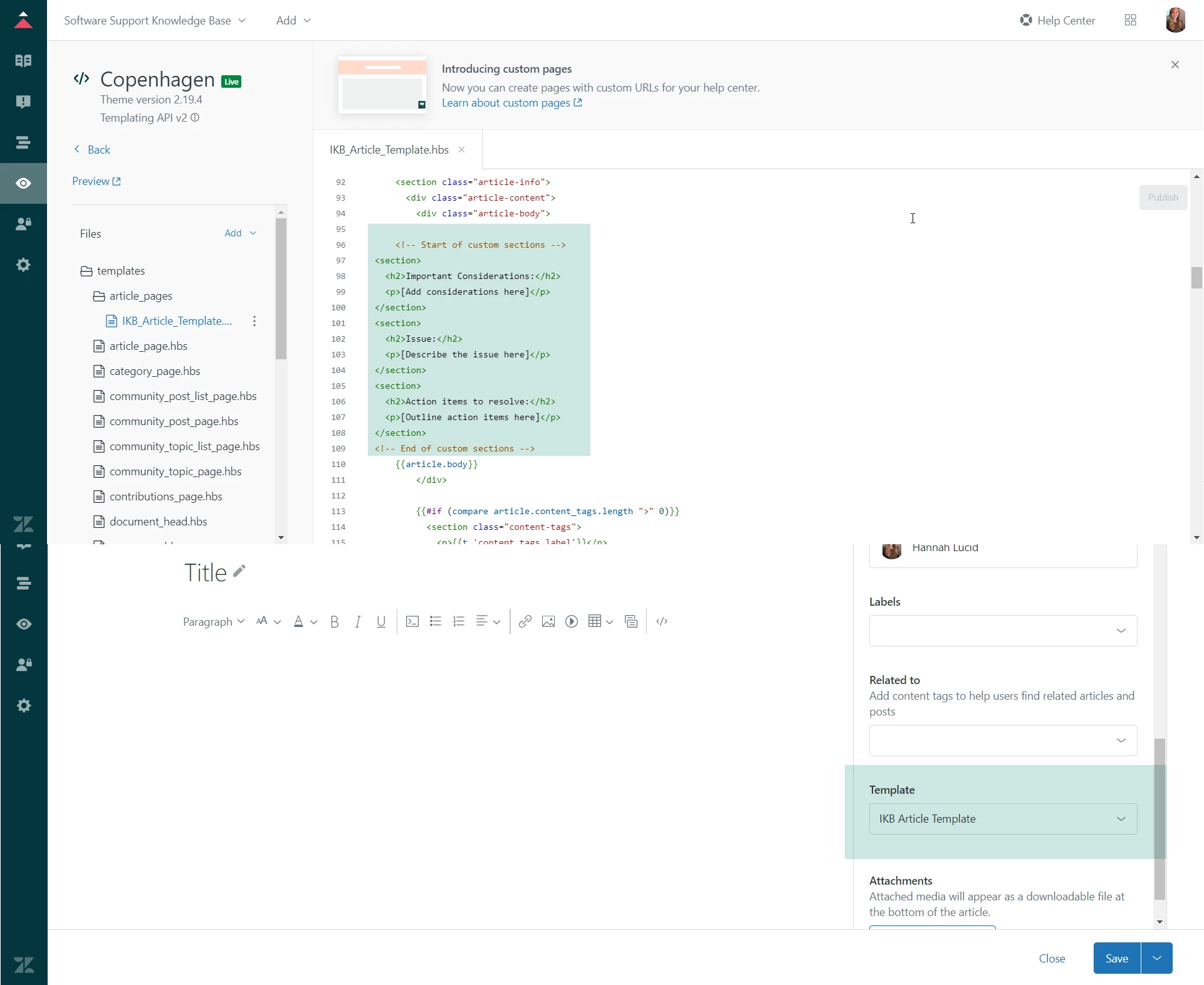
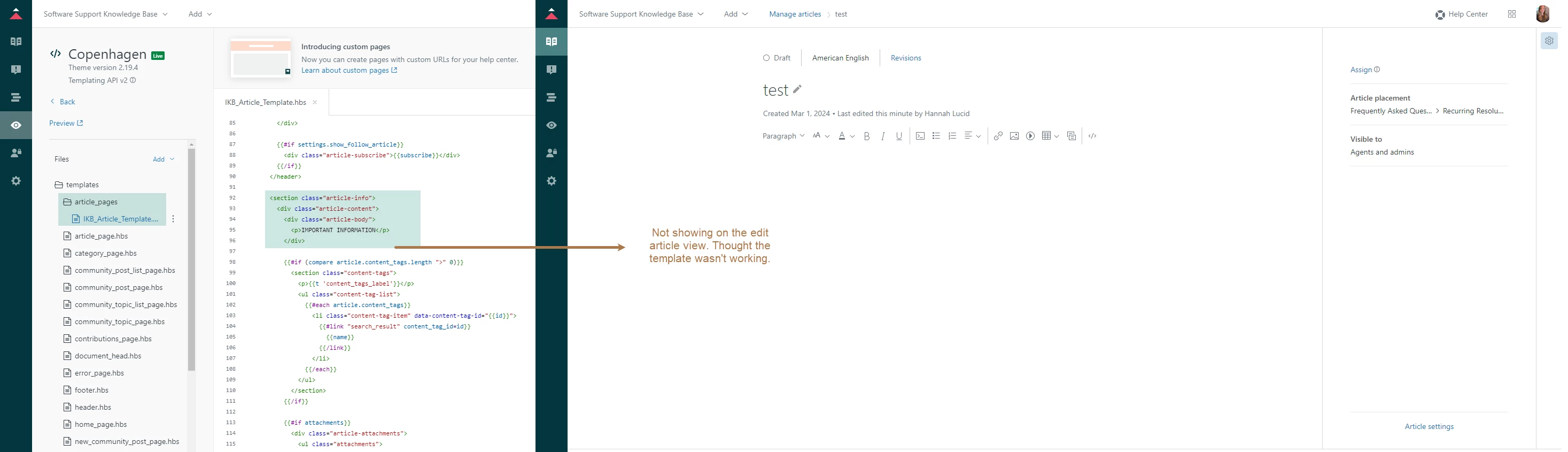
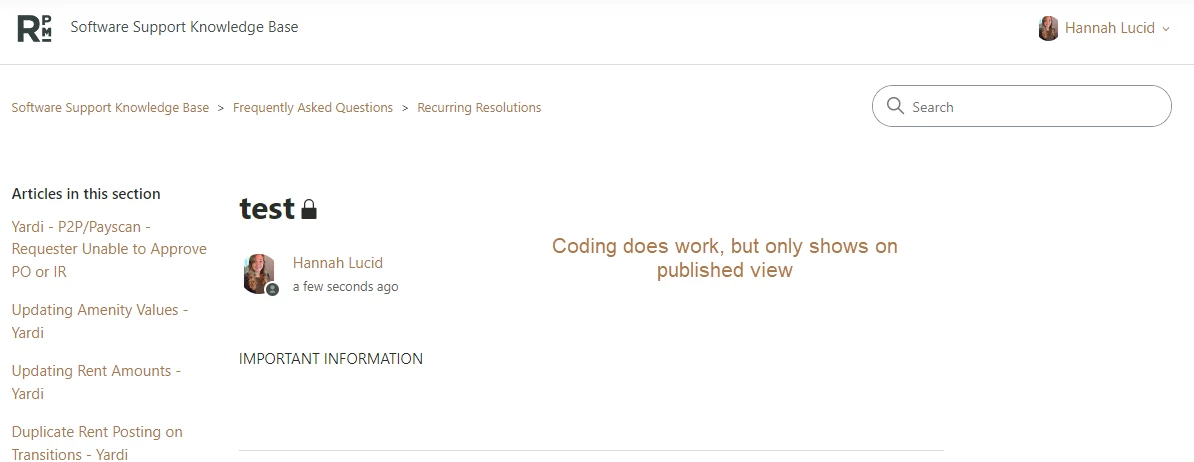
Hi @brandon12 I had an epiphany this morning and tested a theory. Turns out the coding worked all along, but the Article Template will only apply to the PUBLISHED works view instead of the EDITOR works view. Here's some screenshots to showcase what I'm talking about. 


Absolute silliness. 


Brandon12
  • March 2, 2024

So glad you were able to get it sorted, and thanks so much for sharing it back with the community!

I swear, I learn something new every day here...


Hannah12
  • Author
  • March 4, 2024

@brandon12 you're telling me!!


I've created a feature request post. If you would be so inclined, please upvote this and add any additions you'd like to see. Thank you so much for everything.


https://support.zendesk.com/hc/en-us/community/posts/6829175285274-Feature-Request-Article-Templates