Adding category images to the Copenhagen Theme | Community
Skip to main content

Adding category images to the Copenhagen Theme


Show first post

114 replies

  • November 1, 2018

Hello,

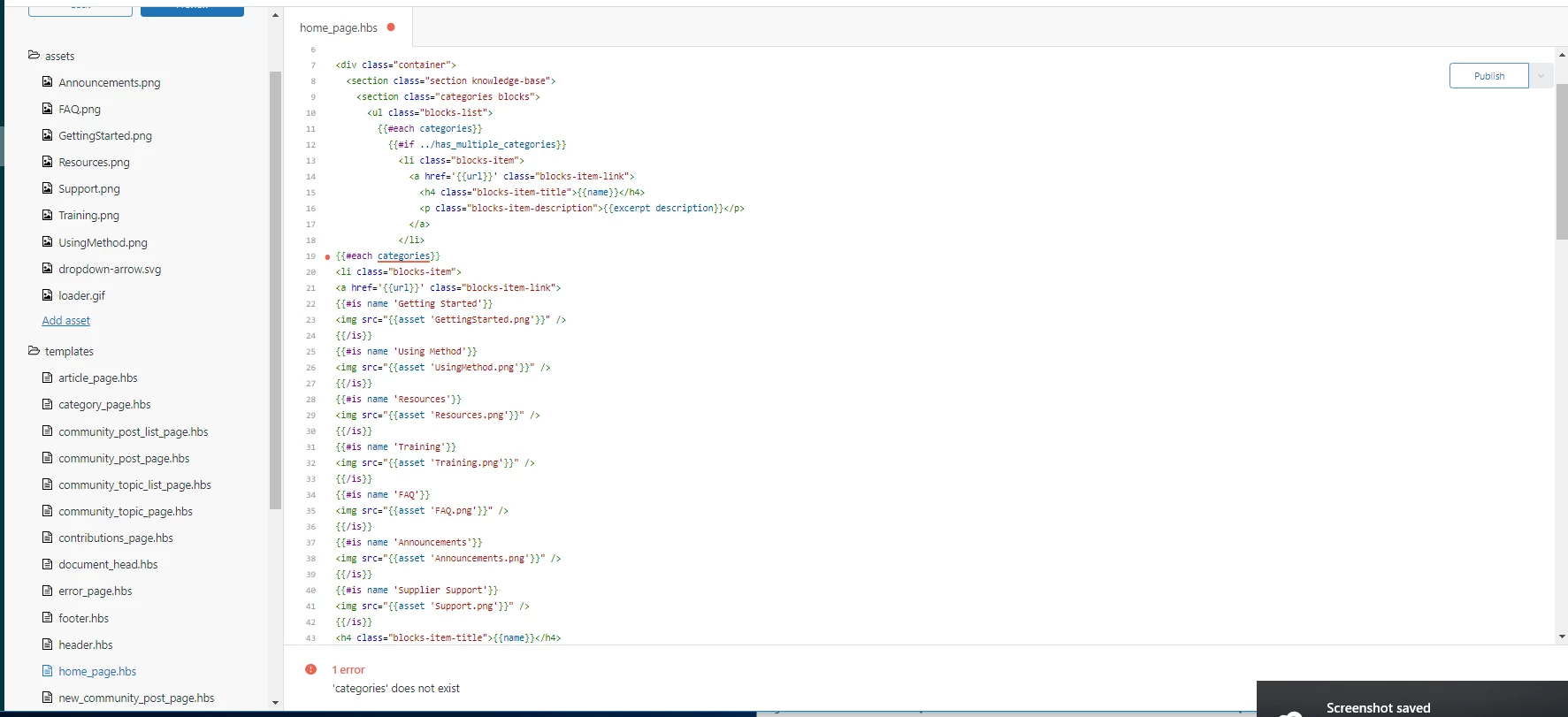
I have used the code described in this article but my images are not showing up. Can someone please provide some guidance on what to do next? Below is a screenshot. Thank you!

Note, I am getting an error saying 'categories' does not exist.


Vladan
  • November 1, 2018

Hey, Kristen, I can't see the whole your code but this in red you don't need: https://cl.ly/cbcddd1c8626

and just mode the IF line before your EACH line (as on the screenshot). 


  • November 1, 2018

@vladan

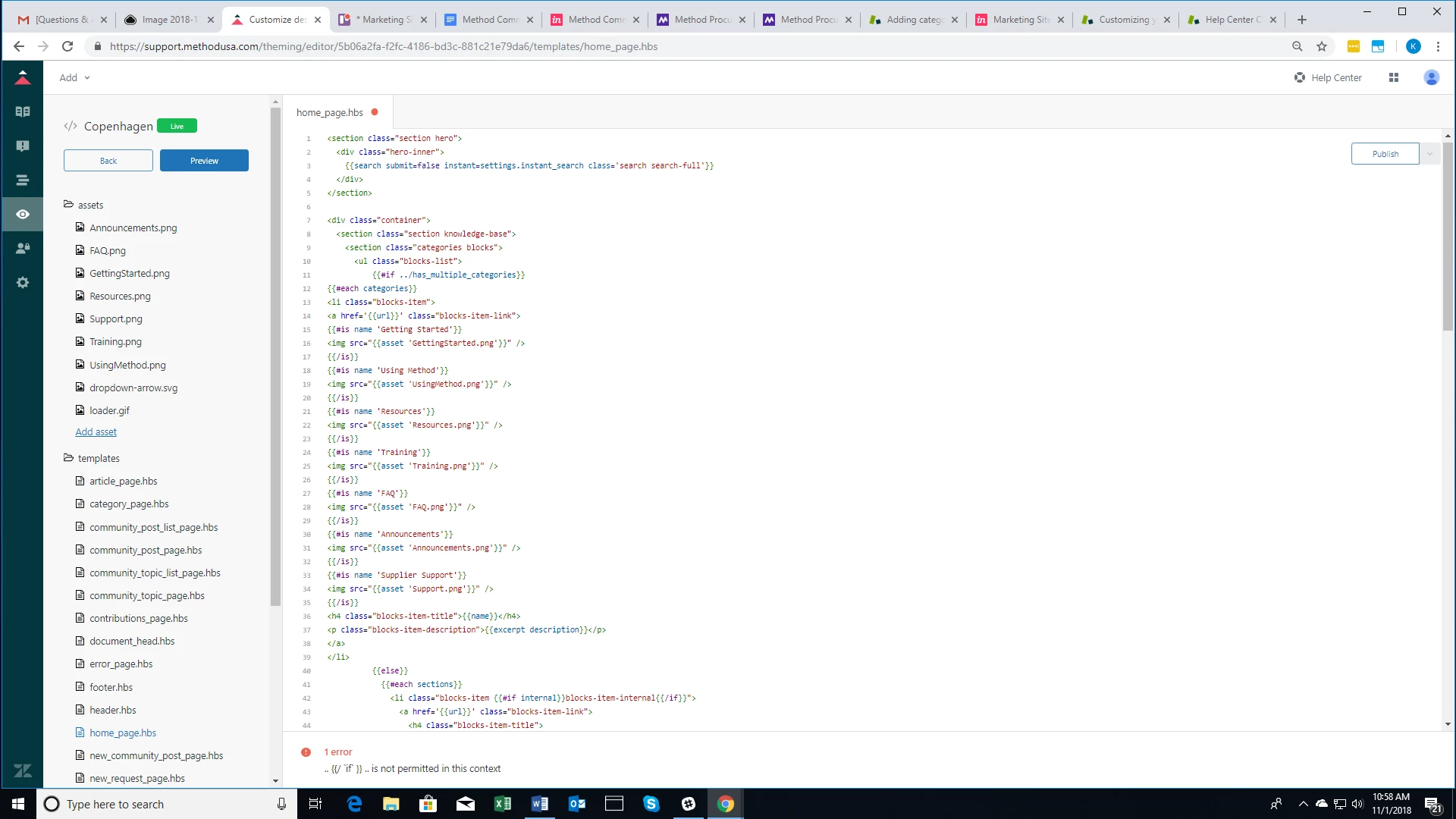
Here is my updated code with entire string - and still getting an error:

.. {{/ `if` }} .. is not permitted in this context

Thanks!


  • November 1, 2018

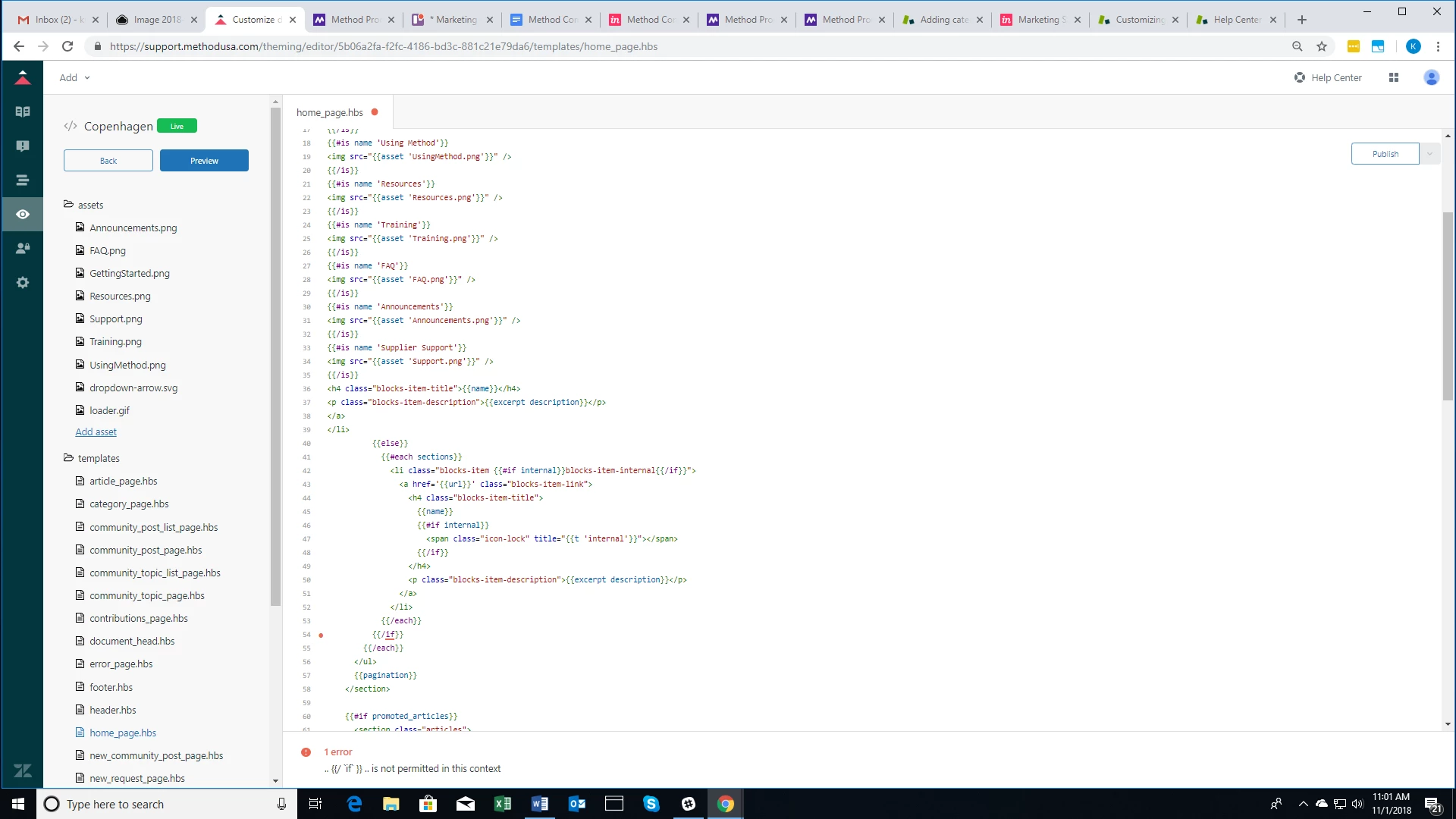
Apologies, here is where the error is showing up:


Vladan
  • November 1, 2018

Ahh I see, many things are not good there, could you please just send me the whole code?

I think it would be the easiest way :D


  • November 1, 2018

Thanks for your help - see below!


<section class="section hero">
<div class="hero-inner">
{{search submit=false instant=settings.instant_search class='search search-full'}}
</div>
</section>

<div class="container">
<section class="section knowledge-base">
<section class="categories blocks">
<ul class="blocks-list">
{{#if ../has_multiple_categories}}
{{#each categories}}
<li class="blocks-item">
<a href='{{url}}' class="blocks-item-link">
{{#is name 'Getting Started'}}
<img src="{{asset 'GettingStarted.png'}}" />
{{/is}}
{{#is name 'Using Method'}}
<img src="{{asset 'UsingMethod.png'}}" />
{{/is}}
{{#is name 'Resources'}}
<img src="{{asset 'Resources.png'}}" />
{{/is}}
{{#is name 'Training'}}
<img src="{{asset 'Training.png'}}" />
{{/is}}
{{#is name 'FAQ'}}
<img src="{{asset 'FAQ.png'}}" />
{{/is}}
{{#is name 'Announcements'}}
<img src="{{asset 'Announcements.png'}}" />
{{/is}}
{{#is name 'Supplier Support'}}
<img src="{{asset 'Support.png'}}" />
{{/is}}
<h4 class="blocks-item-title">{{name}}</h4>
<p class="blocks-item-description">{{excerpt description}}</p>
</a>
</li>
{{else}}
{{#each sections}}
<li class="blocks-item {{#if internal}}blocks-item-internal{{/if}}">
<a href='{{url}}' class="blocks-item-link">
<h4 class="blocks-item-title">
{{name}}
{{#if internal}}
<span class="icon-lock" title="{{t 'internal'}}"></span>
{{/if}}
</h4>
<p class="blocks-item-description">{{excerpt description}}</p>
</a>
</li>
{{/each}}
{{/each}}
</ul>
{{pagination}}
</section>
{{#if promoted_articles}}
<section class="articles">
<h3>{{t 'promoted_articles'}}</h3>
<ul class="article-list promoted-articles">
{{#each promoted_articles}}
<li class="promoted-articles-item">
<a href="{{url}}">
{{title}}
</a>
</li>
{{/each}}
</ul>
</section>
{{/if}}
</section>
{{#if help_center.community_enabled}}
<section class="section community">
<h2>{{t 'community'}}</h2>
{{#link 'community' class='community-link'}}
{{t 'join_conversation'}}
{{/link}}

<div class="community-image"></div>
</section>
{{/if}}

<section class="section activity">
{{#if settings.show_recent_activity}}
{{recent_activity}}
{{/if}}
</section>
</div>


Vladan
  • November 1, 2018

Please try with this one:

<section class="section hero">
<div class="hero-inner">
{{search submit=false instant=settings.instant_search class='search search-full'}}
</div>
</section>

<div class="container">
<section class="section knowledge-base">
<section class="categories blocks">
<ul class="blocks-list">
{{#each categories}}
<li class="blocks-item">
<a href='{{url}}' class="blocks-item-link">
{{#is name 'Getting Started'}}
<img src="{{asset 'GettingStarted.png'}}" />
{{/is}}
{{#is name 'Using Method'}}
<img src="{{asset 'UsingMethod.png'}}" />
{{/is}}
{{#is name 'Resources'}}
<img src="{{asset 'Resources.png'}}" />
{{/is}}
{{#is name 'Training'}}
<img src="{{asset 'Training.png'}}" />
{{/is}}
{{#is name 'FAQ'}}
<img src="{{asset 'FAQ.png'}}" />
{{/is}}
{{#is name 'Announcements'}}
<img src="{{asset 'Announcements.png'}}" />
{{/is}}
{{#is name 'Supplier Support'}}
<img src="{{asset 'Support.png'}}" />
{{/is}}
<h4 class="blocks-item-title">{{name}}</h4>
<p class="blocks-item-description">{{excerpt description}}</p>
</a>
</li>
{{/each}}
</ul>
{{pagination}}
</section>
{{#if promoted_articles}}
<section class="articles">
<h3>{{t 'promoted_articles'}}</h3>
<ul class="article-list promoted-articles">
{{#each promoted_articles}}
<li class="promoted-articles-item">
<a href="{{url}}">
{{title}}
</a>
</li>
{{/each}}
</ul>
</section>
{{/if}}
</section>
{{#if help_center.community_enabled}}
<section class="section community">
<h2>{{t 'community'}}</h2>
{{#link 'community' class='community-link'}}
{{t 'join_conversation'}}
{{/link}}

<div class="community-image"></div>
</section>
{{/if}}

<section class="section activity">
{{#if settings.show_recent_activity}}
{{recent_activity}}
{{/if}}
</section>
</div>

  • November 1, 2018

It worked! Thank you so much :) :) :) So helpful!!! 


Vladan
  • November 1, 2018


  • November 21, 2018

This has been a really useful thread, thanks to everyone who has contributed. I added images to my categories without difficulty, and then made it work in multiple languages by using Category id instead of title. So far, so good, very pleaaed with the results. :)

But of course we always want more. I re-purposed the "promoted articles" feature and changed it a little to show "Videos" instead of promoted articles and a video camera icon after the title.

But now I would like to do something similar for highlighting articles with downloadable attachments (ie pdf manuals). Is there any way of doing something like this...?

  <li class="article-list-item{{#if promoted}} article-promoted{{/if}}">
<a href="{{url}}" class="article-list-link">{{title}}</a>
{{#if promoted}}<i class="fas fa-file-download"></i>
{{/if}}
</li>

... but instead  of "#if promoted" I want to use either a label or a partial text match - something like

{{#if label "manual"}}

or wilcards like..

{{#if title like "*manual*"}}

Is there anything that can help me with this?

Many thanks,

Paul


Trapta
  • December 12, 2018

Hi @Paul,

You can try something like below:

{{#each labels}}
{{#is identifier 'pdf'}}<i class="fas fa-file-download"></i>{{/is}}
{{/each}}

Let me know if this solves your issue.

Team Diziana


  • May 22, 2019

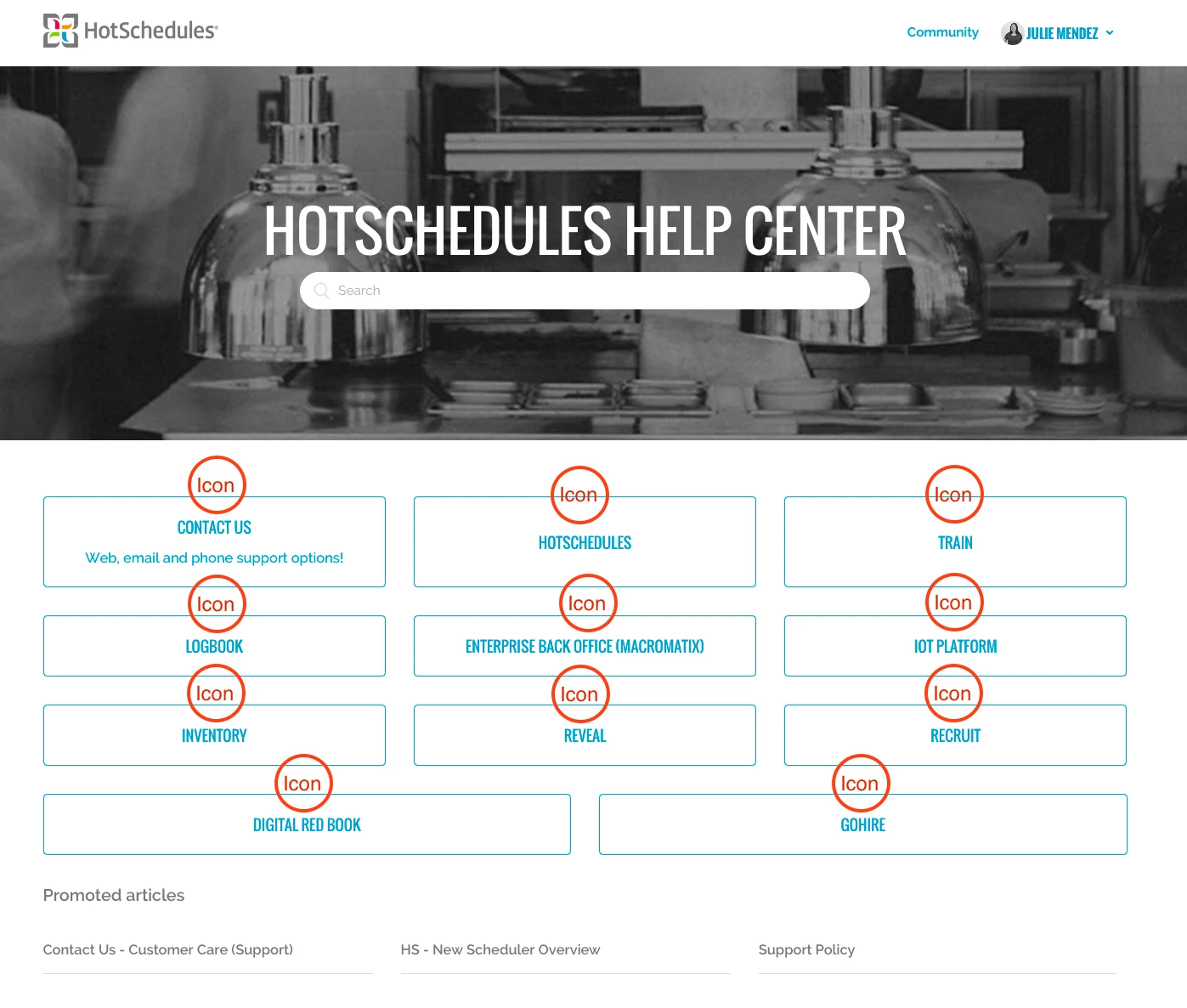
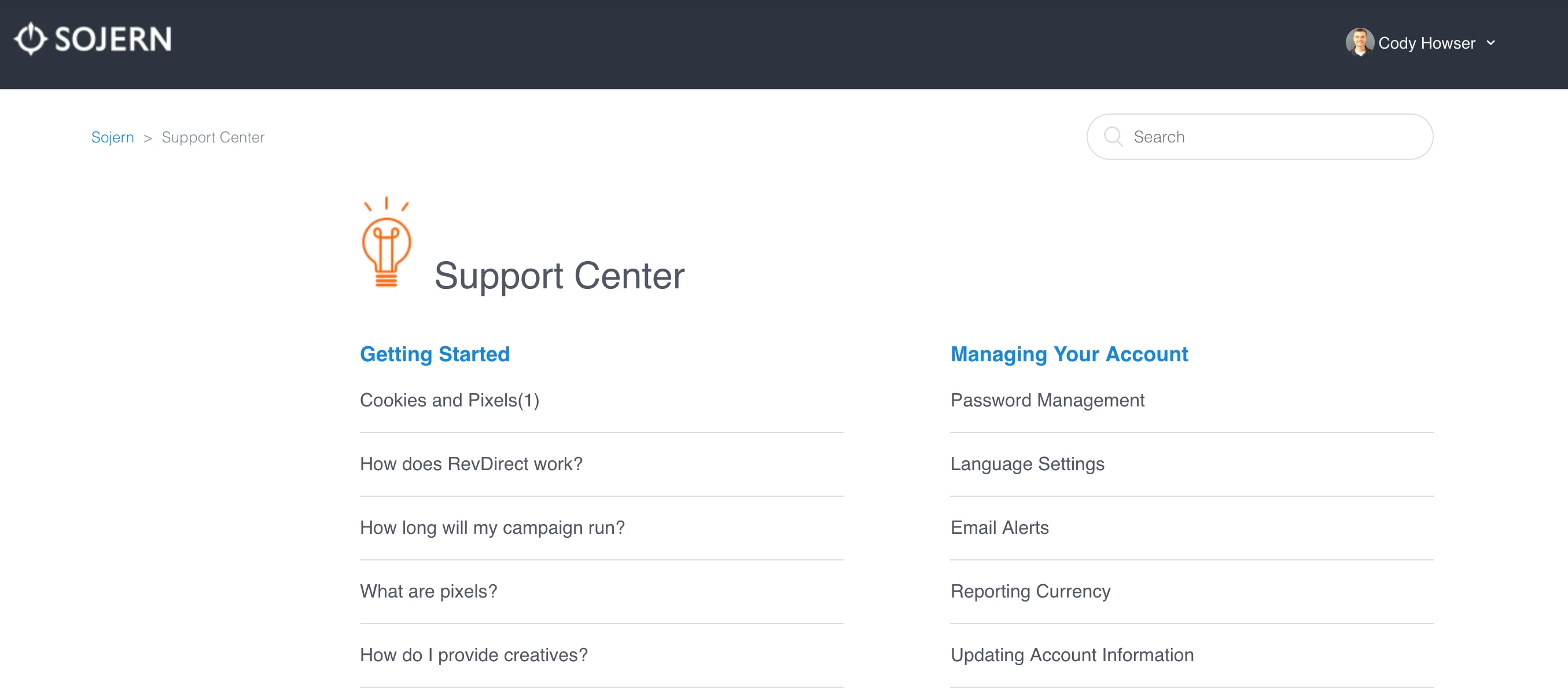
Is there a way to apply this same logic to the Categories page? For example, here is my page that contains the sections and articles. 

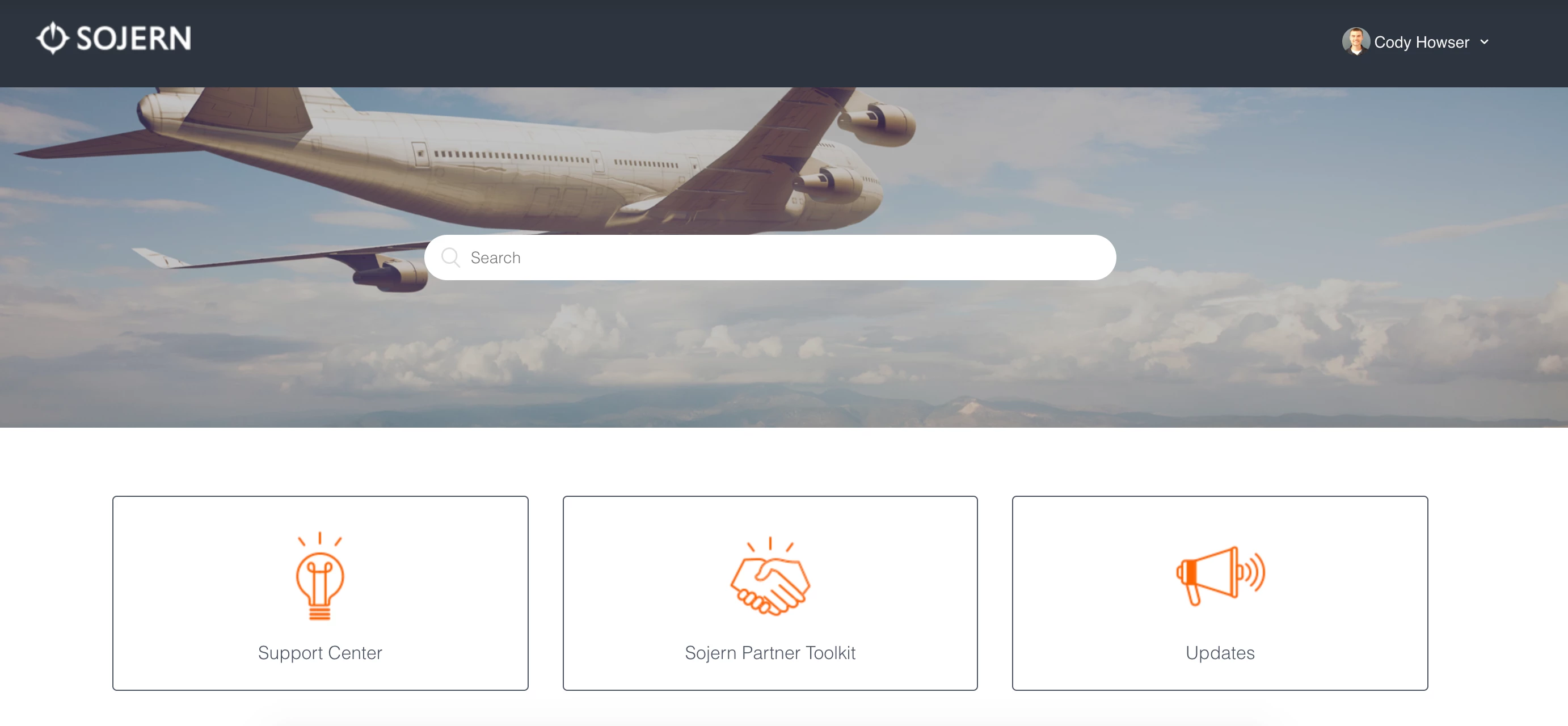
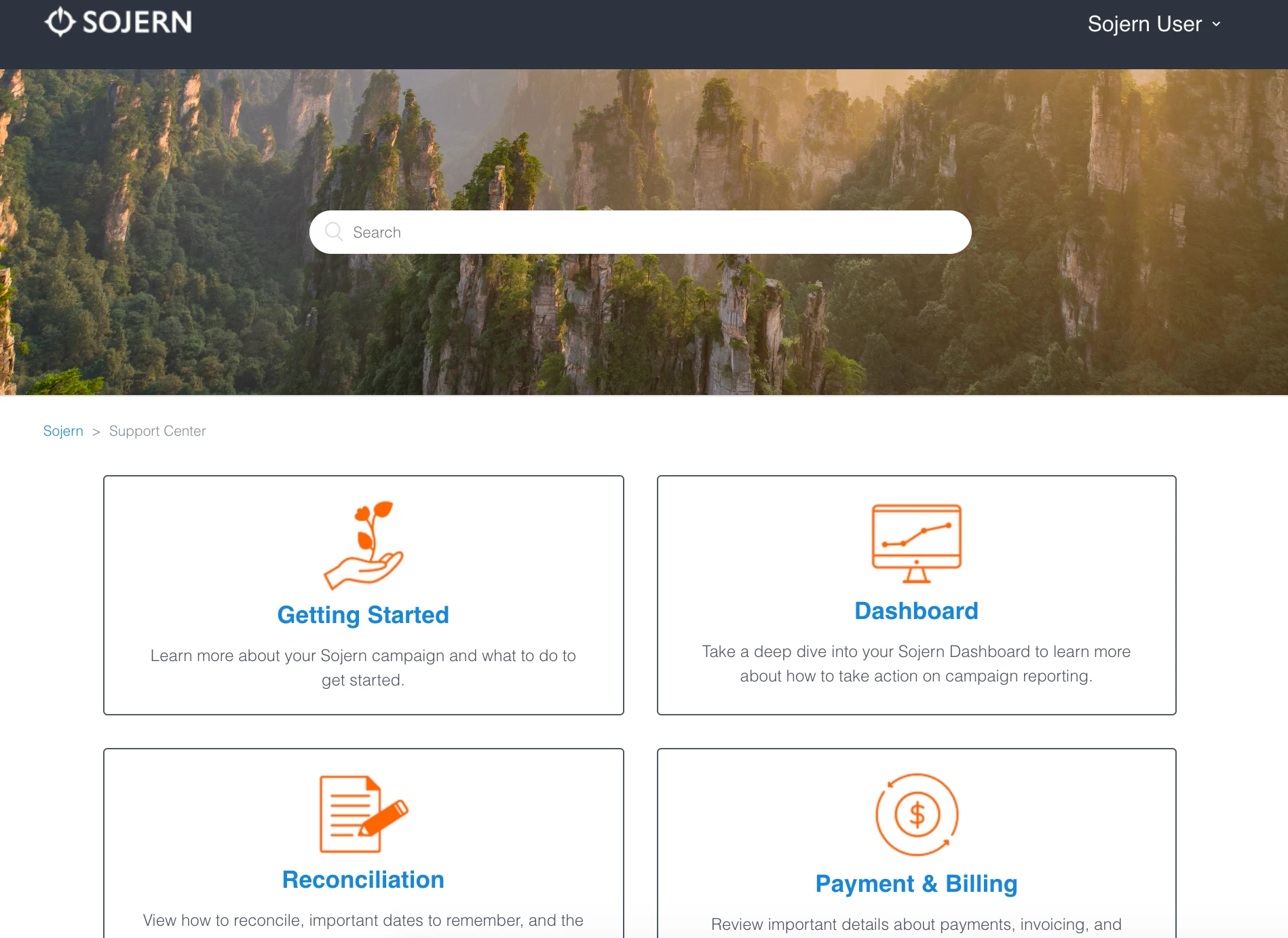
For example, I would like to know if we could make our sections, such as "Getting Started" and "Managing Your Account" to look like our home page. User could simply click the box and it would take them to the Sections page. Here is my Home Page. 

Thank you for all your help so far on this thread!!


Trapta
  • May 23, 2019

Hi @Cody Howser

Replace the code of your category_page.hbs with the below code:

<section class="hero">
<div class="hero-inner">
{{search submit=false instant=settings.instant_search class='search search-full'}}
</div>
</section>

<div class="container">
<nav class="sub-nav">
{{breadcrumbs}}
</nav>

<div>
<header class="page-header">
<h1>{{category.name}}</h1>
{{#if category.description}}
<p class="page-header-description">{{category.description}}</p>
{{/if}}
</header>

<section class="categories blocks">
<ul class="blocks-list">
{{#each sections}}
<li class="blocks-item">
<a href='{{url}}' class="blocks-item-link">
<h4 class="blocks-item-title">
{{name}}
</h4>
<p class="blocks-item-description">{{excerpt description}}</p>
</a>
</li>
{{/each}}
</ul>
</section>
</div>
</div>

Let me know if you face any issues.

Team Diziana


  • May 23, 2019

Hi @Trapta 


Thank you so much, and it works great! Is it possible to get the category page to display at least 3 blocks instead of 2? I'm trying to figure out how to limit the empty space.


Trapta
  • June 2, 2019

Hi @Cody Howser

It should show three blocks for the categories. However, it is not, then look for .blocks-item in your style.css file and update the value of flex with flex: 1 0 320px;

Let me know if this solves your issue.

Team Diziana


  • January 17, 2020

Thank you so much @moderatorwes!

Just to let you and everyone know- this still works on the current version. Thank you for this you saved me :)


ModeratorWes

@ruthy - Glad to hear this helped your additions to your Help Center.  Best of luck to you. You can find my other guide here.


  • January 25, 2021

Thanks for the code. Anyway that this could be modified to work for the entire link as opposed to just an icon inside the box?  I would like to make the rectangle PNG the only thing that appears without the extra wide border online. I currently went from the 2 columns to just 1 column and would love to be able to go back as well.  Any help would be appreciated!


  • January 25, 2021

Bobby- I remember seeing something similar to your ask a couple years ago but this is the closest I can find now: Add a background image on the category blocks 


  • March 4, 2021

Hello,

Can someone here has tried to make it 4 items per row?

Because I think the max by default is 3 only.

Thanks.


  • March 29, 2021

Hi, we've tried to add our icons to our Help Center and it's not working. I've looked all over this forum and can't figure out exactly where this code needs to be added and if the code we're using is correct. Can someone tell us which file and where this code needs to be added? And is the code below written correctly?


{{#each categories}}
<li class="blocks-item">
<a href='{{url}}' class="blocks-item-link">
{{#is name 'Account Management'}}
<img src="{{asset 'Account-Icon-1-White.png'}}" />
{{/is}}
{{#is name 'How to Guides'}}
<img src="{{asset 'Guides-Icon-1-White.png'}}" />
{{/is}}
{{#is name 'Devices and Apps'}}
<img src="{{asset 'Devices-Icon-1-White.png'}}" />
{{/is}}
{{#is name 'Troubleshoot'}}
<img src="{{asset 'Troubleshoot-Icon-1-White.png'}}" />
{{/is}}
<h4 class="blocks-item-title">{{name}}</h4>
<p class="blocks-item-description">{{excerpt description}}</p>
</a>
</li>
{{/each}}


Bruce19
  • April 1, 2021

You can add images to the categories on the home page by editing the home_page.hbs template file. Look for the <li class="blocks-item"> inside the {{#each categories}}, then add your code for adding images. 
For example, here's an excerpt from my code. (Note that I'm using is id instead of is name.)

            <li class="blocks-item">
<a href='{{url}}' class="blocks-item-link">

{{#is id 360002010174}} {{!-- Getting Started --}}
<img src="{{asset 'category_gettingstarted_berry.png'}}" class="home-page-images" />
{{/is}}
...


  • April 1, 2021

Thanks Bruce. We were able to get the icons on the homepage. Now we're trying to figure out how to fix the size of the icons. They're all stretched and pixelated. Does anyone know exactly where we need to go to edit the code to fix the sizing? And what's an example of the code to use?


Bruce19
  • April 1, 2021

Sizing can be done using the style.css file. In my example, I used class="home-page-images". Edit the style.css and search for that. Then you can set width and height. For example:

.home-page-images {
width: 128px;
height: 128px;
}


  • April 1, 2021

Ok. I'm searching now. "home-page-images" doesn't exist currently in the style.css. Are you saying to just add it?