Adding category images to the Copenhagen Theme | Community
Skip to main content

Adding category images to the Copenhagen Theme


Show first post

114 replies

Trapta
  • December 20, 2017

@Isabella I see there is a difference in asset name and the one you wrote in your code.

Thanks


  • December 20, 2017

@Trapta

I tried to update according to the tutorial here. I'm not seeing the difference in asset name to which you refer. Could you be more specific? :)

Thanks!


Trapta
  • December 20, 2017

@Isabella, try this -

{{#is id 200400187}}<img class="" src="{{asset 'SkillUp_b.png'}}" />{{/is}}
{{#is id 200423338}}<img class="" src="{{asset 'Innovation_b.png'}}" />{{/is}}
{{#is id 115002189847}}<img class="" src="{{asset 'Timetable_b.png'}}" />{{/is}}


  • December 20, 2017

@Trapta

Hooray! It worked! Thank you. :)

Was it only the difference in capitalization, or did I miss something else? 

Thanks!


Trapta
  • December 20, 2017

@Isabella, yes it was only the difference in capitalization.

Glad it worked for you. Enjoy!

Thanks


  • December 20, 2017

@Trapta

Lesson learned! Thank you!!


  • February 16, 2018

I'm in the process of implementing this on our Help Center and am trying to figure out if there is a way to show a different image based on the language. 

The images work perfectly, I just can't figure out what the conditional statements should be. 

I am using the ID method instead of the name, so perhaps using the name will make it easier? 


  • February 21, 2018

Hi Rob! Welcome to the Community!

I would imagine that this is possible with JavaScript, but I don't know enough about it to say for sure. I'm going to check with our Community Moderators to see if they can provide some insight on this!


Vladan
  • February 21, 2018

Hi Rob, there are few ways to achieve that, but maybe easiest:

- put two images for every category

- make display: none for both

- make to shows only needed image per lang with little css like:

html[lang="en-US"] .category .english-image {display: inline-block;} or 
html[lang="de"] .category .german-image {display: inline-block;} or
html[lang="fr"] .category .french-image {display: inline-block;} or ...

Hope this helps! :)


  • March 13, 2018

@Vladan Thank you. I think I'm almost there but I'm not certain how to reference the category id in the css section. 


  • March 16, 2018

Hey Rob! I'll see if Vlad's around to look at this for you. Stand by!


Vladan
  • March 17, 2018

Hi Rob! Hmm, I don't think you need the category IDs. The only thing you should actually do is to:

- Hide all category images (regardless of the language),
- Show all category images for the current language (with a help of the CSS snippet that I've provided earlier).

If this doesn't help please show us your code, would be much easier to sort things out :) !


  • April 2, 2018

Hey All,

I'm looking to replace up on mouse over/hover the custom images i have inplace. So essentially I want to swap block item image upon hover to a different version, do you have some css or something that can help me out.?

Currently for the block items, I have them set up like this:

<!--Images for categories Home Page --> 
{{#is id 115002400667}}<img class="" src="{{asset 'GettingStarted01.png'}}" />{{/is}}
{{#is id 360000093153}}<img class="" src="{{asset 'Agent01.png'}}" />{{/is}}
{{#is id 360000093253}}<img class="" src="{{asset 'Admin01.png'}}" />{{/is}}
{{#is id 115000335327}}<img class="" src="{{asset 'Developer01.png'}}" />{{/is}}
<!--End images for categories -->


Thanks,


  • April 23, 2018

In the humble squid theme, I was able to change the images displayed based on the language that was selected. Is that still an option in this new Copenhagen theme. I tried moving the js code over with no luck. 


  • April 23, 2018

Mike, I don't know if there is a more elegant way to do it but this is how we solved it. For some we were able to use ID instead of name when it worked across everything but there are about 15 of these blocks in our code and it works really well. 

This starts right under the  <a href='{{url}}' class="blocks-item-link"> line in the <div class="container"> section of home_page.hbs. 


{{! Category Name}}
{{#is name 'English Name'}}
<img src="{{asset 'English_Logo.png'}}" />
{{/is}}
{{#is name 'French Name'}}
<img src="{{asset 'French_Logo.png'}}" />
{{/is}}
{{#is name 'Italian Name'}}
<img src="{{asset 'Italian_Logo.png'}}" />
{{/is}}
{{#is name 'German Name'}}
<img src="{{asset 'German_Logo.png'}}" />
{{/is}}
{{#is name 'Spanish Name'}}
<img src="{{asset 'Spanish_Logo.png'}}" />
{{/is}}

  • April 23, 2018

Rob, 

This might work for me but I think where I will run into an issue is some of my categories have the same name regardless of the language because there is no direct translation in these different langauage because the caterogry name is something our company created. Hope that makes sense


  • April 23, 2018

Absolutely. We have those as well, at least where the image doesn't need to change based on language. In that case we use ID and only have to do it once for the category. 


{{! Category Name}}
{{#is id 115000426353}}
<img src="{{asset 'General_Logo.png'}}" />
{{/is}}

  • April 23, 2018

Rob,

Thanks for the help but I have a question not related here but do you by chance know how I could break up the categories into different sections on the homepage?  


  • June 4, 2018

Hi, Can someone direct me regarding the iframe link, where's the "src" should direct to? url I guess is to my external PDF that I want displayed, but it does not work for me


<iframe src="https://docs.google.com/gview?url=http://infolab.stanford.edu/pub/papers/google.pdf&embedded=true" style="width:600px; height:500px;" frameborder="0"></iframe>


  • June 12, 2018

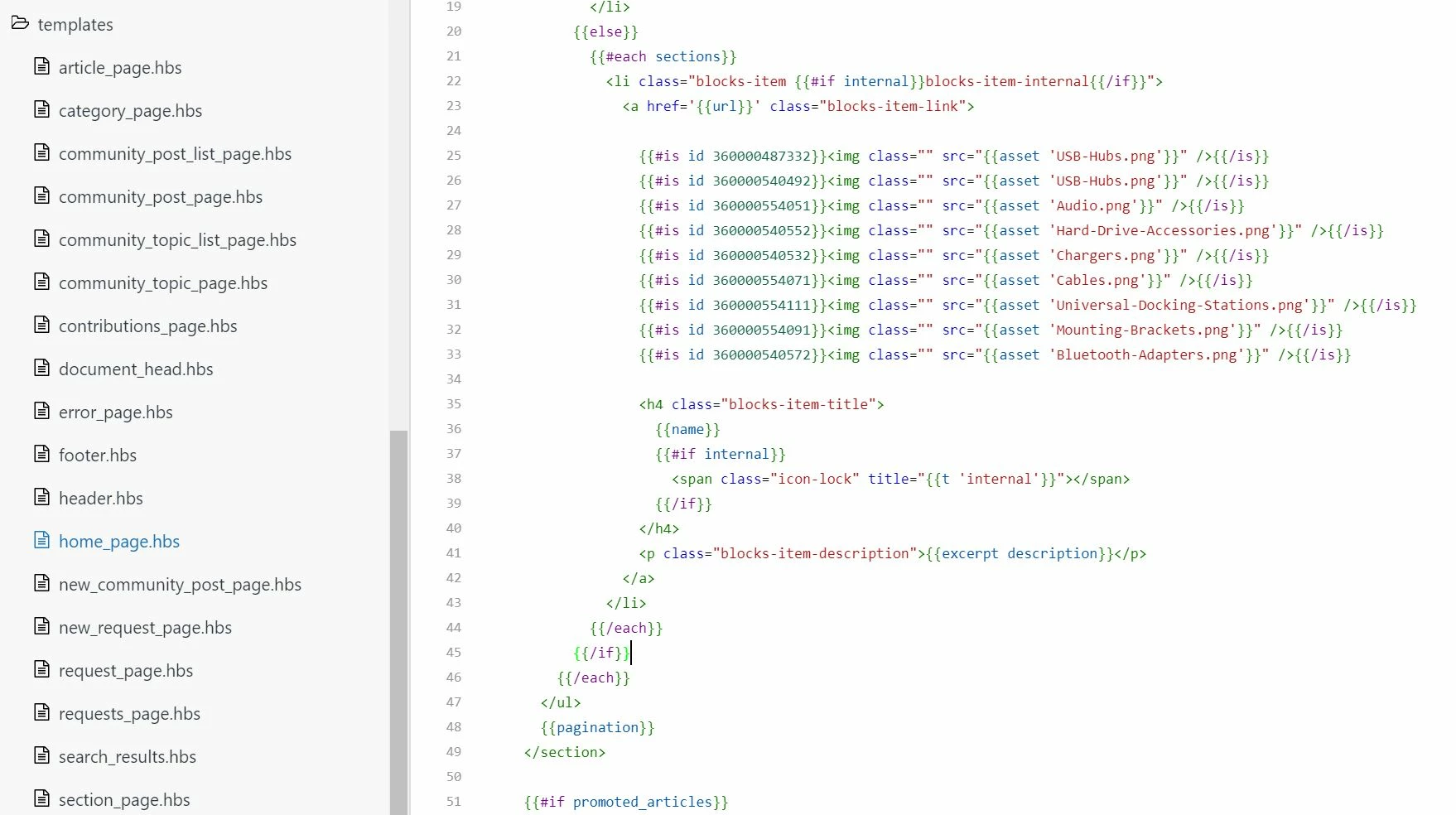
Hello, The following didn't work for me:
https://community-tutorial.zendesk.com/hc/en-us/articles/115004178674-Adding-Images-in-Copenhagen-theme#bottom

I added the following code to my home_page.hbs:

{{#is id 360000487332}}<img class="" src="{{asset 'USB-Hubs.png'}}" />{{/is}}
{{#is id 360000540492}}<img class="" src="{{asset 'USB-Hubs.png'}}" />{{/is}}
{{#is id 360000554051}}<img class="" src="{{asset 'Audio.png'}}" />{{/is}}
{{#is id 360000540552}}<img class="" src="{{asset 'Hard-Drive-Accessories.png'}}" />{{/is}}
{{#is id 360000540532}}<img class="" src="{{asset 'Chargers.png'}}" />{{/is}}
{{#is id 360000554071}}<img class="" src="{{asset 'Cables.png'}}" />{{/is}}
{{#is id 360000554111}}<img class="" src="{{asset 'Universal-Docking-Stations.png'}}" />{{/is}}
{{#is id 360000554091}}<img class="" src="{{asset 'Mounting-Brackets.png'}}" />{{/is}}
{{#is id 360000540572}}<img class="" src="{{asset 'Bluetooth-Adapters.png'}}" />{{/is}}


But there's no change at all. :( any suggestion?


ModeratorWes

@Sam - Thanks for providing the code and screenshots for me.  So the tutorial you referenced is for adding category images which by the way works very well.  If you look at your screenshot line 21 it has {{#each sections}}.  Copy and paste all your if statements up a few lines under the area that says {{#each categories}}.  That should get you squared away and the tutorial you referenced is the best resource for adding images as you can do it with JQuery or the IS statements like you currently have.


  • June 12, 2018

@Wes Drury Thank you that solved the issue! 

Is there a way to configure that when hovering the category the png will turn white? 


Trapta
  • June 13, 2018

Hi @Sam,

The code in your home_page.hbs change it to -

{{#is id 360000487332}}
<img class="icon" src="{{asset 'USB-Hubs.png'}}" />
<img class="hover-icon" src="{{asset 'HOVER_ICON'}}" />
{{/is}}

And add it at the bottom of your style.css -

.blocks-item:hover .hover-icon {display: block;}
.hover-icon, .blocks-item:hover .icon {display: none;}

Let me know if you face any issue.

Team Diziana


  • October 4, 2018

Hi Wes,


Thanks for the code example, I used it and it's really great.


Is there a way to make the images load faster?

When I first enter the home page, I can see the cubes shaping up and then the images load.

Overall 8 png images, up to 4kb each (typically 2kb).


Thanks!


Trapta
  • October 19, 2018

Hi @valiky,

Are you using {{#is id ID}}<img class="" src="{{asset 'icon.png'}}" />{{/is}}  code to show category icons? If yes, I don't think it should take much time.

If you are using some other code, then try putting the code right next to the img or li element.

Thanks