
Add country flags beside language drop down | Community
Skip to main content

Add country flags beside language drop down

  • May 23, 2024
  • 3 replies
  • 0 views

Hello,


Does anyone know how to add country flags beside language drop down in the Help Center.


For example beside Spanish show the Spanish flag etc.


If this can be done can you please provide the script on how to do this.


Thank you.


Kind Regards,

Anton
3 replies

  • May 23, 2024

Hello @Anton Van der meyden 

It is possible with some custom javascript.
 

The code:

document.addEventListener('DOMContentLoaded', function() {
 // Define your flag image paths
 var flags = {
   'es': 'https://flagdownload.com/wp-content/uploads/Flag_of_Spain_Flat_Round-256x256.png',
   'es-es': '/path/to/spain-flag.png',
   'fi': '/path/to/finnish-flag.png',
   // Add paths for all the flags you need
   // ...
 };
 // Find all the language selector links
 var languageLinks = document.querySelectorAll('.footer-language-selector .dropdown-menu a');
 // Loop through each link and add the flag
 languageLinks.forEach(function(link) {
   // Extract the language code from the link's href attribute
   var langCode = link.getAttribute('href').match(/change_language\/(\w+)/)[1];
   // Create the flag image element
   var img = document.createElement('img');
   img.src = flags[langCode];
   img.alt = 'Flag';
   img.className = 'flag-icon'; // Use the same class name as defined in your CSS
   // Insert the flag image before the link text
   link.insertBefore(img, link.firstChild);
 });
});

You will need to define the locales you use in your Help Center in the first section of the code and add the correct paths for the icons.


Also, add this CSS to style the icon element:


.flag-icon {
 width: 16px; /* or any size you prefer */
 height: 11px; /* or any size you prefer */
 margin-right: 5px; /* space between the flag and the text */
 vertical-align: middle; /* align the flag with the text */
}

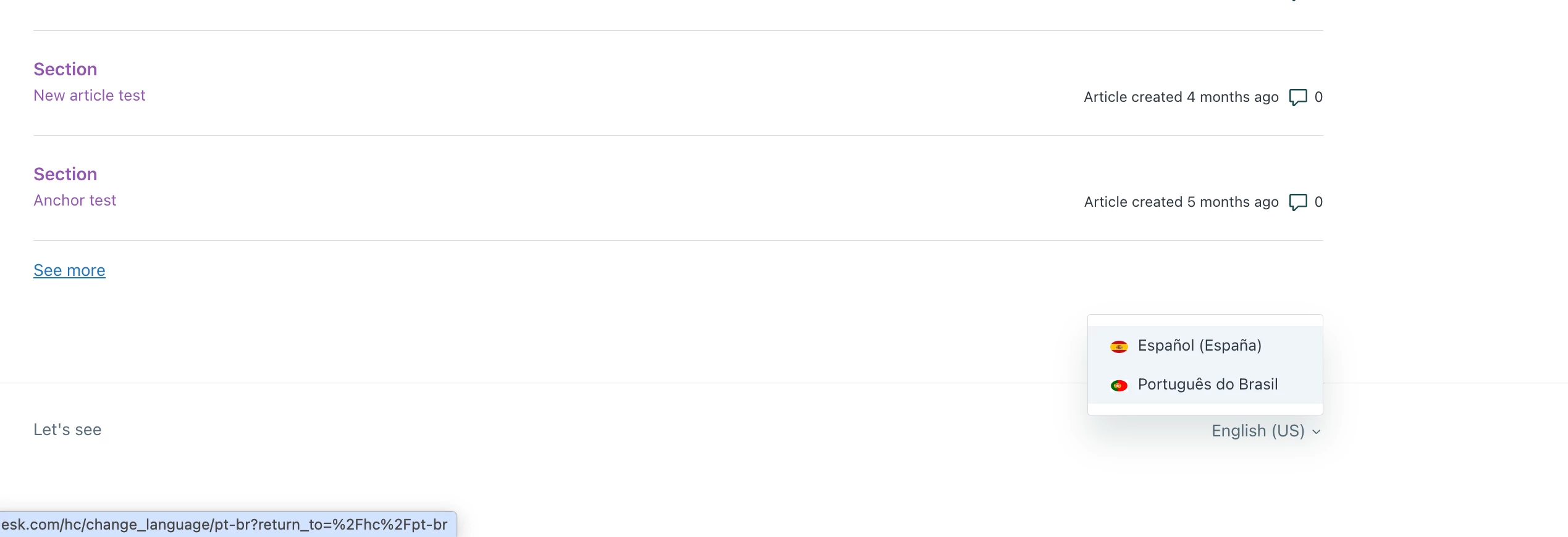
Result:


Brandon12
  • May 24, 2024

Here's a way to add the country flags as assets in your guide:
 

Step 1: Access Your Help Center Theme

1. Log in to your Zendesk account.
2. Navigate to the Guide admin area.
3. Go to **Customize design** and then **Edit theme**.


Step 2: Add Country Flags to Your Assets

1. In the theme editor, go to **Assets**.
2. Upload the flag images you want to use for each language (e.g., `flag_es.png` for Spanish, `flag_en.png` for English, etc.).


From there, you'll want to update the language dropdown in the header template
In the theme editor, open the **Header** template (usually named `header.hbs`).
Find the section where the language dropdown is rendered. It might look something like this:

<select class="language-dropdown">
 {{#each locales}}
   <option value="{{this.locale}}" {{#if this.selected}}selected{{/if}}>{{this.label}}</option>
 {{/each}}
</select>

3. Modify this section to include the flag images. Here’s an example of how to do it:

<select class="language-dropdown">
 {{#each locales}}
   <option value="{{this.locale}}" {{#if this.selected}}selected{{/if}}>
     <img src="{{asset 'flag_' this.locale '.png'}}" alt="{{this.label}} flag" class="language-flag" />
     {{this.label}}
   </option>
 {{/each}}
</select>

As Kuba mentioned, you can also style the flags here.

1. In the theme editor, go to the **Style.css** file.
2. Add CSS to style the flags and ensure they appear correctly next to the language names. For example:

.language-dropdown {
 position: relative;
 display: flex;
 align-items: center;
}
.language-dropdown option {
 display: flex;
 align-items: center;
}
.language-flag {
 width: 20px;
 height: 20px;
 margin-right: 8px;
}

3. After making these changes, save your theme.
4. Preview your Help Center to ensure the flags are displaying correctly next to the language names.
5. If everything looks good, publish your changes.


Notes

- Ensure the file names of the flag images match the locale codes used in your Help Center (e.g., `flag_es.png` for Spanish).
- The exact structure of your `header.hbs` file might differ, so adjust the code accordingly.
- Test the changes thoroughly to make sure they work across different browsers and devices.


Hope this helps!


Ifra
  • May 29, 2024

Great approach Mr. Brandon, I have another approach but yours is better.