



When you enable ticket statuses, the ticket status conditions and actions in your existing business rules, macros, and views are updated.
Your account also includes several new Ticket Status conditions and actions you can use when creating business rules, SLAs, macros, and views.
You must be an admin or an agent in a custom role with permission to use ticket status conditions and actions.
This article includes these sections:
- Using ticket statuses in business rules
- Using ticket statuses in SLAs
- Using ticket statuses in macros
- Using ticket statuses in views
Related articles:
Using ticket statuses in business rules
You can create triggers and automations based on both system ticket statuses and on new ticket statuses that you’ve created.
- For triggers, any instances of the Status category and Ticket status conditions will be converted back to the Status condition.
- For automations, any instances of the Ticket: Status category condition and action will be converted back to the Ticket: Status condition or action. Any instances of the Ticket: Ticket status action and condition and Ticket: Hours since [ticket status name] condition will be removed.
Ticket statuses in trigger and automation conditions
You can use ticket statuses in trigger conditions and automation conditions .
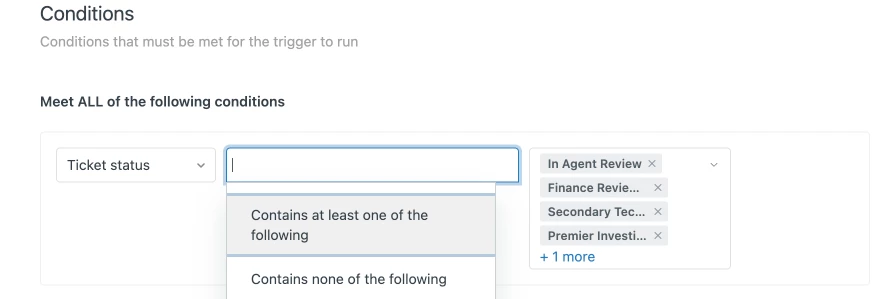
For example, you can use the Ticket status condition in triggers to determine if tickets are updated to a specified ticket status, including system ticket statuses and any ticket statuses you’ve created.
The following example shows how you can include or exclude ticket statuses in a trigger condition statement.
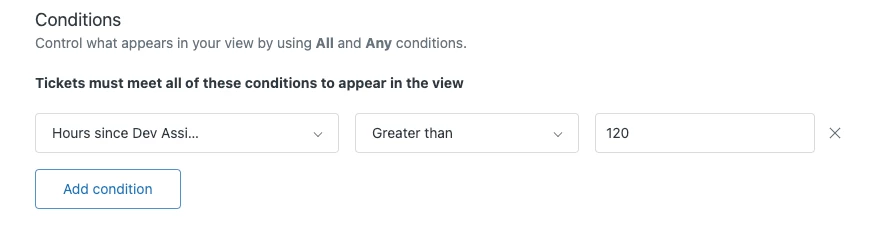
Additionally, you can add time-based automation conditions for ticket statuses. For example, you can create an automation that uses the new Ticket: Ticket Hours since [ticket status name] condition.
In the following example, the condition checks for tickets with the Dev Assigned ticket status that have been pending for 120 hours (5 days) or more.
Ticket statuses in trigger and automation actions
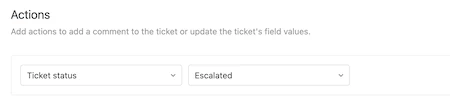
You can use ticket statuses in trigger actions and automation actions.
For example, you can add an action to a trigger that updates the Ticket status to one of the system ticket statuses or any ticket status you’ve created.
Using ticket statuses in SLAs
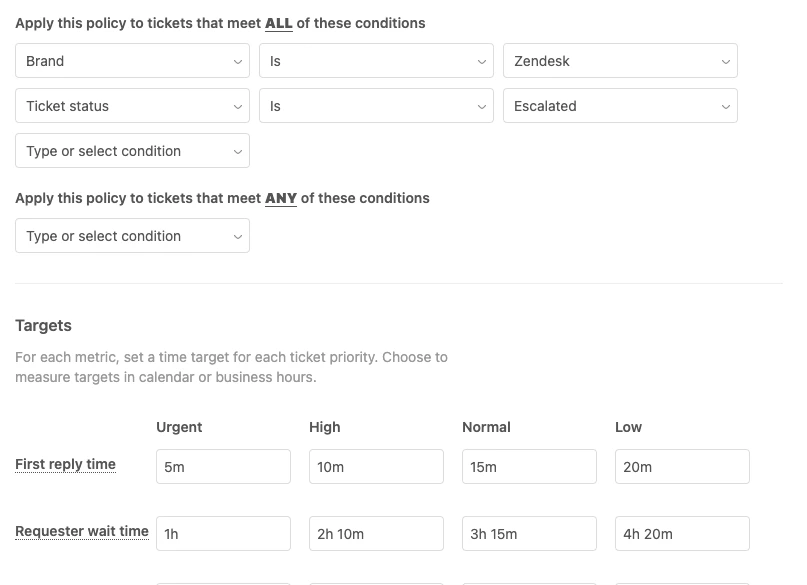
When ticket statuses is enabled, SLAs can include ticket status conditions. If you need tickets with a certain ticket status to be escalated more quickly than others, you may want to consider creating an SLA policy with a ticket status condition.
When ticket statuses is disabled, it’s not possible to add a ticket status condition to SLAs (see Defining and using SLA policies). However, after you enable ticket statuses, this changes and you can add Any and All conditions for any ticket status.
For example, you can add a condition with Ticket status + Is, followed by the name of the ticket status.
It’s not possible to have SLA conditions based on the Closed ticket status.
Using ticket statuses in macros
You can use ticket statuses in macros actions.
For example, you can create a macro that sets a ticket’s status to one of the system ticket statuses or any ticket status you’ve created.
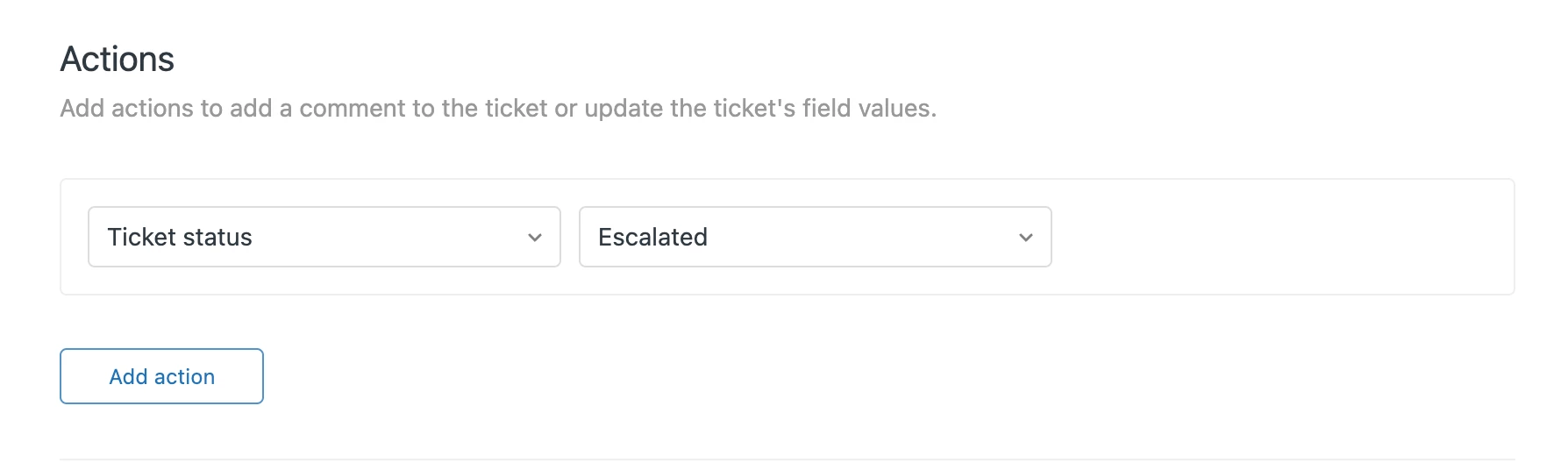
If you disable Ticket Statuses later on, any instances of the Status category and Ticket status actions in your macros will be converted back to the Status action.
Using ticket statuses in views
You can use ticket statuses in views conditions.
For example, you can create a view of tickets that contain one of the system ticket statuses or any ticket status you’ve created.
The example below shows how you can include or exclude ticket statuses in a views condition statement.
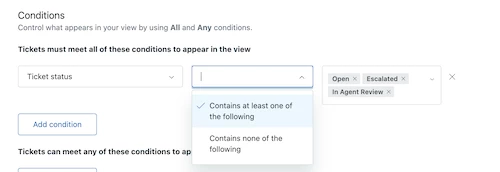
Additionally, you can add time-based views conditions for ticket statuses. For example, you can create a view that uses the new Hours since [ticket status name] condition.
In the example below, the condition checks for tickets with the Dev Assigned ticket status that have been pending for 120 hours (5 days) or more.
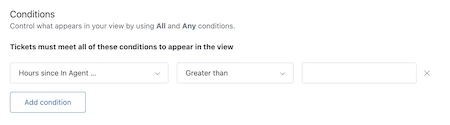
If you disable ticket statuses later on, any instances of the Status category conditions in your views will be converted back to the Status condition. You will have to manually remove any Ticket status conditions.
Any instances of the Hours since [ticket status you’ve created] condition will be removed.