Up-spec your C-Sat with Mr. Smiley and Mr. Sad! | Community
Skip to main content

Up-spec your C-Sat with Mr. Smiley and Mr. Sad!

  • July 18, 2016
  • 58 replies
  • 0 views

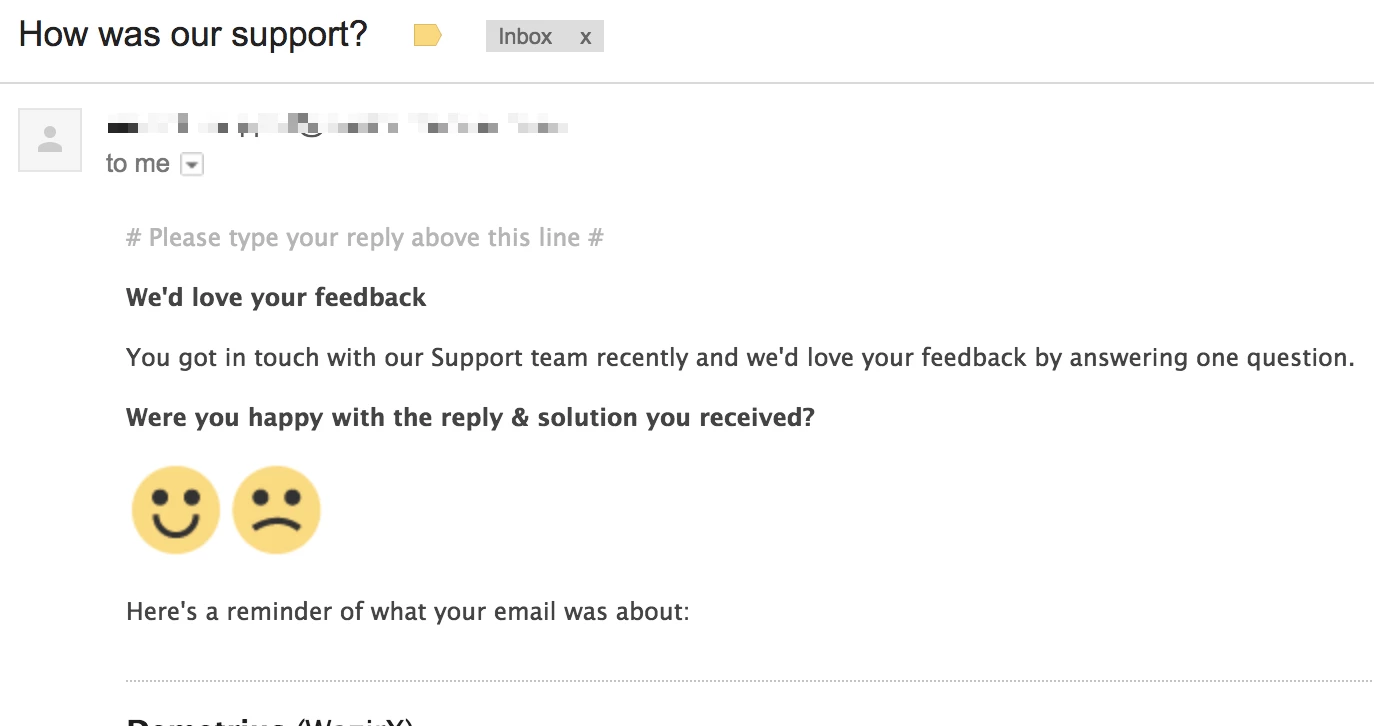
We've recently made some modifications to our C-Sat automation.


This is how the new email looks...
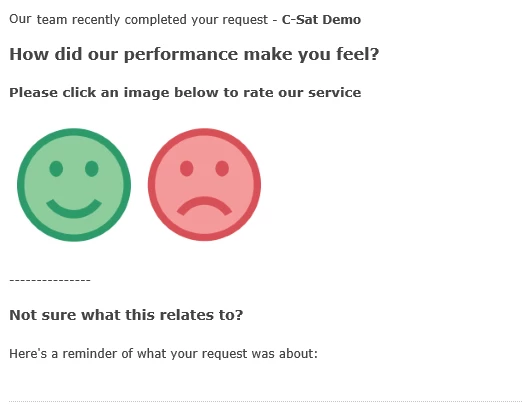
Want to know how?


  1.  If you haven't already - activate 'Customer satisfaction surveys' (info here)
  2. Download the smileys below and upload these as assets to your helpcenter (or host them elsewhere) 

     

  3. Navigate to Settings > Automations - and locate the 'Request customer satisfaction rating' automation
  4. Select to Edit this
  5. Change the notification to requester with the info below - don't forget to substitute your image location.


<span style="padding: 0px ; line-height: 18px; font-family: 'Lucida Grande',Verdana,Arial,sans-serif; font-size: 12px; color:#444444;">

Our {{ticket.group.name}} team recently completed your request - <strong>{{ticket.title}}</strong>


<h3 style="font-size:16px;">How did our performance make you feel?</h3>

<h5>Please click an image below to rate our service</h5>

<a href="{{satisfaction.positive_rating_url}}" alt="Happy"><img src="https://p5.zdassets.com/hc/theme_assets/YOUR IMAGE LOCATION/happy-face.png"></a><a href="{{satisfaction.negative_rating_url}}" alt="Sad"><img src="https://p5.zdassets.com/hc/theme_assets/YOUR IMAGE LOCATION/sad-face.png"></a>

---------------

<h4 style="font-size:14px; font-weight:bold;">Not sure what this relates to?</h4>

Here's a reminder of what your request was about:
</span>
{{ticket.comments_formatted}}


And that's about it!  We've had good response to this.

Obviously you can modify the message and add extra rules to suit your requirements.

58 replies

  • July 18, 2016

Nice!


Jennifer16
  • September 1, 2016

How did I miss this!? And why am I not surprised that this tip is from you!? :)

Love it. Thanks!


  • Author
  • September 1, 2016

Thanks Jen and Jessie.

I'd really love to add a 'meh' face too... but there is no neutral c-sat option. Considered linking this to a negative - and might do yet, because if we aim to be great, 'Meh' is a total failure.

This is still working really good for us.  Getting more responses than we ever got with the original C-SAT, and the questions are really more in line with what really counts - how our customer is feeling about us.


Jennifer16
  • September 2, 2016

Great to hear that responses are up, Andrew! I guess people like those smiley and frowny faces. So easy. 


  • September 5, 2016

Awesome stuff, Andrew! I've passed this on to our design team so we can get up our own customized version :)


  • Author
  • September 6, 2016

Hello Andrea - long time no hear!  Thanks for your comment - it's great to get some feedback.  Let us know how yours work out.

Hey, another advantage - you don't have to translate a smile!


  • September 14, 2016

Looks great. Out of curiosity, how to do you handle cases were the user hasn't downloaded the pictures because of their email client settings?


  • Author
  • September 14, 2016

Hello Lester,  I don't think it works well for that... got any suggestions for changes?


  • September 16, 2016

Sadly not. Beyond some way of showing the links in place of the images I don’t think there is an elegant solution


  • January 25, 2017

I love this tip! We did this of our own accord about 18 months or so back and saw an instant uptick in our response rate.


  • June 2, 2017

Hey Guys.

Is it possible to modify the looking of the webpage where tothe satisfaction survey sends you after clicking on "Good" or "Bad" ?

Thanks 

Edouard


Ryan24
  • June 7, 2017

Hey Edouard! Unfortunately not at this time --- If you have any great ideas, we do have our product feedback forum, which our product managers do look at! Be sure to drop in there and leave a suggestion if you do!


Here's a direct link:
https://support.zendesk.com/hc/en-us/community/topics/200132066-Product-feedback


Hi Everyone

i am not that tech savy and not too sure how to save these as an asset

are you able to walk me through it?


  • Author
  • July 13, 2017

Hello Michaela, if you have Guide pro, or Legacy, you should be able to go into the theme editor and upload assets


If not, try just adding these to a public article - maybe one announcing the new change :)

Once they are uploaded you should be able to reference them... I think.

Right click on the image in a published article... and select 'Copy image address' - this is the reference you need to replace the SRC section in the code :)


  • February 12, 2018

Hi Andrew,

couldn't agree more with you on the importance of visual conventions when it comes to improving client feedback! We're about to release our App to the Zendesk marketplace and we would be very interested in getting your feedback on it. I couldn't find a direct message option here but feel free to get in touch at andreas@smileback.io. Hope you're interested in sharing some of your knowledge and ideas!

Best,

Andreas


  • Author
  • February 14, 2018

@andreas - I emailed you but haven't heard back yet.


  • March 16, 2018

Thanks so much for this @andrew!

Just rolled it out on our zendesk setup -


  • Author
  • March 18, 2018

We've just updated ours to address two possible issues. 

- There has been some commentary on CSAT requests in general that some advanced spam filters will follow links and that the last clicked link will be the one leaving the CSAT... which is of course 'bad' - one extra 'bad' skews our numbers significantly. Although we had no evidence ourselves of this happening, we thought we'd address this.  We adjusted this by adding a 1px image with a link to 'good' under the bad one.  Since we're running at 95% good, an extra 'good' does not significantly skew the numbers.

We also still saw some issues when images were not showing and Outlook not showing Alt text.  So have added a textual version below the original.  Was NOT fun getting this to sit right in Outlook!


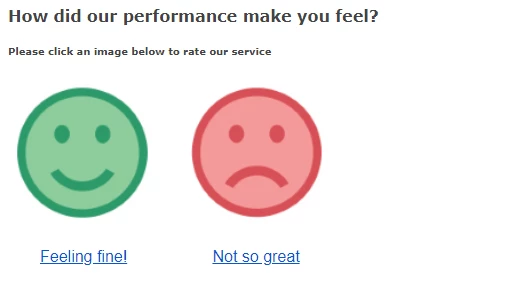
 How it looks in Gmail - with images


---------------------------------


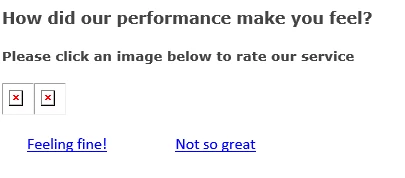
How it looks in Outlook - no images

--------------------------------------------

Changed code is as follows - replaces the middle section only (inside <a> tags)

<table border="0" cellpadding="0" cellspacing="0"><tr><td height="20" width="175px" style="font-size: 20px; line-height: 20px;"><a href="{{satisfaction.positive_rating_url}}"><img height="150px" width="150px" alt="" src="https://URL/happy-face.png"></a></td><td height="20" width="175px" style="font-size: 20px; line-height: 20px;"><a href="{{satisfaction.negative_rating_url}}"><img height="150px" width="150px" alt="" src="https://URL/sad-face.png"></a></td></tr></table> 
<table border="0" cellpadding="0" cellspacing="0"><tr><td style="font-size: 16px; line-height: 20px;"><span id="csat123" style="color:white;">&nbsp; &nbsp; &nbsp; &nbsp;</span></td><td style="font-size: 16px; line-height: 20px;"><a href="{{satisfaction.positive_rating_url}}">Feeling fine!</a></td><td height="20" style="font-size: 16px; line-height: 20px;"><span id="csat123" style="color:white;">&nbsp; &nbsp; &nbsp; &nbsp; &nbsp; &nbsp; &nbsp; &nbsp; &nbsp; &nbsp;</span><a href="{{satisfaction.negative_rating_url}}">Not so great</a></td></tr></table>
<a href="{{satisfaction.positive_rating_url}}"><img src="data:image/gif;base64,R0lGODlhAQABAIAAAP///wAAACH5BAEAAAAALAAAAAABAAEAAAICRAEAOw=="></a>


  • March 19, 2018

Thanks for sharing the update, Andrew! I'm going to make this the official comment so folks see it at the top of the thread. :)


  • April 11, 2018

Could you please clarify how to test this out? I just set up Request customer satisfaction rating automation but there is no any button such as "send test email" on anything else. How can I make sure that it work as I expect?


Heather13
  • April 11, 2018

@Andrei,

I suggest you:

  1. update the automation to look for the tag "test_ticket" so that it will only fire on a ticket you add that tag to.
  2. Create a test ticket with a non-agent account with an email you can access. Add the "test_ticket" tag.
  3. Update and Solve it as you normally would any ticket.
  4. Watch for the CSAT email!
  5. If it works, remove the "test_ticket" condition from your automation and you should be all set.

Hope that helps!


  • July 12, 2018

@Andrew J The Base64 encoded GIF in the update simply result is a invalid image place holder when viewed in Outlook.


I ended up uploading another 1px x 1px PNG into the asset store and using that. 


I also feel that I'm not making things simple on myself to get a URL of the asset image once uploaded. You get a template placeholder in the help centre, but it seems you can't use that in the email body for the notification automation. So the only why I have figured out how to get the URL is to actually publish a page that contains the template, then inspect the element in the browser to copy the image URL. I'm sure there must be a simpler way. 


  • July 12, 2018

I'm also struggling in getting the width of the columns (td element) to line up, so the images are nicely aligned are above the text. 


  • July 12, 2018

ok, resolved the alignment @Andrew J. There are soem issue with your HTML in that the TD and IMG element height and width should be specified in number only, i.e. "150", not "150px". I also tidied up the multiple tables and aligned the TD elements for better presentation. 

The code is now:

```
<table border="0" cellpadding="0" cellspacing="0"><tr><td height="20" width="150" align="center" style="font-size: 20px; line-height: 20px;"><a href="{{satisfaction.positive_rating_url}}"><img height="100" width="100" alt="Happy" src="https://URL/happy.png"></a></td><td height="20" width="150" align="center" style="font-size: 20px; line-height: 20px;"><a href="{{satisfaction.negative_rating_url}}"><img height="100" width="100" alt="Sad" src="https://URL/sad.png"></a></td></tr><tr><td style="font-size: 16px; line-height: 20px;"><span id="csat123" style="color:white;">&nbsp; &nbsp; &nbsp; &nbsp;</span><td style="font-size: 16px; line-height: 20px;"><span id="csat123" style="color:white;">&nbsp; &nbsp; &nbsp; &nbsp;</span></td></tr><tr><td align="center" style="font-size: 16px; line-height: 20px;"><a href="{{satisfaction.positive_rating_url}}">Feeling fine!</a></td><td height="20" align="center" style="font-size: 16px; line-height: 20px;"><span id="csat123" style="color:white;"></span><a href="{{satisfaction.negative_rating_url}}">Not so great</a></td></tr></table>
<a href="{{satisfaction.positive_rating_url}}"><img src="https://URL/1px.png"></a>
```

Having said this, this looks like an old way of doing thing, but I'm not sure what Zendesk or email client such as Outlook support. This is also terrible formatting


  • Author
  • July 15, 2018

Hello Chris,

I think our current version has changed a little too.  What Outlook supports is a major issue, and alignment is very problematic.

Would certainly be very glad if a better version was made. 

The last 1px image is a pain because in Outlook with images not displayed, it show the full size image missing placeholder... defeats the purpose a bit.