The Goal
Export incident tickets from a Problem ticket into CSV or Excel format which allows businesses to analyze a specific technical issue that was widespread and implement improvements for the future.
Prerequisites
- The user who is exporting the data should be logged in to zendesk as admin/agent
- Online JSON to CSV converter https://json-csv.com/
Instructions
Step 1
Make an API call from the browser to list the incident tickets linked to the problem ticket
https://subdomain.zendesk.com/api/v2/tickets/{problem_ticket_id}/incidents.jsonNote: Replace subdomain with your zendesk account name and problem ticket id.
For Ex: https://acme.zendesk.com/api/v2/tickets/115/incidents.json
Step 2
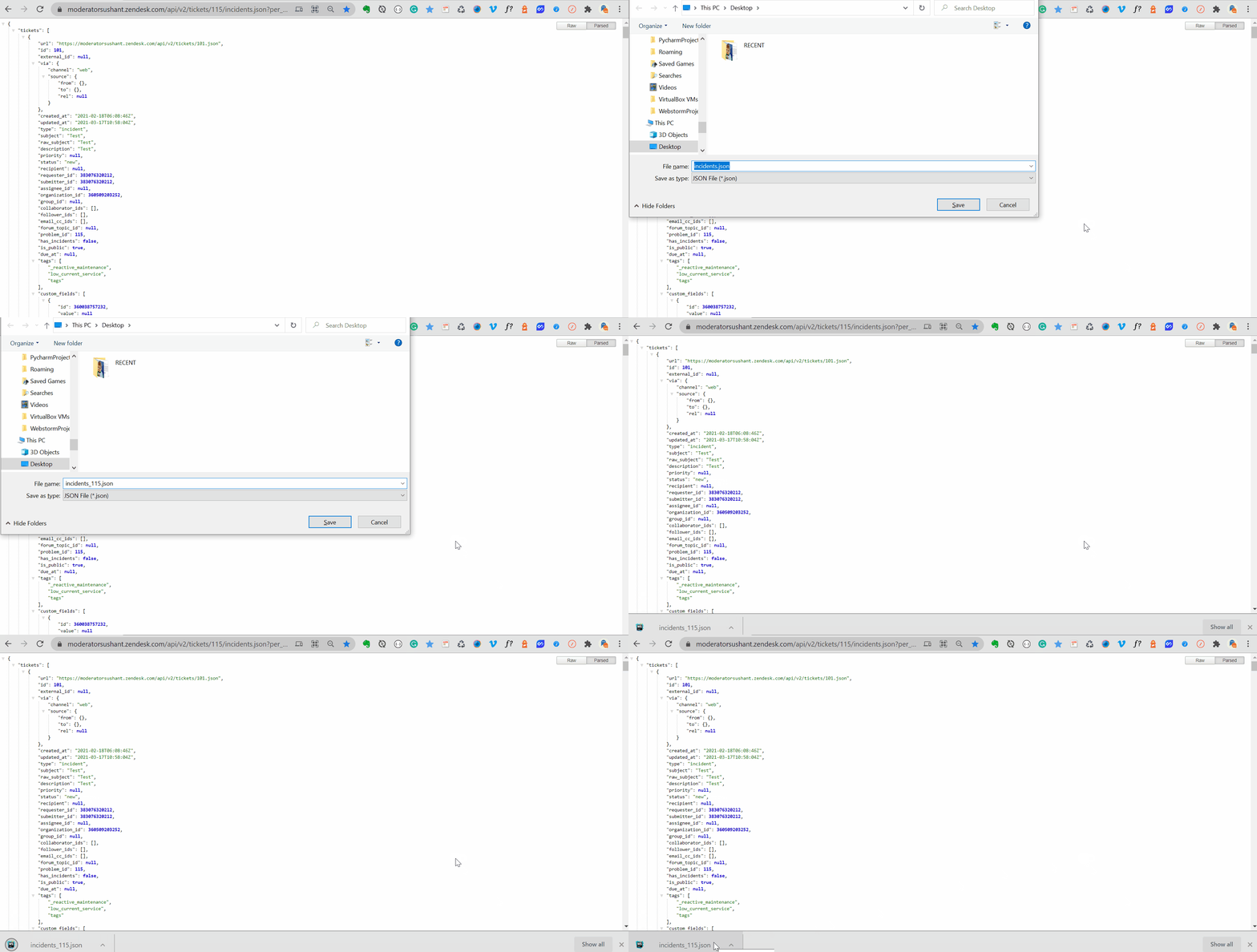
Once json result is loaded completely, save it on your computer using CTRL+S or CMD+S
Step 3
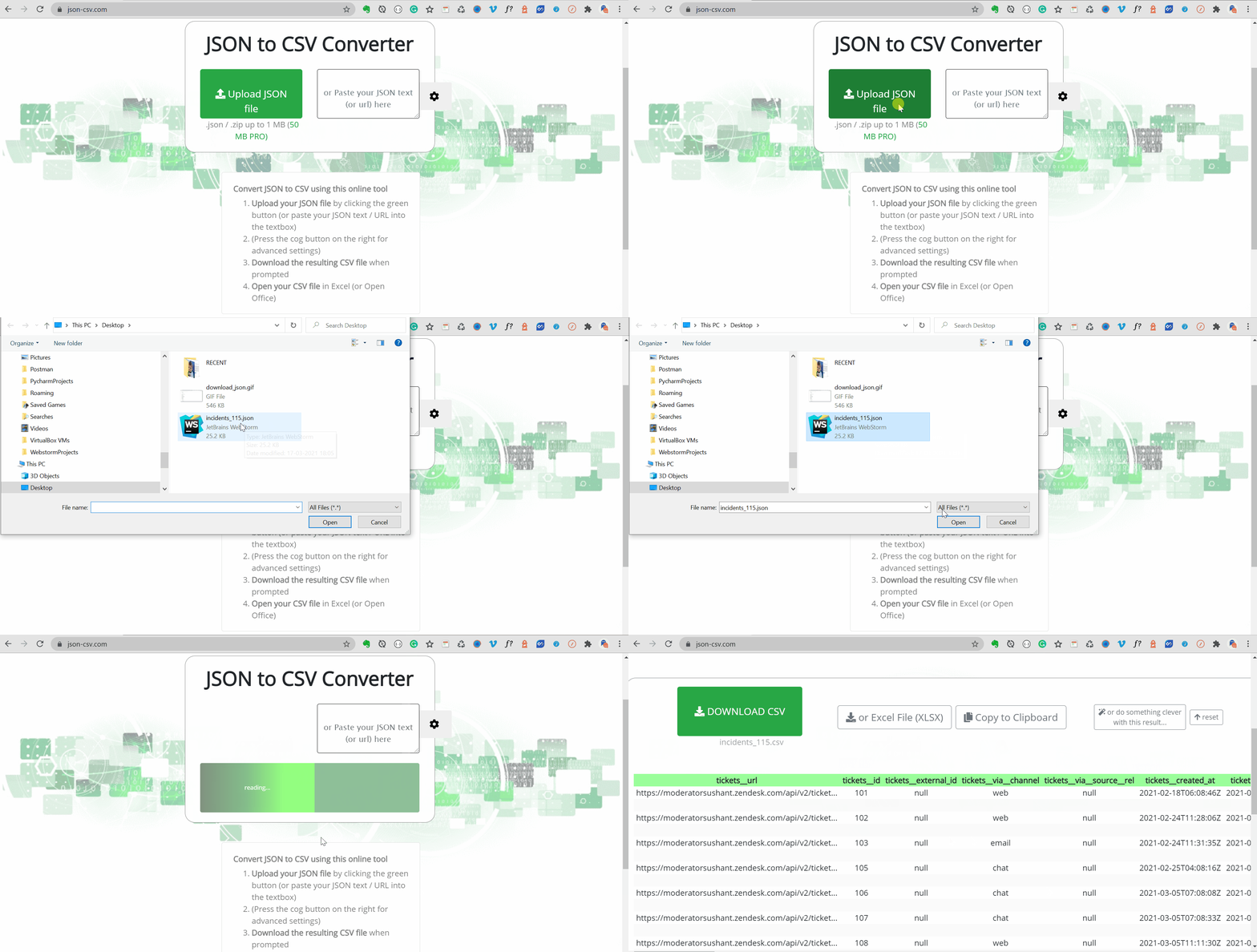
Open the online JSON to CSV converter and upload the JSON file.
Step 4
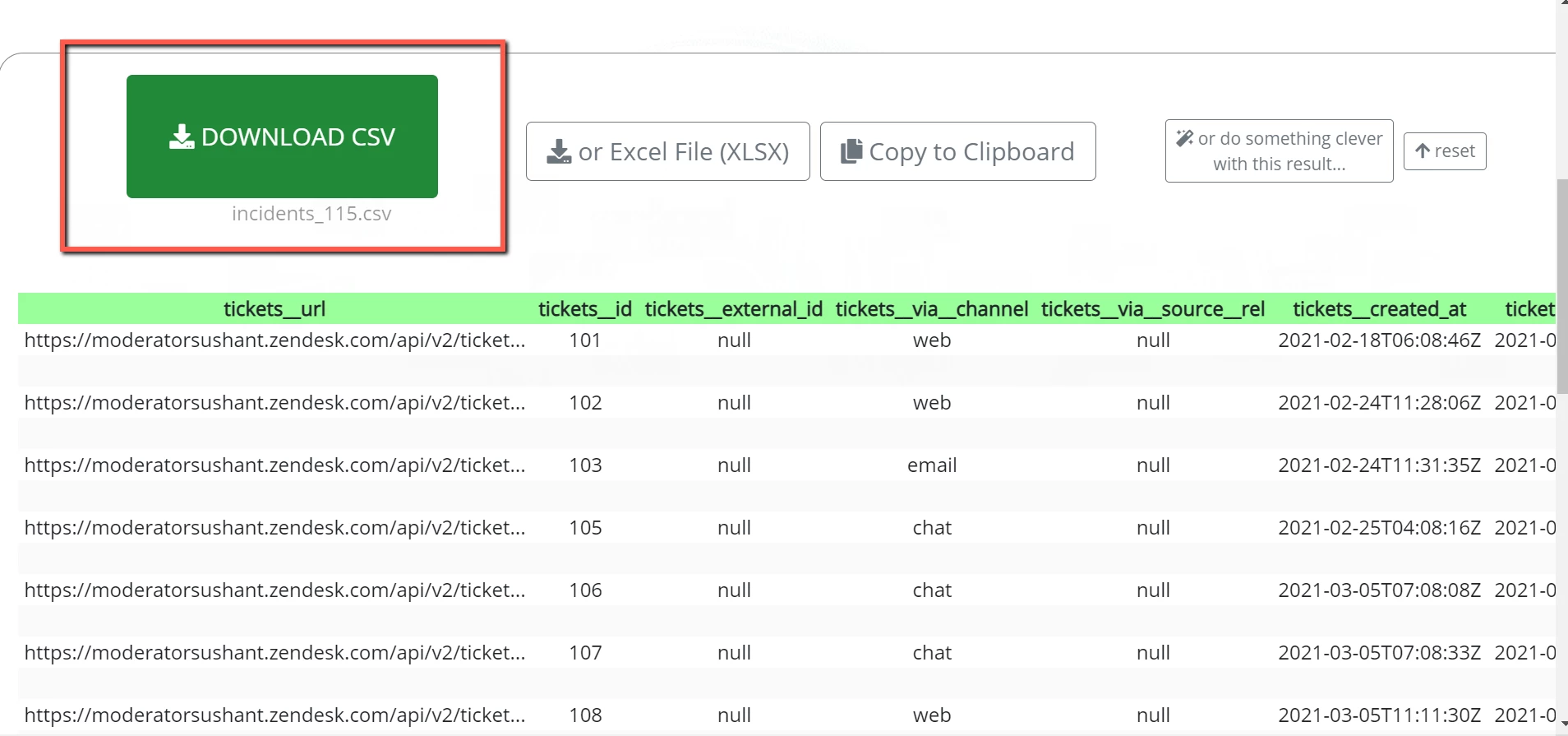
Review and download the results
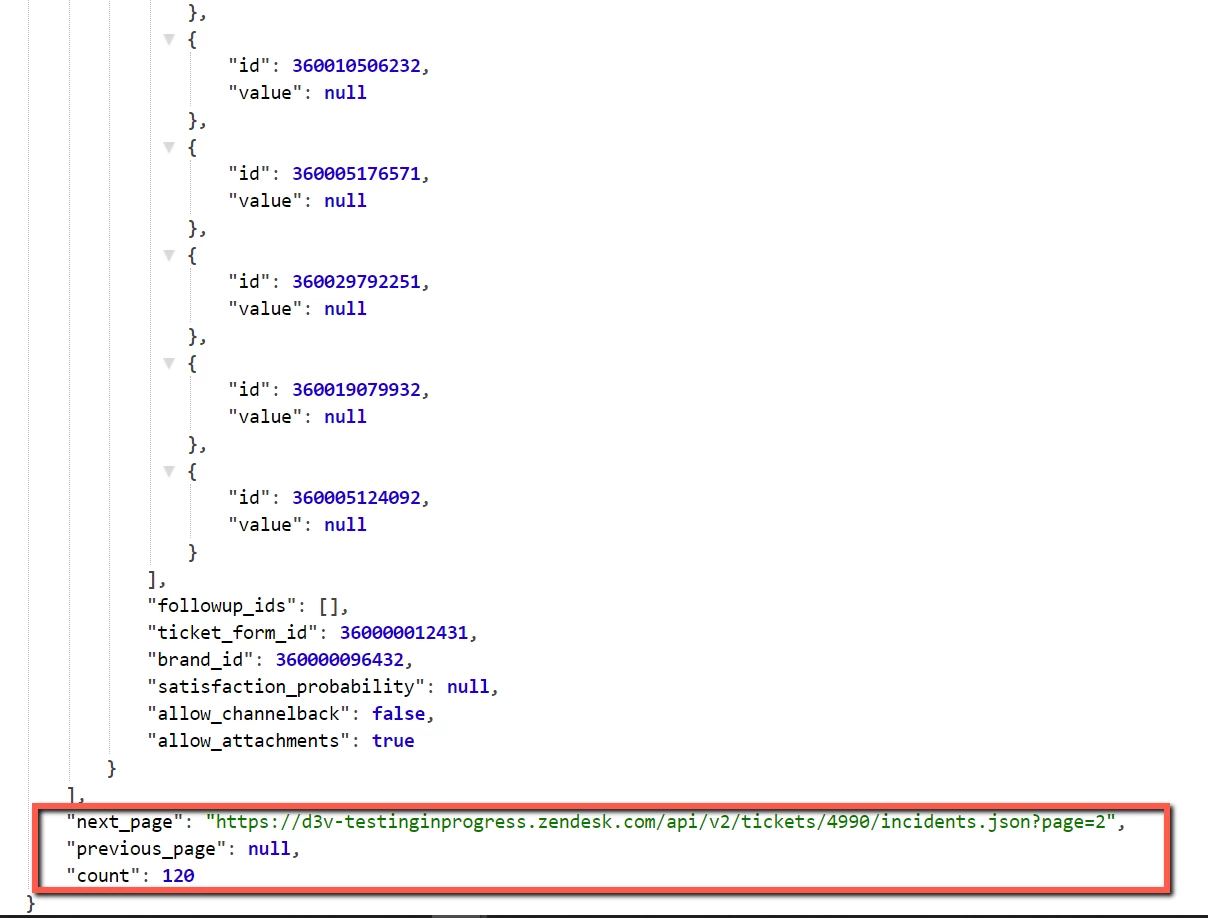
Note: Zendesk allows a max of 100 records so if you have more than 100 incident tickets linked to the problem ticket then you may need to use page parament in your URL.
You can simply find get the next page URL at the bottom of your json result.