The Problem
Tickets I was @mentioned on were slipping through the cracks. The in-app notifications were helpful when I was in the Zendesk UI, but I spend 40% of my time outside of the queue. Email notifications were also a challenge due to the volume of tickets I handle each week. It was difficult to keep up.
The Solution
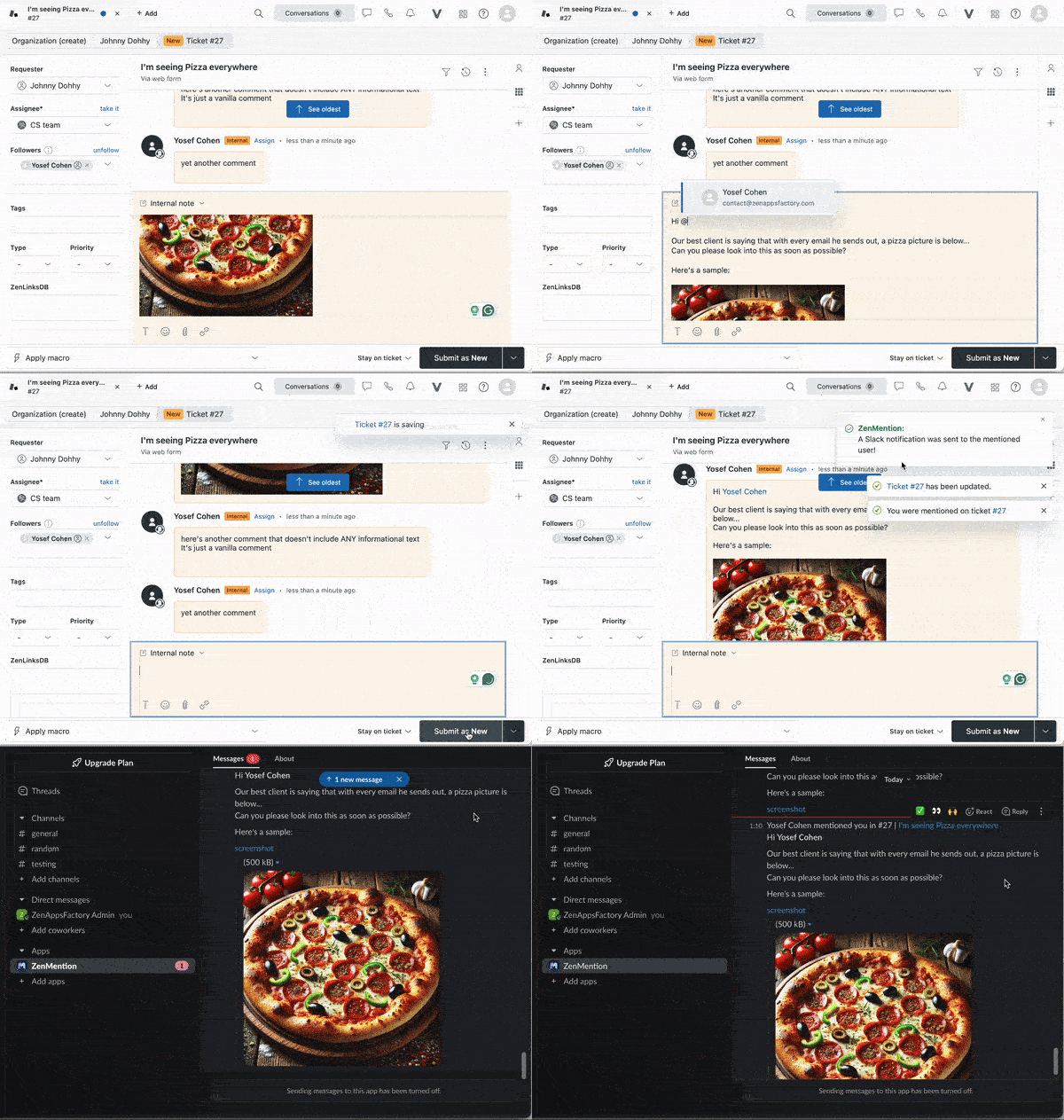
Utilizing a trigger, Slack webhook, and a Zendesk webhook I was able to implement a solution that would notify me in Slack each time I was @mentioned on a ticket.
Instructions
Step 1
If you don’t have one already, you’ll need to create a Slack webhook. Note: You might need your Slack Admin to help you set up the actual webhook in Slack.
For this specific solution, I’d recommend using a webhook for your personal Slack DMs, but you can definitely pipe these notifications into any Slack channel of your choosing.
Step 2
Next, you'll want to create a Zendesk webhook based on a Slack webhook URL. To do this, navigate to the Webooks page: Admin Center > Apps and Integrations > Webhooks, and click Actions > Create Webhook. Next, enter:
- A Name for this webhook
- The Endpoint URL which is your Slack Webhook URL.
- Set Request method to POST
Click Create and then Complete setup on the following screen.
Step 3
Create a new trigger to notify this webhook using the following Conditions:
- Comment is Private
- Comment Text contains the following string <<your name>>
Note: If you have an Alias Name setup in your Zendesk User Profile, you’ll want to use your Alias Name for the Comment Text condition. At the time of writing this, Zendesk will look for the Alias name associated with the @mentioned user rather than the actual comment text.
For the Action, you'll select Notify Active Webhook and then locate the webhook you just created. For the JSON body, you can enter any JSON content that you’d like to include within this notification. For example:
{
"attachments":[
{
"fallback":"You've been mentioned on a ticket",
"pretext":"You've been mentioned on a ticket",
"color":"#D00000",
"fields":[
{
"title":"Subject: {{ticket.title}}",
"value":"{{ticket.url}}",
"short":false
}
]
}
]
}
Step 4
Test this trigger out to make sure it’s working as expected.
That's it!
It’s a simple solution, but it’s been really helpful for myself and a few of my colleagues so that we can keep a closer tab on the tickets that need our attention. I hope this tip is helpful for other community members.