Tip: Collapsible headers in articles or templates (accordions) | Community
Skip to main content

Tip: Collapsible headers in articles or templates (accordions)

  • August 18, 2021
  • 141 replies
  • 0 views

Show first post

141 replies

  • February 27, 2024

@ifra this is incredibly helpful - thank you! 

Just wondering, is it possible to adjust the code so all the accordions are expanded by default as opposed to minimized by default?


Ifra
  • March 1, 2024

Hey Colleen,

Use this CSS code instead of the previous one:

.accordion {
  background-color: #eee;
  color: #444;
  cursor: pointer;
  padding: 18px;
  width: 100%;
  border: none;
  text-align: left;
  outline: none;
  font-size: 15px;
  transition: 0.4s;
  margin-bottom: 10px;
}

.accordion p {
  display: inline;
}

.active, .accordion:hover {
  background-color: #ccc;
}

.accordion:after {
  content: "\2212";
  color: #777;
  font-weight: bold;
  float: right;
  margin-left: 5px;
}

.active:after {
  
   content: '\002B';
}

.panel {
  padding: 0 18px;
  background-color: white;
  max-height: 100%;
  overflow: hidden;
  transition: max-height 0.2s ease-out;
}

.active + .panel{
    max-height: 0;
   transition: max-height 0.2s ease-out;
}


Use this script code instead of the previous one:

 var acc = document.getElementsByClassName("accordion");
  var i;

  for (i = 0; i < acc.length; i++) {
    acc[i].addEventListener("click", function() {
      this.classList.toggle("active");
      var panel = this.nextElementSibling;
      if (panel.style.maxHeight) {
        panel.style.maxHeight = panel.scrollHeight + "px";
      } else {
        panel.style.maxHeight = null;
        
      }
    });
  }


Try this and if any confusion feel free to ask :)


Thanks


Marco38
  • May 6, 2024

Is it possible to insert a content block inside an accordion?


  • May 22, 2024

Marco, I have not found a way around this yet. I just came here to find out as well. I'm hoping someone is able to answer. I've been incorporating accordions into our knowledge articles, however, I'm unable to put a content block into an accordion. When I have a content block in an article, the source code is gone either on top of the content block or the bottom, wherever my curser is set to. Does anyone know if there's a way around this? 


  • June 18, 2024

Hi, we have implemented the accordions and they work well. But our support often has to sent links to article content / also to content in accordions and we want, that the customer gets allready the open accordion. Is this possible? Can we sent links with the “instruction” to open the accordion directly? Thank you. 


Ifra
  • June 18, 2024

Hi Ronja Sindek,


Do you need an accordion that's open by default?


  • June 19, 2024

Hi Ifra, no not by default. The accordion should open, if the customer uses the link to the accordion. 
For your information: We use instead of the <p> element, <h3> element, for getting a link to the accordion element. But then, the customer has to click again, to get the information, and this is not so pretty.


  • June 24, 2024

My query is the same as @ronja's. Can our Support team share a link to one specific accordion in the article, and is there a way for the relevant accordion to appear expanded?


Ifra
  • June 28, 2024

  • December 10, 2024

Hello, would it be possible to add images under each accordion instead of text. For example, the agent clicks the plus sign to expand the accordion and they see step by step guide with screenshots of what to click.

Thank you


Brett13
  • Community Manager
  • December 11, 2024

@debs11 you should be able to use HTML to add images within the accordion so you can share screenshots. You would just need to add your <img> tags within <div class="panel"> </div> I believe. 

Hope this helps!


  • March 31, 2025

Hello Ifra, hope you are well. I am having issues creating the sections, sub-sections or categories, subcategories with the button. I am not sure if my original code is correct, as it does not match yours. Is it possible to review it together? is there a possibility to check it together?


  • October 20, 2025

This code can be used for accordions that work in an article and in content blocks. You need to add code to the style.css file and then add code to the HTML for the article or content block where you want the accordion to go. Once you add the HTML for the accordions, you can edit the content in the regular editor.

  • The style.css is customizable.
  • The HTML for the article or content block has 3 parts you need to add 
    1. Starting DIV tag
    2. Accordions HTML
    3. Close DIV tag


Code to be added to your style.css

You can adjust the colors and fonts as noted in the code

/* ACCORDIONS */

/* Width and borders for all accordions */
.accordion {
   position: relative !important;
   display: inline-block !important;
   min-width: 100% !important;
   border-radius: 5px !important;
   border: 1px solid #9b9b9b !important; /*replace with your desired hex color for the border */
   overflow-wrap: anywhere !important;
}

.accordion details:last-child {
   border-bottom: 0 !important;
}

/* Accordion title area background color and padding */
.accordion details summary {
   cursor: pointer !important;
   position: relative !important;
   padding: 8px 30px 8px 12px !important;
   background-color: #3B4764 !important; /*replace with your desired hex color for the background */
   list-style: none !important;
}

/* Accordion title font */
.accordion details summary h3 {
   font-size: var(--font-size) !important;
   color: #ffffff !important; /*replace with your desired hex color for the font color for the title of the accordion */
   margin: 0 !important;
   padding: 0 !important;
   font-weight: 400 !important;
}

/* Nested accordion summary styling */
.accordion details summary details > summary {
   list-style: none !important;
}

/* Remove focus outline */
.accordion details summary:focus-visible {
   outline: 0 !important;
}

/* Hide default markers */
.accordion details summary::-webkit-details-marker {
   display: none !important;
}

.accordion details summary::marker {
   display: none !important;
}

/* Accordion toggle icon (default: collapsed) */
.accordion details summary:after {
   color: #fdb924; /*replace with your desired hex color for the body of the accordions */
   font-family: "Font Awesome 5 Free" !important; /*replace with your desired font family for the body of the accordions */
   font-weight: 900 !important;
   font-style: normal !important;
   content: '\f078' !important;
   display: block !important;
   position: absolute !important;
   font-size: 16px !important;
   right: 12px !important;
   top: 4px !important;
   transition: transform .2s !important;
}

/* Accordion toggle icon (expanded state) */
.accordion details[open] > summary:after {
   transform: rotate(180deg) !important;
}

/* Accordion body container transition */
.accordion details .ac-body-container {
   overflow: hidden !important;
   transition: height .2s ease !important;
}

/* Accordion body padding */
.accordion details .ac-body {
   padding: 8px 12px !important;
}

/* Remove spacing on last paragraph in accordion body */
.accordion details .ac-body p:last-child {
   margin-bottom: 0 !important;
   padding-bottom: 0 !important;


HTML for accordions to go into the article:
1. Starting DIV tag

 In the HTML for the article, put this at the start where you want the accordion to go.

 <div class="accordion"> 

2. Accordions HTML

Copy/paste the code block as many times as you need and change the title and body.

If you want a section to default to open use:

<details class="ac-block" open="true">
        <summary class="ac-title">

            <h3>PUT THE TITLE OF THE ACCORDION SECTION HERE</h3>
        </summary>
        <div class="ac-body-container">
            <div class="ac-body">

                <p>YOUR CONTENT GOES HERE</p>
            </div></div>
    </details>

If you want a section to default to closed use:

<details class="ac-block">
        <summary class="ac-title">

            <h3>PUT THE TITLE OF THE ACCORDION SECTION HERE</h3>
        </summary>
        <div class="ac-body-container">
            <div class="ac-body">

                <p>YOUR CONTENT GOES HERE</p>
            </div></div>
    </details>

3. Close DIV tag

Add this at the bottom of the accordion

</div>

EXAMPLE CODE:
The code for an accordion with 3 sections that default to closed would look like:

<div class="accordion">
    <details class="ac-block">
        <summary class="ac-title">

            <h3>Lorem</h3>
        </summary>
        <div class="ac-body-container">
            <div class="ac-body">

                <p>Lorem ipsum dolor sit amet, vim cu offendit consulatu neglegentur, nam at simul argumentum. Sed detraxit corrumpit democritum ut, mel ea sonet noster inermis. Cu quem petentium quo, no mea putant malorum. Est an choro percipit.
</p>
            </div></div>
    </details>
    <details class="ac-block" open="true">
        <summary class="ac-title">

            <h3>Ipsum</h3>
        </summary>
        <div class="ac-body-container">
            <div class="ac-body">

                <p>Sed animal sapientem splendide eu, falli impetus alienum ut per, et est labores noluisse signiferumque. Audiam saperet ea has. Mea regione sadipscing ut. Nec enim sale ad, noster persecuti delicatissimi ei vix, possit efficiendi cum ea. Quo esse graecis facilisi cu.</p>
            </div></div>
    </details>
    <details class="ac-block" open="true">
        <summary class="ac-title">

            <h3>Dolar</h3>
        </summary>
        <div class="ac-body-container">
            <div class="ac-body">

                <p>Mea commodo nostrud diceret ex, has at errem essent, meis dolorem praesent te vel. Mei te dolor causae, ludus primis contentiones at eam, unum oportere accommodare sea in. Probo affert semper vim ea, tollit luptatum pro cu, ex sea accusam ponderum. Volumus epicuri molestie ex duo. Graece ornatus ne sit.</p>
            </div></div>
    </details>
</div>

Patrycja12
  • November 19, 2025

Dear community members,

We know many of you have been waiting for components like tabs and accordions in the editor. While these aren't available as WYSIWYG elements yet in the , we've put together a workaround that should help streamline your work in the meantime. Below you'll find step-by-step instructions along with video demonstrations (please note that the New Editor is being used.)

Important note: If you have access to modify your theme, it's better to add the styles and code there. If not, follow the instructions below using content blocks.
 

Instructions for tabs:

  1. Create a content block and name it something like "Tabs - script + style"
  2. Create an HTML block and insert this code snippet: 

    <script>
       document.addEventListener('DOMContentLoaded', () => {
      	const tabComponents = document.querySelectorAll('section.tabs');
      	console.log(tabComponents)
    
      	for (const container of tabComponents) {
            container.style = ''
    
      		const headers = Array.from(container.querySelectorAll('h2'));
      		const panels = headers.map(h => h.nextElementSibling);
    
      		panels.forEach(panel => {
      			container.appendChild(panel)
      		})
    
      		// Setup accessibility and initial states
      		headers.forEach((header, i) => {
      			header.setAttribute('role', 'tab');
      			header.setAttribute('aria-selected', 'false');
      			header.setAttribute('tabindex', '-1');
      			header.id = header.id || `tab-${i}`;
      			panels[i].setAttribute('role', 'tabpanel');
      			panels[i].setAttribute('aria-labelledby', header.id);
      			panels[i].hidden = true;
      		});
    
      		const firstPanel = panels[0]
      		headers.forEach(header => {
      			container.insertBefore(header, firstPanel)
      		})
    
      		// Activate first tab by default
      		function activateTab(index) {
      			headers.forEach((header, i) => {
      				const selected = i === index;
      				header.setAttribute('aria-selected', selected);
      				header.tabIndex = selected ? 0 : -1;
      				panels[i].hidden = !selected;
      				if (selected) {
      					panels[i].classList.add('active');
      					headers[i].focus();
      				} else {
      					panels[i].classList.remove('active');
      				}
      			});
      		}
      		activateTab(0);
    
      		// Click to activate tab
      		headers.forEach((header, i) => {
      			header.addEventListener('click', () => {
      				activateTab(i);
      			});
      			// Keyboard nav
      			header.addEventListener('keydown', e => {
      				let newIndex;
      				switch(e.key) {
      					case 'ArrowRight':
      					case 'ArrowDown':
      						newIndex = (i + 1) % headers.length;
      						headers[newIndex].focus();
      						break;
      					case 'ArrowLeft':
      					case 'ArrowUp':
      						newIndex = (i - 1 + headers.length) % headers.length;
      						headers[newIndex].focus();
      						break;
      					case 'Home':
      						headers[0].focus();
      						break;
      					case 'End':
      						headers[headers.length - 1].focus();
      						break;
      					case 'Enter':
      					case ' ':
      						activateTab(i);
      						break;
      					default:
      						return; // Do nothing for other keys
      				}
      				e.preventDefault();
      			});
    
      		});
      	}
      });
    </script>
    <style>
    section.accordion h2 {
      cursor: pointer;
      background: #f0f0f0;
      padding: 0.75em 1em;
      margin: 0;
      border-bottom: 1px solid #ccc;
    }
      section.accordion h2[aria-expanded="true"] {
        background: #e2e2e2;
      }
      section.accordion p {
        margin: 0;
        padding: 1em;
        border-bottom: 1px solid #ccc;
        display: none;
        animation: fadeIn 0.3s ease forwards;
      }
      section.accordion p.expanded {
        display: block;
      }
      @keyframes fadeIn {
        from {opacity: 0;}
        to {opacity: 1;}
      }
    
      section.tabs {
        font-family: Arial, sans-serif;
      }
      section.tabs h2 {
        display: inline-block;
        margin: 0;
        padding: 0.5em 1em;
        cursor: pointer;
        background: #ddd;
        border: 1px solid #bbb;
        border-bottom: none;
        user-select: none;
      }
      section.tabs h2[aria-selected="true"] {
        background: white;
        border-bottom: 1px solid white;
        font-weight: bold;
      }
      section.tabs p {
        border: 1px solid #bbb;
        padding: 1em;
        margin-top: 0;
        display: none;
      }
      section.tabs p.active {
        display: block;
      }
    </style>
  3. Create a new article
  4. Apply the content block you just created
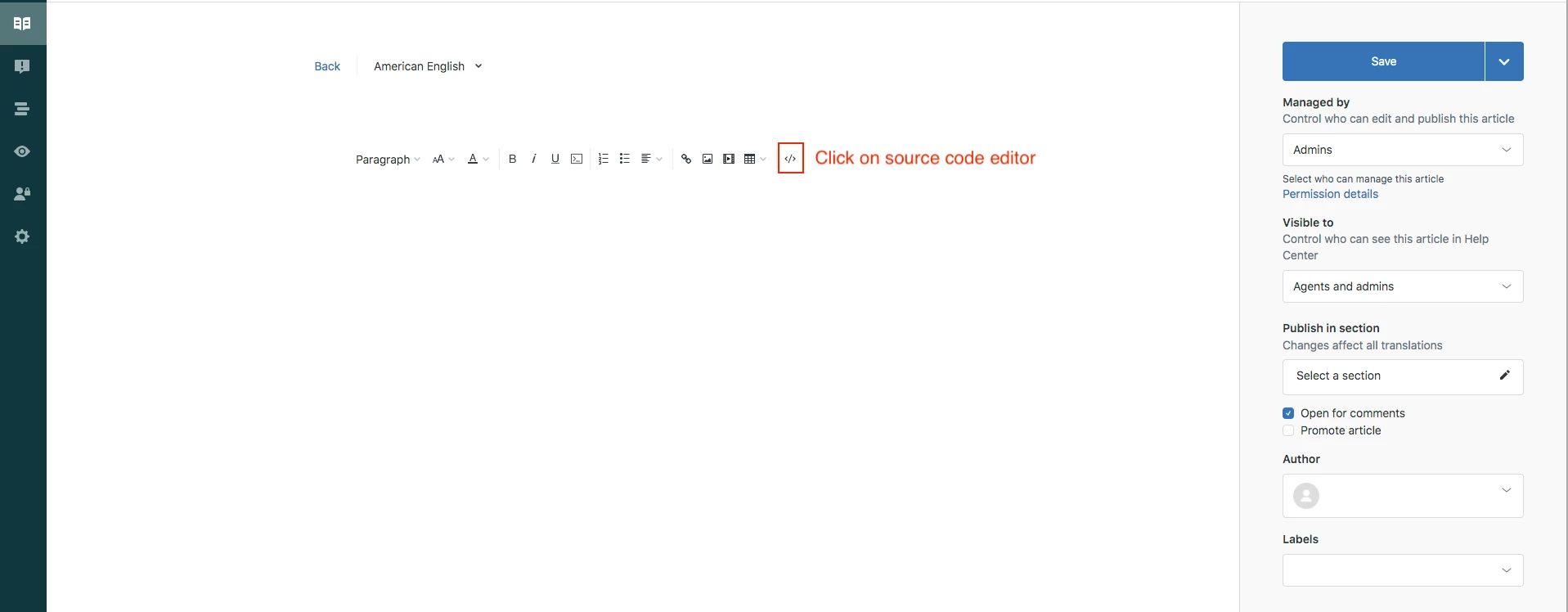
  5. Open the HTML editor. You'll see the applied content block

    </section>
    <p>&nbsp;</p>
    <section class="tabs" style="border: thin solid #97bfbf; padding: 2em;">
      <h2 id="h_01K04GD9NNYSZ6D218VJKR04MH">Panel 1</h2>
      <p>
        Lorem ipsum dolor sit amet, consectetur adipiscing elit. Vestibulum ac lobortis
        ex. Aliquam pharetra diam neque, ac imperdiet eros hendrerit sollicitudin.
        Aliquam et tempus tortor. Etiam viverra velit sed ante vulputate maximus.
        Pellentesque tempor turpis libero, condimentum tincidunt nibh bibendum ut.
        Sed maximus elit sapien, sed rhoncus augue vulputate ut. Mauris quis maximus
        nisl, at scelerisque mi. Phasellus sit amet eleifend dolor, a aliquam nisi.
        Sed euismod nibh a aliquet hendrerit. Ut tristique, lectus vel placerat eleifend,
        velit nunc pretium diam, in molestie dui neque at augue.
      </p>
      <h2 id="h_01K04GD9NNPPZ5E097DYKFBZXF">Panel 2</h2>
      <p>
        Fusce vitae lectus sapien. Phasellus vitae urna sit amet risus consequat
        facilisis. Pellentesque consectetur vitae enim ut aliquam. Curabitur id mattis
        est. Etiam auctor convallis maximus. Nullam et suscipit dui. Vestibulum at
        arcu leo. Vestibulum vehicula viverra odio, ac tristique urna facilisis non.
      </p>
      <h2 id="h_01K04GD9NNW7FQA22XBFTX2HP0">Panel 3</h2>
      <p>
        Sed elit mi, scelerisque sit amet viverra in, pellentesque sit amet turpis.
        Quisque sagittis diam orci, id placerat dui semper ut. Curabitur hendrerit
        nisl id erat lacinia sagittis. Ut sagittis tempor ex ut tempor. Morbi ut
        magna dui. Suspendisse potenti. Vestibulum finibus at diam id ullamcorper.
        Suspendisse mollis consectetur enim quis elementum. Duis ac odio vitae diam
        commodo gravida quis in nibh. Suspendisse et dictum tellus, vel scelerisque
        leo. Proin venenatis finibus pulvinar. Nulla id fermentum lorem. Praesent
        nec magna ac mi pellentesque sollicitudin et vitae mauris. Sed rutrum feugiat
        lorem pretium auctor.
      </p>
    </section>


  6. You can now add, remove, or modify tabs, change text, rename tabs, etc. (see video for details)

Instructions for accordions:

The process is the same as tabs, just with different code snippets:

  1. Create a content block and name it something like "Accordions - script + style"
  2. Create an HTML block and insert this code snippet:

     <script>
      document.addEventListener('DOMContentLoaded', () => {
      	const accordions = document.querySelectorAll('section.accordion');
      	for (const accordion of accordions) {
      		accordion.style = ''
    
      		const headers = accordion.querySelectorAll('h2');
    
      		headers.forEach((header, i) => {
      			// Make each heading a button for accessibility and toggle
      			header.setAttribute('tabindex', '0');
      			header.setAttribute('role', 'button');
      			header.setAttribute('aria-expanded', 'false');
      			// The panel is the <p> immediately after the header
      			const panel = header.nextElementSibling;
      			panel.setAttribute('role', 'region');
      			panel.setAttribute('aria-labelledby', header.id);
      			panel.classList.remove('expanded');
    
      			header.addEventListener('click', () => {
      				const expanded = header.getAttribute('aria-expanded') === 'true';
      				// Close all panels first for accordion behavior
      				headers.forEach(h => {
      					h.setAttribute('aria-expanded', 'false');
      					h.nextElementSibling.classList.remove('expanded');
      				});
      				if (!expanded) {
      					header.setAttribute('aria-expanded', 'true');
      					panel.classList.add('expanded');
      				}
      			});
    
      			header.addEventListener('keydown', (e) => {
      				if (e.key === 'Enter' || e.key === ' ') {
      					e.preventDefault();
      					header.click();
      				}
      			});
      		});
      	}
      });
    </script>
    <style>
    section.accordion h2 {
      cursor: pointer;
      background: #f0f0f0;
      padding: 0.75em 1em;
      margin: 0;
      border-bottom: 1px solid #ccc;
    }
      section.accordion h2[aria-expanded="true"] {
        background: #e2e2e2;
      }
      section.accordion p {
        margin: 0;
        padding: 1em;
        border-bottom: 1px solid #ccc;
        display: none;
        animation: fadeIn 0.3s ease forwards;
      }
      section.accordion p.expanded {
        display: block;
      }
      @keyframes fadeIn {
        from {opacity: 0;}
        to {opacity: 1;}
      }
    </style>
  3. Create a new article
  4. Apply the content block you just created
  5. Open the HTML editor. You'll see the applied content block there. On a new line, insert this code snippet: 

    <section class="accordion" style="border: thin solid #97bfbf; padding: 2em;">
      <h2 id="h_01JZWRRY8P9TTBM1K3FGFXE8Y5">Panel 1</h2>
      <p>
        Lorem ipsum dolor sit amet, consectetur adipiscing elit. Vestibulum ac lobortis
        ex. Aliquam pharetra diam neque, ac imperdiet eros hendrerit sollicitudin.
        Aliquam et tempus tortor. Etiam viverra velit sed ante vulputate maximus.
        Pellentesque tempor turpis libero, condimentum tincidunt nibh bibendum ut.
        Sed maximus elit sapien, sed rhoncus augue vulputate ut. Mauris quis maximus
        nisl, at scelerisque mi. Phasellus sit amet eleifend dolor, a aliquam nisi.
        Sed euismod nibh a aliquet hendrerit. Ut tristique, lectus vel placerat eleifend,
        velit nunc pretium diam, in molestie dui neque at augue.
      </p>
      <h2 id="h_01JZWRS1GWECTKGQ6ZJCMDGF9A">Panel 2</h2>
      <p>
        Fusce vitae lectus sapien. Phasellus vitae urna sit amet risus consequat
        facilisis. Pellentesque consectetur vitae enim ut aliquam. Curabitur id mattis
        est. Etiam auctor convallis maximus. Nullam et suscipit dui. Vestibulum at
        arcu leo. Vestibulum vehicula viverra odio, ac tristique urna facilisis non.
      </p>
      <h2 id="h_01JZWRS4FZEFNK861CS5TR412N">Panel 3</h2>
      <p>
        Sed elit mi, scelerisque sit amet viverra in, pellentesque sit amet turpis.
        Quisque sagittis diam orci, id placerat dui semper ut. Curabitur hendrerit
        nisl id erat lacinia sagittis. Ut sagittis tempor ex ut tempor. Morbi ut
        magna dui. Suspendisse potenti. Vestibulum finibus at diam id ullamcorper.
        Suspendisse mollis consectetur enim quis elementum. Duis ac odio vitae diam
        commodo gravida quis in nibh. Suspendisse et dictum tellus, vel scelerisque
        leo. Proin venenatis finibus pulvinar. Nulla id fermentum lorem. Praesent
        nec magna ac mi pellentesque sollicitudin et vitae mauris. Sed rutrum feugiat
        lorem pretium auctor.
      </p>
      <p>&nbsp;</p>
      <h2 id="h_01KAE4P9AGGR45JFVX2NGE4P7J">Panel 4</h2>
      <p>
        Sed elit mi, scelerisque sit amet viverra in, pellentesque sit amet turpis.
        Quisque sagittis diam orci, id placerat dui semper ut. Curabitur hendrerit
        nisl id erat lacinia sagittis. Ut sagittis tempor ex ut tempor. Morbi ut
        magna dui. Suspendisse potenti. Vestibulum finibus at diam id ullamcorper.
        Suspendisse mollis consectetur enim quis elementum. Duis ac odio vitae diam
        commodo gravida quis in nibh. Suspendisse et dictum tellus, vel scelerisque
        leo. Proin venenatis finibus pulvinar. Nulla id fermentum lorem. Praesent
        nec magna ac mi pellentesque sollicitudin et vitae mauris. Sed rutrum feugiat
        lorem pretium auctor.
      </p>
    </section>
  6. You can now add, remove, or modify accordions, change text, etc. (see video for details)

We hope this helps make your workflow a bit easier until these features become natively available


  • December 1, 2025

Can you please clarify - I have the original code shared by Trapta in this post from 2021 in my style.css and embedded in my actual guides. Is it all going to break with the new editor or will it continue to work?


Patrycja12
  • December 3, 2025

Hi @colleen11 

I’m not sure which theme you are using, what I provided was specifically for the Copenhagen theme and tested in the new editor. Please check if the tabs and accordions code shared by Trapta are displaying correctly in the new editor today. If everything looks good, you don’t need to make any changes.