

There was another post about this, back in 2016. I'm surprised this hasn't resurfaced since then.
We have lots of images in our product documentation and we don't want them to display in full resolution. We want to allow customers to click the image and zoom in to a full-resolution image. (we're not picky about any sort of animation/transition, only that the image is brought to a FULL-SIZE resolution, after being clicked.)
We also use some CSS to make it so all images are reduced to a max 300px width so they are all consistently sized, and when you hover over the image, it expands within the article viewing area. But for some images, the image is still too small.
In the meantime, here's a GIF and our code snipped that we're using to increase/descrease the size of all images in our help articles...
Example:
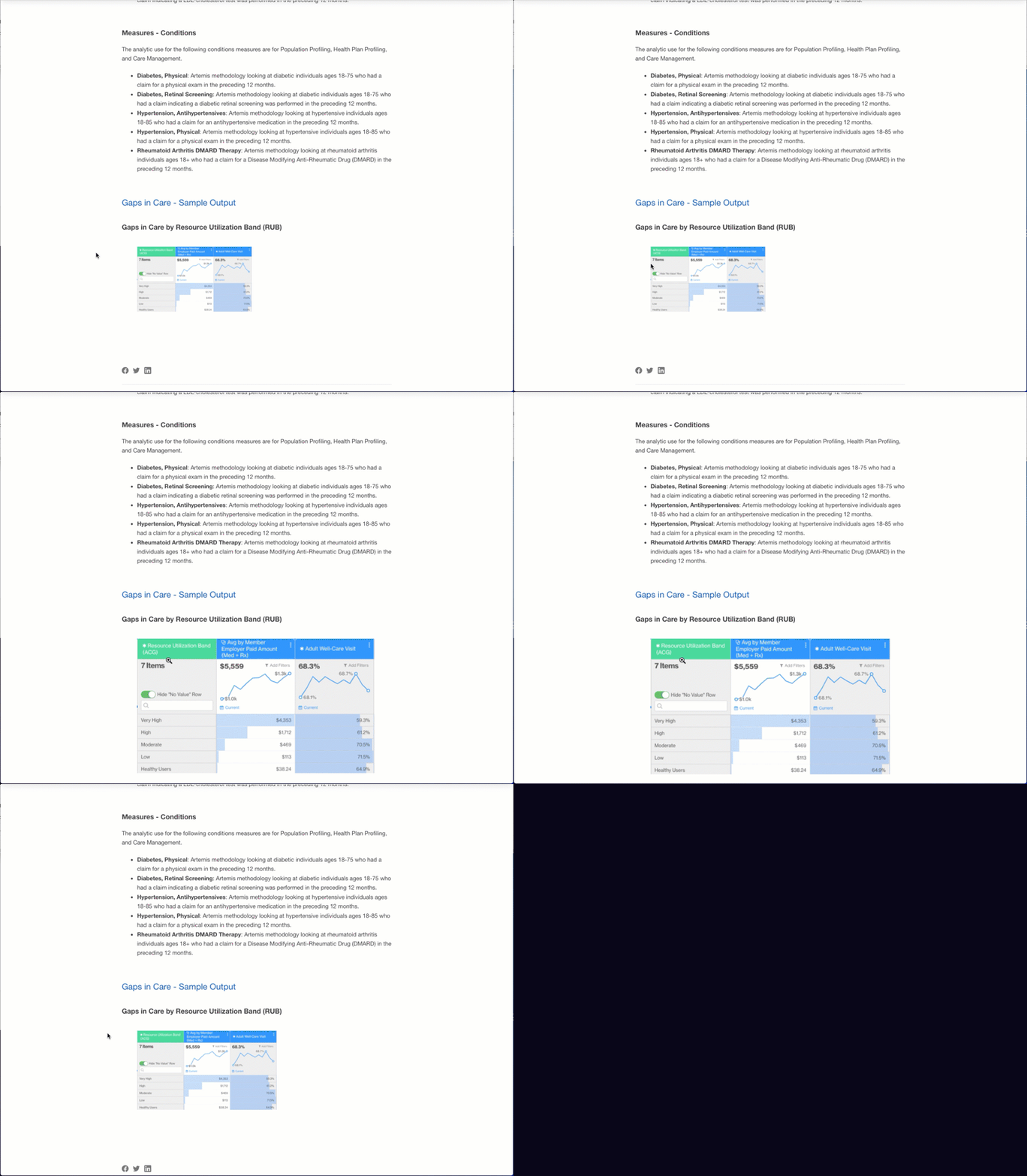
/* Customize Hover behavior on Documentation... On hover: gradual increase size; also make all thumbnails the same size */

.article-body img {
    width: 300px;
    height: auto;
    transition: width 1s;
    padding: 20px 0px;
}
.article-body img:hover {
    width: 110%;
    transition: width 1s;
    transition-delay: .25s;
    cursor: zoom-in;
}
.article-body h2 {
    color: #1761C5;
    padding-bottom: 14px;
}


Thanks for taking the time to share this example/code snippet with us Jordan! This is super helpful :)