Set a page background image in Help Center | Community
Skip to main content

Set a page background image in Help Center

  • August 20, 2013
  • 35 replies
  • 0 views

Show first post
This topic has been closed for replies.

35 replies

ModeratorWes

@Ana - Glad to hear.  .tiff files do not do well in browsers.  Just took a quick look at your site and I see you have a image there now.  You can add the background to different elements depending on where you want the image to show up.  For example if you want the image show up below your header then you can do that. Here is an example on my test site where I'm using a full background images with a slider.  

http://moderatorwes.zendesk.com


  • April 22, 2015

I was having issues with the image not displaying properly on all pages because I had the background information in the BODY instead of the HTML. So I moved the following CSS to my HTML tag and no more issues.

background: url("//p2.zdassets.com/hc/theme_assets/47685/200073670/winstonbackground3.png") no-repeat center center fixed;  
-webkit-background-size: cover;  
-moz-background-size: cover;  
-o-background-size: cover;  
background-size: cover;

  • July 2, 2015

This was amazing! I have no background in working with this kind of code and I did it.

I have just one question: can you change the size of the background image in the code?

Thanks :)


  • August 6, 2015

@Steffi - This may be moot but you can use this coding to adjust the backgroung image size:

background-size: XXpx XXpx;

(XX represents the pixel size)

Additionally, as a non-coding option, you can use any third party site to adjust the size of the original image. I use  http://www.resize.it/


  • August 7, 2015

Thanks for the tip, Michael! :)


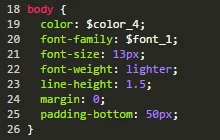
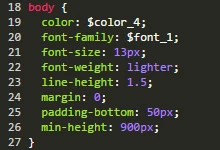
I tried setting a background image on our knowledge base but kept having an issue where the bottom of the background image was being cut off when there was very little content in the main body area of the category, section and article pages.

I spent a ages trying to find a fix for this and eventually I found the only thing that worked was adding min-height: 900px; to the body { style within the CSS (see images for examples)

Before

After

Hopefully this will stop others having to spend hours looking for the answer and experimenting.


  • January 20, 2016

Thanks for sharing this, Neil!


  • September 26, 2016

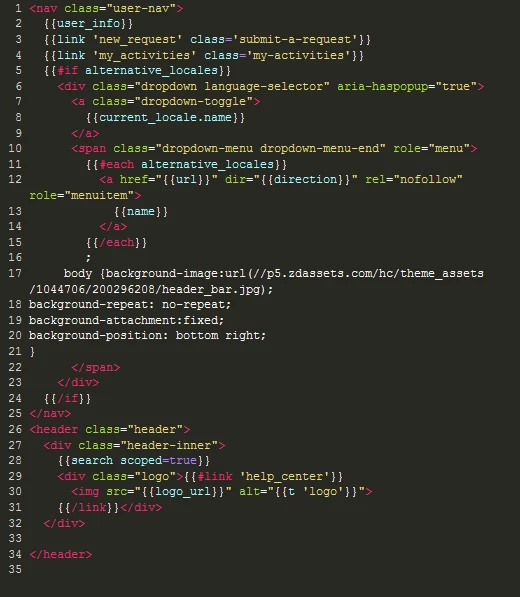
If anyone can help with this, I greatly appreciate it. Here's what I did, according to the initial instructions. I added code starting with line 16 and ending line 21. What am I doing wrong?


You need to add the code to the CSS tab not on each page. This will automatically add the background to all the pages on your site rather than you having to add the code to each page yourself.

Basically the code tells the site to place this image on each page between the opening < body > tag and closing </ body > tag. As every page has to have opening and closing body tags it's automatically applied to all pages for you.

Hope it helps


  • September 26, 2016

Thanks for that. I should have clarified that I'm trying to add a background image into the top header area, behind the search window. Do you know how I would add that code into the css tab?