
Setting up the notification target
- Create a Slack incoming webhook using the channel you want to send the notifications to
- From Zendesk, navigate to Settings > Extensions > Targets > add target
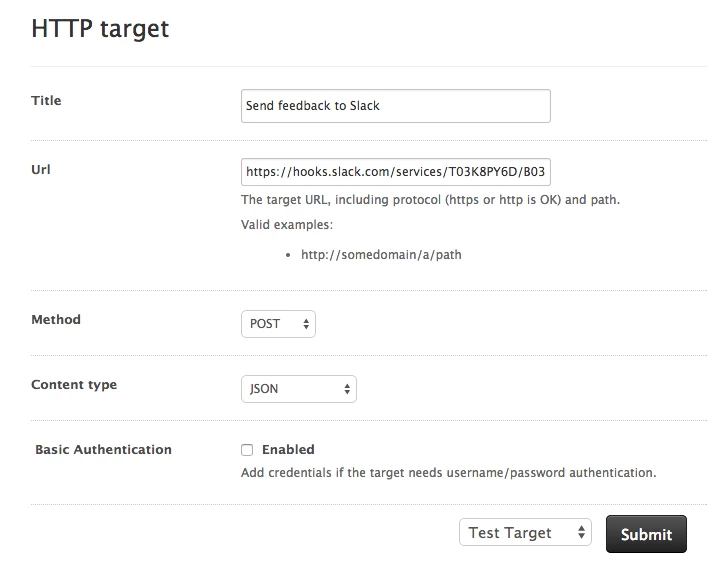
- Click on HTTP Target
- Setup the target to integrate with the previously created incoming webhook
- Title: A descriptive title
- URL: use previously created incoming webhook’s URL
- Method: POST
- Content Type: JSON
- Basic Authentication: not necessary
Example application: setting up notifications within triggers
- Under the Perform these actions: section, select Notifications: Notify target
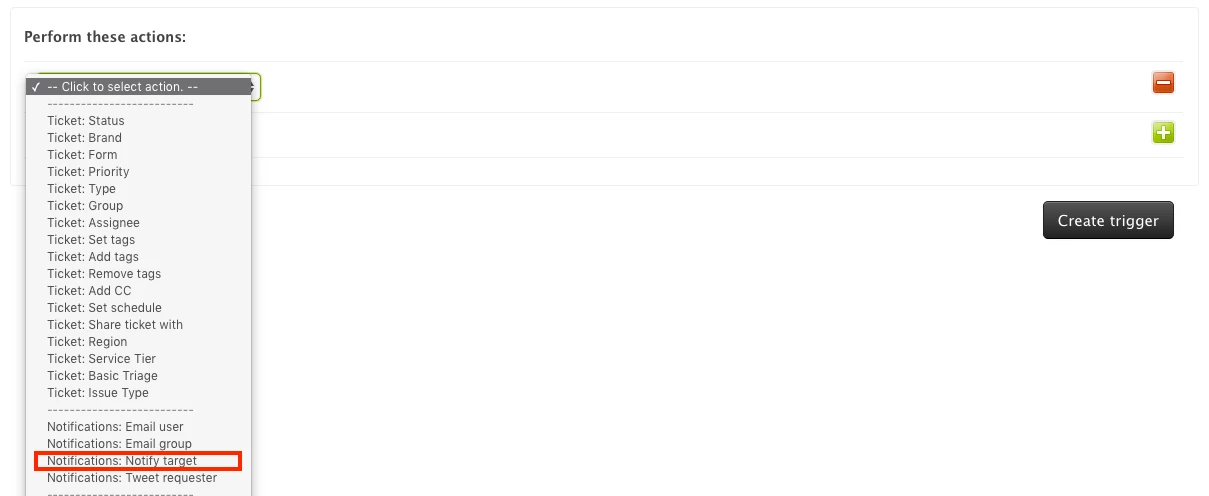
- Select the target previously created
- In the Message: text box, add the notification message in the request form formatted as JSON.
Example:
{
"attachments":[
{
"fallback":"New problem ticket created:bangbang:",
"pretext":"New problem ticket created:bangbang:",
"color":"#D00000",
"fields":[
{
"title":"Subject: {{ticket.title}}",
"value":"{{ticket.url}}",
"short":false
}
]
}
]
} - Test it! It should look similar to this



Unfortunately, there isn't an events model for help center articles, so there isn't a way to trigger actions when an article is published. For visibility to our product team, would you mind posting about your use case to our Feedback on Help Center (Guide) topic, using this template?