Send notifications to Slack | Community
Skip to main content
Zendesk Logo
      • Community
      • Recently active topics
      • Unanswered questions
      • Welcome
      • Get started0
      • Announcements152
      • Product Spotlight11
      • Ask the community
          • Objects and rules361
          • Workspaces905
          • Knowledge Base967
          • Community0
          • Chat/Messaging368
          • Voice114
          • Social Channels0
      • Analytics764
          • Apps and integration279
          • App builder5
          • Zendesk APIs1507
          • Zendesk SDKs706
          • Zendesk Apps Framework (ZAF)538
          • Platform (Sunshine)17
      • AI154
          • Workforce management25
          • Quality Assurance4
      • Admin Center292
      • Sales CRM (Sell) (Placeholder)118
      • Learn and share
      • Community workshop333
      • Succes with Zendesk38
      • User resource library18
      • Roundtable discussions0
      • Global Communities (Placeholder)
      • Português do Brasil Comunidade109
      • 日本語 コミュニティ136
      • 한국어 커뮤니티70
      • Deutsch Community60
      • Français Communauté40
      • Español Comunidad87
      • Early access programs (EAPs)
      • Accessibility0
      • AI and Automation8
      • Analytics0
      • Contact Center0
      • Employee Service21
      • Developer Platform0
      • Knowledge2
      • Platform0
      • Support29
      • Product Translation Requests0
      • Workforce Engagement Management (WEM)30
      • Private - To be launched31
      • Catch-all
      • Unmapped3250
      • Filtered2186
  • Ideas
  • Product Updates
  • Groups
  • Academy
Zendesk Logo
  • Create topic
  • Login

New Chat Widget Customisations

D
5 months ago
  • Home
  • Community
  • Learn and share
  • Community workshop
  • Send notifications to Slack

Send notifications to Slack

  • Forum|Forum|9 years ago
    January 11, 2017
  • 35 replies
  • 0 views

A
  • Arturo12

Setting up the notification target

  • Create a Slack incoming webhook using the channel you want to send the notifications to
  • From Zendesk, navigate to Settings > Extensions > Targets > add target
  • Click on HTTP Target
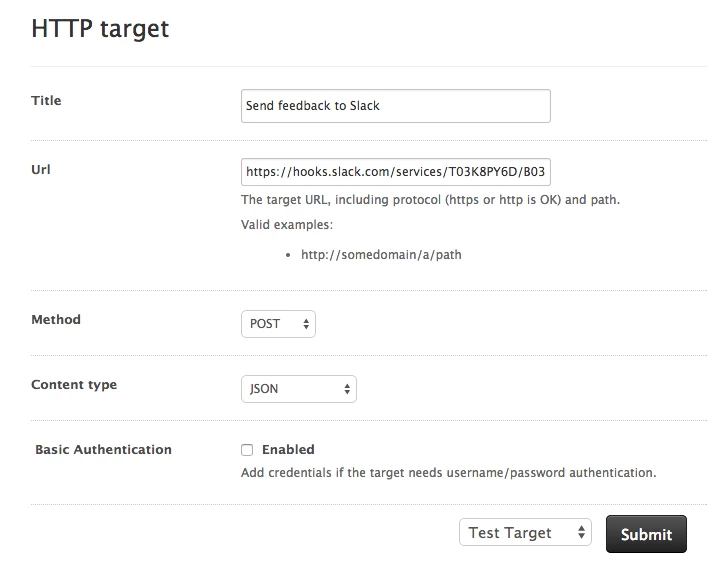
  • Setup the target to integrate with the previously created incoming webhook
    • Title: A descriptive title 
    • URL: use previously created incoming webhook’s URL
    • Method: POST
    • Content Type: JSON 
    • Basic Authentication: not necessary 

Example application: setting up notifications within triggers 

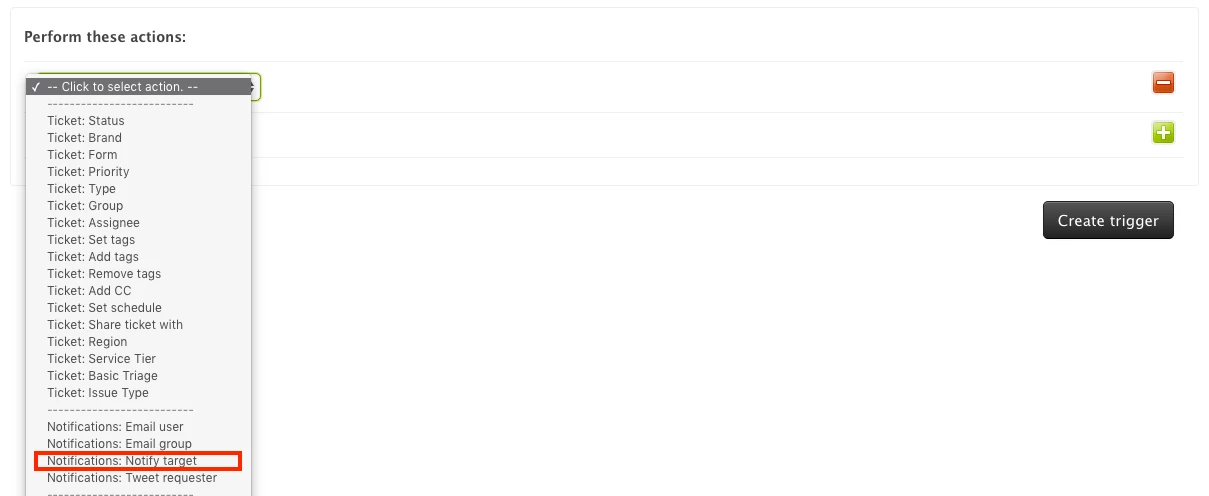
  • Under the Perform these actions: section, select Notifications: Notify target
 
  • Select the target previously created 
  • In the Message: text box, add the notification message in the request form formatted as JSON.  
    Example:
    {
    "attachments":[
    {
    "fallback":"New problem ticket created:bangbang:",
    "pretext":"New problem ticket created:bangbang:",
    "color":"#D00000",
    "fields":[
    {
    "title":"Subject: {{ticket.title}}",
    "value":"{{ticket.url}}",
    "short":false
    }
    ]
    }
    ]
    }
  • Test it! It should look similar to this 

 
 
Info source: https://support.zendesk.com/hc/en-us/articles/115011298868 
    • Like
    • Share

    35 replies

    • Newest first
    • Best voted
    • 1
    • 2
    Forum|pagination.label 1 / 2
    Jennifer16
    • Jennifer16
    • Forum|Forum|9 years ago
      February 3, 2017

    Thanks for sharing your solution, Arturo!

    • Like

    A
    • Anthony37
    • Forum|Forum|8 years ago
      April 12, 2017

    Is there a way to post private channel comments in Slack to post back to private comment in Zendesk?

    • Like

    J
    • Jessie17
    • Forum|Forum|8 years ago
      April 18, 2017

    Hey Anthony!

    I did some poking around and it looks like you might be able to do something like this using Zapier. You can set it up so that messages from a specific channel or messages that you start can get added as a ticket comment. It doesn't look like it gives the option for you to add it as a private comment, but I didn't dig in too deeply.

    Otherwise, you might be able to do something like that using Slack and Zendesk APIs to build something custom.

    • Like

    L
    • Le55
    • Forum|Forum|8 years ago
      November 24, 2017

    Info source link is dead: 

    Info source: https://support.zendesk.com/hc/en-us/community/posts/204139206-Example-Integrating-the-HTTP-Target-with-Slack
     
    • Like

    Nicole17
    • Nicole17
    • Forum|Forum|8 years ago
      November 27, 2017

    Hi Le - 

    Here is the updated version of that document: https://support.zendesk.com/hc/en-us/articles/115011298868. We'll update the original post as well. 

    • Like

    L
    • Le55
    • Forum|Forum|8 years ago
      November 27, 2017

    Thank you Nicole. Is there any document with all the placeholders together with Slack JSON format?

    • Like

    Heather13
    • Heather13
    • Forum|Forum|8 years ago
      December 1, 2017

    @Le Giang Anh

    This is a longer response but bear with me please:

    We have the Slack integration set up by starting in the Slack app rather than starting in Zendesk, Does that make sense? Let me explain.

    Ok, so this is what happened: We have several groups that want notifications.

    We create a Slack channel for each group. From within that channel, we click Settings -> Add an app

    Search for Zendesk and hit enter

    Click "Add Configuration" and the Slack app does all the hard work.

    2 CATCHES:

    1) you must be an admin in both Slack and Zendesk for this to work properly because

    2) the integration Slack initiates creates a GENERIC trigger in Zendesk which is added to the TOP of your Zendesk triggers.  Therefore, you must go into Zendesk quickly, grab the trigger and modify the title and any conditions you want. For us, that means adding a condition to limit the group it applies to.

    So back to your question: I don't believe there is a separate document for placeholders but I believe it uses the standard Zendesk placeholders because our trigger notifies the Slack target with:

    • {"status": "{{ticket.status}}", "id": "{{ticket.id}}", "updated_at": "{{ticket.updated_at_with_timestamp}}"}

    I truly hope this helps!!  

    Thank you,

    Heather

    • Like

    J
    • Jessie17
    • Forum|Forum|8 years ago
      December 7, 2017

    Thanks for jumping in, Heather!

    • Like

    J
    • Jonie
    • Forum|Forum|8 years ago
      February 21, 2018

    Thank you, Heather! Your method worked for me. 

    1. After adding the integration in Slack, refresh the triggers in Zendesk and you will see a new trigger.
    2. Edit that trigger and give it a new name.
    3. When you go back to Slack to add a new Zendesk configuration - be it for another channel or another agent - go back again to the triggers in Zendesk and refresh it and you will see a new trigger with the same name as the first one (before you edited it). Rename that trigger.
    4. Rinse and repeat.

    When you click the dropdown "Notify target" in Zendesk triggers, the Zendesk configurations you added in Slack are listed in the order you added them, from the top down. They will all have the same name in that dropdown so it would help you to take note of the order you added the configurations in Slack, in case you need to use that for other triggers or for automations. 

    I was hoping that the descriptive label you add in Slack for each configuration would be carried over to Zendesk, but it doesn't. So, you have to take note of the order you added the integrations if you want to send notifications to that channel/agent using other triggers or automations.

    I hope this helps! 

    Best,
    Jonie

    • Like

    K
    • Kevin89
    • Forum|Forum|8 years ago
      February 23, 2018

    Super helpful discussion!

    • Like

    Nicole17
    • Nicole17
    • Forum|Forum|7 years ago
      April 11, 2018

    Hi all - 

    There's a new Slack <> Zendesk Integration coming, and they announced the Early Access Program for it today. Read more and sign up here. 

    • Like

    Heather13
    • Heather13
    • Forum|Forum|7 years ago
      April 11, 2018

    YAY! Thank you, @Nicole

    • Like

    Nicole17
    • Nicole17
    • Forum|Forum|7 years ago
      April 11, 2018

    You're welcome!

    • Like

    Justin30
    • Justin30
    • Forum|Forum|7 years ago
      August 23, 2018

    Is it possible to only send notifications from ZD to Slack for specific types of tickets, vs all tickets?

    • Like

    C
    • ContactClient
    • Forum|Forum|7 years ago
      August 23, 2018

    Justin

    Yes we can setup notifications from ZD to Slack automatically for specific types of tickets through.We are a Zendesk Partner and Slack is one of our top rated apps.

    https://www.zendesk.com/apps/support/integratecloud-connector-for-slack---lite-v2/?source=top_rated

    • Like

    P
    • PJ67
    • Forum|Forum|7 years ago
      August 29, 2018

    Hey Justin!

    The Slack integration automatically creates a trigger that is responsible for pushing those notifications to your Slack channel. By default it pushes all ticket activities as notifications, but you can modify this and add your own conditions as to which types of ticket activity you would like to be sent as notification to Slack. Please check your Triggers page and look for a trigger with Slack on the title.

    Please let us know if you have any additional questions.

    Thanks!

    • Like

    N
    • Nadia14
    • Forum|Forum|7 years ago
      October 30, 2018

    Hi, I followed Heather R instructions above and it helped, thank you for that!

    I was also able to edit the trigger conditions to restrict Slack alerts to only tickets with a specific tag, that's great.

    I have one additional question: is it possible to get the original ticket description in the Slack alert as well?

    I added a placeholder 'ticket.description' as follow but it doesn't seem to work - the alerts don't include the original message content:

    • {"status": "{{ticket.status}}", "id": "{{ticket.id}}", "updated_at": "{{ticket.updated_at_with_timestamp}}", "ticket.description": "{{ticket.description}}"}

    Am I missing something or is it not possible?

    Thank you in advance!

    Nadia

    • Like

    J
    • James104
    • Forum|Forum|7 years ago
      November 3, 2018

    Hey Nadia!

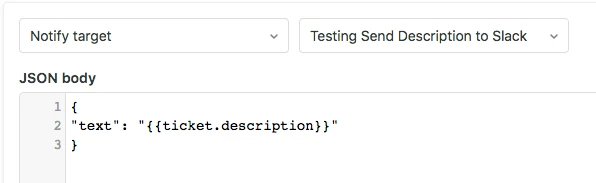
    I was able to get this working after reviewing the Setup Instructions for Sending Messages in Slack which recommend using the text property for the JSON payload.  Please keep in mind the Description is the very first comment for a ticket, so if you would like to pass a different ticket comment you'll need to update the Placeholder you use in your payload.

    I hope this method will work for you as well!

    • Like

    D
    • Dragan
    • Forum|Forum|6 years ago
      July 15, 2019

    Hi,

    I have a question regarding sending notifications to Slack - would it be possible to create some kind of a trigger for when the Slack notification will be sent? 

    For example, we would like a certain Slack group to get an alert each time a number of total calls in queue reaches a certain number.

    Thanks a lot for help!


    • Like

    K
    • Keval
    • Forum|Forum|6 years ago
      July 15, 2019

    Hi Dragan Dordevic,

    We can do the needful of creating a Trigger which will send an Alert to a Person or a Group each time when a number of total calls in queue reaches a certain number.

    Please feel free to mail us on support@integratecloud.com for any question or Doubts.

    Awaiting your reply. 

    • Like

    D
    • Dragan
    • Forum|Forum|6 years ago
      July 15, 2019

    Hi Keval Shah,

    If I understand you correctly - in order to do this as you suggest, we would need to use some kind of additional tool that your company provides?

    We would first like to understand if we can do this directly in Zendesk through triggers and native Slack integration.

    Thanks

    • Like

    K
    • Keval
    • Forum|Forum|6 years ago
      July 16, 2019


    Hi Dragan Dordevic,

    Good Morning 

    In order to do that we can setup a trigger in such a way that would send a alert to the slack group based on the number of calls in Zendesk. I am assuming the calls you are talking about is a custom field. We already have a Slack App in Zendesk Market Place (https://bit.ly/2xQQ6Z4 ).
    If you like to discuss further please send an Email to support@integratecloud.com. We can also arrange for a Demo. 


    • Like

    A
    • Austin29
    • Forum|Forum|6 years ago
      March 9, 2020

    Hi, I have everything working; however, I want to receive a notification from slack (red 🔴) when @myname is mentioned. Currently, it's not doing this. Is this something that can be changed in Zendesk, or Slack? Thanks. 

    • Like

    Brett13
    • Brett13
    • Community Manager
    • Forum|Forum|6 years ago
      March 18, 2020

    Hey Austin,

    I see this is your first community posts so I wanted to say welcome to the Zendesk Community!

    Are you using the above tip to set up the Slack integration? Since the above uses triggers to send notifications to Slack, I don't believe there's a way to notify the integration when you've been mentioned in Zendesk. Unfortunately, there's no Trigger condition that will look for whether or not an agent has been mentioned on a ticket.

    Perhaps others can jump in here if they have an alternative solution for you.

    • Like

    A
    • Austin29
    • Forum|Forum|6 years ago
      March 26, 2020

    Thanks Brett, that's answers my question. It would be nice if Slack can pick up the "@name" in the text block so that I can create 1 Channel and invite all other Agents. ie - Agents will be notifiied when their @name is mentioned. 

    Due to this limitation, each Agent will need their own Channel to ensure that they only receive what's relevant to them. 

    Thank you for the response! 

    • Like

    • 1
    • 2
    Forum|pagination.label 1 / 2
    Powered by Gainsight
    Terms & ConditionsCookie settingsAccessibility statement

    Sign up

    Already have an account? Login

    Login to the community

    No account yet? Create an account

    Forgot password?

    Enter your E-mail address. We'll send you an e-mail with instructions to reset your password.

    Back to overview

    Scanning file for viruses.

    Sorry, we're still checking this file's contents to make sure it's safe to download. Please try again in a few minutes.

    OK

    This file cannot be downloaded

    Sorry, our virus scanner detected that this file isn't safe to download.

    OK