

Problem Statement
Project Managers appreciate a visual layout to understand the progress of various tasks related to their project, but this can be difficult to use effectively with native Zendesk functionality. This Kanban app gives users to organize tickets into projects, lay them out across a Kanban board, and edit the tasks as needed.
Screenshots
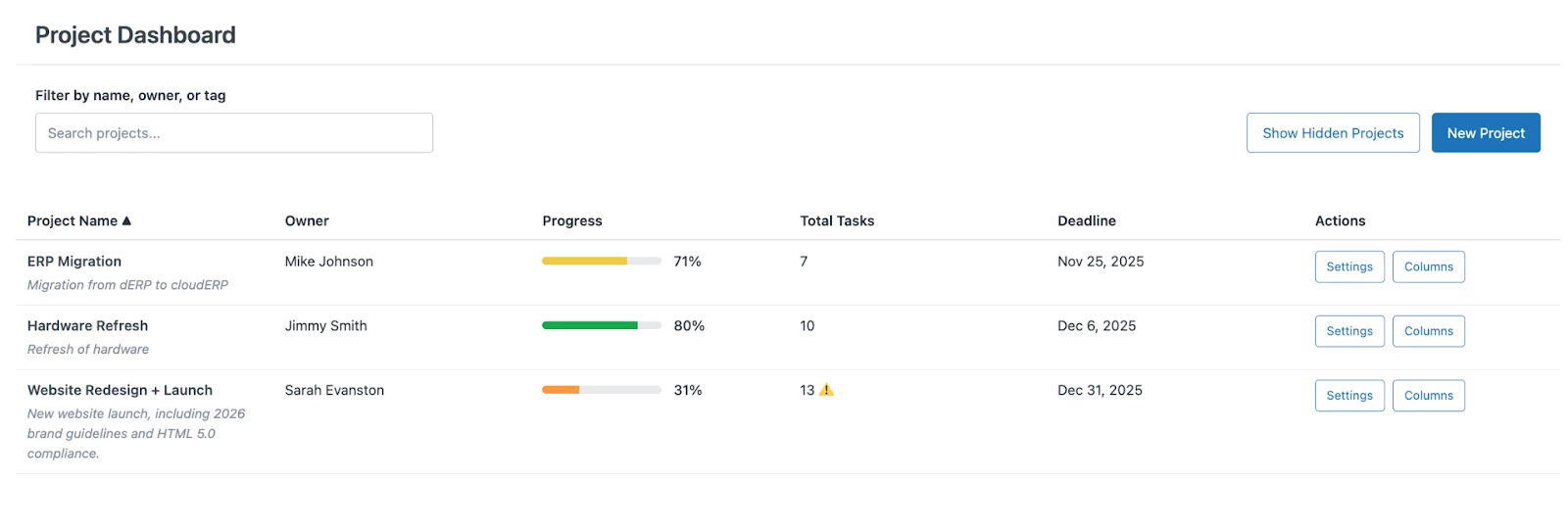
Dashboard
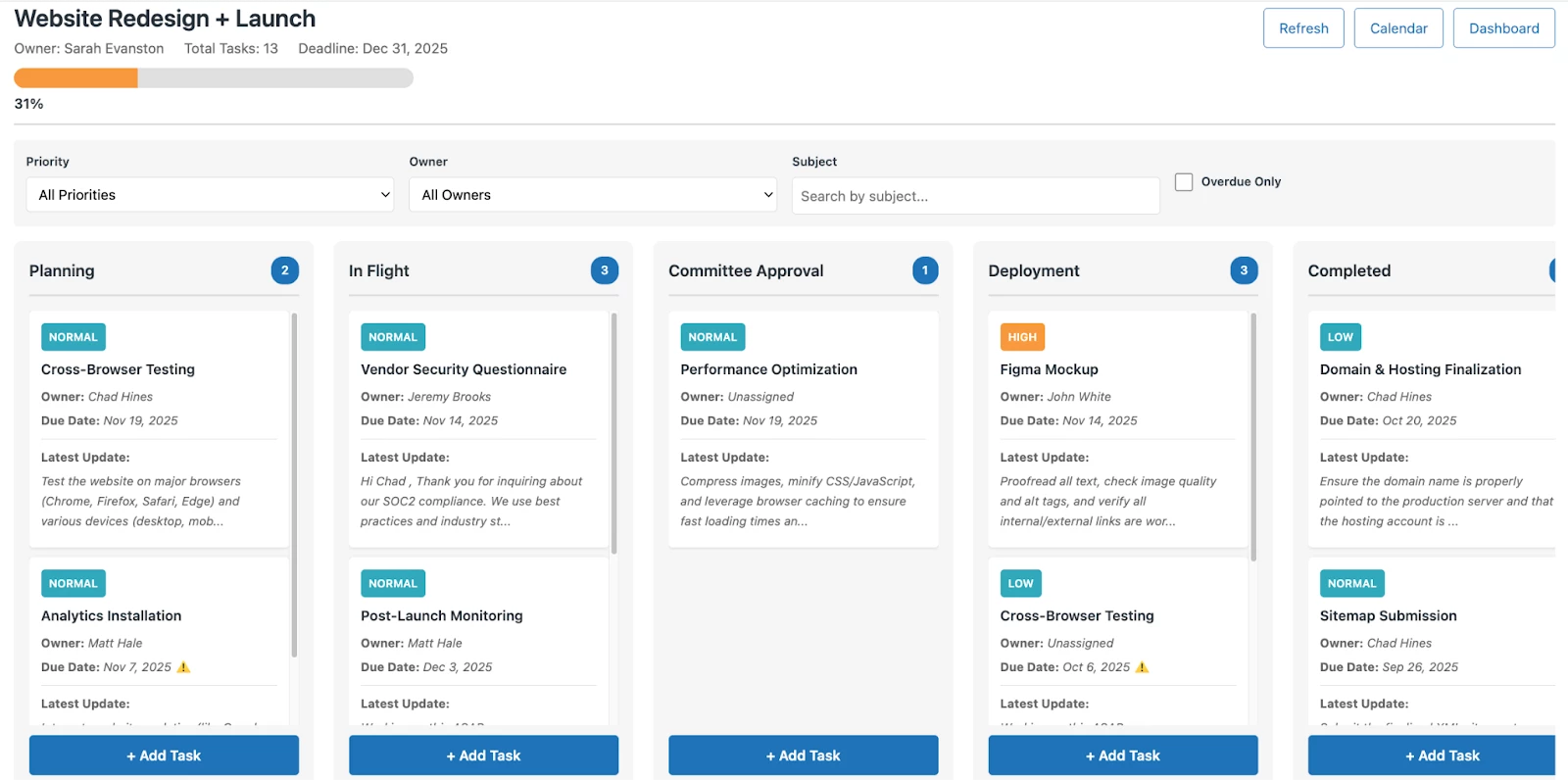
Task Board
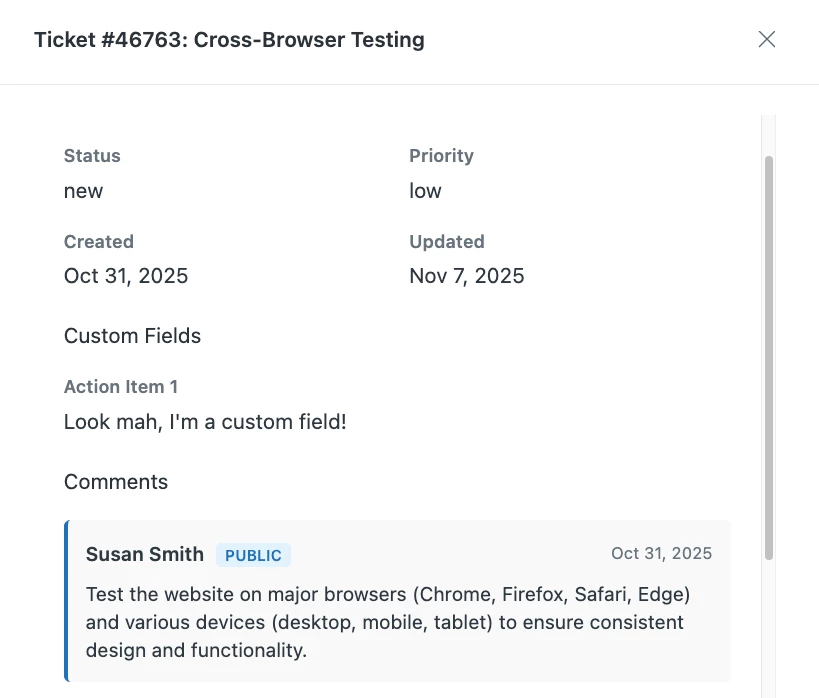
Detail View
Designer's Notes
- This app will likely take several rounds of back and forth prompts with the AI Agent as you work through the design.
- Make sure you have an understanding of how the underlying custom object is set up to ensure success. In particular, have the App Builder confirm how you’d like the project stages to be stored and managed in the custom object.
- You will likely need to work with the app builder on making sure API calls are made in parallel when possible to keep latency down, especially related to dragging cards.
Potential Enhancements
This app can be customized in many ways. Experiment with different UI styles, including an option to “hide” completed projects, or even a Calendar Style view in your Project Board. You can also add some fun elements, like having confetti explode upon moving all tasks to the Completed stage!
Getting Started
Here are some helpful tips and prerequisites before beginning to build this app.
- This app performs best as a side navigation app.
- This app relies on custom objects for basic operation. You will need the ability to create custom objects to proceed.
- I recommend creating a custom object named “Projects” ahead of time with the following fields: owner (lookup or text), project description (text), project deadline (date), project tag (text), project stages (text) as a starting point.
- This app functions by storing / reading project details from a custom object, and then by associating tasks (tickets) to that project by looking for the associated project tag.
- During the build, be sure to test the app in your Zendesk environment (not just the App Builder Visualizer) and ensure all of the various functions work as expected: Creating Projects, Creating Tasks, Moving Ticket Cards around, etc.
Prompt
I want an app that helps me manage multiple projects with a Kanban style visualizer.
There will be three components: The Project Dashboard, The Project Board, and the Expanded Task View. Projects will be grouped together by a project tag.
- The app should use custom objects to hold key details about the project (Name, Owner, Deadline, Project Tag, etc).
- The main page of the app should be the “Projects Dashboard” that shows the key details from the project. There should also be a progress bar that shows how many tasks are “completed” in the associated project.
- There should be a “Create New Project” button on the right side of the header. It’s important that any details entered in this modal are correctly passed to the custom object that is created.
- Confirm with me the object key and custom object field mappings before building the app. Fields for project name, tag, and stages are required.
- The Project Board, which is accessed by clicking on the row in the table, shows all tickets related to this project.
- The Project Board should have a header that shows key details, filter options, and a settings button.
- The Settings button will open a modal that allows users to manage their Stage columns and also select which custom fields will be visible in the Expanded Task View (multi select)
- Underneath the header will be Stage columns.
- The Stages will be determined by a text field from the project’s custom object. Users will be able to add / remove columns inside of this modal. The data should be stored in JSON format. Example: [{"name":"In Progress","tag":"in_progress_{project_tag}"},{"name":"Validation","tag":"validation_{project_tag}"}]
- A stage should not be able to be removed if any tickets belong to it. If a user tries to remove the stage, a pop up should instruct them to first move tasks to other stages.
- There should be a column that collects any tickets with the project tag, but no relevant stage.
- Any tickets with the relevant project tag will show up in the Project Board as a card. The card should contain relevant details from key ticket fields.
- The ticket cards will be inside of the stage column that correlates with the stage tag. Users can drag cards between columns. This will update the underlying stage tags as well as visually move the card into the column.
- There should be an “add task” button at the bottom of each column. This opens a modal for a user to create a new ticket, which will inherit the appropriate project and stage tags.
- Clicking on any card will open up the Expanded Task View - a modal that shows the details of the ticket, the comment history, and any custom fields the user has selected in the settings modal on the Project Board Page.
- There should be a link on the modal that lets the user open up the ticket inside of Zendesk Support.
- Throughout the app, any reference to a field or user should render with the display name and NOT the string of digits.
- We will also need some mock data. A few projects of various completions, and tickets inside those projects.