Prefill and hide Subject & Description fields of specific form on New Request Template | Community
Skip to main content

Prefill and hide Subject & Description fields of specific form on New Request Template

  • October 20, 2022
  • 69 replies
  • 0 views

Ifra

Hello Everyone,

Credit

Zendesk Product(s): Zendesk Guide

Code Requirement: JavaScript

Template: New Request page

Scenario: Prefill the subject and description fields (if fields are required) and then hide both fields or only one field (depends on requirement).


Quetion: 

How to hide subject and description on new request template for the specific form?


Answer:

You want to hide the fields only for one form then check the form ID using the window location code with the IF condition using the JavaScript.

Source:
  
if (window.location.href.indexOf("00000000") > -1) {
      document.querySelector('.request_subject').style.display= "none";
      document.querySelector('.request_description').style.display= "none";
}


Note: Remove 00000000 and add your form-id.


Output:


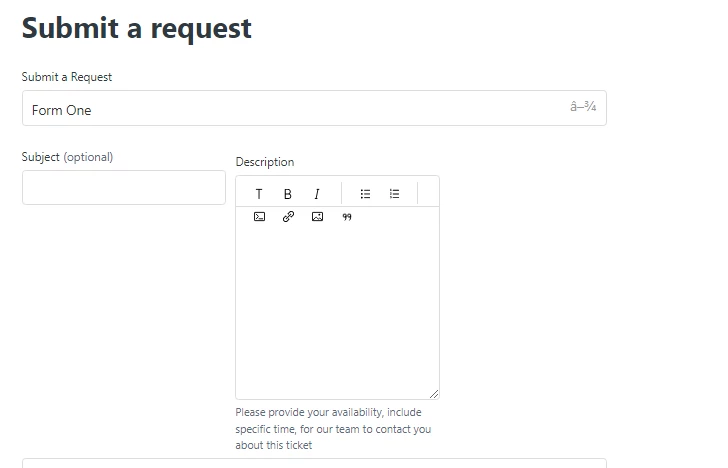
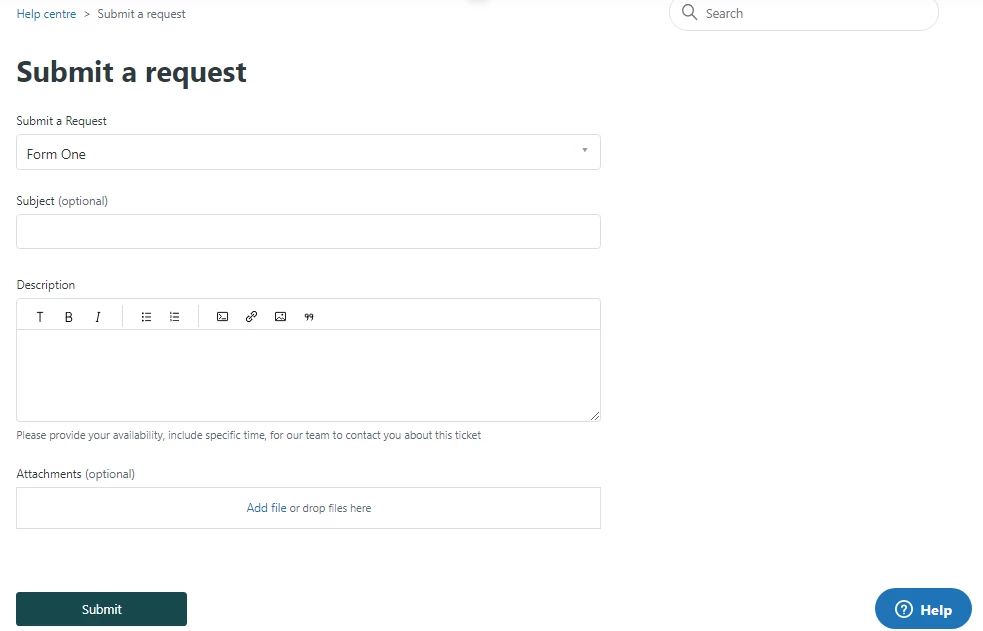
Form One - With subject and description field.


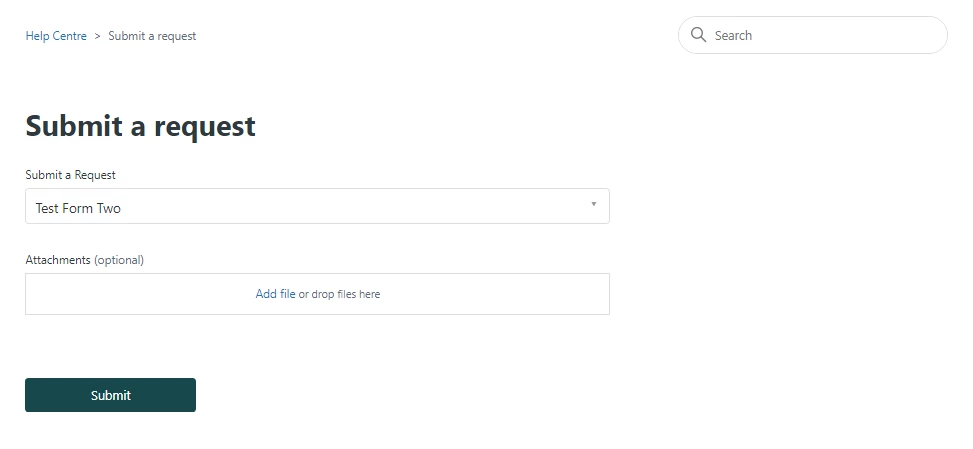
Form Two - Subject and description fields are hidden because I added the form ID of this form in the script code.


Where to add the code?

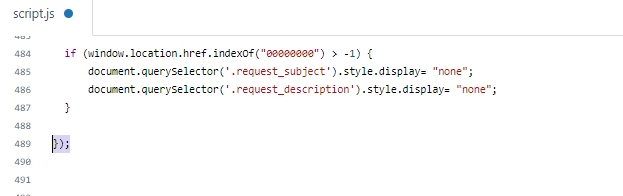
You can see how I added the code to the script.js file inside the function.

Screenshot:
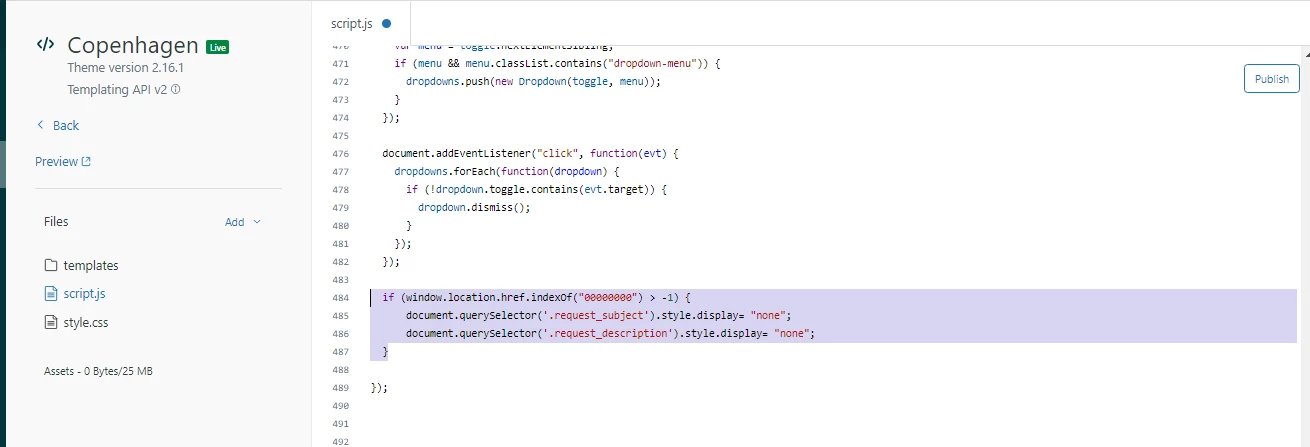
 

i). Go to Help Center > Guide Admin > Customize Design > Edit code.

ii). Find the script.js file.

iii). Add the shared code to hide subject and description field on new request template.

iv). Make sure code should be inside the DOMContentLoaded


Open Tag:


Close Tag:


Quetion:

How to get prefilled subject and description fields of a ticket of a specific form on new request template?


Answer:

If both fields are required then you can't submit a ticket without filling these. 

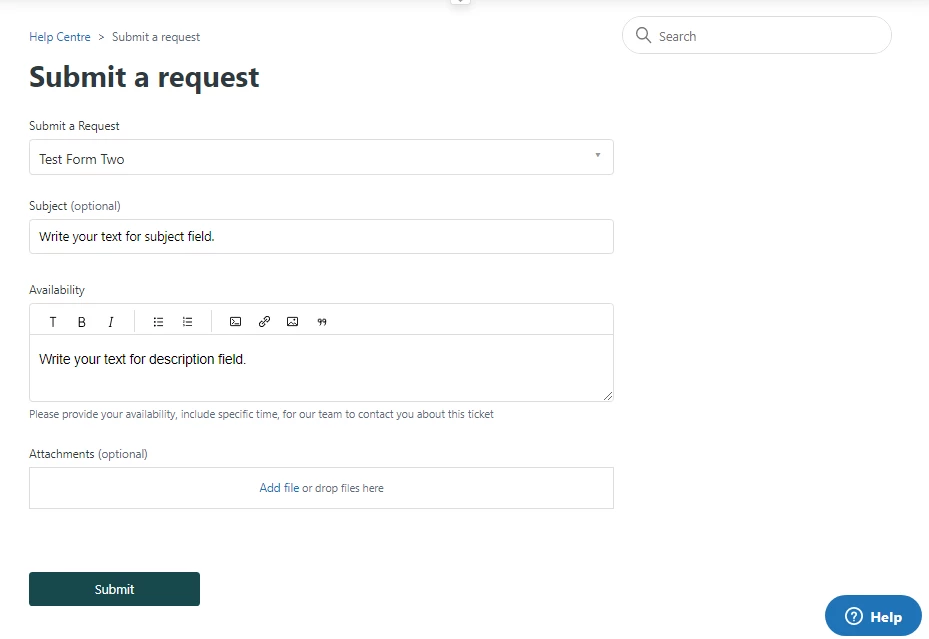
To get prefilled fields of specific form, use the given code.

Source:

 if (window.location.href.indexOf("00000000") > -1) {
      document.querySelector('#request_subject').value= "Write your text for subject field.";
      document.querySelector('#request_description').innerHTML= "Write your text for description field.";
  }


Note: Remove 00000000 and add your form-id.


Output:


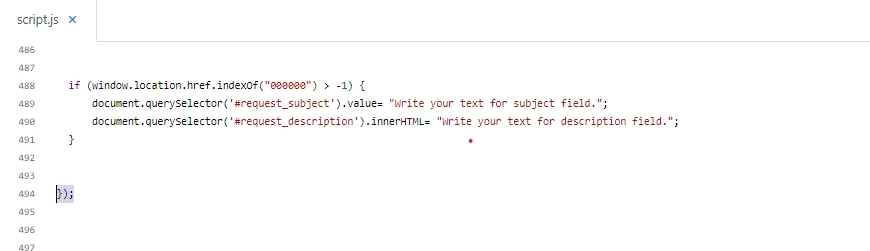
Where to add the code?
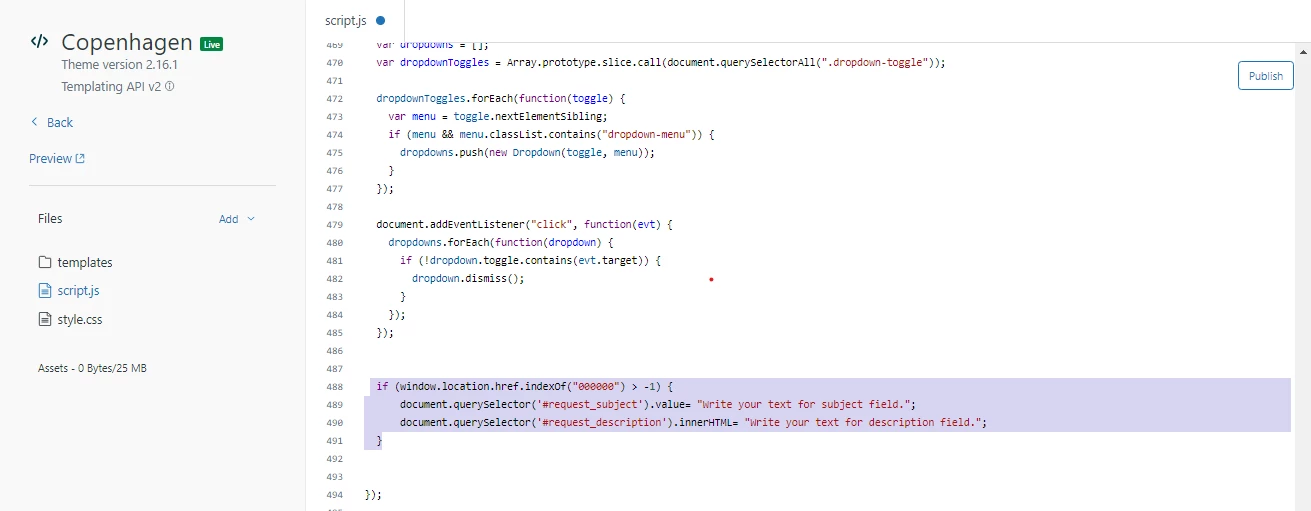
 

i). Go to Help Center > Guide Admin > Customize Design > Edit code.

ii). Find the script.js file.

iii). Add the shared code to hide subject and description field on new request template.

iv). Make sure code should be inside the DOMContentLoaded


Open Tag:


Close Tag:


Important: If your fields are required (if you have set) and you hide both then request form will not be submit. Use the below code to prefill and then hide the fields.

Source:

  if (window.location.href.indexOf("00000000") > -1) {
// Autofill subject field    
  document.querySelector('#request_subject').value= "Write your text for subject field.";  

// Autofill description field    
   document.querySelector('#request_description').innerHTML= "Write your text for description field.";
      
// Hide subject field     
  document.querySelector('.request_subject').style.display= "none";
     
// Hide description field 
 document.querySelector('.request_description').style.display= "none";
  }


NOTE: If this line of code doesn't work for anyone:-

  document.querySelector('#request_description').innerHTML= "Write your text for description field.";

they can use this line instead of the above line of code.

  document.querySelector('.request_description > textarea').value = 'Write your text for description field.';


Thanks :)


69 replies

raphael12
  • November 4, 2022

Hi @ifra you seems very skilled(congrats!)

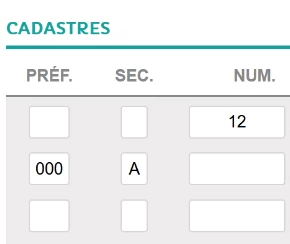
Do you know the way to align side to side some fields? please

Like this:

Best regards! 🙏


Ifra
  • Author
  • November 4, 2022

@Raphaël Péguet, you can get it by CSS, pick the ID of your fields which you wanna set side by side and add the given CSS.

.request_description,
.request_subject {
margin-right: 10px;
    float: left;
  width: 35%;
}

Only for example but you need to add your custom field's classes and set the width per your requirements.


I took the class of subject field and description field and then add css code to style.css file.


Output:


If any confusion feel free to ask :)

Thanks

Team


raphael12
  • November 14, 2022

Dear @ifra

Sorry for the lateness of my answer I was in holidays just after asking,

Thank you a lot for this incredible tip, so useful ! 

Best regards,

Raphaël


  • March 14, 2023

Hi @ifra, not sure if you can help. I've been over a few pages on hiding the subject from a form and auto-populating it using the script.js file using the following: 


if ($("#request_issue_type_select").val() == "123456") {
    $('.form-field.string.required.request_subject').hide(); // Hide subject 
  $('#request_subject').val('Custom text here'); // Autofill subject

What I'm looking to do is add a custom text field from the form to the beginning of the subject, in addition to some standard custom text. However, I'm not sure how to accomplish this with js. I did find where you can do it using a webhook, but I'd like to stay away from that and stick to code in the js file if possible. 

Basically, I need to autofill the subject with (custom_text_field_12345) + ("Custom text here"). Do you know if this can be achieved? Thanks in advance for any input you can offer!


Ifra
  • Author
  • March 15, 2023

HI Nicole,

If you already have a custom-text-field-1234 then simply do the following:

// Autofill custom text field   
document.querySelector('#custom-field-id-17365969036').value= "Write your text here";

Where custom-field-id-17365969036, is the id of this element, you can get it by inspect tool

Mouse hover over the field > right-click > select Inspect > see the id of field > copy that >  remove custom-field-id-1736596903 and paste that here.


And,

Write your text here : Remove this text in the code and write yours.


To autofill the subject field then add the below code:

// Autofill subject field    
  document.querySelector('#request_subject').value= "Write your text for subject field.";


Here, subject id is same for all so you only need to update the text in the code.


If you don't have custom text-field then create that first.

Go to Admin Center click  Objects and rules in the sidebar, then select Tickets > Fields.

After creating, you can see that custom field in your form then do the points which I share above.


If any confusion feel free to ask :)

Thanks


  • March 15, 2023

Hi @ifra! Thank you for helping! I may have not explained myself well. I don't need to autofill a custom field, the end user will still enter their value. I need to add a custom field to an autofill subject. Something like this: 

$('#request_subject').val(('#custom-field-id-17365969036') 'Custom text here'); // Autofill subject


The end result I'm looking for in the subject is something like: 

"John Doe New Ticket Request"

Where John Doe is what the end user entered for their name in the custom field, and New Ticket Request is what was autofilled for each ticket subject. I hope that better explains it!


Ifra
  • Author
  • March 15, 2023

Hi Nicole,  now I understood your query and it's possible, it could be done like this:

var _x = $("#custom-field-id-17365969036").html();
$('#request_subject').val(_x + ' ' + 'New Ticket Request');

After creating ticket using this technique and making t live, check the ticket title in Ticket dashboard of Support.

Try this and let me know. 


  • March 17, 2023

Hi @ifra , I just got done testing this. Instead of showing:  John Doe New Ticket Request

Within Support it shows as:  undefined New Ticket Request

I'm wondering if this is because there isn't a value for the field until submission? 


Ifra
  • Author
  • March 17, 2023

Nicole, can you share public URL of your HC? I wanna see.


  • March 19, 2023

Hi @ifra! I sure can! I'll leave the link up for a day or two. The direct form I'm trying to make this work for is: [link to HC]. The custom field I'm trying to get into the subject is the Name field. Ty!


Ifra
  • Author
  • March 20, 2023

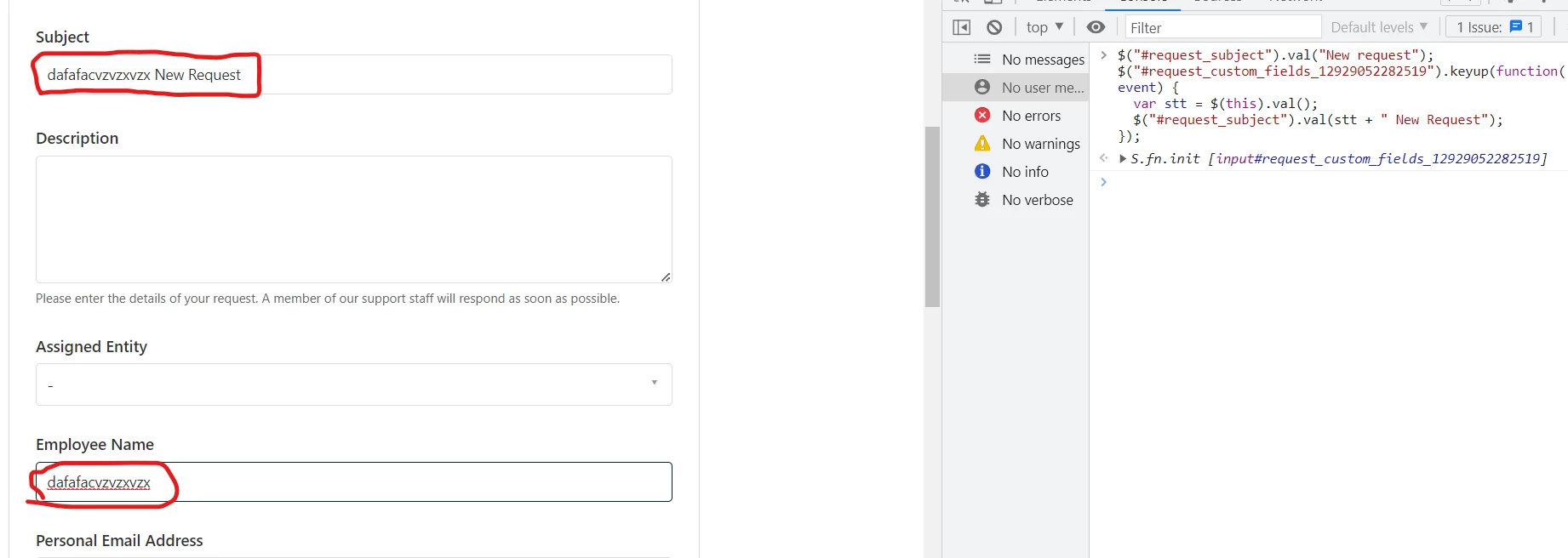
Hey Nicole, copy and paste the given code and see the output:

$("#request_subject").val("New request");
$("#request_custom_fields_12929052282519").keyup(function(event) {
  var stt = $(this).val();
  $("#request_subject").val(stt + " New Request");
});


Output:


let me know if it works for you.


  • March 20, 2023

@ifra Just tried the code. When I use this, it unhides the Subject field. I did try to add the line of code to hide it, but even with that in it didn't hide. 

I added : $('.form-field.string.required.request_subject').hide();

I tried it at a couple spots (above the new code, below the new code) and nothing worked. 


Ifra
  • Author
  • March 20, 2023

Nicole I just tried again:

URL


It is working, subject field already hidden in the form, I pasted that code and that is working.


  • March 20, 2023

Hi Ifra, 

I just messed with the code a little bit and got it to work! Thank you for being such a rockstar! I'm going to list what worked for me below in case anyone else stumbles on this. If you can unlink our HC that would be great. I wish I could upvote your posts more than once, lol!!


//hide subject and autofill subject on submission for form
if ($("#request_issue_type_select").val() == "FormID") {
  $("#request_subject").val("New request");
  $("#request_custom_fields_fieldID").keyup(function(event) {
  var stt = $(this).val();
  $("#request_subject").val(stt + " New Request");
});
    $('.form-field.string.required.request_subject').hide(); // Hide subject 
};


  • March 22, 2023

Hi @ifra Can you possibly unlink our HC two comments up? Thank you so much, and as always, I appreciate your help so very much!!


Ifra
  • Author
  • March 22, 2023

Thanks Nicole!


  • March 22, 2023

Hi @ifra, its the link in your comment on this page. TY!


Ifra
  • Author
  • March 22, 2023

Done!


Rae12
  • April 26, 2023

Hi @ifra I'm trying to adapt this code to completely hide forms from the new_request list. 

This is what I've got so far, but it's not working

if (window.location.href.indexOf("new_request") > -1) {
    document.querySelector('.ticket_form_id=4719898103693').style.display= "none";
    document.querySelector('.ticket_form_id=360000334451').style.display= "none";
}

I'm using a Zenplates theme, and there isn't a DOMContentLoaded line at the top of the script.js template page. 


Ifra
  • Author
  • April 26, 2023

No problem Alyssa !

completely hide forms from the new_request list

Means, you are hiding forms from dropdown list?

If Yes, use the below code: add the given code to your script.js file at the bottom area.

document.addEventListener("DOMContentLoaded", function() {

 document.querySelector('.nesty-panel').addEventListener('DOMNodeInserted', function(event) {
  
 event.target.querySelector('li[id="0000000"]').remove();
    
 event.target.querySelector('li[id="1111111"]').remove();


  });
});


0000000 and 1111111 is my form ID which I wanna hide from dropdown list on new request page.


Replace these ids with your IDs and you can hide mode forms just adding this single line of code:

 event.target.querySelector('li[id="222222"]').remove();


Credit: @Sam

https://support.zendesk.com/hc/en-us/community/posts/4409515399066-How-to-disable-the-ticket-form-dropdown-


Rae12
  • April 26, 2023

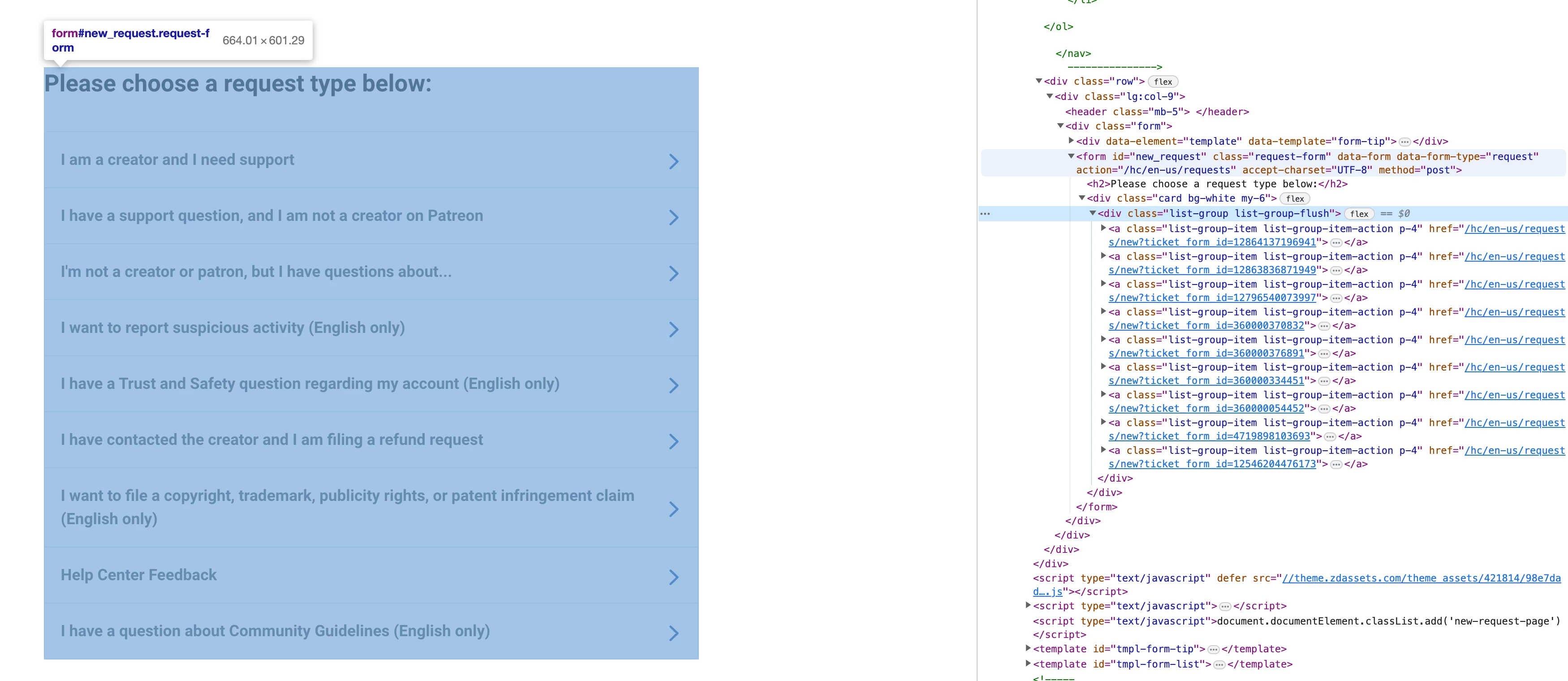
@ifra that worked to hide the forms from the dropdown, however, it's not working for this page (see the image below). I need to hide the option from all lists for the visitor. Thank you so much for your help!


Ifra
  • Author
  • April 27, 2023

Alyssa, use this code to hide form from th users:

document.querySelector(".list-group a[href*='12864137196941']").remove();

document.querySelector(".list-group a[href*='12863836871949']").remove();


The given id will hide your first and second forms form in the list:

12864137196941 - I am creator and I need support

12863836871949 - I have a support question, and I am not a creator on petreon


you just need to add form IDs in the given line:

document.querySelector(".list-group a[href*='Form ID']").remove();


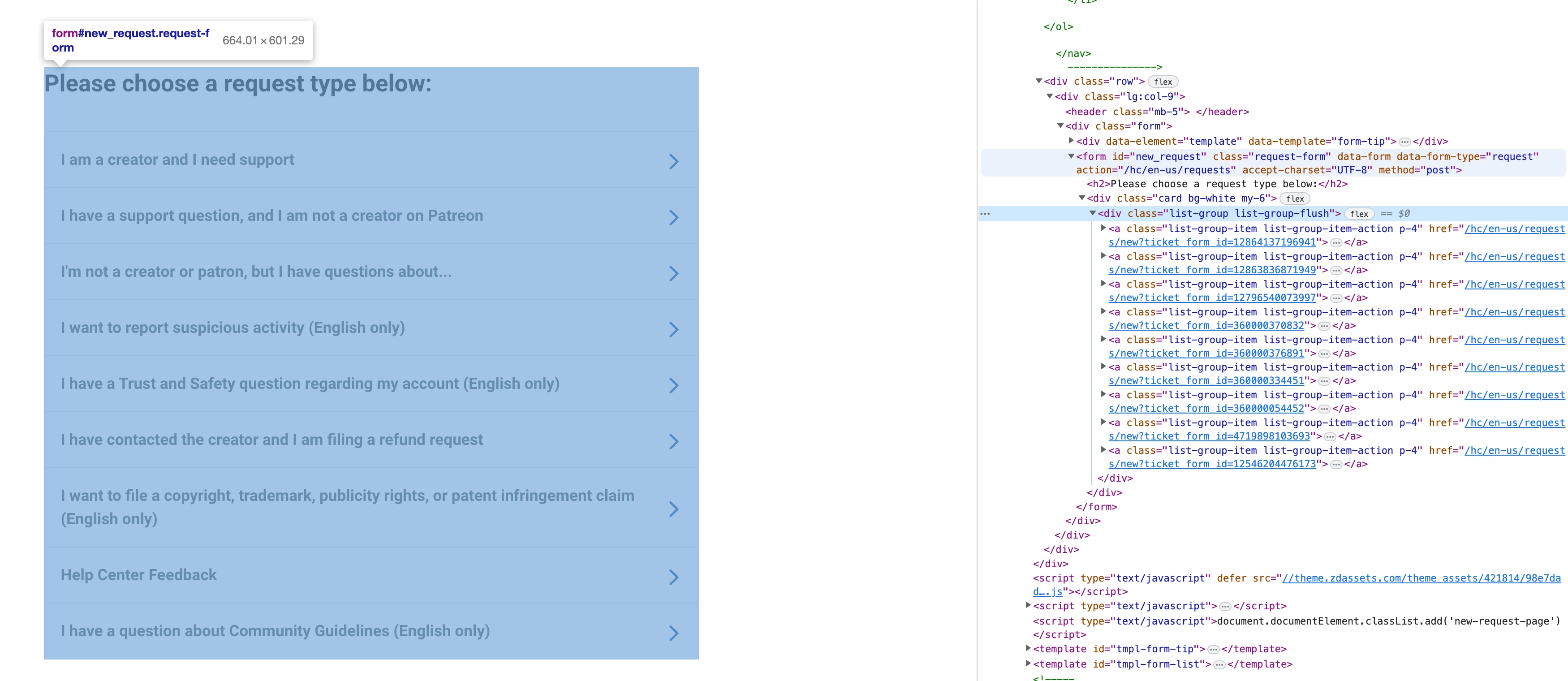
See the anchor tag in this image, there is form ID (inspect tool) in URL, only copy that numbers from the URL and paste in the code as I did:


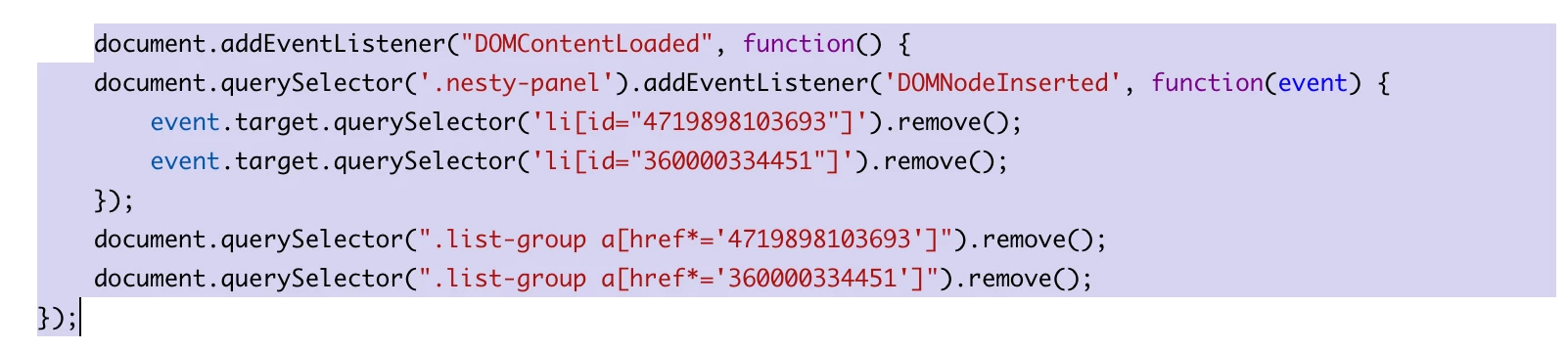
The given code is complete code , it will hide form from dropdown list and from that page where all forms are listed

document.addEventListener("DOMContentLoaded", function() {

 document.querySelector('.nesty-panel').addEventListener('DOMNodeInserted', function(event) {
  
 event.target.querySelector('li[id="0000000"]').remove();
    
 event.target.querySelector('li[id="1111111"]').remove();

  });


document.querySelector(".list-group a[href*='12864137196941']").remove();

document.querySelector(".list-group a[href*='12863836871949']").remove();

});


Rae12
  • April 27, 2023

That worked perfectly! Thank you again, @ifra, for your fast and thoughtful help. You're an absolute superstar! Are there any Zendesk resources that would help me better grasp vanilla Javascript?


Ifra
  • Author
  • April 28, 2023

  • May 19, 2023

Hi @ifra

I was hoping you could assist with the below js script. We're encountering a situation where the subject line was prefixing the subject line variables. Once we added bn it removes everything. Note - bn is regex while rt is a drop down and CN is text.

    $('#request_subject').val("FORM Request");
     var rt = document.querySelector('#new_request > div.form-field.string.required.request_custom_fields_5975694187661 > a');
     var cn = document.querySelector('#new_request > div.form-field.string.required.request_custom_fields_360040294151 > a');
     var bn = document.querySelector('#new_request > div.form-field.string.required.request_custom_fields_360017033972 > a');
     var pt = rt.parentElement;
    
     let reminder = document.createElement('reminder');
     pt.appendChild(reminder);
     let req = document.createElement('req');
    
     $(".request_custom_fields_360040294151").change(function () {   
     var rt = document.querySelector('#new_request > div.form-field.string.required.request_custom_fields_5975694187661 > a');
     var cn = document.querySelector('#new_request > div.form-field.string.required.request_custom_fields_360040294151 > a');
     var bn = document.querySelector('#new_request > div.form-field.string.required.request_custom_fields_360017033972 > a');
         $('#request_subject').val(rt.text + " - "+ cn.text + " - "+ bn.text);
     });
         $(".request_custom_fields_5975694187661").change(function () {   
     var rt = document.querySelector('#new_request > div.form-field.string.required.request_custom_fields_5975694187661 > a');
     var cn = document.querySelector('#new_request > div.form-field.string.required.request_custom_fields_360040294151 > a');
     var bn = document.querySelector('#new_request > div.form-field.string.required.request_custom_fields_360017033972 > a');
         $('#request_subject').val(rt.text + " - "+ cn.text + " - "+ bn.text);