Insert Google Translate widget to your Helpcenter | Community
Skip to main content

Insert Google Translate widget to your Helpcenter

  • October 24, 2017
  • 35 replies
  • 0 views

If manually translating 250 articles of your help center to 6 different (or more) languages is not an option for you, here is a quick guide on how to insert the free Google translate widget to your help center and providing a “good enough” automated translation.

Keep in mind that Google Translate widget does not cover the translation of search nor of the screenshots (obviously..).

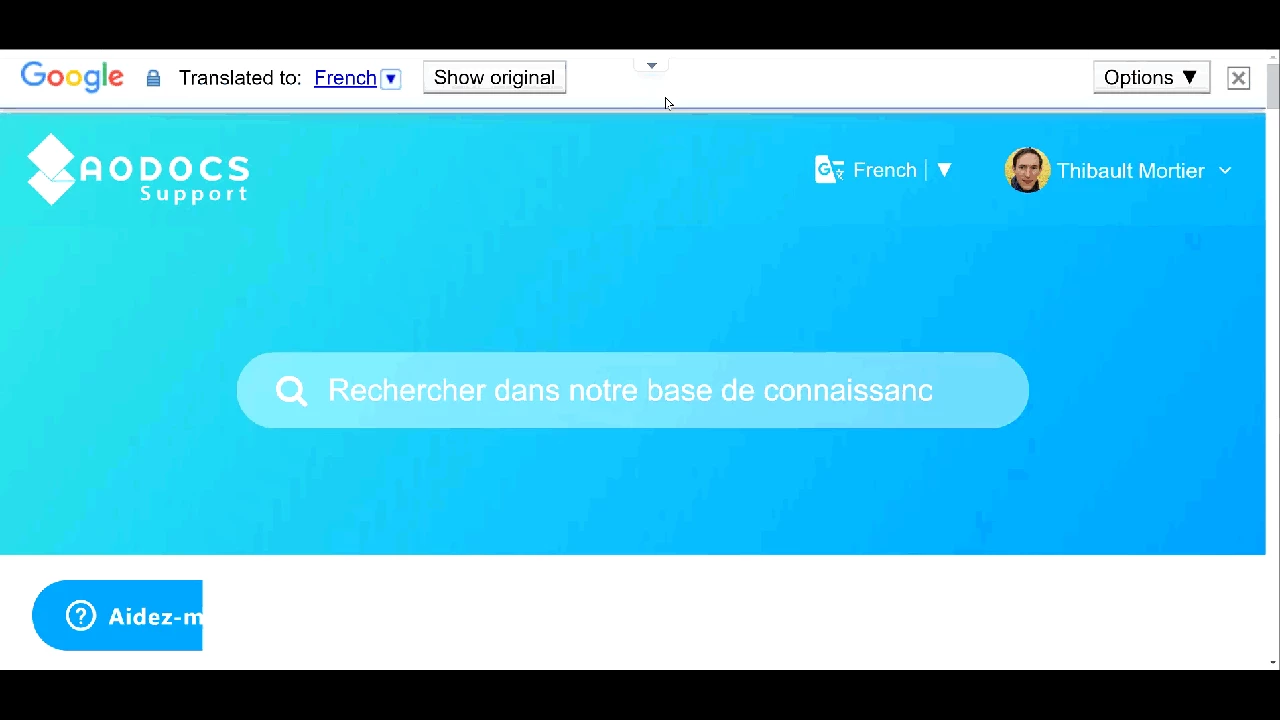
You can check out what it looks like and how it works here: https://support.aodocs.com

Note:
The following steps are done from the newest version of the Guite Theme editor.

We are going to go it in 4 steps:


 1. Insert the script to your Help Center

 2. Insert the button in the Guide Header

 3. Modify the look of the Button

 4. Modify the look of the Dropdown menu


1. Insert the script in the Guide document_head.hbs

  1. Access your Guide admin interface
  2. Open your theme
  3. Access the templates
  4. Select the document_head.hbs
  5. Add the following code:
<!-- Load the Google Translate Widget -->

<script type="text/javascript">

function googleTranslateWidgetInit() {

new google.translate.TranslateElement({

pageLanguage: 'en',

includedLanguages: 'es,fr,it,ja,pt,en',

layout: google.translate.TranslateElement.InlineLayout.SIMPLE

}, 'google_translate_element');

}

</script>

<script type="text/javascript" src="//translate.google.com/translate_a/element.js?cb=googleTranslateWidgetInit"></script>


2. Insert the button in the Guide Header

Once this the script is added, the script will launch every time the page loads and adds the widget (we are not done yet). We are going to insert it in the Header of the Guide interface so that it is always visible to the users.


  1. Access your Guide admin interface
  2. Open your theme
  3. Access the templates
  4. Select the header.hbs
  5. Add the following code at the location in the header where you want the widget to be:
<div id="google_translate_element" class="dropdown"></div>

In the standard Copenhagen theme it would look like this when added to the nav-wrapper: 

<header class="header">

 <div class="logo">

   {{#link 'help_center'}}

     <img src="{{logo_url}}" alt="{{t 'logo'}}">

   {{/link}}

 </div>

 <div class="nav-wrapper">

   <div id="google_translate_element" class="dropdown"></div>

   <span class="icon-menu"></span>

   <nav class="user-nav" id="user-nav">

     {{link 'community'}}

     {{link 'new_request' class='submit-a-request'}}

   </nav>

   {{user_info}}

 </div>

</header>


3. Modify the look of the Button

Then you will probably want to customize the look and feel of the Google Translate widget from the CSS file. 

Here is I have configured it:

  1. Access your Guide admin interface
  2. Open your theme
  3. Access the style.css
  4. Add the following code at the bottom of the CSS file
/**************** Google Translate widget ***********/

iframe.goog-te-menu-frame.skiptranslate {

 margin-top: 2px;

 width: 175px;

 border-radius: 5px;

 box-shadow: 0 6px 12px rgba(0, 0, 0, .175);

 animation: bounce .6s ease-out;

}

.goog-te-gadget-simple {

 background-color: transparent !important;

 white-space: nowrap !important;

 border-color: white !important;

 border-radius: 4px !important;

 font-family: $font_2 !important;;

 font-size: 14px !important;

}

.goog-te-menu-value {

 color: $color_1 !important;

 text-decoration: none !important;

 float: right;

 vertical-align:middle!important;

}

.goog-te-menu-value span {

 color: $color_1 !important;

 text-decoration: none !important;

}

.goog-te-menu-value:hover {

 color: $color_1 !important;

 text-decoration: none !important;

}

.goog-te-banner-frame {

display: none !important;

}

/* add the following (remove it from the comments) if you want to customize the icon of the widget.

/*.goog-te-gadget-icon {

 background: url("url for the icon") 0 0 no-repeat !important;

}*/


4. Modify the look of the Dropdown menu

Also you will perhaps want to customize the look of the drop-down (it is an iFrame)

For that you will need to add some javascript:

Here is I have configured it:

  1. Access your Guide admin interface
  2. Open your theme
  3. Access the script.js
  4. Add the following code at the bottom of the Script file

Note:
In the following example the style to inject in the iFrame is store as a Zendesk Asset:
//p4.zdassets.com/hc/theme_assets/549775/200068704/google-translate-override.css

To customize it: 
1. create your own .css file

  1. upload it in your zendesk assets
  2. Replace the href value with your asset link
// Customize the Google Translate dropdown style

 // (A bit tricky as the dropdown is wrapped in an iframe asynchronously loaded)

(function() {

   var $previewFrame = $('#preview-frame');
   

   function restyleDropdown() {
    

     // In case of Zendesk preview mode, another iframe is wrapping the whole page

     var $dropdownIframe = $previewFrame.length === 1

    ? $previewFrame.contents().find('.goog-te-menu-frame.skiptranslate')

    : $('.goog-te-menu-frame.skiptranslate');

     if($dropdownIframe.length) {

      $dropdownIframe

         .contents()

         .find('head')

         .append('<link rel="stylesheet" type="text/css" href="//p4.zdassets.com/hc/theme_assets/549775/200068704/google-translate-override.css"/>');

     } else {

      setTimeout(restyleDropdown, 100);

     }

   }

   restyleDropdown();

})();

35 replies

Jennifer16
  • October 24, 2017

This is such a great, useful tip! Thanks for sharing it, Thibault!


Jacob20
  • October 27, 2017

Very cool!


  • January 16, 2018

Thanks for the widget. However, it duplicates few fields on contact form. The same behaviour can be also found on example web site.

Is there any update for this widget?


  • February 13, 2018


Thank you!


  • Author
  • February 13, 2018

Hi Darren,

to add additional languages, you can modify the property by adding or removing languages:

includedLanguages: 'es,fr,it,ja,pt,en,sv,de',

The list of language parameters can be found here: https://cloud.google.com/translate/docs/languages


  • February 14, 2018

Hi Thibault,


Thank you so much for the help! We now have it implemented on our help site. :) Do you have any way to track this on Google analytics? A script we can put into our guide center by chance??? :D


Either way, thank you for the helpful guide!


  • March 13, 2018

Hello,

I have a custom theme and I am trying to implement this code in my document head.

I paste in the code and then hit Preview and I don't see any change.

My document head looks has only this:

<meta content="width=device-width, initial-scale=1.0, maximum-scale=1.0, user-scalable=0" name="viewport" />


Could someone please assist me ?

Thank you

Merav


  • March 16, 2018

Hi Merav! 

Let me check with some of our Community Moderators to see if they can help you!


  • March 19, 2018


Thank you Jessie.


  • March 25, 2018

hi Jessie,

I wanted to let you know that I opened a support ticket about this issue, since it's become more critical.

Thank you

Merav


  • March 26, 2018

Hi Merav!

Since this is a Community Tip I'm not sure that Support will be able to help you, but I've pinged the Mods again to try and get someone in here to look at this with you. 


Trapta
  • March 28, 2018

Hi @Merav,

You have to follow the steps as mentioned in the tip and it should work properly. I have deployed it on my side and it seems to work fine.

A screenshot of what issue you are facing or the HC URL will be a great help in fixing the issue you are facing.

Thanks


  • June 18, 2018

Do you have an pictures of it working? What could it look like?


  • June 18, 2018

@Heather

Sure, go to our help center https://support.pepperi.com and you can try it out.

(I have one small issue that I must have the "open a ticket" page in Hebrew, however I do not want to offer google translation of the articles to Hebrew, so I didn't add Hebrew to the google translate options, but I did add it in the built in Zendesk language menu all the way on the right. If I didn't need that support ticket page in Hebrew I would completely remove that built in Zendesk language menu option). Let me know what you think.

thanks


  • May 22, 2019

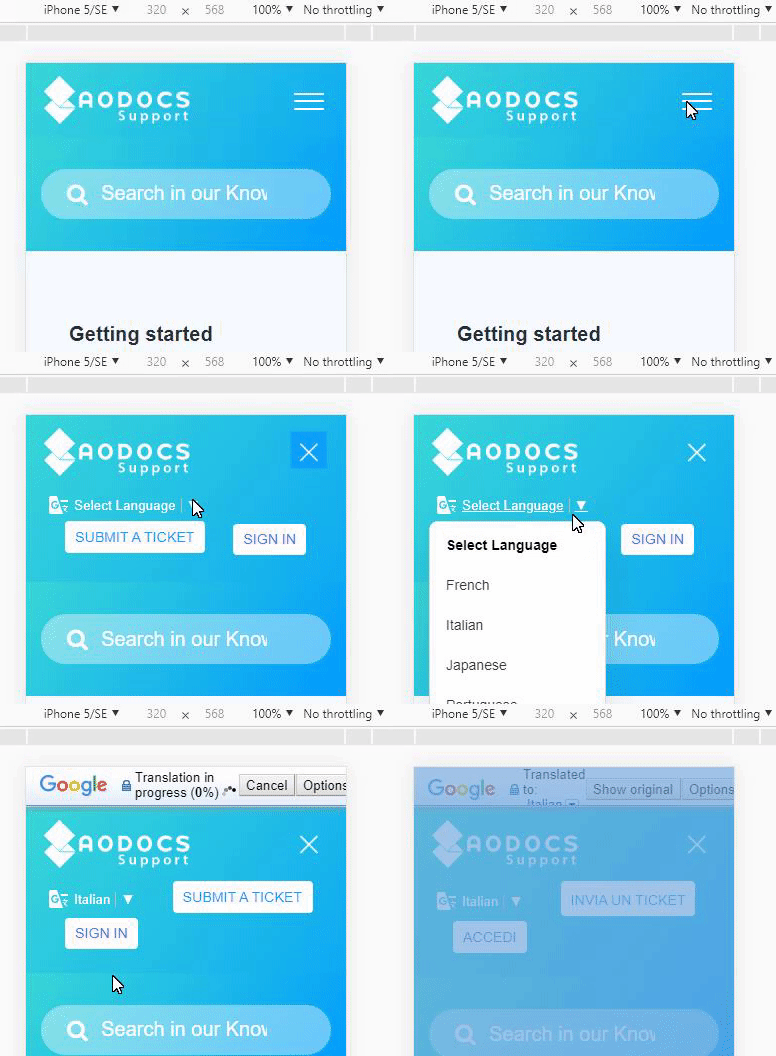
Is there an option for this to work in the mobile-site as well?

I havent figured it out :-)


In the normal website it is working just fine.


Jacob20
  • May 22, 2019

Hi Kasper,

It should still be working, however, in the Copenhagen theme the mobile view has hidden away action items like this. You should be able to find it if you open up the hamburger menu.

I'm pretty sure you could place the language selector elsewhere though.


  • May 22, 2019

Ahh... we are not using the Copenhagen Theme.

The theme we are using does not have the hamburger menu option.


Trapta
  • May 23, 2019

Hi @Kasper,

May you please share the URL of your helpcenter so that I can take a look at it?

Thanks


Suzanne15
  • April 17, 2020

This was so helpful! Thank you. However, when I put it into my theme (Copenhagen) I noticed that every time I clicked on a language my header moved down. Any idea what is causing that?


  • Author
  • April 18, 2020

This is likely when the widget insert its own header but in your case it might be displayed behind yours while still expanding it.

Try collapsing your "Zendesk Admin header", you'll probably see it.


Suzanne15
  • April 18, 2020

Thank you for the response. That does not seem to be the problem. Everything looks good, but once I choose a language from the list the entire header shifts down. You can see it at support.oceansideschools.org. 

Thank you for your help


Suzanne15
  • April 18, 2020

And, if anyone can help explain why my header doesn't take up the width of the page I would be grateful for that too. I have no real coding experience and I have been struggling to make changes. Thank you for the support!


Ron14
  • April 25, 2020

Hi @Thibault, 

Thanks a lot. Works like a charm! Do you know if (and how..) it's possible to show this widget for one particular organisation only? Can I base it upon organisation name / organisational field maybe? Or can I use the User Segment option perhaps? 

Say safe! 

- Ron 


Active Feature Request (please vote):

Feature Request: Add the ability to easily insert a Google Translate widget to your Help Center

@Thibault

I just posted a Feature Request for this at the link below. If you would like to see this feature please head over there and show your support. Please make sure to add an upvote and comment even if it is simply a "+1"

Also, you may consider adding it to your post to get the feature request more visible.

https://support.zendesk.com/hc/en-us/community/posts/360046933593-Feature-Request-Add-the-ability-to-easily-insert-a-Google-Translate-widget-to-your-Help-Center


  • November 9, 2020

Hello! 

Great post! 

Does any of you have any idea if it's possible to have this widget show to a particular set of customers only? Reason for asking: we translate all content in Dutch, German, Turkish and English ourselves but we want to use the Google Widget for our Spanish customers since we don't have many there yet and we don't have anyone speaking Spanish in our team. 

Thanks and stay safe!

Ron