How to show article labels as tags on articles | Community
Skip to main content

How to show article labels as tags on articles

  • March 30, 2017
  • 23 replies
  • 0 views

Jacob20

Wes Drury did all the work on this, I'm merely writing up a how-to for Swag rewards ;-)

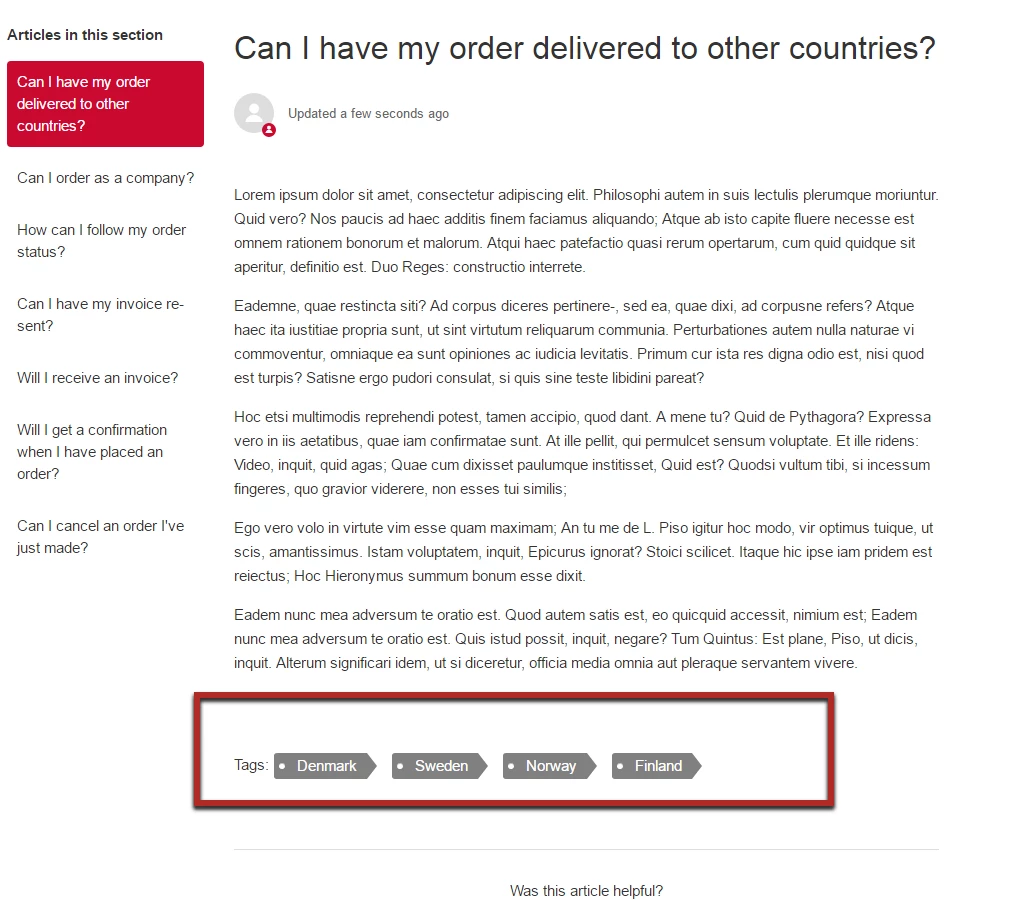
Would you like to have your article labels visible to end users as tags*?
Sure you do, why else would you be here.

*) It won't work as a link to a list of other articles with the same label though (as you may know from blogs), only as pretty labels with text.


How it will look
Before we start

If you are unfamiliar with customizing your Help Center you may want to reference this article first ^.

If you have articles that already have labels on them, know that they will show up as soon as you publish these changes.

Labels were not made for this purpose, many use labels to add search words to an article that is not already part of the title or body text, so keep that in mind if you want to try this out.

What to do

To get started navigate to: 

General > Customize design

and click the Edit theme link.

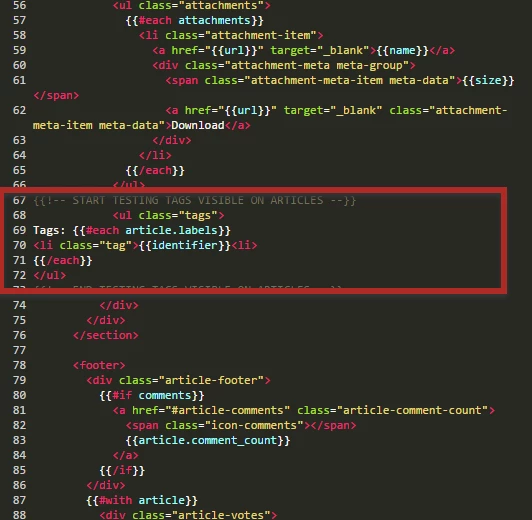
Copy the following piece of code from Wes.

<ul class="tags">
Tags: {{#each article.labels}}
<li class="tag">{{identifier}}<li>
{{/each}}
</ul>

Insert it the Article template, I entered it below the body of the article, but other places may fit better with your preference.
Next copy the CSS below:

.tags {
list-style: none !important;
margin: 0;
overflow: hidden;
padding: 0;
display: inline-flex;
}


.tag {
background: #808080;
border-radius: 3px 0 0 3px;
color: #fff;
display: inline-block;
height: 26px;
line-height: 26px;
padding: 0 20px 0 23px;
position: relative;
margin: 0 10px 10px 0;
text-decoration: none;
-webkit-transition: color 0.2s;
margin-left: 5px;
}

.tag::before {
background: #fff;
border-radius: 10px;
box-shadow: inset 0 1px rgba(0, 0, 0, 0.25);
content: '';
height: 6px;
left: 5px;
position: absolute;
width: 6px;
top: 10px;
}

.tag::after {
background: #fff;
border-bottom: 13px solid transparent;
border-left: 10px solid #808080;
border-top: 13px solid transparent;
content: '';
position: absolute;
right: 0;
top: 0;
}

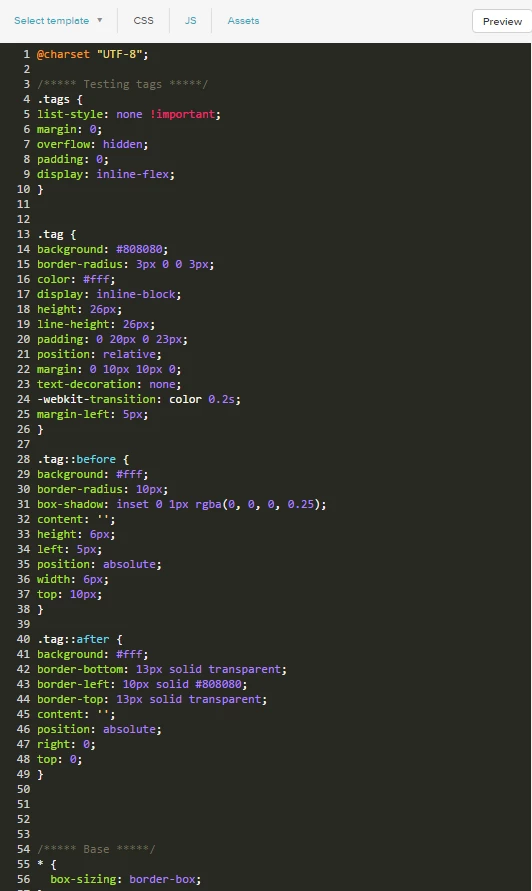
Insert it in the CSS page. I did it at the top from line 3.
Save and Publish.

See if it's working

Once the above is set up, create an article and give it some labels and see what it looks like.

Also, see Brad's comment below about how to add functionality to make each label open a pre-populated search so users can easily find other articles with that label.  

23 replies

Jennifer16

Thanks for writing this up, Jacob! Great tip, Wes!


ModeratorWes

Looks good and great job Jacob!


  • March 31, 2017

This is fantastic, guys!


Vladan
  • March 31, 2017

one of my fav. Thank you!


Hey guys. I've got one question and one comment.

I was wondering if there's any functionality in Zendesk that allows me to have a link/URL attributed to a given label that can take the user to a page that shows all articles assigned to that label. Is it possible to do something like that currently? I think this would be more useful than just showing the labels on an article and not being able to interact with them.

As for my comment, I just wanted to note that the GitHub gist referenced above will yield invalid HTML. `<ul>` elements can only have `<li>` elements as their direct descendants. Having the `Tags:` text as a descendant of the `<ul>` will throw an error.

<ul class="tags">
Tags: {{#each article.labels}}
<li class="tag">{{identifier}}<li>
{{/each}}
</ul>

  • April 11, 2017

This is a great article - thanks for the folks who took the time to add it. I want to echo @michael marcialis comment above - it would be really beneficial to have the ability for the labels to be "linkable" to a page that lists all articles tagged with a particular label. It is becoming more and more expected that this kind of behaviour would be the norm for tagged articles so it would be great if the zendesk product team could factor that in for (near) future iterations of the help center. 


Brad15
  • April 12, 2017

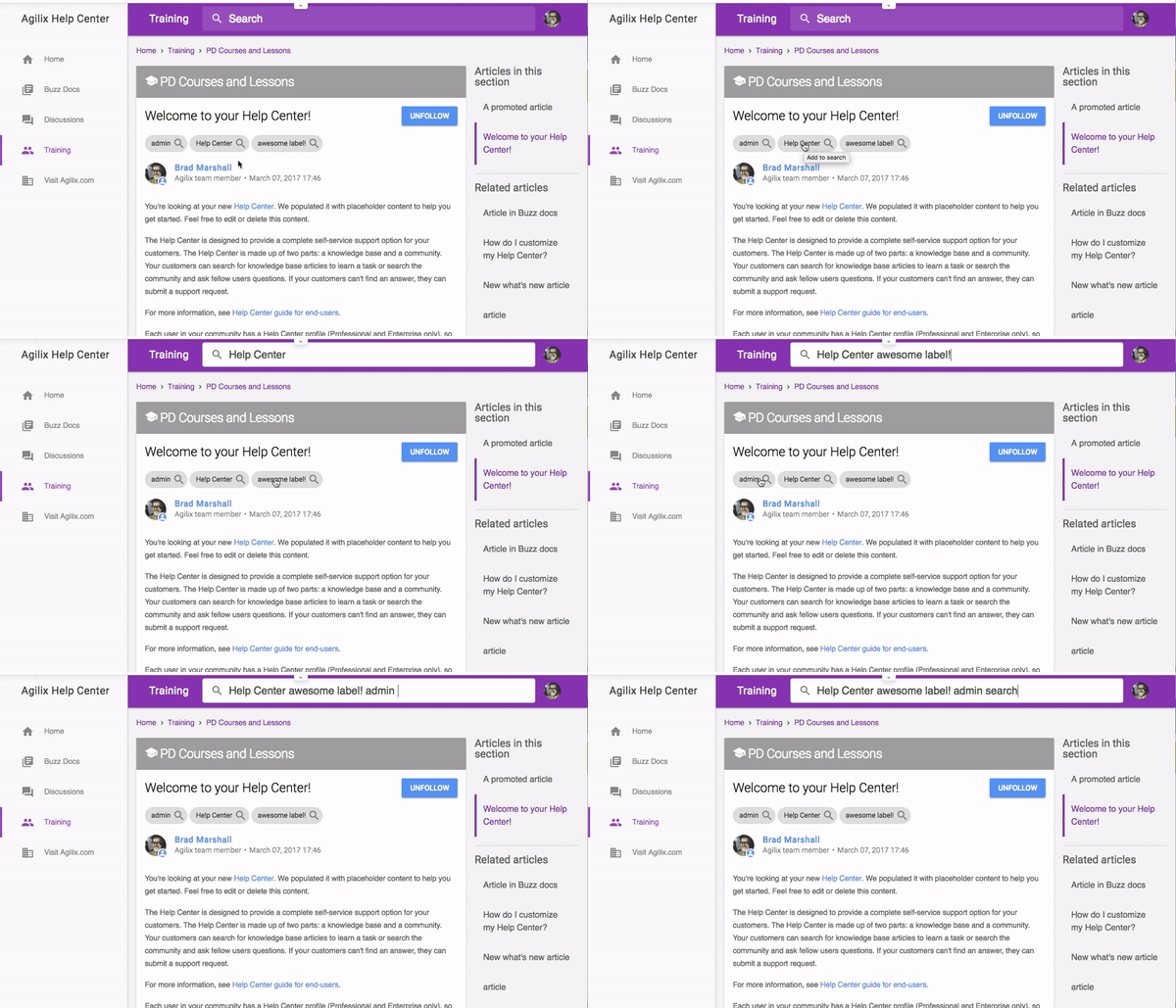
It was suggested that I share some work that I had worked on to allow for a label to be displayed and searched for. Below doesn't include all of the CSS, but shows what is possible with some JS.

The goals are:

  • Allow a user to see related terms
  • Allow a user to easily search by one or more labels
  • Allow the user to add their own text to the label search

So, this is how it looks and functions to a user.

Here is a snippet of my html.

{{#if article.labels}}
<div class="mdl-card__supporting-text labels">
{{#each article.labels}}
<span class="mdl-chip mdl-chip--deletable search-enabled" title="Add to search">
<span class="mdl-chip__text">{{identifier}}</span>
<button type="button" class="mdl-chip__action">
<i class="material-icons">search</i>
</button>
</span>
{{/each}}
</div>
{{/if}}

NOTE: I am using Material Design Lite.

Here is the snippet of my JS used to populate the search field with value of the label.

$(".labels .mdl-chip.search-enabled").on("click", function(e) {
if ($("form[role=search] input[type=search]").val() === "") {
$("form[role=search] input[type=search]").val($(this).find(".mdl-chip__text").text());
} else {
$("form[role=search] input[type=search]").val($("form[role=search] input[type=search]").val() + " " + $(this).find(".mdl-chip__text").text());
};
});


Jennifer16

This is awesome, Brad. Thanks so much for sharing the add-on to this tip! 

(Look for a t-shirt in your inbox!)


  • April 13, 2017

Thanks Brad for this! This is very useful indeed! 


Jacob20
  • Author
  • April 18, 2017

Very nice Brad! Thanks for sharing!


  • June 13, 2017

Nice @Jacob, how to make search tag value "news" to change color?

Example:


Not work a search value "news" 🙁


Jacob20
  • Author
  • June 14, 2017

Hi Sandro,

Do you mean change them to another color than the dark gray? 

I don't unfortunately know, I hope someone else following this post could help you out. Sorry.


ModeratorWes

If you want to change all the tags colors then just change the following in the CSS

.tag {
background: #808080;


  • June 26, 2017

Excellent thank you, Is it possible to turn each tag into a search result. not as per brad's addition. but clicking the tag will then complete the search.

For example.

Tags: Software Update

Clicking the software update tag will then provide search results for software update.

Thanks

Andrew


  • September 23, 2019

Is it possible to list labels in the homepage?

I am creating popular keywords / labels listing, so tried to use the code from the example in this page but got the following error

-- not possible to access `article` in `article.labels --

Any help please ..?


Vladan
  • October 2, 2019

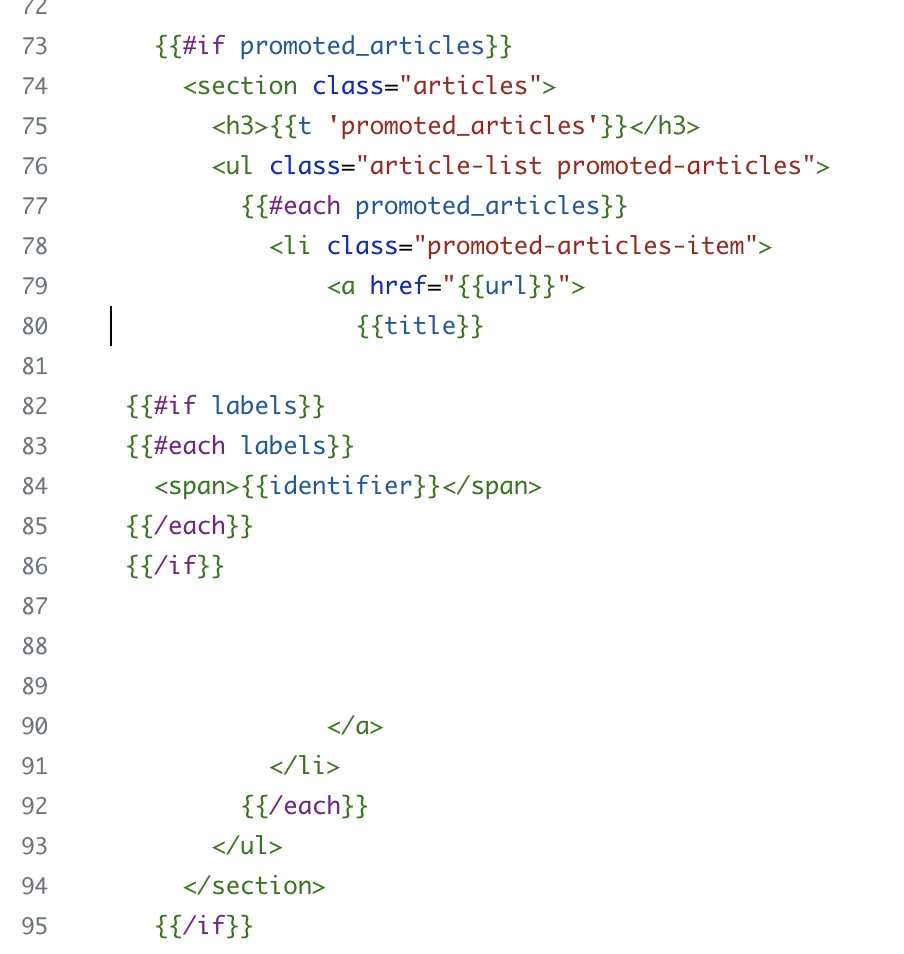
This code will work on the Home Page / Promoted articles

{{#if labels}}
{{#each labels}}
<span>{{identifier}}</span>
{{/each}}
{{/if}}


  • November 10, 2023

Did anyone manage to find a way of giving the labels different colours?

For example
Label: Success = green
Label: Fail = Red


Tipene
  • November 15, 2023
Hi Tom, 
 
You'd just need to make some small changes to the CSS, and possibly add another class name to the tag list item to differentiate them for the color application e.g:
 
.tag .success {
background: #00FF00;
}

.tag .fail {
background: #FF0000;
}

  • November 16, 2023

Thanks @tipene , I'm not quite show how that would work. How does the class identify the different tag in this code?

<ul class="tags">
Tags: {{#each article.labels}}
<li class="tag">{{identifier}}<li>
{{/each}}
</ul>

  • November 16, 2023

For anyone interested I manage to achieve different coloured tags using some JS.


<ul>
{{#each article.labels}}
<li class="item">{{identifier}}</li>
{{/each}}
</ul>


JS

$(document).ready(function () {
    $(".item:contains('Released')").addClass("released");
    $(".item:contains('In development')").addClass('indevelopment');
$(".item:contains('Planned')").addClass('planned');
});


CSS style tags as you wish

.item {
color: black;
}

.released {
color: green;
}

.indevelopment {
color: orange;
}

.planned {
color: blue;
}

Tipene
  • November 16, 2023

Hey @tom81,

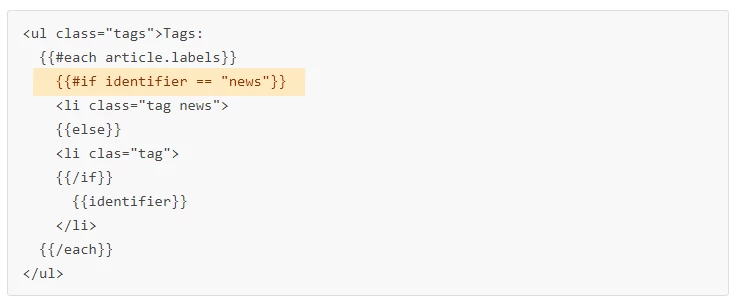
Good call out on using JS, which is one option I would have suggested for this use case. The other would be using the if and compare helpers to conditionally render the list items in your article template - something like this:


<ul class="tags">
Tags: {{#each article.labels}}
      {{#if (compare identifier "==" "your_identifier")}}
                 <li class="tag success">{{identifier}}<li>
              {{else}}
                 <li class="tag fail">{{identifier}}<li>
          {{/if}}
{{/each}}
</ul>

  • November 17, 2023

Ah great stuff I think I prefer that. Thanks @tipene. Last question I promise. How would you display the the labels on the section page either before or after the article titles?


Tipene
  • November 17, 2023

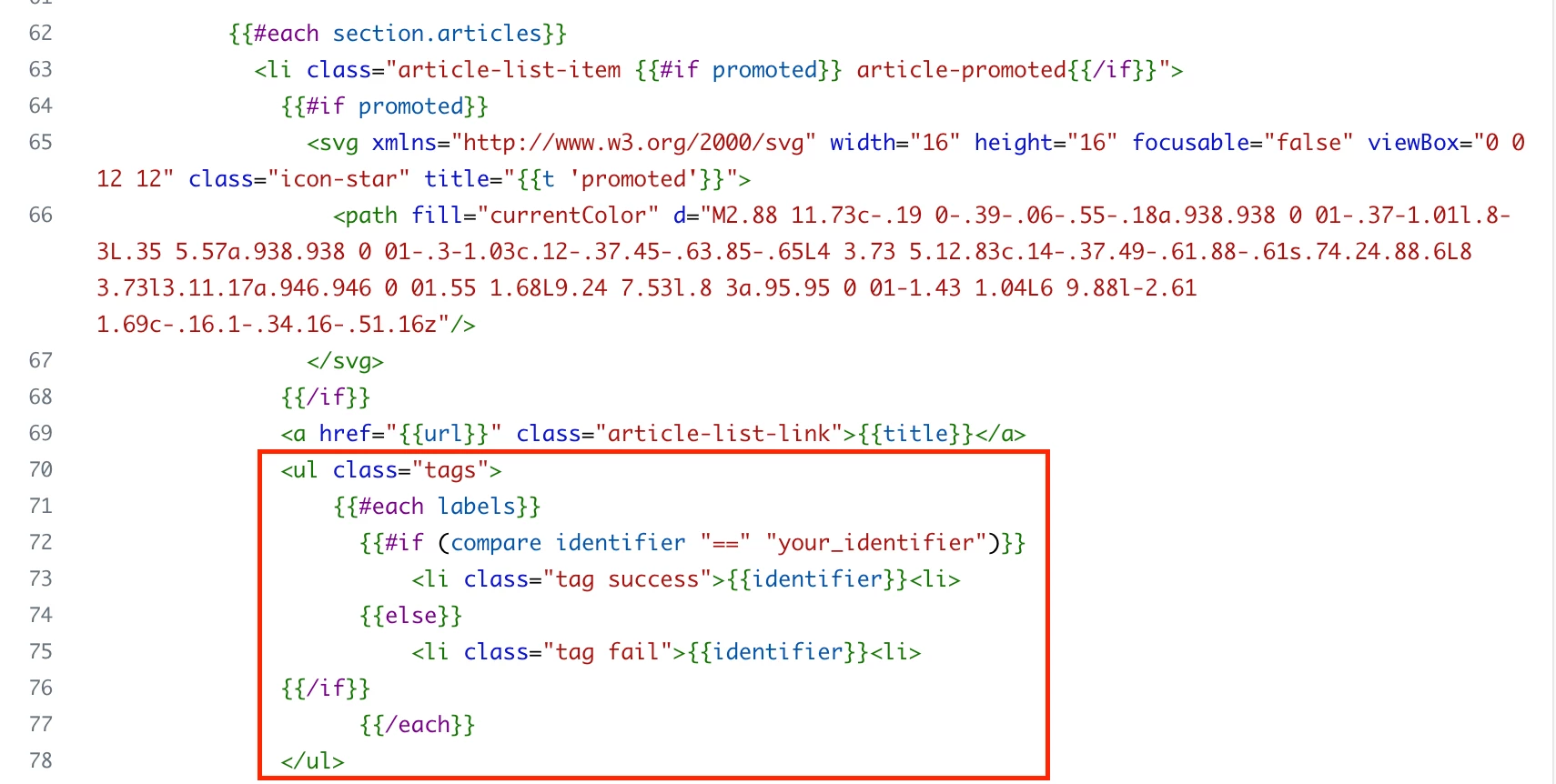
No worries! You've still got access to the article labels in the section page so the code will be similar. In this screenshot from the section template, I've put the code block below the title link, which is within the #each section.articles helper. The only real change I've made is looping over "labels" instead of "article.lables" since we're already in the article object.

You'll need to make some changes to the CSS to get the labels appearing in the position you want them in, but this should get you moving in the right direction.