How to recreate the Insights CSAT dashboard in Explore | Community
Skip to main content

How to recreate the Insights CSAT dashboard in Explore

  • October 30, 2020
  • 15 replies
  • 0 views

Chris21

The Goal

It can be really satisfying (ha) to see all of your CSAT ratings with clear visual indicators for good and bad CSAT in the Reporting section of your instance. As Insights will be removed in February 2021, I thought I would share how we recreated this experience using Explore.

Prerequisites 

  • Zendesk Explore Professional
  • Image links for the indicator you would like to use

Explore doesn't have a way to highlight the rating name as green or red, but you can add a URL to an image and use that to make it easy to visually identify good and bad ratings. In my case, I chose a green dot for good and a red dot for bad.

Instructions 

Step 1

Step 2

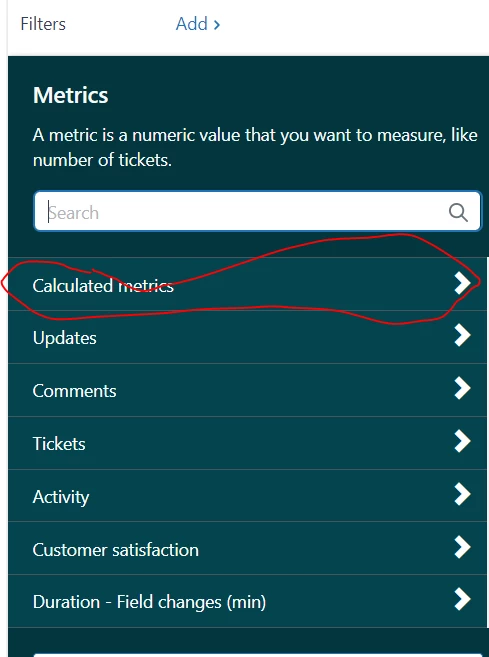
  • Add the metric COUNT(Rated Satisfaction tickets)
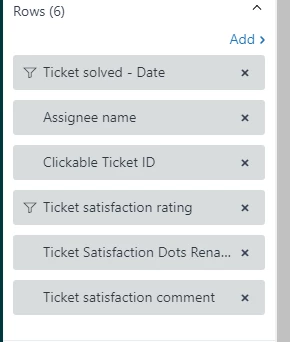
  • Add the following attributes to Rows:
  1. Ticket solved - Date (filter: Edit date ranges>Advanced> 1 month in the past to today) You may need to adjust the date filter depending upon the number of rows generated. Reducing the timeframe should allow you to avoid reaching the row limit.
  2. Assignee Name
  3. Clickable Ticket ID
  4. Ticket Satisfaction (filter: Include Good, Bad)
  5. Ticket Satisfaction Comment

Step 3

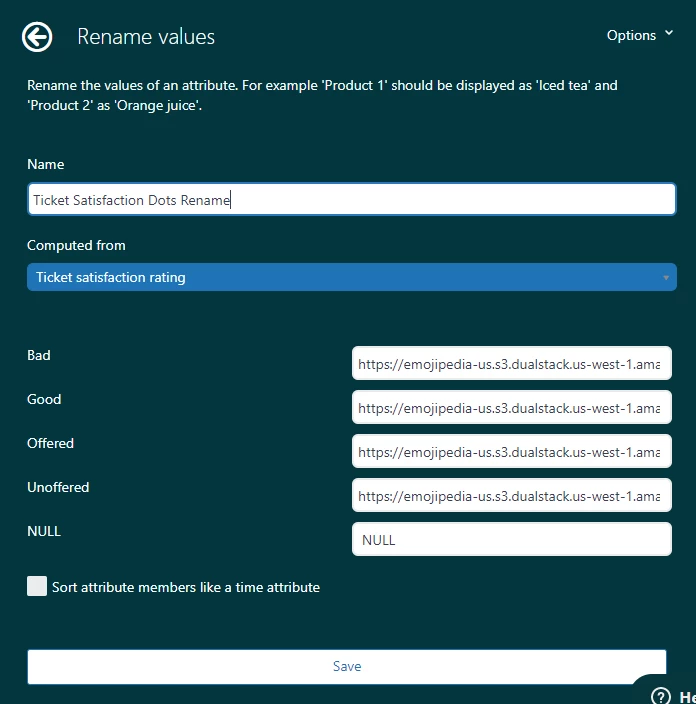
  • Create a Renamed Set Attribute
  • For this step you will need your image URLs
  1. Click on Calculations at the right
  2. Select "Renamed Set"
  3. Name your new attribute, I chose "Ticket Satisfaction Dots Rename"
  4. Set the "Computed From" to Ticket Satisfaction Rating
  5. For each condition add the URL for the image you would like to represent that attribute
  6. Save your changes

Step 5

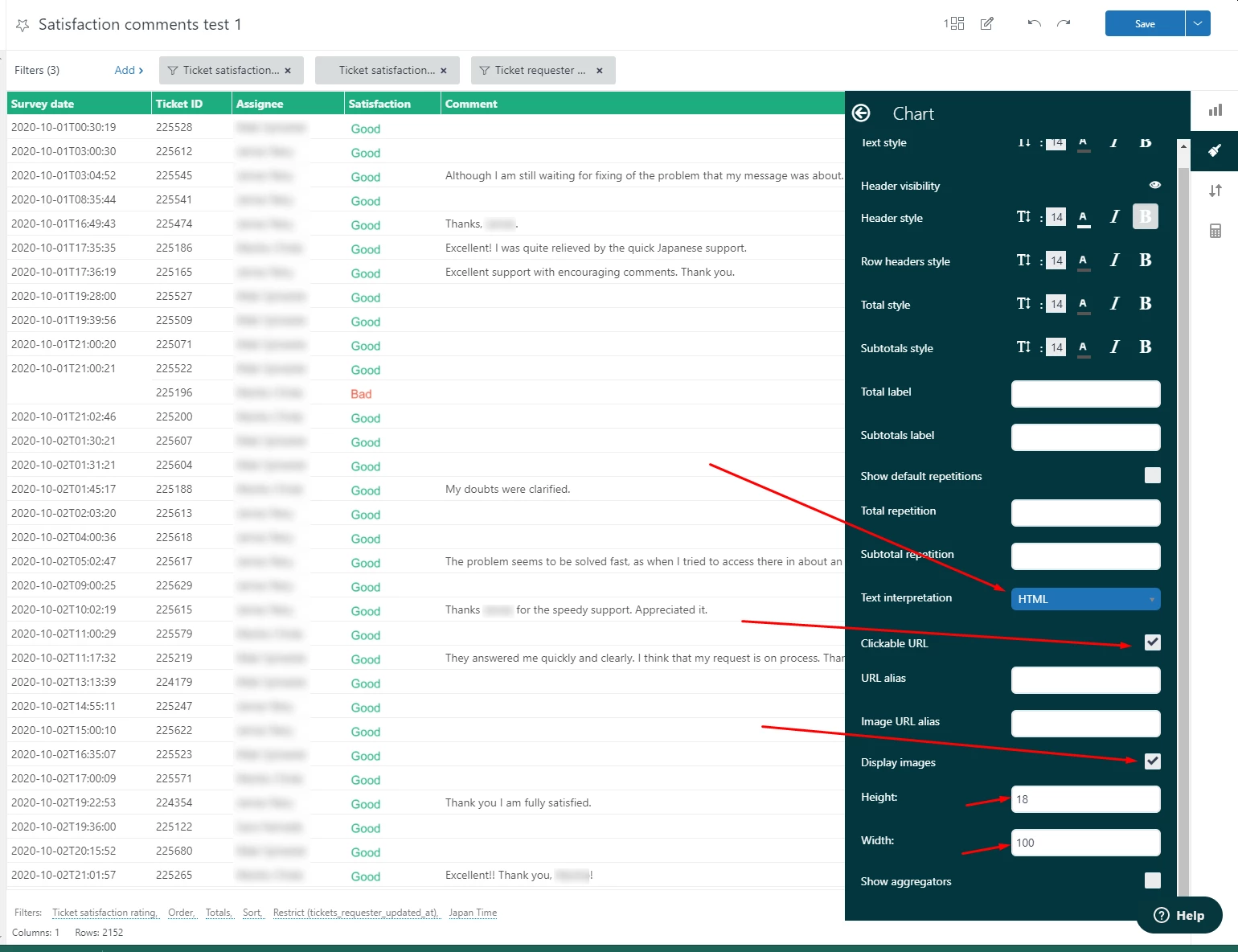
Now you'll need to configure your query to recognize the links we just added.

  1. Click on the Configuration paint brush icon on the right side
  2. Select Chart
  3. Change the "Text Interpretation" field to HTML
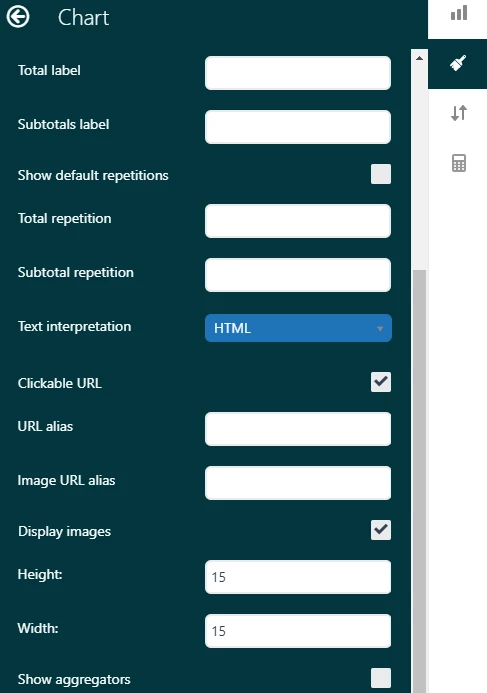
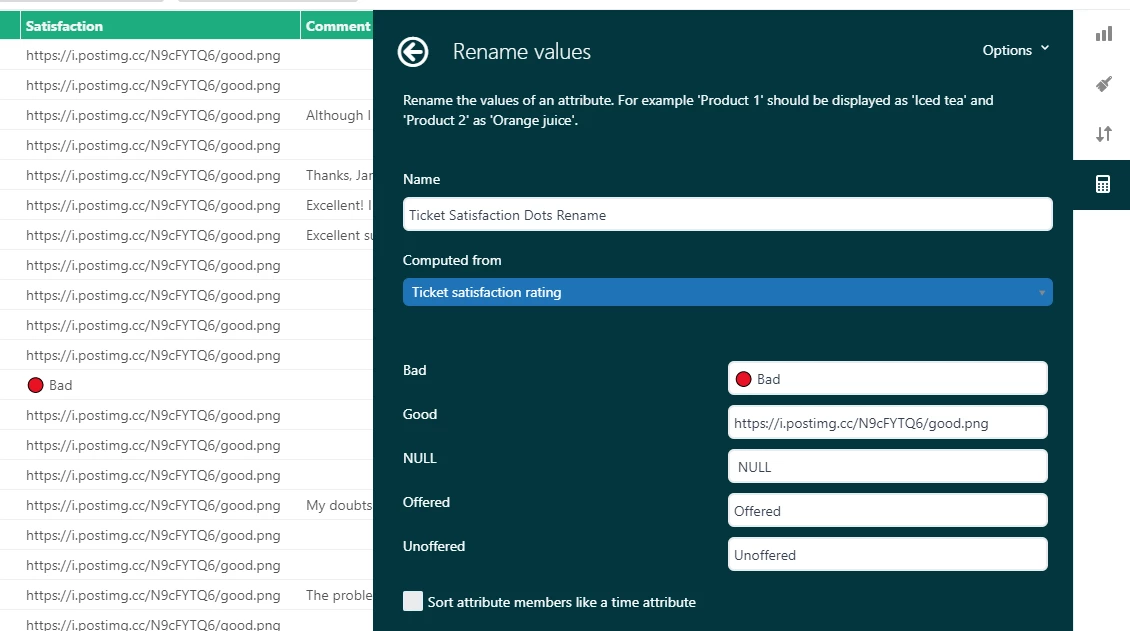
Once saved, you can now add this new attribute to your rows. Your attributes will look like this:
Step 5

  • Apply any filters that make sense for your business model. For instance, we tag chat trolls so they can be excluded from our satisfaction comments.

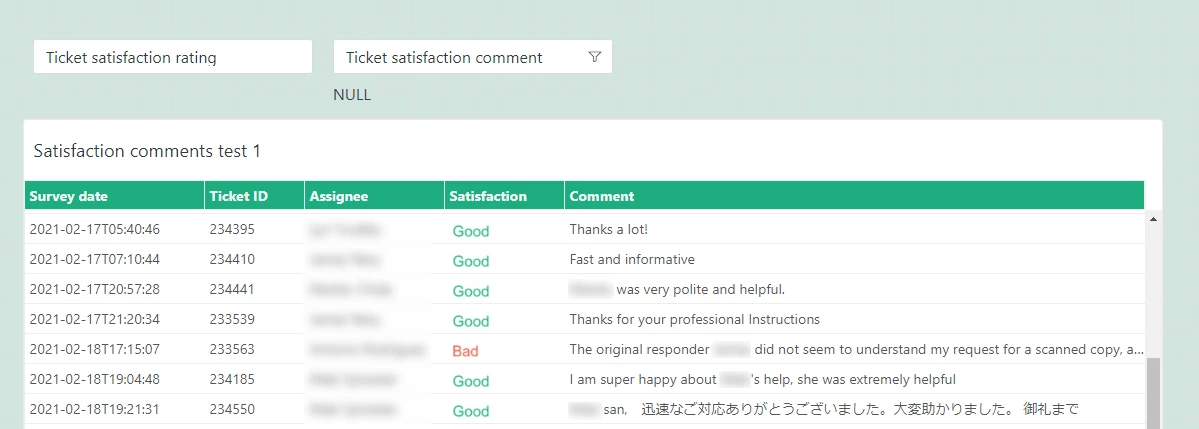
The Result

Your finished product will look similar to this:
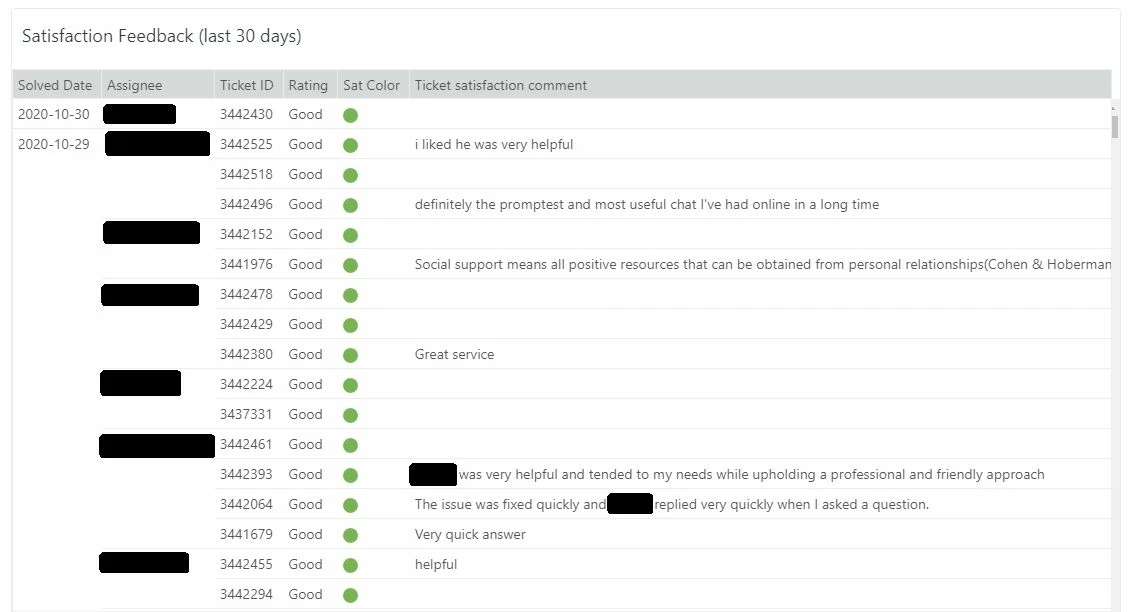
 

Now you can have a quick and easy view of your CSAT in Explore. Enjoy!

15 replies

Andrei12
  • October 30, 2020

Great post! Thx @Chris Bulin!

Especially the images for ratings. I never thought something like this is possible in Explore ;) 


Chris21
  • Author
  • October 30, 2020

Glad to help @Andrei Kamarouski!


Jacob20
  • November 27, 2020

Hi Chris,

I love this query! I did find that the URLs in my renamed set would only output as strings, not images (not sure if I missed something). Anyway, I was able to just paste the emoticon (🔴 and 🟢) instead and that does seem to work.

Thanks for creating this 👍


  • February 24, 2021

Thanks 16616068608, this was an excellent tip!!

However I do have the same issue as Jacob, when pasting the URLs for the images I want to use in Step 3, it will only show them as an URL and not as an image. Would you mind sharing the links that you used in your query so I can try, or let me know what I did wrong?

If I copy-paste the actual emoticons (🔴 and 🟢), that works, and it looks kind of nice.

But if possible I would prefer if I could use these little images I created with the words "Good" in green and "Bad" in red. Feel free to use them if you like:


  • February 24, 2021

Sorry for double posting, but I figured it out while reading the article about clickable Ticket IDs

1203775278 if you're still having the issue, you can fix this under the Chart configuration > Chart menu.

It looks pretty nice, doesn't it? :)


  • February 24, 2021

I absolutely love this recipe. It's amazing to see the clever things people are making Explore do. Thanks for posting!!!


Chris21
  • Author
  • February 25, 2021

Antonio Rodríguez Rasero that looks fantastic! You are correct, I missed the step of changing the display behavior. I'll update that in the article. Thank you!


  • May 13, 2021

It's frustrating to not have these hyperlink directly to each ticket the way the Insights tab did.  Any fixes for that?


  • May 14, 2021

Hi Kristen Nilles, thanks for the question. I think this recipe should help you out. You can integrate that process into this procedure.

https://support.zendesk.com/hc/en-us/articles/360022372293

I hope this helps!


  • May 24, 2022

Hi. I think I need some help. I have created the query as mentioned above and also the "Clickable Ticket ID" query. But somehow I cannot find the "Clickable Ticket ID" in the attributes?


Lou11
  • May 24, 2022

@denise13

The clickable link is a "Calculated metric" I believe. It won't be in the regular attributes.


  • May 25, 2022

Hi @lou11, thanks for the feedback.

It neither shows in the attributes nor in the metrics. Also the article above mentiones in Step 2 of the introduction that it should be a attribute?


  • December 5, 2024

This is great ! Thanks so much 


Do you have any workaround how to enable column sorting on those different attributes? By default, it's only possible to sort columns involving metrics, but not attributes. I would like to work flexibly with my ready table and sort it by Ticket ID or Solved date or Assignee or Satisfaction…


Francis14
  • June 11, 2025
Hi Marcin,
 
Currently, Zendesk Explore allows sorting only on columns that contain metric data by default. Unfortunately, sorting directly on attribute columns such as Ticket ID, Solved date, Assignee, or Satisfaction is not supported natively within the ready-made tables.
 
As a workaround, you might consider:
  • Creating calculated metrics or using custom formulas that represent the attribute data in a sortable metric format.
  • Exporting the data to a spreadsheet tool (e.g., Excel or Google Sheets) where you can sort attributes flexibly.
  • Using filters and queries to organize data based on attributes before generating reports.
 
We understand that more flexible sorting options would enhance your reporting experience, and your feedback is valuable.