The Goal
Our Support team is structured so that you’re spending between 40-80% of your time in the Support queue, depending on your seniority level.
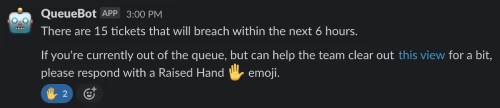
We wanted a way to be notified in Slack once our support queue reached a certain threshold so that individuals that weren’t scheduled to be in the queue could jump in and help out.
Prerequisites
For the specific solution I’ve outlined below, you’ll need the following:
- A Slack account
- A Zapier account on the Starter plan or above
- Your Zendesk API Token
Instructions
Step 1
First, you’ll need a ticket view that shows the exact tickets you’d like to monitor. While you can definitely use a ticket view that already exists, you might want to create a new view entirely
For instance, in my specific case, I wanted to create this threshold notification based solely on tickets that would breach their SLA target within the next 6 business hours.
Once you have the ticket view you’d like to use, be sure to take note of the View ID (hint: it’s at the end of the URL in Zendesk) as you’ll need this ID for Step 4.
Step 2
Log into Zapier and click on the 'Make a Zap' button.
Step 3
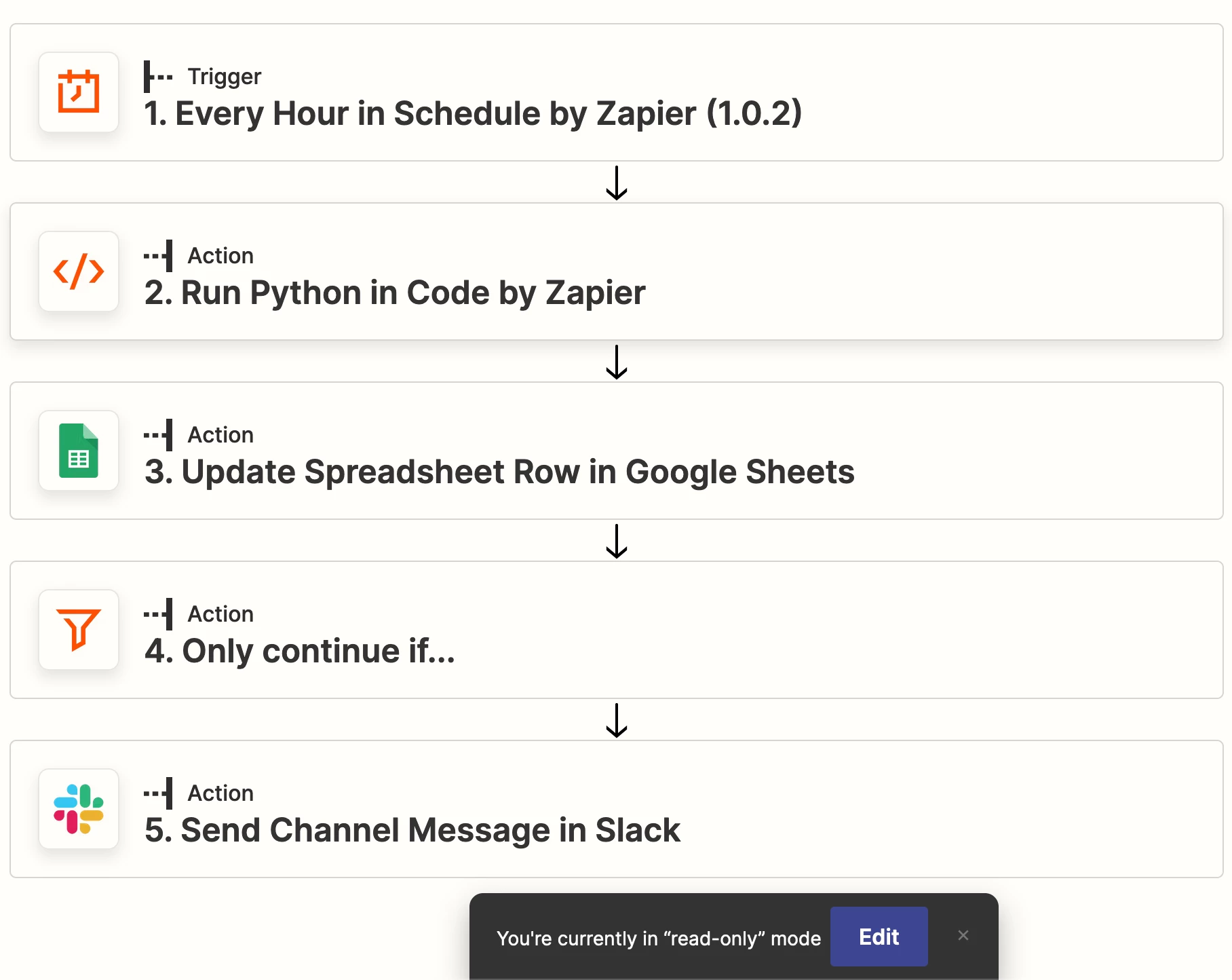
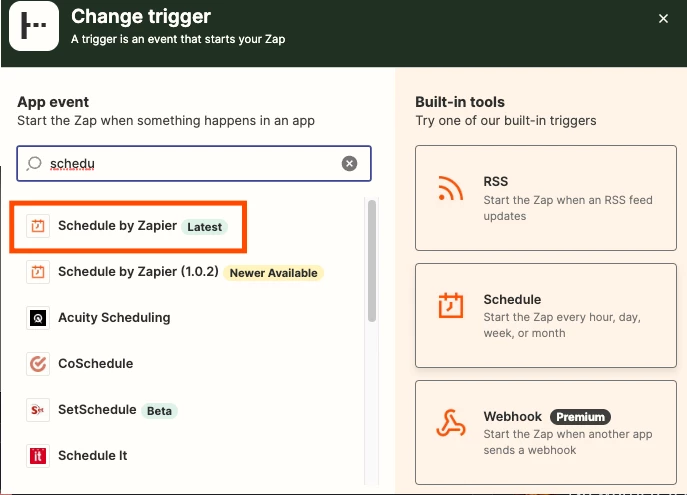
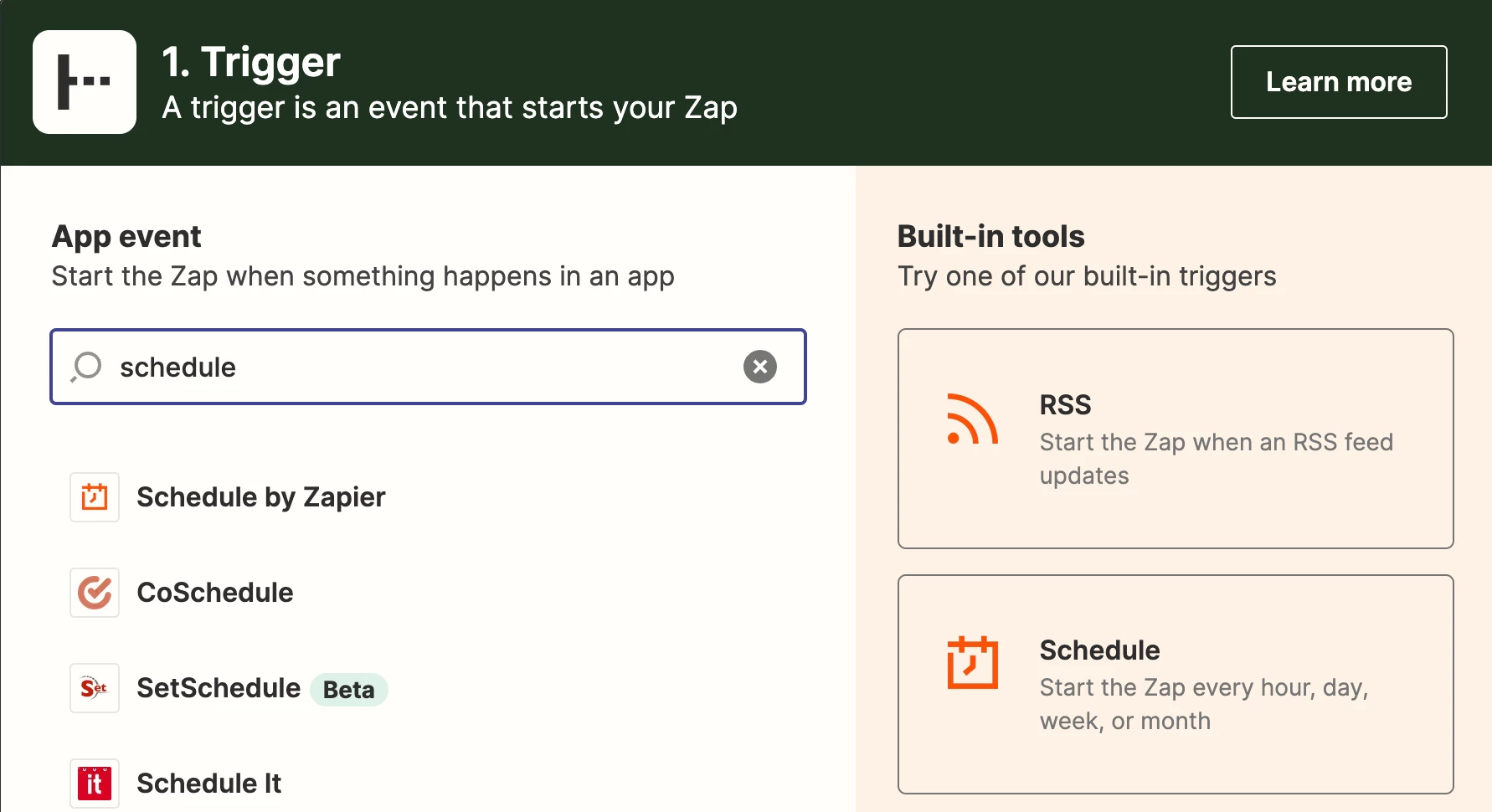
For the first step of the Zap, select the Schedule by Zapier app and configure these settings as desired.
In my specific use case, I wanted this zap to fire every hour, but to exclude weekends since we don't offer weekend support at this time.
Step 4
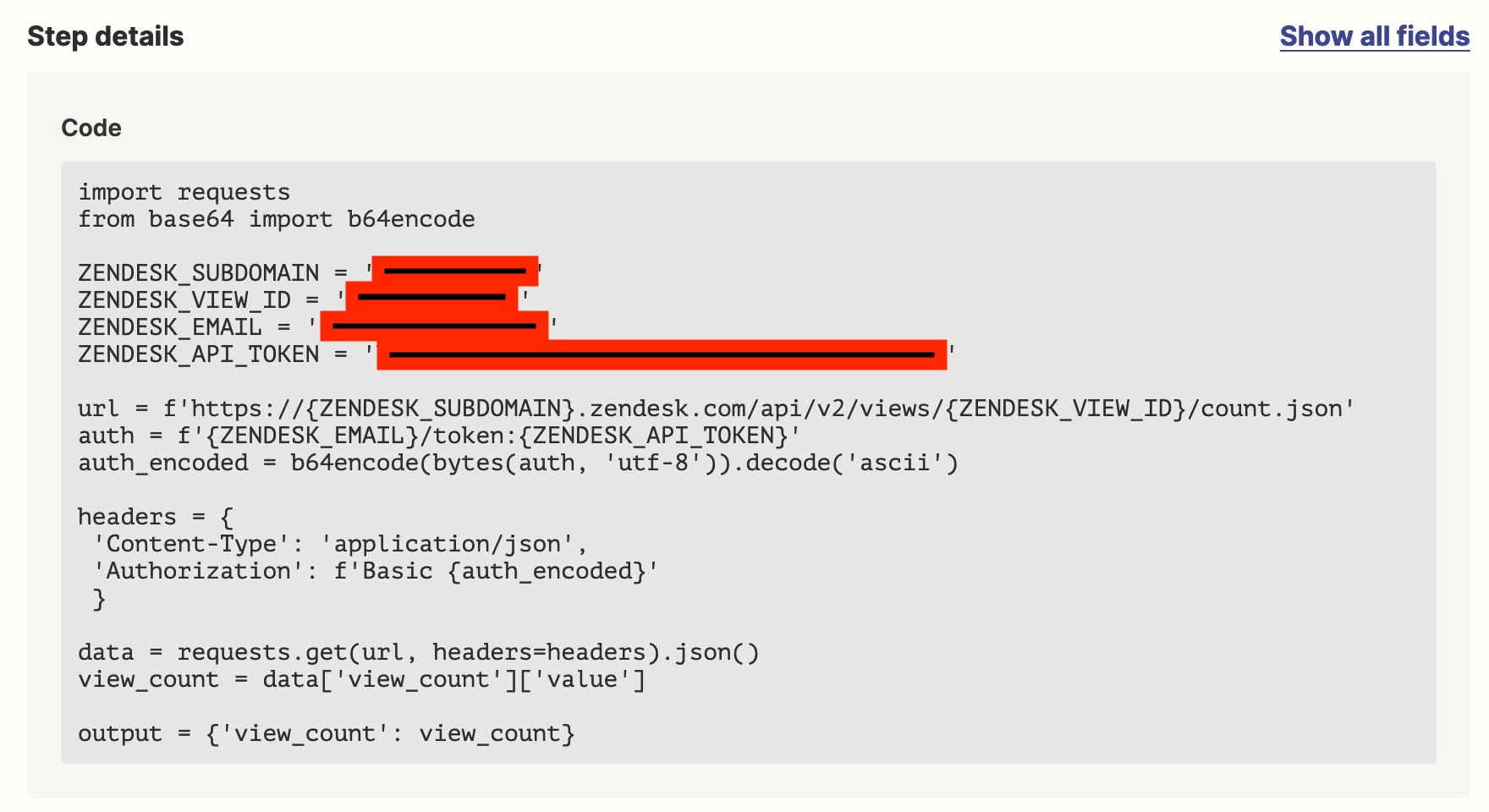
Add a second step to this zap and select Code by Zapier > Run Python. For this step, we’ll be using Zendesk’s Get View Count API.
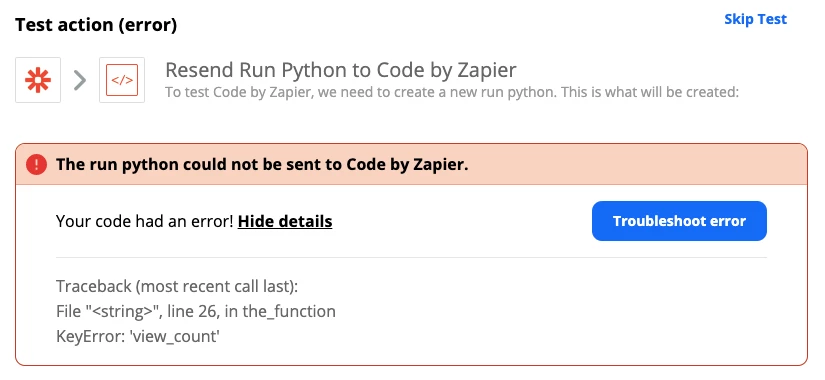
Simply copy the code I provided here and fill out your own Zendesk account information in Lines 4-7. Be sure to test this step to ensure that it's working as expected.
Step 5
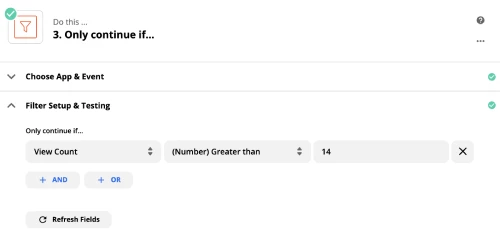
Add another zap step. This time, select the Filter by Zapier app.
In the “Choose field…” dropdown, select Run Python > View Count, and then complete the logic as desired based on when you’d like this notification to be fired.
Step 6
For the final zap step, you’ll want to select the Slack app and configure a notification to the exact channel you’d like to be notified.
Step 7
Save & turn on your zap.
That's it!
Now that this solution has been implemented, our team can focus on their extra-queue-rricular work without feeling like they need to keep a constant eye on the support queue.
If you end up implementing this, definitely let me know. Would love to hear how it's been helping your team or if you found any ways to improve upon this solution.