Help Center user segmentation using Google Analytics custom dimensions | Community
Skip to main content

Help Center user segmentation using Google Analytics custom dimensions

  • September 4, 2014
  • 42 replies
  • 0 views

Show first post

42 replies

Ryan48
  • March 8, 2017

Hey @Peter,

You're correct that this is a bit of legacy of the Zendesk product evolving over time. Many times when we update user facing labels in code, the internal representation in the database and other systems doesn't necessarily get the same update to avoid any unforeseen consequences. Additionally a few other roles can have admin privileges like Team Leader or a user with the Help Center Manager permission.

There are 4 possible values in the context of HelpCenter.user.role

"manager", "agent", "end_user", "anonymous"

Let me know if that answers your question.


  • March 8, 2017

Hi Ryan - thanks for the quick response.  Can you provide a table showing how the standard user roles in the interface map to the JSON values in session?

Like this...

Administrator >> Manager

Agent >> Agent

etc


Ryan48
  • March 8, 2017

Hey Peter,

That will depend on your user roles and your account plan level. If you have created custom roles on Enterprise, any role with the Help Center Manager role will be reported as "manager".

You can see more here: https://support.zendesk.com/hc/en-us/articles/203662026-Creating-custom-roles-and-assigning-agents-Enterprise-

But based on the predefined Enterprise roles, you would have:

  • Legacy Agent - "agent"
  • Light Agent - "agent"
  • Staff - "agent"
  • Team Leader - "manager"
  • Advisor - "agent"
  • Administrator - "manager"

End user is anyone that has a log in but is not an agent or manager. Anonymous is anyone browsing your Help Center while not logged in. I hope this helps.

Thanks!


  • May 11, 2017

I wanted to include user.id in what I am sending to google analytics, but for some reason it does not seem to be working. I went through the steps listed and created 3 dimensions, the user.role, user.locale, and user.id. I can see the user.role and user.locale being populated but user.id is not. Any reason this might be? 

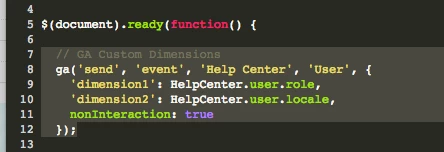
//Capture User Role
ga('send', 'event', 'Help Center', 'User', {

'dimension1': HelpCenter.user.role,

'dimension2': HelpCenter.user.locale,

'dimension3': HelpCenter.user.id,

nonInteraction: true

});


Thanks!


  • May 12, 2017

It looks like the reason that HelpCenter.user.id does not work is because it is not available in the javascript object. 

https://gist.github.com/skipjac/8186753 

I can see that the HelpCenter.user.identifier is available but this seems like it might be some sort of a hashed id value. Is there any documentation anywhere that I can refer to to understand how this value is hashed to decrypt this value into my user ids?


Ryan48
  • May 19, 2017

Hey Dan!

This identifier is actually a 1 way sha1 hash of the user id so you can't decrypt it. However, you could potentially user the email address in the user object for this. That should be a unique identifier for the user.

You can also use the API endpoint /api/v2/users/me.json to get the current user information, including id.

Thanks!


Ryan48
  • May 19, 2017

I just realized the below comment won't work. Please disregard

***

I also just realized that we also have the user object in the template that you could use as well to assign a variable in JavaScript.

*** 

Thanks!


  • November 13, 2017

Hi, could anyone help me make a segment from a website that is not structured with " / " ?


  • May 21, 2020

Resurrecting this article.


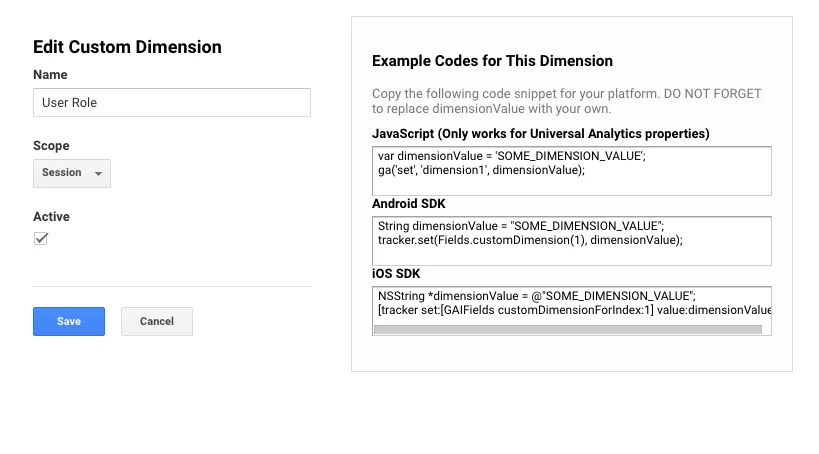
So I am trying to create a custom dimension in GA for user role.

1) I have GA activated and see out of box reports and dashboards populated.

2) I added this to the script.js file


//send user role to Google Analytics

var userRole = HelpCenter.user.role;
ga('set', 'dimension1', userRole);
ga('send', 'pageview');

});


I went into Chrome DEV Tools and saw no errors.

3) I logged into GA and create a custom dimension


If this all looks correct  how to I add a criteria to a custom report to filter on end users?

Do I need a specific value for dimension and filter?


Christopher15

Hi 868670416, you're almost there. The final piece of the puzzle is to create a custom segment that uses the values recorded by your custom dimension.

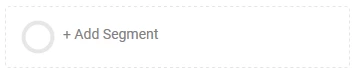
You'll see an 'Add Segment' box at the top of most of the GA reporting pages:

Click on this, then on 'New Segment':

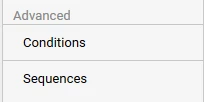
Then select 'Conditions', under the 'Advanced' heading on the side-panel:

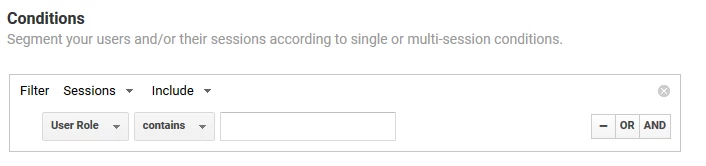
From there you'll need to search for your custom dimension in the first conditional select menu (mine is called User Role, yours would be userRole):

Change the operator from 'contains' to 'exactly matches', and then select the value you want to segment (i.e. end_user, anonymous, agent etc.).

That should be all there is to it.


  • August 28, 2020

Hey there!


I'm trying to get this to work, and I just can't seem to capture the user roles in Google Analytics, when I search it keeps coming up with nothing. I've added a custom segment like the previous comment advised, and when I try to search it still comes up with nothing.


This is the code I've added to the Help Center:

    // GA Custom Dimensions
var userRole = HelpCenter.user.role;
ga('set', 'dimension1', userRole);
ga('send', 'pageview');
 
});
 
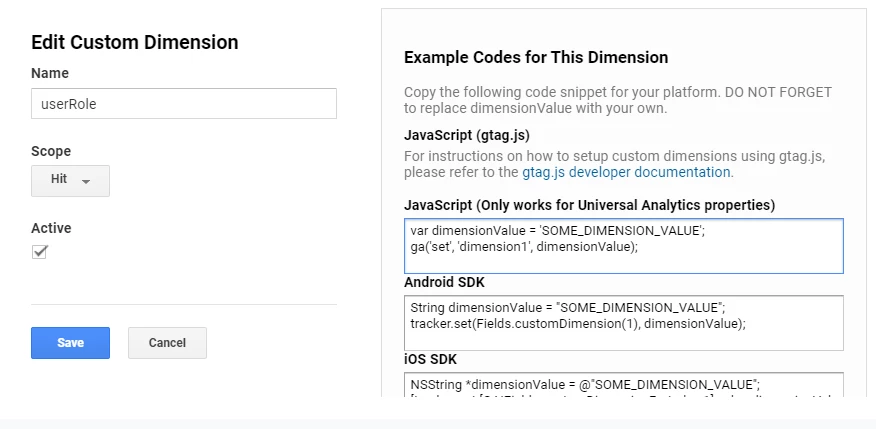
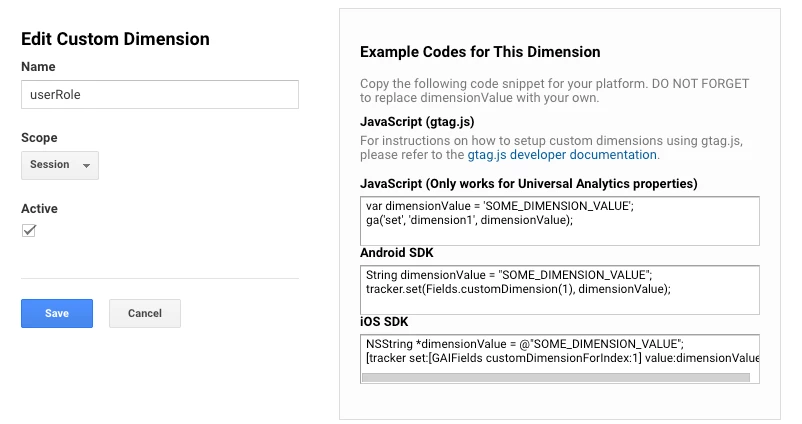
And this is what the custom definition looks like:


As you can see, I tried to emulate what the previous successful commenter was able to do, but I'm not getting any results. Can someone assist?
 

Catherine18

Hi there,

Could anyone advise what would be the best way to set up this type of segmentation using user tags?

User role is good, but user locale isn't useful in our case. Tags however capture various user attributes like country, department etc that I'd love to be able to dissect the data by.

For example when we see that users search for "bike scheme" with zero search results but do not know from which location, it's difficult for us to make useful changes to content, to address the issue. Being able to break this down by user tag country would be very helpful.

Thanks

Catherine


Ryan48
  • October 13, 2020

Hey @Catherine Michalak,

Tags are available in JavaScript via the following attribute

HelpCenter.user.tags

This is an array of the tags on the user, so it needs to be handled a little differently. Let's say you had dimension1 set to userCountry or something like that. You could then iterate over the set of tags and try to map tags to the dimensions you'd like to set. It might look something like this:

Array.prototype.forEach.call(HelpCenter.user.tags, function(tag) { 
var countries = ['germany', 'uk', 'denmark', 'france'];
if (countries.includes(tag)) {
ga('set', 'dimension1', tag);
}
});

Catherine18

Hi Ryan,

Thanks for this.

I'm quite new to the coding world and so have some basic questions.

Which of the values in the above code would i need to replace? Do I need to list out all existing country tags?

Our user profiles depending on location would have one of these tags for example (country:netherlands, country:united_kingdom, country:spain, etc). We have users in over a 100 countries.

Thanks

Catherine


Ryan48
  • October 13, 2020

Good questions. So since you have tags set up with country: as the prefix, it'll probably make this a bit easier. Here's how I think this could work in your case:

Array.prototype.forEach.call(HelpCenter.user.tags, function(tag) { 
var match = tag.match(/country:(\w+)/);
if (match) {
ga('set', 'dimension1', match[0]);
}
})

This would send a value of country:united_kingdom or country:spain as the value of dimension1. This assumes the country name after country: is just letters, numbers and _ characters. I don't know exactly how your tags are structured, so I can't say it'll 100% work. But this should get your started.


Kaley
  • February 26, 2025

Is there a way to view data/filter data by user organization?


Elaine14
  • February 28, 2025
Hi Kaley,
 
Yes, you can filter data in Google Analytics by user organization information that you've set up in Zendesk. To achieve this, you typically need to:
 
  1. Integrate Zendesk with Google Analytics: Ensure that your Zendesk is connected to Google Analytics, either through a direct integration or by using GTM (Google Tag Manager).
     
  2. Custom Dimensions: Set up custom dimensions in Google Analytics to capture organizational data from Zendesk. You'll need to send this data as part of your tracking implementation.
     
  3. Filter Views: Once your data is being sent to Google Analytics, you can create filters or segments based on these custom dimensions to view data specific to different user organizations.
     
  4. Reporting: Use the custom reports feature in Google Analytics to analyze the data filtered by user organization.