Help Center - Change default placeholder text in your Search Box | Community
Skip to main content

Help Center - Change default placeholder text in your Search Box

  • October 24, 2013
  • 71 replies
  • 0 views

Show first post

71 replies

  • November 18, 2016

Hi, I've been searching for a while but didn't find anything on how to change the appearance of the search field box. Our website style guide demands a square box, so I have to change the rounded default search box.


  • November 18, 2016

Nevermind, I've found it ;)

  -webkit-border-radius: 5px;
  -moz-border-radius: 5px;
  border-radius: 5px;

  • November 18, 2016

Hey Harold! Glad you got it figured out, and thanks for coming back to tell us our solution!


  • November 22, 2017

We want to use Option 1, but in combination with Dynamic Content.

How can I add something like: {{dc 'hc-home_page_heading_search'}}

To: {{search submit=true instant=true class='search search-full' placeholder=''}}

Help very much appriciated.


Trapta
  • November 29, 2017

@Karsten,

  You cannot use DC in search component. However, you can add your translated placeholder in the search bar using a bit of JS.

  Here's a post you can refer to - https://support.zendesk.com/hc/en-us/community/posts/115006078407-Add-multilingual-welcome-note-placeholder-text-in-search-box-along-with-user-name

  Let me know if you face any issue.

Thanks


  • March 1, 2018

Thank you so much, worked perfectly!


Does this work on the Copenhagen theme?


ModeratorWes

@Jennifer, for the Copenhagen theme all you need to do is edit the HomePage.hbs. The screenshots above are from an modified Copenhagen theme.

 {{search submit=false instant=true class='search search-full'}}

Change to:

{{search submit=false instant=true class='search search-full' placeholder='Search for everything ....'}}

Just edit the text after placeholder=.  This solution works great on a single language Help Center.  You will need to do this on each page that the search bar is located.  This is option 1 from my post.  Option 2 still works as well however we try to only use JQuery/Javascript code when necessary.  Both these solutions will work for single language Help Centers.


Jennifer16

Hey Jennifer,

I talked to Wes and told him that you support multiple languages. So he recommended this tip, using dynamic content:

https://support.zendesk.com/hc/en-us/community/posts/115006078407

If you need help with it, you can message him here or https://slackpass.io/moderatorwes.

Good luck!


  • December 28, 2018

we can also do without javascript in template:

  {{#if alternative_locales}}
         {{#is current_locale.name 'English (US)'}}
            {{search placeholder='Search Resources' instant=true}}
          {{else}}
             {{search placeholder='Buscar Recursos' instant=true}}
          {{/is}}
    {{/if}}


  • December 28, 2018

Thanks for sharing, Iggy!


  • June 10, 2019

The Placeholder option was a snap!  Just searched for the placeholder on the home page and change the text after the placeholder =' to anything you want...'}}


{{search submit=false instant=true class='search search-full' placeholder='Search Box – I’m wicked smart, please ask me anything...'}}


Brett13
  • Community Manager
  • June 10, 2019

Glad to hear Wes' solution worked for you above William :)


  • September 16, 2020

How can I use dynamic content as placeholder in search bar?

I know this is not valid, I want to do something like this. so that I can show dynamic content in search bar.

{{search placeholder={{dc 'search_text'}} submit=false instant=settings.instant_search class='search search-full'}}

Here, search_text is the name of key I added in the dynamic content section of zendesk support.


Dan32
  • September 16, 2020

Hey @Tahmid Mozaffar

I would expect the Dynamic Content to work correctly in that instance but if it doesn't render, you can also use the locale helper to have conditional messages in your template

ex:

{{#is help_center.locale '$locale'}} {{search submit=false instant=true class='search search-full' placeholder='What are you searching for?'}}{{/is}}

{{#is help_center.locale '$locale2'}} {{search submit=false instant=true class='search search-full' placeholder='Another search string'}}{{/is}}

where the $locale is the ISO language code of your HC (ex: 'en-us', 'fr', 'nl', 'de')


  • September 16, 2020

Hi, thank you for the reply. your approach is working. But in that way I have to put strings in the template code. However I wanted to show dynamic content value that I have added in the Dynamic Content section in Zendesk support admin.

I was able to do it like below. It is kind of hack, but served my purpose.


in the home_page.hbs

{{search placeholder='Search' submit=false instant=settings.instant_search class='search search-full home-page-search'}}


at the bottom of the file I have added...

<script src="https://code.jquery.com/jquery-3.5.0.js"></script>
<script>
const searchPlaceHolder = "{{dc 'search'}}";
$(".home-page-search > input#query")[0].placeholder = searchPlaceHolder;
</script>

here 'search' is the key of the dynamic content I have added in support admin

Greg29
  • March 1, 2022

Hi @ivy11! Both of these options are still valid, so could you share what you have added to your home page template and a screenshot of the search bar placeholder so that we can see what's going on in your situation?


  • May 23, 2023

Hello,

We're using the Copenhagen theme, and I'm not finding either spot to change the Search Box placeholder text.

Home: {{search submit=false instant=true class='search search-full'}}
JS: $(document).ready(function() {

Has the location or code changed for this?


Jupete
  • May 29, 2023
Hi Derek, thanks for writing in! 
 
We can find the Search bar code under home_page.hbs template and you can add them after the search-full'. We followed ModeratorWes' tip and so far it is working on our end. 


We hope this information helps!

Colton13
  • May 20, 2024

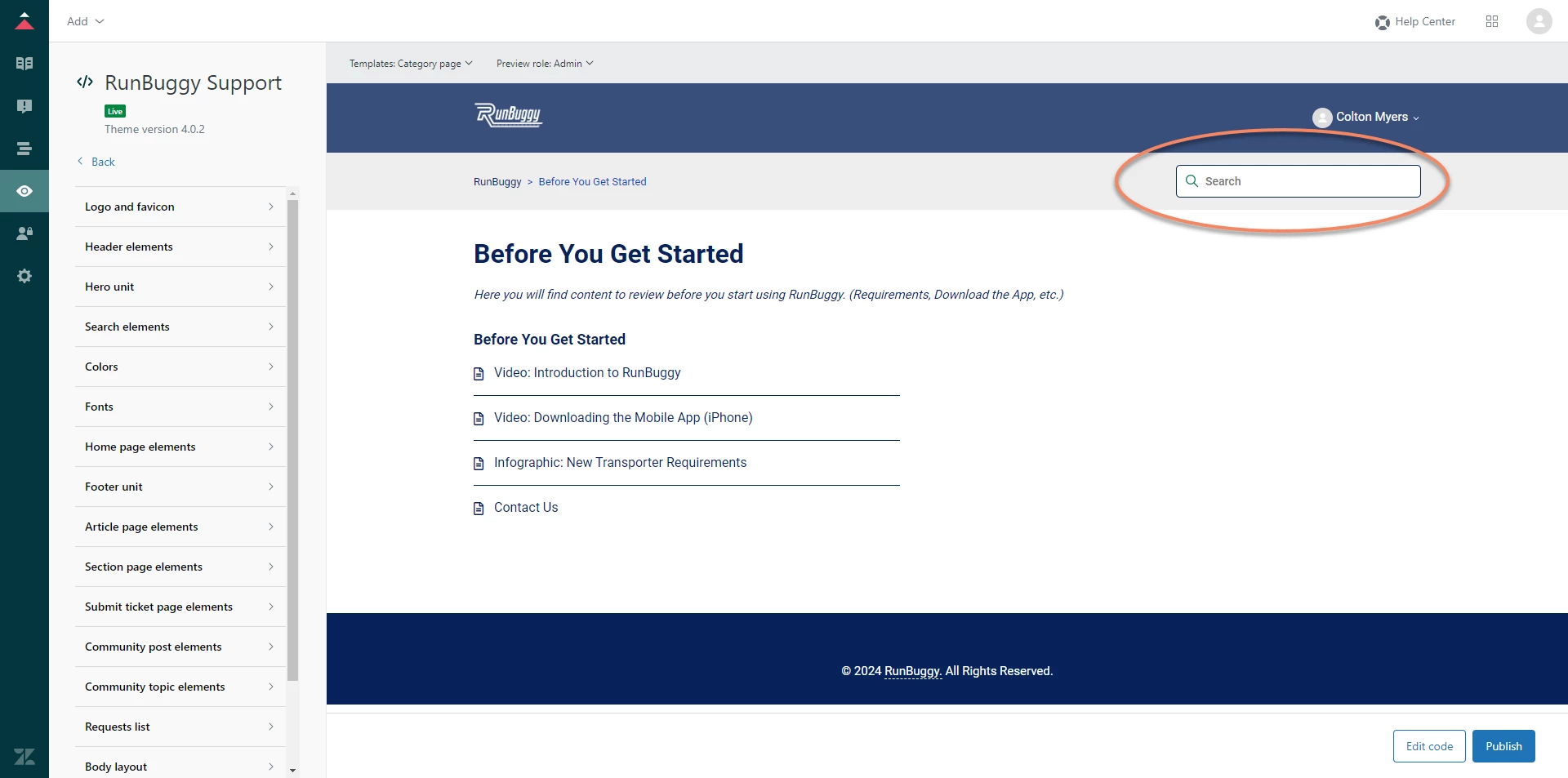
How do you change the search bar text on pages other than the home page as circled below?


Antonio17
  • May 22, 2024
Hi there,
usually these are things handled by developers. Try to check if this post helps:
 
https://support.zendesk.com/hc/en-us/community/posts/4409515378714-Change-Search-Bar-Position-Copenhagen-Theme
 
Best,