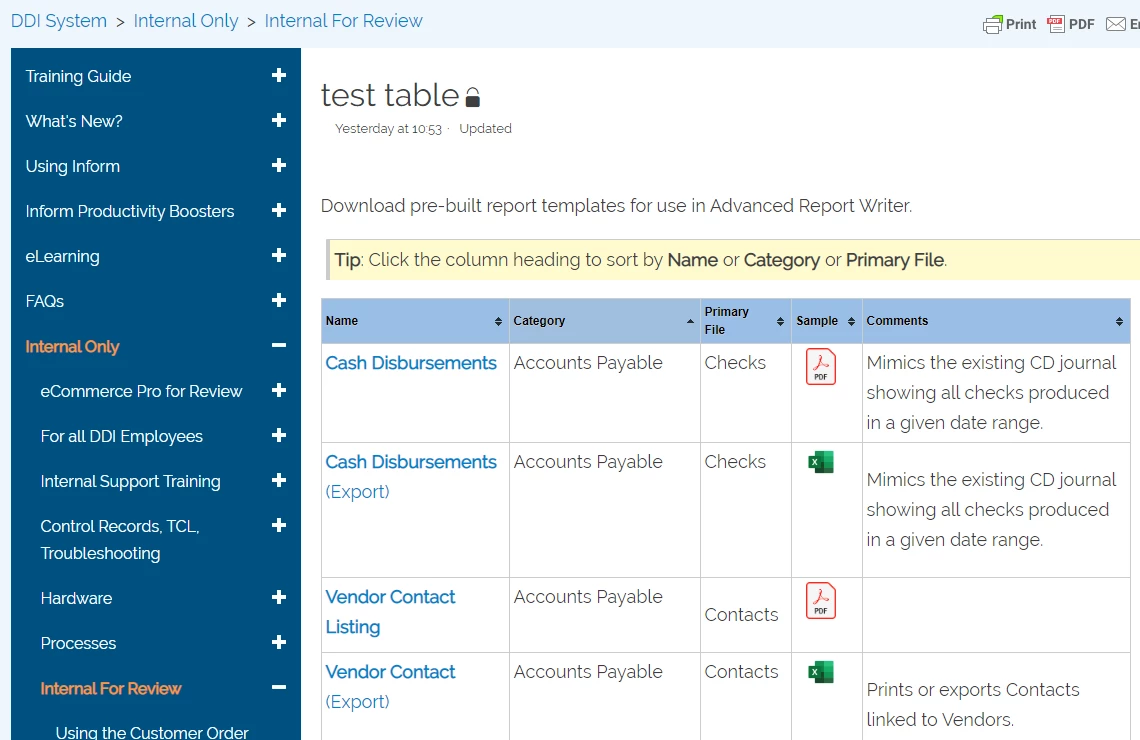
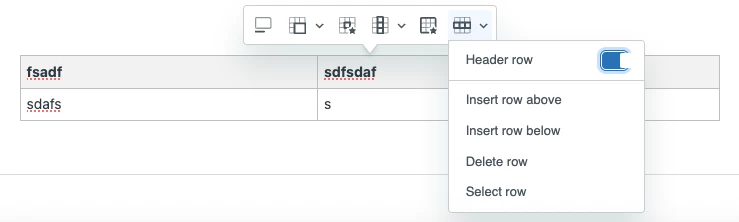
You can add sorting to your HTML tables in guide using the Jquery TableSorter plug-in. Although this script includes many options and customizations, only basic sorting is described below for simplicity.
I used the download and documentation provided on the following site: Sorting Tables with Tablesorter. There are many other resources as well. Review the documentation and download the tablesorter-master.zip.
Now you can modify your Help Center.
- First, edit your theme and add the following plug-in assets:
- jquery.tablesorter.js
- theme.blue.css (or whatever theme you choose)
To learn how to add assets, see Using your own theme assets.
- Next you need to instruct Zendesk to use the tablesorter plug-in for all of your tables.
- Edit your theme.
- Open the template document_head.hbs.
- Under your stylesheet links, add the following lines, and save.
<script src="{{asset 'jquery.tablesorter.js'}}"></script>

<link rel="stylesheet" href="{{asset 'theme.blue.css'}}">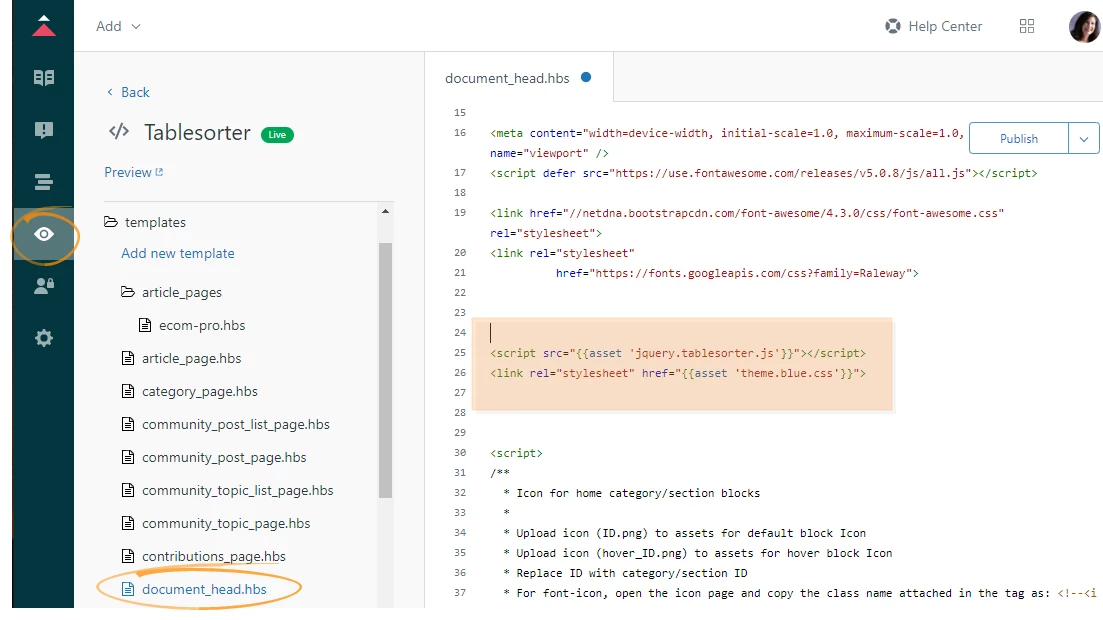
- Now under assets, open your Script.js file, and add the following:
//table sort
$(function(){ $('table').tablesorter();
theme: 'blue' });
This will apply sorting to all tables.
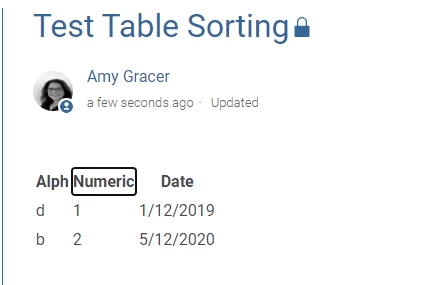
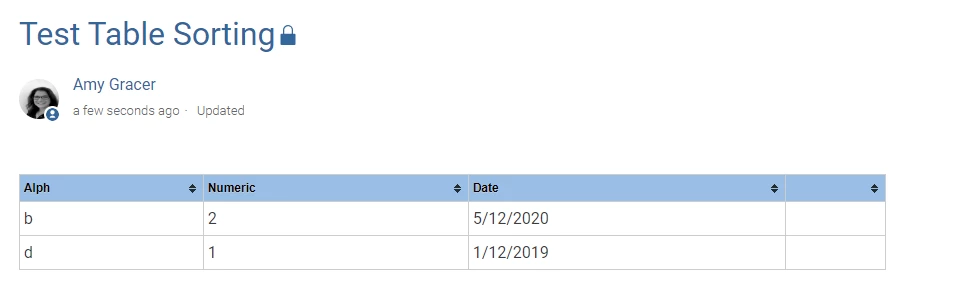
- At this point, tables will sortable, but there will be no visual indication that the sorting is available. To add these visual cues, you must apply the tablesorter class your table as follows:
<table class="tablesorter tablesorter-blue">Notice the sorting arrows in the column headers.