Funky up your search box! | Community
Skip to main content

Funky up your search box!

  • May 8, 2015
  • 26 replies
  • 0 views

It's Funky Friday, so here's a little something to make your search box fun:

Changing search box color

  • Go to your Help Center > Customize Design
  • Access your CSS files
  • Do a search for /* Search box */
  • Find the following element:

.search-box input, .sub-nav .search input {

To change the background color, simply add background: #HEX;

.search-box input, .sub-nav .search input {

line-height: 1.2em;

font-weight: lighter;

padding: .75em 2.7em;

width: 100%;

background: #FF0066;

-webkit-appearance: none;

}

Changing the color of the search icon

The fun doesn't stop there! You can also change the color of the magnifying glass.

  • Look for the following:

.search-box:before, .sub-nav .search:before {

  • Now add some color: #HEX to it:

.search-box:before, .sub-nav .search:before {

color: #fff;

edit:

Thanks to Carlos to added the following code to change the text color

Based on another document by Moderator Wes, you can change your placeholder text.

$('#query').attr('placeholder','Search our Forums');

You can then use after the above, the following CSS

::-webkit-input-placeholder {
  color: #000000;

Enjoy!


26 replies

  • June 24, 2015

How can I change the colour around the search bar as seen here support.zendesk.com?


  • Author
  • June 24, 2015

Hey Roumen,

That is part of the standard template they're using. You should be able to locate it with <section class="hero-unit"> and adding the correct color background to it


Starr11
  • July 29, 2015

Which Search element are you using?  I have no magnifying glass...and need one :-)  Thanks.


  • August 25, 2015

How to you place your search box in the center of the page?


  • August 26, 2015

Hello All,

I am completely new to coding and based off examples from other members, trial and error, help from co workers to help me understand what I'm doing, i can create a custom page with images, size and color. Last couple days have been fun seeing my work display on the web page.

I thought I mentioned this for us newbies, I had no success with changing the color in * Search box */ section it was in the /* Search */ section that my co worker was able to figure out how to change the search box color. I don't understand why this is but like i said I'm 2 days new with coding. One thing that I'm trying to do is I change the search box to be a light gray but through all my trial and errors I cant find were to change the color font of the actual "Search" within the box. 

Thanks in advance


  • August 26, 2015

I found it.

searching through all the supports I came across a line of code on how to change the "Search" into "Search our Forums"  $('#query').attr('placeholder','Search our Forums');

it occurred to me, oh let me look in the CSS and do a search for placeholder and added the color: #000000 as below,

::-webkit-input-placeholder {
  color: #000000;

the font changed to black.


  • Author
  • August 27, 2015

That's great, thanks Carlos! I'll add it to the original post above. 

Sorry I wasn't around to answer your question yesterday, I'm in the UK !


  • November 10, 2015

There are several pages that come up regarding this search-box customization and I really felt that the information does not address that if you jquery in the customized placeholder text on document ready, there's a flash of the default 'Search'. My solution was to hide it initially and add a 'loaded class then unhide it. There's a bunch of extra CSS in there but you should be able to get the general approach (and no longer have a flash of unwanted text!):


/* Hide initially */
input::-webkit-input-placeholder { color:transparent; }
input::-moz-placeholder { color:transparent; }
input::-ms-input-placeholder { color:transparent; }

/* when we've added the .loaded class we kick in the opaque placeholder */

input.loaded::-webkit-input-placeholder {
color: $color_3;
opacity: .5;
transition: opacity 0.35s ease;
}
input.loaded::-moz-placeholder {
color: $color_3;
opacity: .5;
transition: opacity 0.35s ease;
}
input.loaded::-moz-placeholder {
color: $color_3;
opacity: .5;
transition: opacity 0.35s ease;
}
input.loaded::-ms-input-placeholder { color:transparent; }

input:focus::-webkit-input-placeholder {
opacity: 1;
}
input:focus:-ms-input-placeholder {
color: 1;
}
input:focus::-moz-placeholder {
opacity: 1;
}

Here's my javscript (within document ready as stated above already):

$('#query').attr('placeholder',"Have a question? Search our knowledge base the answer…").attr('autocomplete', 'off');


//Signify that we can unhide the placeholder
$('#query').addClass('loaded');


  • November 12, 2015

Thanks for sharing your tweak, Rob!


Thank you for posting this!


Amanda47
  • July 7, 2017

Is there a way to add a "go" button after the search box?  Seems like having to hit Enter isn't very intuitive for some users.


Vladan
  • July 7, 2017

Hi Amanda, probably the easiest way to add this button is if you:

  • find the following code into your help center theme
  • {{search submit=false instant=true class='search search-full'}}
  • remove submit=false, so you will get something like
  •  {{search instant=true class='search search-full'}}
  • Click on Preview button to check if this looks as it should
  • If yes, then click on Save / Publish
  • If not, keep us posted here

Hope this helps :)


Amanda47
  • July 7, 2017

Great!!  That is exactly what I needed!  If I wanted to change what the button says, how would I do that?


Vladan
  • July 8, 2017

Just put this code after the search code from above comment:

 <script>
$('form.search input[type="submit"]').val('New text here');
</script>

  • October 8, 2018

Hi. this code worked for me.. but what if I want to add a magnifying glass icon instead of Search.. how would I do that?


Trapta
  • October 24, 2018

Hi @Cosmin,

In your style.css (if you are using default Copenhagen theme) file, go to line no. 692, and edit the content:"\1F50D" with the icon if, you want to show any other font icon.

If you want to show an image, then simply replace the code with the below code:

.search::before{
positionrelative;
top50%;
transformtranslateY(-50%);
background-color#fff;
color#777;
content" ";
font-size18px;
positionabsolute;
left15px;
background-imageurl(YOUR_ICON_IMAGE_HERE);
background-size15px; /** Adjust the image size **/
height15px; /** Adjust the height of content. must be similar to background size **/
width15px; /** Adjust the width of content. must be similar to background size **/
}

Let me know if you face any issue.

Team Diziana


  • September 29, 2020

I'm a newbie. We have Zendesk Professional. I'm trying to customize the Diziana Marbonte theme's search box background color.

Customizing the design only shows style.css. @Andrea Saez's instructions say to: "Access your CSS files." Where are the CSS Files?


Ifra
  • October 1, 2020

Mark, your style.css file is CSS file and there you can customize the searchbar and other things, classes are different.

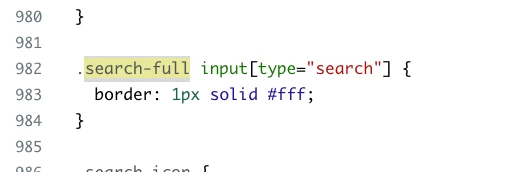
Go to your style.css > Search for  the class name " .search-full input[type="search"] " > and customise your searchbar.


Thanks

Team


  • October 6, 2020

Thank you Ifra. I'll dust off my .CSS manuals and give it a try!


Ifra
  • October 7, 2020

Cool!


Larry14
  • February 12, 2021

Going crazy trying to find where to change the color on the main Guide Page for Copenhagen Style sheet style.css.  Any help?  I searched for the above words in style.css and had no luck finding them.  

.search-full input[type="search"] " 

Line 692 contains only a curly bracket  }


Brett13
  • Community Manager
  • February 18, 2021

Hey Larry,

I did some testing in my own account and was able to find the appropriate code snippet. Screenshot below:

If you had any developers make any edits to your theme it's possible that this code snippet was removed so you may need to just add it back.

I hope this points you in the right direction!


  • May 28, 2021

Hi Team! May I know how can I change the color of the search result hyperlinks and the little erase "X" icon? Thanks!


Ifra
  • May 29, 2021

Ashley,

You can remove the erase "X" icon by adding this code to your stylesheet:

[type="search"]::-webkit-search-cancel-button,
[type="search"]::-webkit-search-decoration {
-webkit-appearance: none;
appearance: none;
}


and  update the color of search results hyperlink -

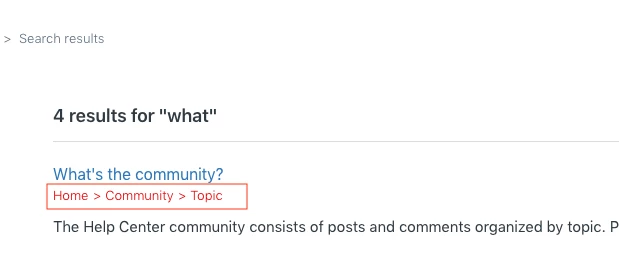
For breadcrumbs:

.search-result-breadcrumbs li, .search-result-breadcrumbs li a, .search-result-breadcrumbs li a:visited {
color:red;
}


 For title:

.search-result-title a{
color:Green;
}


For all hyperlinks if exist anywhere in the search results content area:

.search-results-list > li a{
color:yellow
}


Team


  • May 29, 2021

@Ifra Saqlain Thanks for the suggestion! May I know if I only want to change the color of the 'X' but not removing it, would that be possible?

Also, can I use color code instead of "yellow", "blue" for the links? thanks!