

Unfortunately the ZenDesk Help Center does not natively allow you to have images that expand in size and show in a lightbox pop-up. However, this functionality is not difficult to provide with a small amount of work.
Fancybox is a JavaScript tool that allows you to show images in a lightbox pop-up. The process of using this tool is easier than ever, because starting with version 3, you can just link to the hosted file. This makes using it in ZenDesk as simple as four steps:
1. Go to the code editor for your theme. To do this, go to Settings, hover over your theme and click View Theme, click on the "..." next to Live, click Edit Code, then select the file you need to edit in the left column.
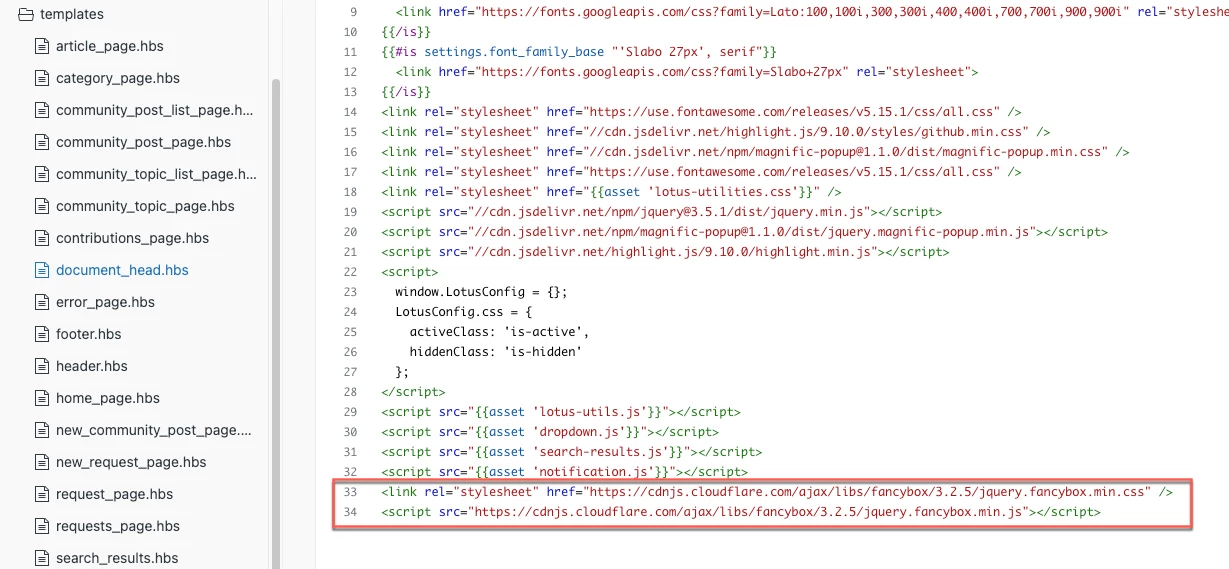
2. Add the links to the fancybox code in your document_head.hbs (the bottom of that file is fine):
<link rel="stylesheet" href="https://cdnjs.cloudflare.com/ajax/libs/fancybox/3.2.5/jquery.fancybox.min.css" />
<script src="https://cdnjs.cloudflare.com/ajax/libs/fancybox/3.2.5/jquery.fancybox.min.js"></script>
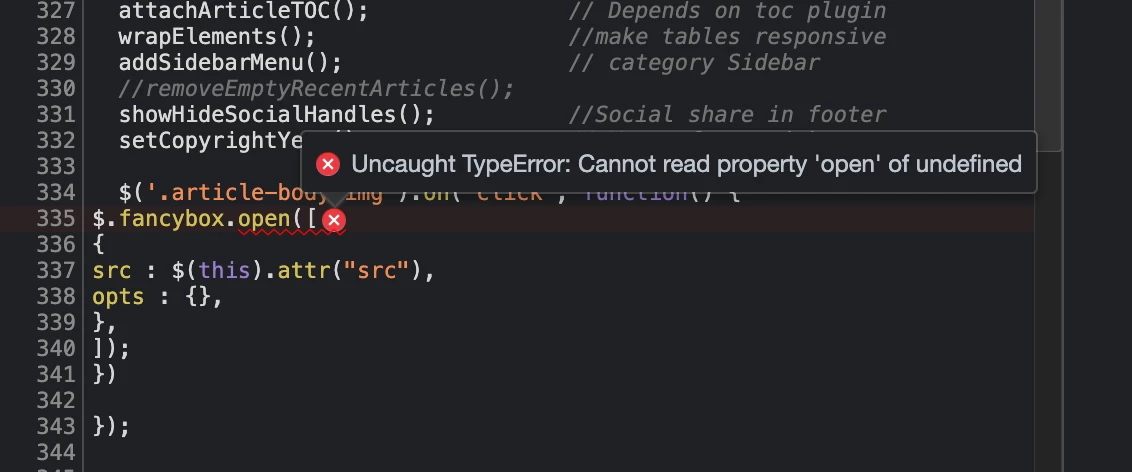
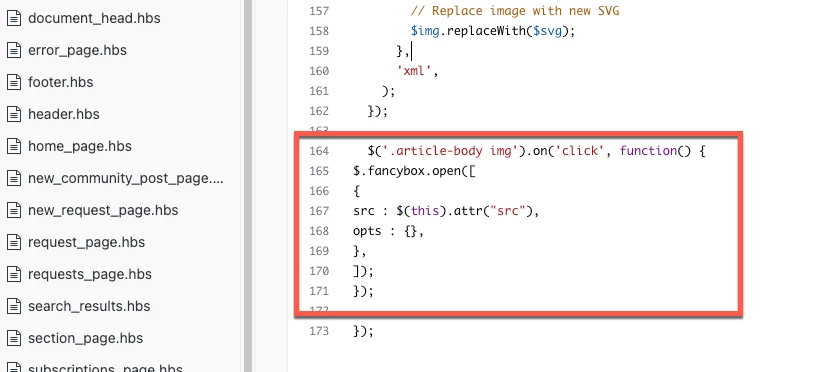
3. Add the following to your script.js file, right above the closing "});". You can change the ".fancybox" in the first line to use a different class name if you like, or remove the ".fancybox" altogether to make all of your images show in the pop-up when clicked.
$('.article-body img.fancybox').on('click', function() {
$.fancybox.open([
{
src : $(this).attr("src"),
opts : {},
},
]);
});
The placement of this code is important. Be sure to include it before the closing bracket and parenthesis so that it can be loaded properly.
4. In the article, add the image using the image loader or by pasting it in.
5. Click on the Source Code button in the menu bar to open the HTML view pop-up.

6. Add class="fancybox" (or the class name you chose) in the HTML code on any image you like.
7. Close the HTML view pop-up and save the page.
Important: Be sure the images you want show in the FancyBox are all large enough to make the pop-up useful. I find this makes the most sense for application screenshots.
-----------------------
Update 4/3/20: As mentioned by Robert Holm below, if you are having trouble with the method for using fancybox described here, you might want to check out the detailed instructions here.




Thanks for bringing this up — totally understandable question!
At the moment, image expansion (lightbox-style) is still not built in as a native feature in Zendesk Guide. The method outlined above using a script like Fancybox remains the recommended customization if you’d like readers to click and enlarge images directly within your Help Center articles.
That said, our product team is aware of how useful this functionality would be for many customers, and it’s something that continues to be discussed internally as part of broader Guide improvements. I’d suggest following the release notes for any announcements around new content presentation features.
Appreciate you checking in — it’s great feedback, and I’ve noted your comments internally for visibility with our product team.