Expanding images in Help Center articles | Community
Skip to main content

Expanding images in Help Center articles

  • September 23, 2018
  • 67 replies
  • 0 views

Joshua25

Unfortunately the ZenDesk Help Center does not natively allow you to have images that expand in size and show in a lightbox pop-up. However, this functionality is not difficult to provide with a small amount of work.

Fancybox is a JavaScript tool that allows you to show images in a lightbox pop-up. The process of using this tool is easier than ever, because starting with version 3, you can just link to the hosted file. This makes using it in ZenDesk as simple as four steps:

1. Go to the code editor for your theme. To do this, go to Settings, hover over your theme and click View Theme, click on the "..." next to Live, click Edit Code, then select the file you need to edit in the left column.

2. Add the links to the fancybox code in your document_head.hbs (the bottom of that file is fine):

<link rel="stylesheet" href="https://cdnjs.cloudflare.com/ajax/libs/fancybox/3.2.5/jquery.fancybox.min.css" />
<script src="https://cdnjs.cloudflare.com/ajax/libs/fancybox/3.2.5/jquery.fancybox.min.js"></script>

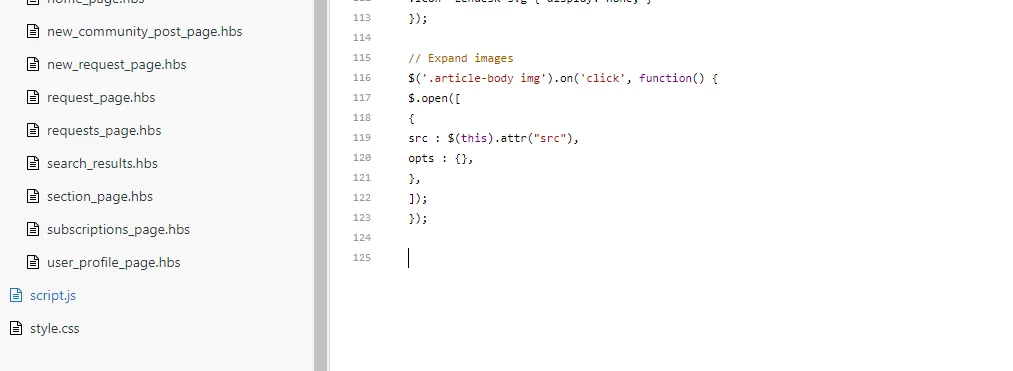
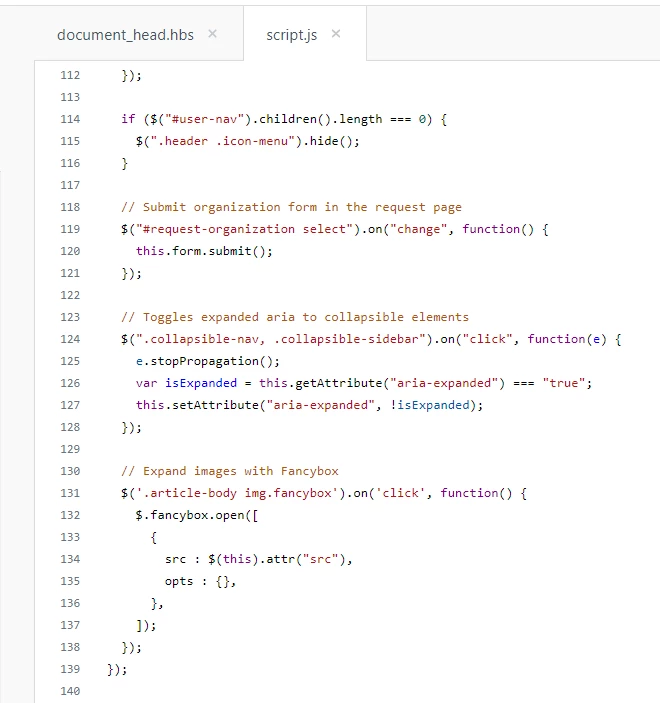
3. Add the following to your script.js file, right above the closing "});". You can change the ".fancybox" in the first line to use a different class name if you like, or remove the ".fancybox" altogether to make all of your images show in the pop-up when clicked.

$('.article-body img.fancybox').on('click', function() {
$.fancybox.open([
{
src : $(this).attr("src"),
opts : {},
},
]);
});

The placement of this code is important. Be sure to include it before the closing bracket and parenthesis so that it can be loaded properly.

4. In the article, add the image using the image loader or by pasting it in.

5. Click on the Source Code button in the menu bar to open the HTML view pop-up.

6. Add class="fancybox" (or the class name you chose) in the HTML code on any image you like. 

7. Close the HTML view pop-up and save the page.

Important: Be sure the images you want show in the FancyBox are all large enough to make the pop-up useful. I find this makes the most sense for application screenshots. 

-----------------------

Update 4/3/20: As mentioned by Robert Holm below, if you are having trouble with the method for using fancybox described here, you might want to check out the detailed instructions here.


 

67 replies

Heather13
  • September 24, 2018

Be-a-u-tiful! Thank you for this awesome image tip!


  • October 29, 2018

I love this solution, exactly what we needed!


  • October 29, 2018

Hi Eva! I'm so glad it worked for you!


  • November 12, 2018

Hello, can someone tell me what I'm doing wrong? I can not figure it out myself.

I need it for all the pictures on the hc


Joshua25
  • Author
  • November 12, 2018

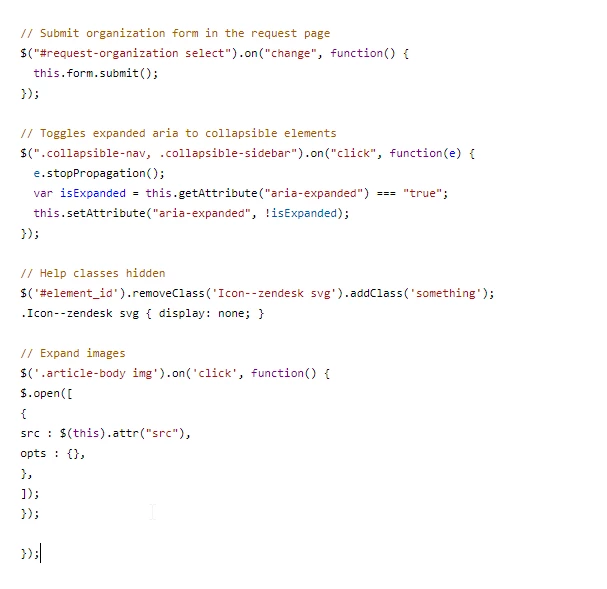
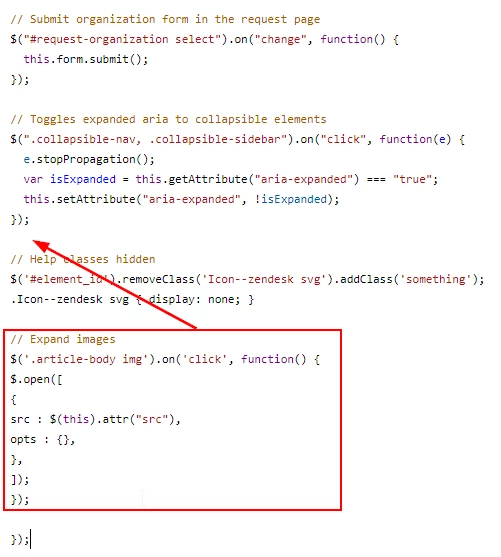
Marco, be sure to place the script addition to the bottom of the file BEFORE the closing "});"


  • November 12, 2018

So you mean like this: [this it not working :]


Joshua25
  • Author
  • November 12, 2018

I am not sure that the Help Classes Hidden function you have there at the end is written properly. Try moving the Images function above that and seeing if that helps. If so, then the Help Classes function needs to be fixed. 


Otherwise there is something else going on in that code. You might try using a JavaScript validator to check it for issues: http://esprima.org/demo/validate.html


  • November 13, 2018

I got it working :). This is actually easier.


Thanks for the help


  • November 15, 2018

I'm glad you got it working, Marco! Thanks for helping out, Joshua. :)


  • December 17, 2018

If you want to include this in your community posts, you should add this to "scripts.js":

//fancybox image zooming in community
$('.post-body img.fancybox').on('click', function() {
$.fancybox.open([
{
src : $(this).attr("src"),
opts : {},
},
]);
});

You can also exclude ".fancybox" to make all of your images show in the pop-up when clicked in your community posts.


tedtabaka
  • January 25, 2019

Worked like a charm. Thanks. Took me a bit of troubleshooting to make sure it worked. Maybe a section or a sample file might be a better addition to this guide.


  • March 8, 2019

Is there a way to lock this function to image filetypes?

The goal is to avoid this when it comes to icons or svg assets.
Or, at least the ability to remove specific images from using this function.

Many thanks!


Joshua25
  • Author
  • March 8, 2019

Chris, if you set it up to only apply to titles that have the class name, then it will not be applied to anything else. I'm sure you could figure out a way in the JS to set exclusions, but using the class name inclusion would be easier.


  • March 12, 2019

Thanks Joshua, that sounds about right. Although I have no idea how to go about doing that... any suggestions would be welcome :)


Joshua25
  • Author
  • March 12, 2019

Chris, just follow the directions above to set up the JS and use the class name you define in the images.


  • March 12, 2019

Thanks, I somehow missed that when I originally implemented it. 


  • March 19, 2019

@JoshuaTallent Is there any chance of using classes as you mentioned, but have all images apply except for a specific few that would have a class defined?

So, in other words, I'd like all my images to utilize the zoom feature except for a few that I would use a class name to define those.

Any help or suggestion would be much appreciated!


Joshua25
  • Author
  • March 19, 2019

Chris, you can make all images zoomable by changing this line in the JS:

$('.article-body img.fancybox').on('click', function() {

to this

$('.article-body img').on('click', function() {

(remove the ".fancybox").

Just realize that this will apply to every image, including small ones.


  • March 19, 2019

Thanks again Joshua, this is how I have it currently, as per your original instructions.

However, I was hoping to have a way to assign specific images in my articles (i.e. a small icon) not to have this function. I'd not like to have to go through 400 articles and assign the images I want to use this function for, rather would be much easier to have the few images edited that I don't want using the zoomable function.

Again, appreciate the support! 


Joshua25
  • Author
  • March 19, 2019

You have to have some sort of delineation on the images to assign the styling. If you don't have something specific to define which images are which then there's no way to do what you want. Sorry!


  • March 19, 2019

Sure, I was thinking of using classes, but in reverse whereby only those with the class assigned will not have the zoomable function. Well anyway, looks like there's no way around it. Thanks for all your help Joshua!


  • August 15, 2019

Nice one Joshua. Works great!

How can I add a hover note or something to say press esc to close?


Trapta
  • August 22, 2019

Hi @Jacques van Rensburg,

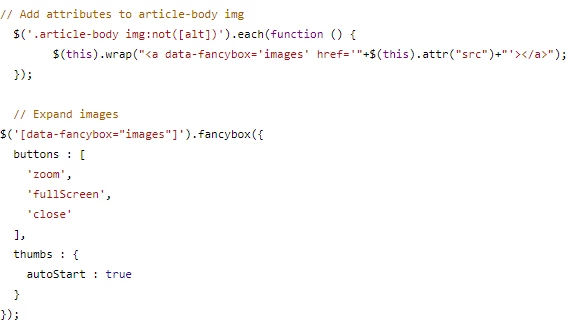
You may use title in order to something like this. Here are few links for reference, you may want to look at these:

Thanks


  • August 23, 2019

Thanks. Had a quick look and see some options that should work :)


  • February 6, 2020

Hi, I'm unable to get this to work. I followed the directions, but no luck. Any ideas? Thank you.