Copenhagen Theme - Home Page Accordions | Community
Skip to main content

Copenhagen Theme - Home Page Accordions

  • March 3, 2017
  • 65 replies
  • 0 views

Show first post

65 replies

Trapta
  • October 24, 2018

@Andrew, glad you got it working. Enjoy :)


  • December 3, 2018

Hi!


1. I was styling our help center so the sections can be displayed in boxes on the homepage, but was wondering if possible to limit the number of displayed sections to 3? 

I have used this code to display the sections 

{{#each sections}}
<a href="{{url}}" class="blocks-item-description added-link">
<h4 class="blocks-item-title">{{ name }}</h4>
{{/each}}

2. Is it possible to display an article instead of a section in a particular case? 

Thanks a lot! 


Trapta
  • December 12, 2018

Hi @Peter,

In order to answer your first question, you can use the below code to hide sections using CSS:

.blocks-item-description added-link:nth-child(n+4) {display: none;}

In order to answer your second question, you can use the {{#is}} helper to make an exception.

Let me know if this solves your issue.

Thanks

Team Diziana


  • March 11, 2019

Hey there folks, this is my first comment ever here and before diving in to it, I just want to say big thanks to everyone here that has provided amazing tutorials and help guides! You guys rock!


A bit of background prior my question. 

- I am using an old custom theme (it was the one with the octopus).

- I am trying to build something like a status page (which is a category page) that has several sections and an article in those sections would be a status post/incident. 

- I am using {{is}} and {{else}} in category_page.hbs to display particular html just for that one category (status page)

- I am trying to implement the accordion element in this page to have each section in its own accordion and to auto expand if section has articles inside.

Either way I somehow managed to almost accomplish what I need with {{section_tree_with_article}}, but still I was wondering if you guys can help with the following:


1. Is it possible to have the section in the accordion to auto expand if there are present articles in there? 

2. If 1. is possible, is it possible to set a label (a word from the article title) to expand the sections containing that tag/label 

For example if you have 2 articles in several sections with the word ONGOING in the title, these sections to auto expand? 


Currently I have this:

 <div class="container">
<div class="panel-group" id="accordion" role="tablist" aria-multiselectable="true">


{{#isnt category.name ''}}
<div class="panel panel-red">
<div class="panel-heading collapsed" data-toggle="collapse" data-parent="#accordion" data-target="#tab_{{category.id}}" id="headingOne" aria-expanded="true">
<h4 class="panel-title accordion-toggle">
<a role="">
<h3> {{category.name}}</h3>
</a>
</h4>
</div>

<div id="tab_{{category.id}}" class="panel-collapse collapse in" role="tabpanel" aria-labelledby="headingOne">
<div class="panel-body accordion-list">
{{section_tree_with_article}}
</div>
</div>
</div>
{{/isnt}}
</div>


Thank you for the time and let me know if you need more info from me like the css/js and etc

Cheers, Nick


Nicole17
  • March 11, 2019

Hey Nikolay! Welcome to the Zendesk Community! Glad to hear you've found some helpful tips in our Help Center.

We'll ping some of our Guide Customization experts and see if we can get some answers for you.


Dan32
  • March 11, 2019

Hey Nick,

Sorry to hear you're having issues. I'm not sure how much I'll be able to help you, as the legacy themes are different than the Copenhagen ones, and I can't select legacy ones to test against anymore so it's harder to replicate something close to your environment. I would recommend you consider migrating to Copenhagen, if resources permit. 

It would help if you had visual examples of what you're trying to accomplish, a few screenshots or links to pages in question (if they're public) really do help.

What is the current problem that you're facing now? I'm not clear what the challenge you're experiencing is.


  • March 11, 2019

Thank you Nicole and Hello Dan, thank you for your time.

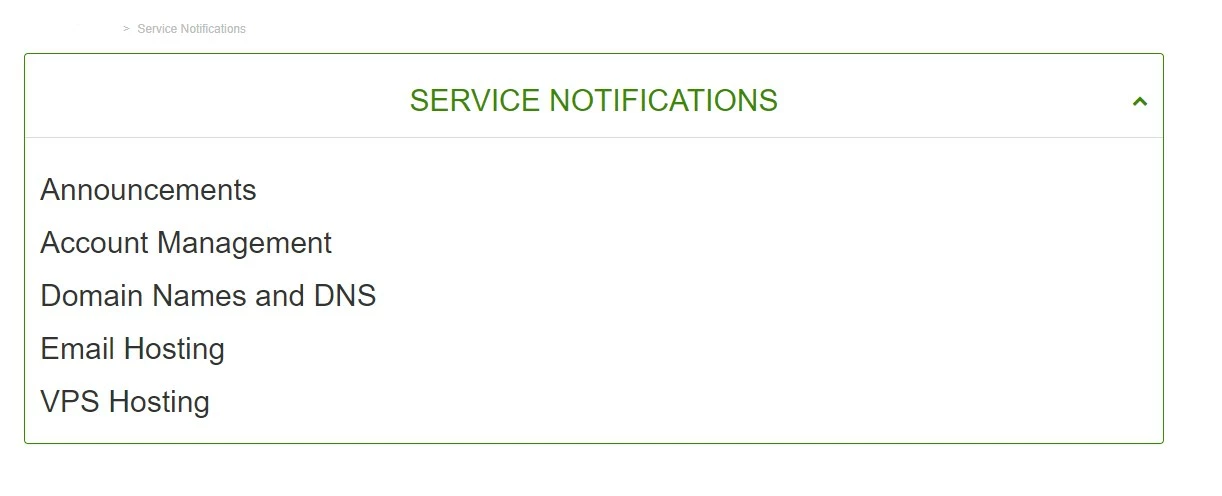
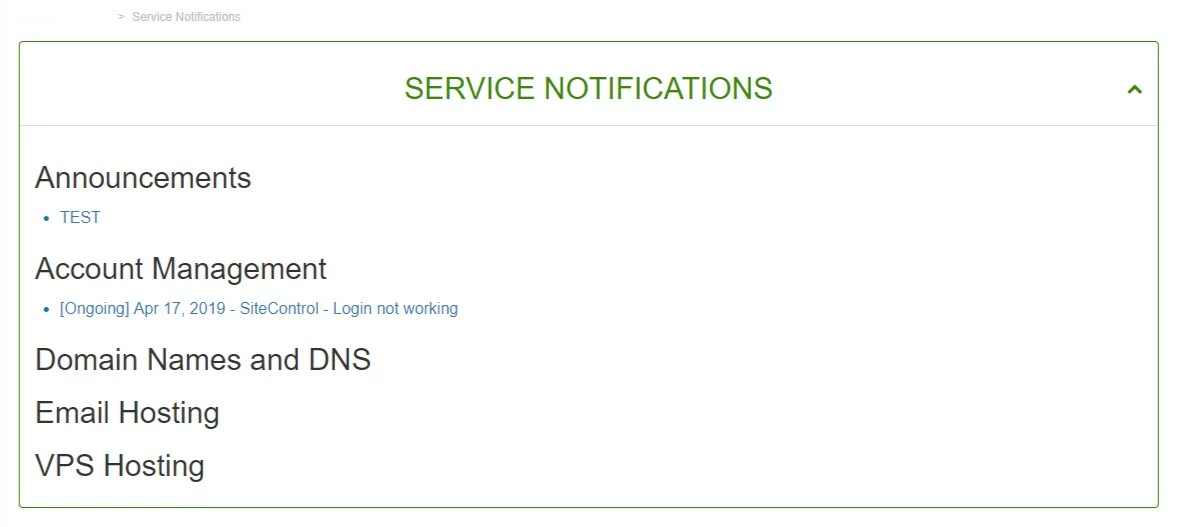
Currently I got the accordion to auto expand and to list all sections in there on page load. 

Sections: Announcement, Account Management.. etc

My goal, ultimately it would be to have the sections that contain articles to auto expand on page load similar to the whole accordion and to look like this:

note: the other sections (Domain, Email and VPS are currently empty)

If possible, as addition if the section is empty, maybe instead of empty space, to show an alternative text something like: "All services operational", but that's another idea I will be dealing off. 

JS currently in use:

$(document).ready(function(){

$('.section-tree-with-article .section h2').click(function(e){
e.preventDefault();
$(this).next('.article-list').slideToggle(250);
});

$('.section-tree-with-article .article-list a').click(function(e){
$(this).next('.article-body').slideToggle(250);
});

var link = $('.section-tree-with-article ul > li > a, .category-tree-with-article ul > li > a');
link.click(function(e){
e.stopPropagation();
window.location.href = $(this).attr('href');
});

});

I understand, that this theme may be becoming a relic, but we have based 4-5 help centers on it and with each we have done some sort of customization that someday we will have to deal with if switching to Copenhagen.

Thank you once again for the time and hopefully I was able to explain it a bit better :) Unfortunately, the whole Help Center is still not made public.


  • March 12, 2019

Hey @Dan, 

I was actually able to resolve this by updating the css display:none, to block in the following element >

.section-tree-with-article article.article-body {display: none; padding-left: 25px; color: #337ab7;}
.section-tree-with-article article.article-body {display: block; padding-left: 25px; color: #337ab7;}

Now that this is done, does anyone know a way (maybe html or js) on:

1. How to set a trigger for example: if there is an article that contains the word "ongoing" in the title the parent section to auto expand (meaning changing the display:none to block for that section ?

2. How to implement if a section is empty, a text to be displayed under the parent empty Section? For example if Email Hosting section is empty (there are no articles) display - All services are operational.

Cheers,


Brett13
  • Community Manager
  • March 18, 2019

Hi Nikolay,

I noticed you haven't got a response so I wanted to follow-up with a couple Help Center articles which I believe you'll find useful:

Hope this helps!


  • March 19, 2019

No worries Brett, I brushed a bit on JS and was able to pretty much solve this. Thank you for the suggestions.

Have a great day,

Nick.


Brett13
  • Community Manager
  • March 19, 2019

Glad to hear it Nikolay :)


Devin16
  • September 12, 2023

I've successfully added this code into our Knowledge Base. However, when an agent accesses the Knowledge Base (Guide) in the side panel, while working on a ticket, the accordions don't work or appear. Does anyone have any ideas?


Brett13
  • Community Manager
  • September 12, 2023
Hey Devin, 
 
Can you confirm that you've enabled Display Unsafe Content in your Guide Admin Settings?  You can find this under:
 
  1. In Guide, click the Settings icon () in the sidebar.
  2. Under Security, select the Display Unsafe Content option.
  3. Click Update.
 
Let me know if this option is enabled and it's still not working on your end.
 
Cheers!

Devin16
  • September 13, 2023

@brett13

Hi Brett! Thanks for your response. For now, I've been told we're not approved to enable 'unsafe content' in our Zendesk Knowledge Base just yet. 

Is that the only fix for this? That we need to enable unsafe content for the accordions to work in the side panel?

What exactly about the content makes it unsafe for end users? I understand it's a security issue, is that right?


Brett13
  • Community Manager
  • September 13, 2023
Hey Devin,
 
Great question! 

There are safe HTML tags and attributes that are allowed to be put in your articles by default. Other tags and attributes that are outside of those in the list are considered "unsafe". This functionality is designed to protect your end-users who will be browsing through your articles and what it does is to prevent these elements to be sent to the browser of your end-users and executed when opening your articles.
 
To answer your question, the warning applies to the editors who might accidentally insert unsafe HTML tags/use unsafe HTML attributes to your articles. This is a default web development standard for security across sites.
 
If you are sure that the elements that you are adding are safe/won't cause any security issues, then you may enable this option and proceed. Here's an example scenario where an editor will need to enable this option - Why are videos not displaying in Help Center?
 
Hope this information helps!