Auto CC user(s) on Condition (Ticket Create) | Community
Skip to main content

Auto CC user(s) on Condition (Ticket Create)

  • September 12, 2016
  • 29 replies
  • 0 views

There are many different uses for the CC option. The instructions below are just for CC'ing a particular person based on the creation of a ticket where the value of a field is True.

I use several CC logic. One which fires via a macro. Everything should be here to get you started anyway... Good luck!


Step (1) – The Field Admin>Manage>Ticket Fields

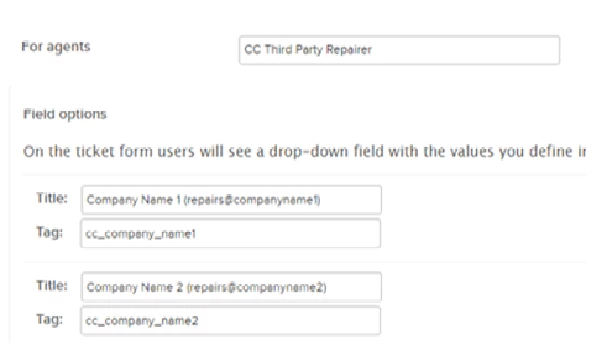
  1. Firstly you will need to create a new drop-down field and add your values to it. The example below shows a ‘CC Third Party Repairer’ field for two companies. (NOTE: Once created, you'll need to return back to this field and take note of the Custom field ID)
 

Step (2) – The Form Admin>Manage>Ticket Forms

  1. Click on your form to edit it.
  2. Add your newly created field to your Form by dragging and dropping it in the prefered order.
  3. Refresh your Zendesk in order for the field to show.


Step (3) – The Dynamic Content; 

  1. Under Admin>Manage>Dynamic Content - Add a Dynamic item
  • Give the Dynamic Content a meaningful name (title)
  • Select the language type
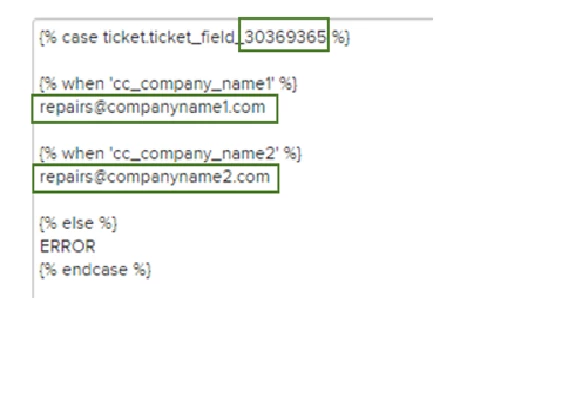
  • Type the content as shown below

Notice the placeholders for the Field ID and tags, taken from above. The full email address for each company is also required.
Step (4) – The Field Admin>Settings>Extensions>Add Target>URL target

Select the Url target option near the top right


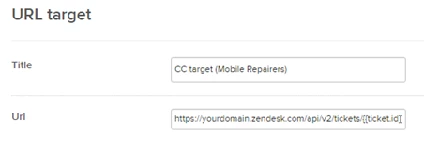
  1. Give the Target a meaningful title
  2. Url; https://yourdomain.zendesk.com/api/v2/tickets/{{ticket.id}}.json+?ticket[collaborators]={{dc.third_party_email_mobile_repairers}}

Note: The placeholder '{{dc.third_party_email_mobile_repairers}}' is the name of the Dynamic title created in Step 2 above.
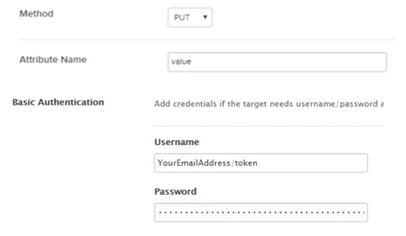
 

Step (5) – The Triggers; There are 4 triggers in total, 2 for each company.

  1. Under Admin>Business Rules>Triggers - Add Trigger
  • Depending on your 'Use Case' you'll need to create a trigger for each company (or any field the rule-event is based on). The example below shows the logic set-up for “Company 1”. The following rules/conditions is based on the condition that the ticket is created and value "Company Name 1 (repairs@companyname1)" is selected from the field.
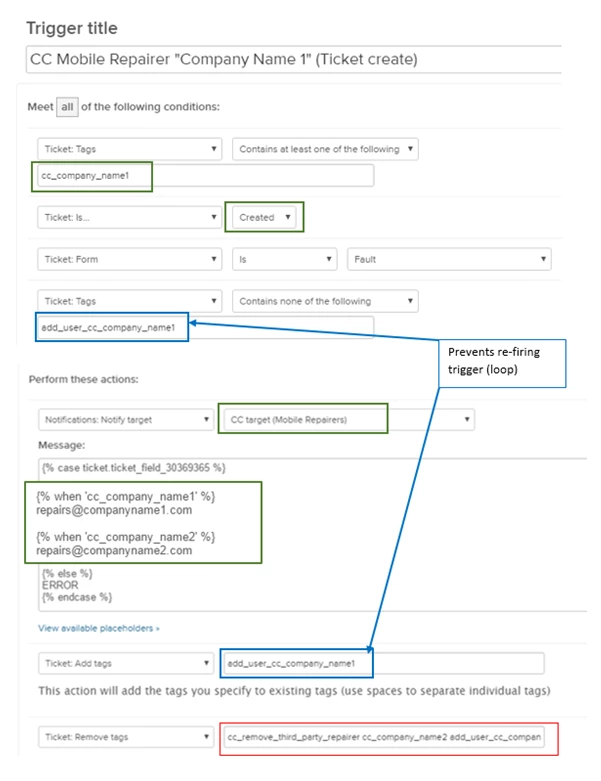

NOTE: Just above (common practice) we remove the tags from company 2, just in case they were there previously. Outlined in Blue we add and then nulify the tag to prevent it from fireing in a loop.


The 'Update' Trigger; Here we have another trigger should you want to update/change the CC for another company. (again, depends on 'Use Case')

  • The below shows the logic set-up for “Company 1”. The following rules/conditions is based on the condition that the ticket is updated and value "Company Name 1 (repairs@companyname1)" is selected from the field.
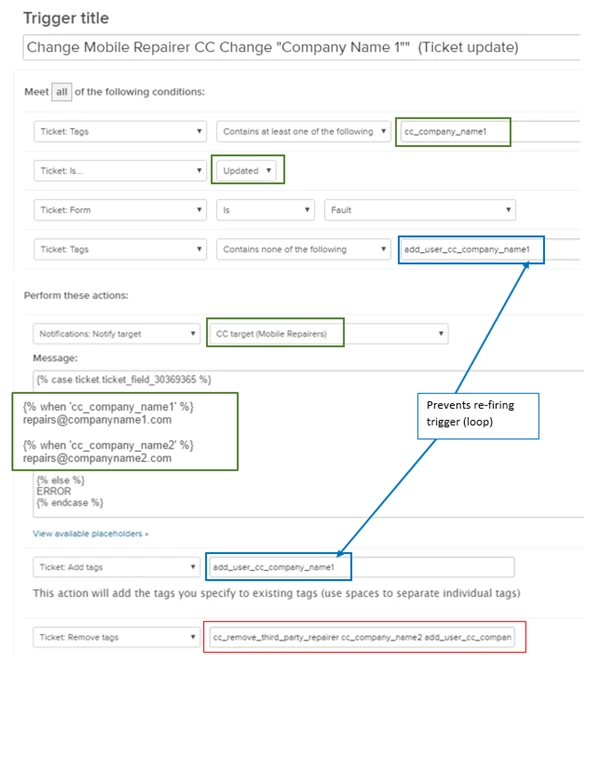
NOTE: Just above (common practice) we remove the tags from company 2, just in case they were there previously. Outlined in Blue we add and then nulify the tag to prevent it from fireing in a loop.


IMPORTANT NOTE: To remove the CC you should create another trigger, (if xxx field is blank) ensuring you create an action to remove all tags.
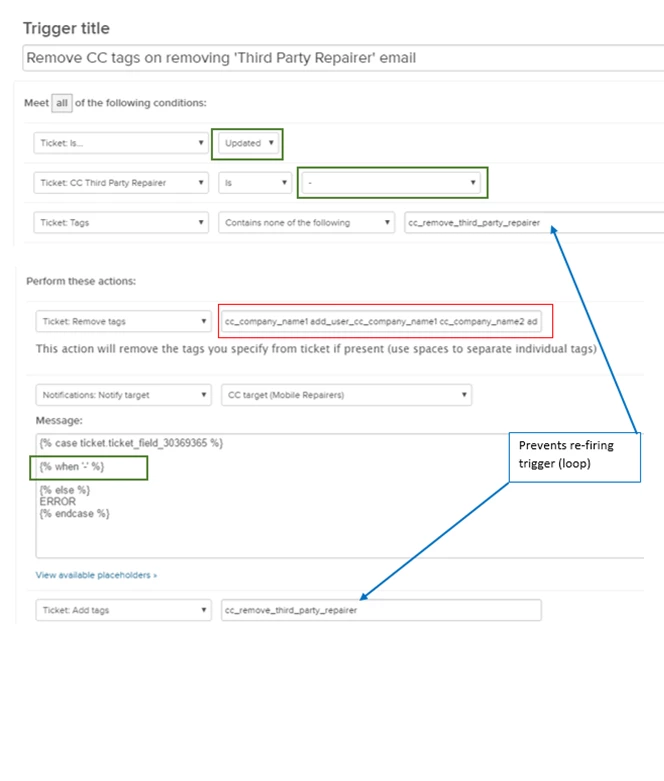
That's it.. you should be done.
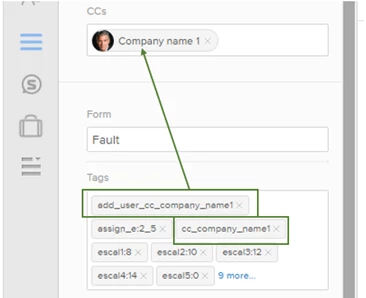
 

Not Working? 

  1. Go to; Admin>Settings>Extensions>Edit Target
  2. Re-type over your password
  3. Update Target
  4. Submit

:-)


29 replies

Jennifer16
  • September 12, 2016

This looks like a great tip! Thanks for posting it, Pierre!


  • November 22, 2016

We're going to give this a try.


  • December 2, 2016

None of us have the Ticket Forms option, so we can't get the Dynamic title for step 4, and it just grinds to a halt. Tried substituting titles from other areas and no dice - since ZenDesk just rolled out a ton of updates, is there a new way to configure this?


  • Author
  • December 5, 2016

@ Amanda

Afraid not,

You'll need this step. There's no other option to my knowledge.

Pierre 


Dan28
  • January 24, 2017

I'm trying to accomplish this a slightly different way but haven't been able to get it to work. I would like to Auto CC someone based on a custom user text field that includes an email address.  I'm trying to use the placeholder for {{ticket.requester.custom_fields.auto_cc}} (where auto_cc is the key for my user field) in the dynamic content and I'm not getting the URL target to populate this.  Mine isn't using any of the liquid markup logic, just the placeholder.  Any ideas? 

EDIT: I was testing in the sandbox, but put my main subdomain in instead of the sandbox.  I was able to Auto CC based on a user field using these instructions. It also worked for multiple email addresses separated by a comma.  I was able to get it to work without using Dynamic Content as well.  I just replaced the DC placeholder with the user field placeholder along the way. 


  • January 25, 2017

Daniel Cooper

Can you explain in more detail your steps and how they differ from the above instructions?  Really need this functionality.  Thanks !!!


Dan28
  • January 26, 2017

Dustin, 

I did a few things different than above.  Instead of setting Step 1 up as a ticket field, I set it up as a user field.  That user field is a text field where I put an email address in.  

You can skip step 2 & 3. 

In step 4, you do everything the same, except at the end of the URL you replace the DC placeholder with the placeholder for your custom user field.  The format is {{ticket.requester.custom_fields.<<user field key>>}} (replace <<user field key>> with the key on your user field.)

Step 5 is the same, except you'll swap the DC placeholder with the custom field placeholder again in the message to the target.  

I did figure out that by doing this, you overwrite any CC's that are already on the ticket.  I haven't solved for that.  You can also send multiple email addresses from that user field by putting a comma in between each. 


Dan28
  • January 26, 2017

I didn't test it in all cases, but just in case: on the creation of the trigger, add a check to only use Auto CC if the custom user field is present.  This way you don't wipe out a CC on a ticket if it had some pre-existing CCs and the field is blank on the user profile. 


  • February 2, 2017

This was awesome and super helpful as a boiler plate.  I simplified quite a bit by just using a custom Organization field called Account Owner Email that I fed in to dynamic content by using a single line of placeholder content

 {{ticket.organization.custom_fields.account_owner_email}}

wired up to the trigger, the result is that Account Managers will be added to the cc list automatically for any new tickets opened by organizations they are listed for in the Account Owner Email field.  Not sure why Zendesk makes this so hard, but it would have been much harder w/o the tip for using the HTTP PUT method on the API directly as the custom target.


Jennifer16
  • February 2, 2017

That's great, Rob. Thanks for sharing your modifications!


  • June 16, 2017

While this seems to add a contact to the CC field after a ticket is opened it does not seem to email that CC when the ticket is opened. Since this is adding the CC with a trigger after opening a ticket they do not get CC'd on the initial email that the ticket was opened. Is there an easy way to fix that?


  • June 16, 2017

@Kyle the Zendesk AEs just sent this out in their May updates outreach email.  Try it and let us know how it goes!

https://support.zendesk.com/hc/en-us/community/posts/115007507688-How-to-send-auto-response-to-CCs


  • June 16, 2017

Thank you,

For some reason even though this 2nd trigger (auto-response trigger) is lower on the priority list than my initial "add cc" trigger, the contact is still getting added as a CC after the auto response is added so no email is being sent via cc.

I have even set it so my initial "add cc" trigger will add a tag that the 2nd trigger looks for. STILL...the auto comment is being added before the user gets added as a CC.


  • June 16, 2017

Interesting.  Thats probably because the triggers fire asynchronously and your CC field is not actually updated before the next trigger fires.  Maybe try an automation instead where you won't have to worry about that--the drawback being of course the time delay between the ticket creation and the notification.  Otherwise you'll probably have to write a custom app to handle a specific order of operations and check that the CC field is updated before adding a comment used for the "auto-reply".


Joel11
  • June 16, 2017

@Kyle: Rob is right. This tip will not send out an email to the CC when a ticket is created or updated. It will add a CC to the ticket that when the next comment is made on the ticket, are eligible to get a notification.

If you are just after creating a CC notification for requests created through the request form in Guide, you could tweak a trigger as described in the link Rob referenced (with the side-effect that there will be two comments in the initial response). 

And if you are looking to add agents (full or Light) to CC on a ticket, that is available as a trigger action and will work fine.

But there is no straightforward way to add end-users as CCs and at the same update send out email notifications to those end-users in Zendesk, at the moment.

The Email Target is another option, but will create new tickets on reply and not update the original ticket, so it isn't really comparable to adding a CC ticket collaborator in Support.

There is a popular request to add better support for CC operations (like adding end-users to CC) if you want to vote on it: Add end-user as CC via Trigger or Automation


  • June 19, 2017

Two comments in the initial response are fine, but as stated in my previous post, the triggers are not firing in order so the cc contact is still be added after the 2nd comment is added to the ticket resulting in that they still are not getting copied when the ticket is opened.


  • June 19, 2017

Update:
Rather than using a 2nd trigger I added my 2nd "Notify Target" to the same trigger (at the end of it) and it is now firing in the proper order.

Unfortunately I am still not functioning properly as the auto comment being added still does not generate a cc email. Only when I manually add a comment does that work. I am going to make a post on: https://support.zendesk.com/hc/en-us/community/posts/115007507688-How-to-send-auto-response-to-CCs


Hello,

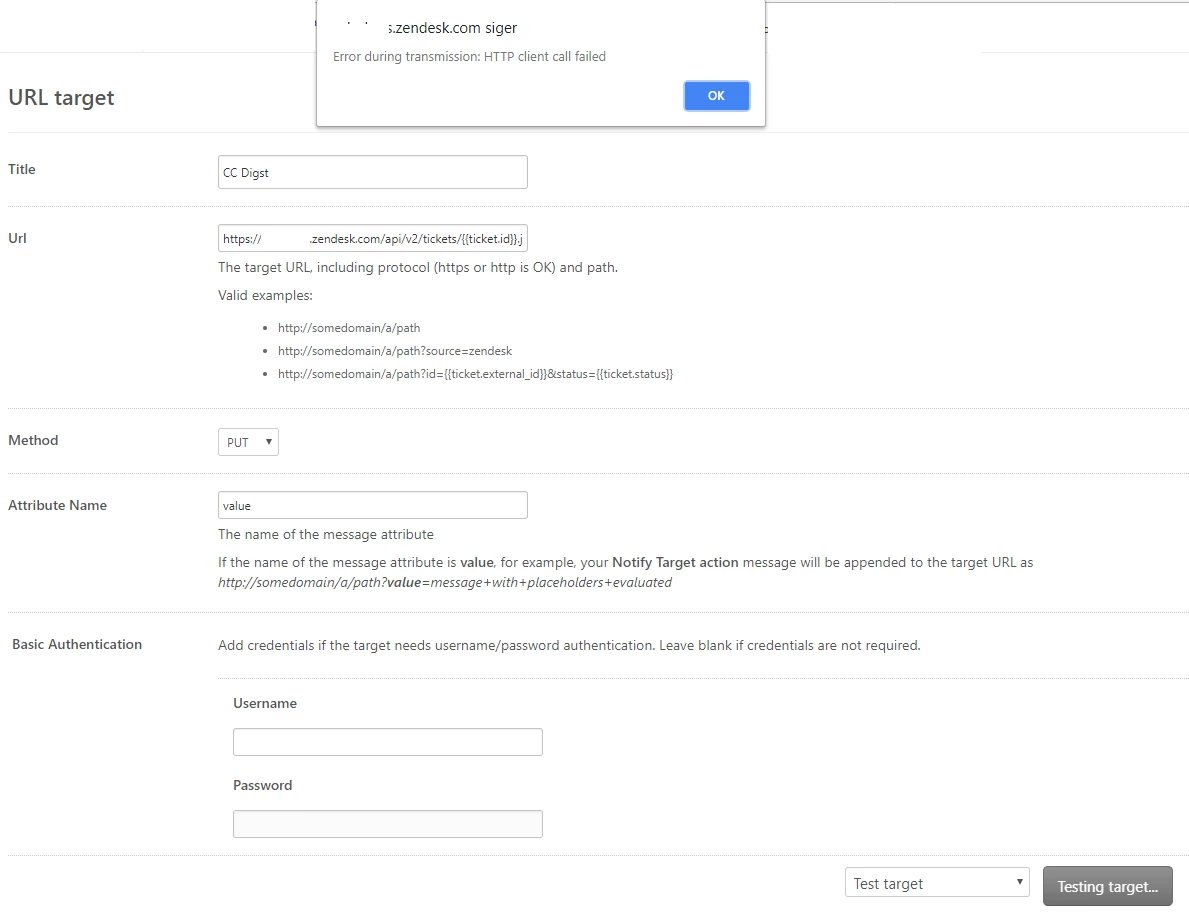
So I've tried to set the same thing up on our account, but I cannot seem to get it to work. I believe the error starts on the Admin>Extension page.

This is my setup:

URL is: https://ourdomain.zendesk.com/api/v2/tickets/{{ticket.id}}.json+?ticket[collaborators]={{dc.cc_digst}}

Can someone tell me if I've done something wrong? The CC e-mailaddress is not a Zendesk user at our end (should it be?).

Is there an easier way to set it up now?

Thanks in advance.


  • April 26, 2019

I have a question, where do I refer my URL link in step 4?


Brett13
  • Community Manager
  • April 28, 2019

Hi Uriel,

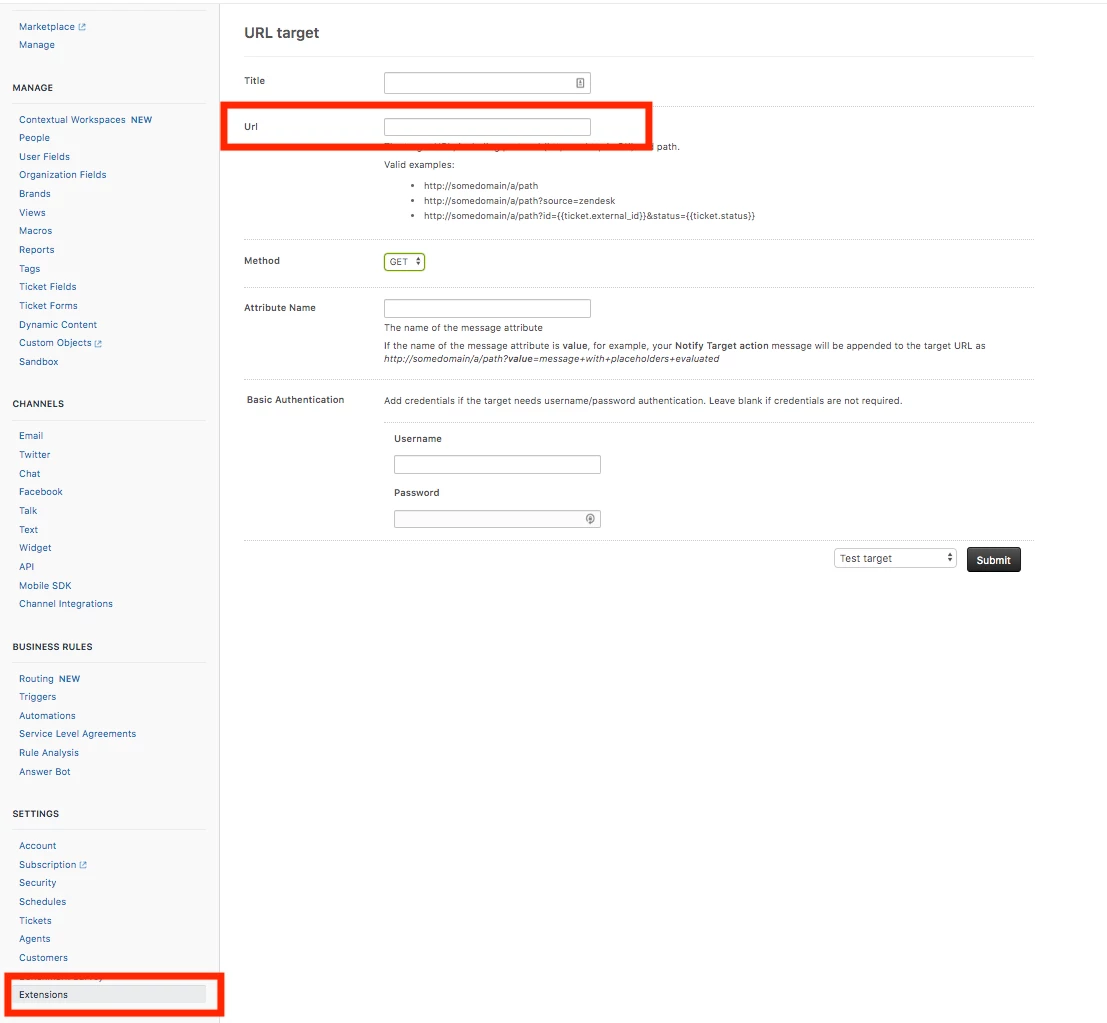
In step 4 you would need to navigate to Admin(gear icon)>Settings>Extensions>Targets>Add Target>URL Target. Screenshot below:

You would input the URL mentioned above in the field I've highlighted but replace yourdomain with your Zendesk account subdomain.

Hope this helps!


  • April 29, 2019

Hi Brett,

Thanks for your response. I was referring to the URL itself. Is the URL targeted to a specific ticket? 

Thanks,

Uriel


Dan28
  • April 29, 2019

Hi Uriel, 

The URL appears to be: https://yourdomain.zendesk.com/api/v2/tickets/{{ticket.id}}.json+?ticket[collaborators]={{dc.third_party_email_mobile_repairers}}. 

The Ticket ID is inserted via the {{ticket.id}} placeholder.  The original example also includes a placeholder for Dynamic Content that looks interchangeable with whatever placeholder you need to insert to include your own list of CCs. 


  • April 29, 2019

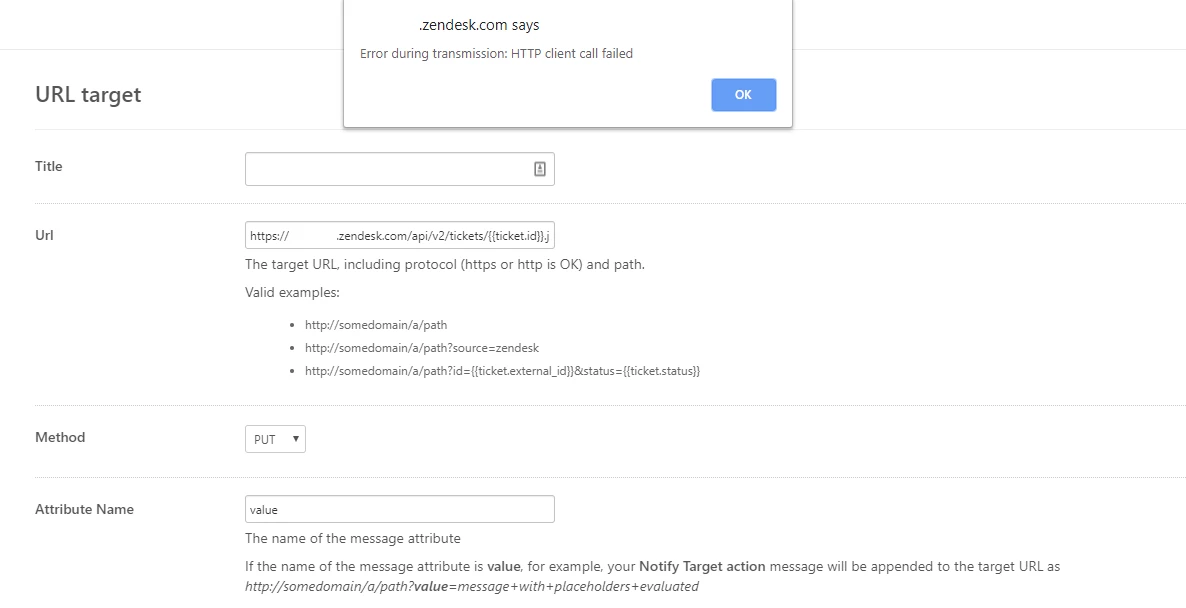
Gotcha. I copied the URL with the place holder and got the following error:

Thanks,

Uriel


Dan28
  • May 2, 2019

Hello, 

Are you triggering this from a trigger or via a Test Target on the Target page?  This would only work if it was initiated by a ticket change via a Trigger or Automation because it needs to data from the placeholders you have included in the URL. 

You screenshot make me think you are testing it from the Target page which won't work.


  • May 7, 2019

Got it. I was able to to create all the steps, but for some reason the trigger is not cc'ing the user with the added email address in step 3.